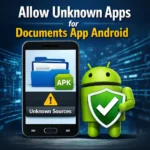
Allow Unknown Apps for Documents App Android: Safe Ways to Install APKs on Modern Phones
08-04-2026
Description
If you have ever tapped an APK file in a file manager and seen Android block the install, you are not alone. Many users search for allow unknown apps for documents app android because they download an app file successfully, but the phone still refuses to install it. The confusing part is that modern Android does not handle this setting the way older phones did.
On Android 8.0 and later, including newer Android versions such as Android 14, the permission is usually granted per app source, not with one global “Unknown sources” switch. That means the app you used to open the APK matters. If you opened it from Chrome, you may need to allow Chrome. If you opened it from a file manager such as Files, My Files, or a documents-style app, you need to allow that specific app instead. Android also places this under Special app access, and Samsung phones may add extra protections like Auto Blocker, which can disable sideload installs until you turn it off. (Android Developers)
This guide explains exactly how to allow unknown apps for a documents app on Android, how the setting works on Samsung devices, how it differs from Chrome installs, and how to do it safely without weakening your phone’s security more than necessary. You will also get beginner tips, a comparison table, pros and cons, FAQs, and practical troubleshooting advice for real-world APK installs.
What Does “Allow Unknown Apps for Documents App Android” Mean?
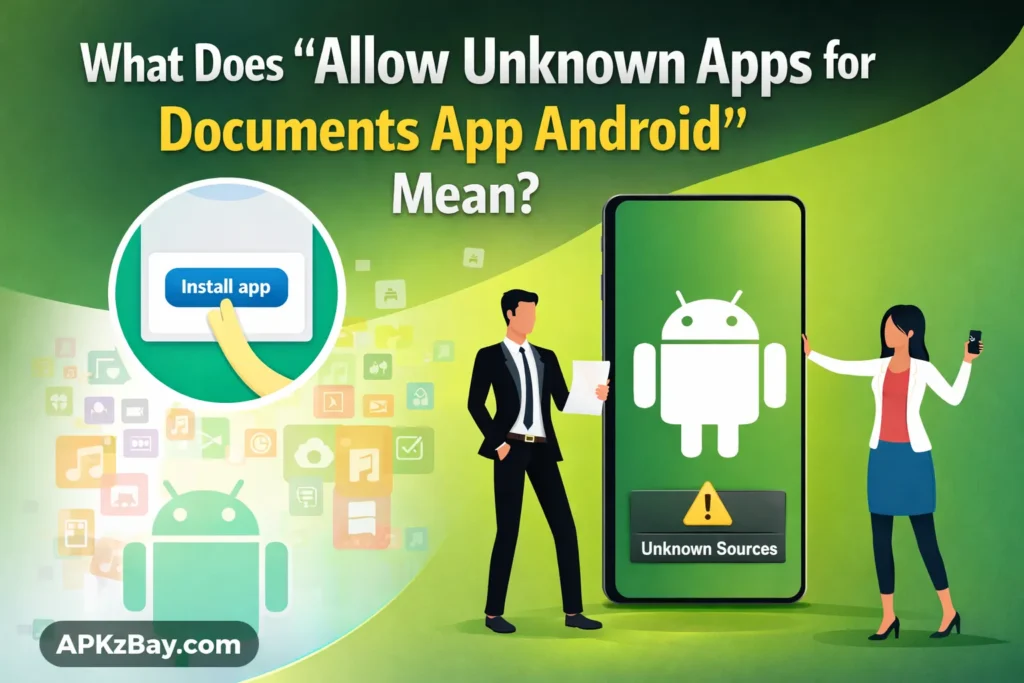
The phrase allow unknown apps for documents app android usually refers to giving permission to the app that opened your APK file. On some phones that app might be called Files, My Files, File Manager, or a documents-related system app. Android treats that app as the “source” of the install. So if your APK is stored in Downloads and you open it with a documents or file app, the permission must be enabled for that app, not for the whole phone.
This is different from older Android versions. Google changed the old device-wide Unknown sources model beginning with Android 8.0. From that point onward, users grant install permission to a particular source app. That is why many people get confused when they search for how to allow unknown sources on android and cannot find the classic one-toggle option anymore.
In simple words:
- Old Android: one global unknown-sources switch
- Modern Android: permission for each app that starts the install
- Example: Chrome, Files, My Files, or a documents app can each need separate approval
Why Android Blocks Unknown App Installs by Default
Android blocks sideloaded app installs by default for security reasons. Google’s official guidance explains that installs from sources outside trusted app stores are blocked until the user explicitly opts in. Google Play Protect can also review unknown apps and may ask to send them to Google when harmful-app detection improvements are enabled.
Samsung gives similar warnings. Its support pages note that Install unknown apps can put device data at risk and recommends official stores such as Google Play or Galaxy Store when possible. Samsung also documents that the permission is granted by choosing the source app and turning the toggle on for that source.
So the block is not a bug in most cases. It is a deliberate security layer designed to prevent accidental or malicious installations.
How to Allow Unknown Apps for Documents App Android
Method 1: Enable Permission From the Install Prompt
This is often the fastest way.
- Download the APK file.
- Open it from your documents app, file manager, or Downloads folder.
- When Android shows a warning, tap the option that takes you to settings.
- Enable Allow from this source or Install unknown apps for that app.
- Return and try the installation again.
This method works well because Android often jumps directly to the exact permission screen for the app that triggered the install.
Method 2: Enable It Manually in Settings
If the prompt disappears or you want to do it yourself:
Typical Android path
- Open Settings
- Go to Apps
- Open Special app access
- Tap Install unknown apps
- Choose your documents app, file manager, or browser
- Turn on Allow from this source
Depending on the brand, the path may also appear under Security, Privacy, or Security & privacy. Android help threads and vendor guides show that menu names vary, but the destination is still the same install permission screen for the chosen app.
Method 3: Choose the Correct App Source
This is where many users make a mistake. If you downloaded the file in Chrome but opened it later from a file manager, the source app may be the file manager. If you open the same APK directly from Chrome’s download manager, the source may be Chrome. The permission has to match the app actually starting the installation. Android’s documentation describes this as enabling app installs for a particular source.
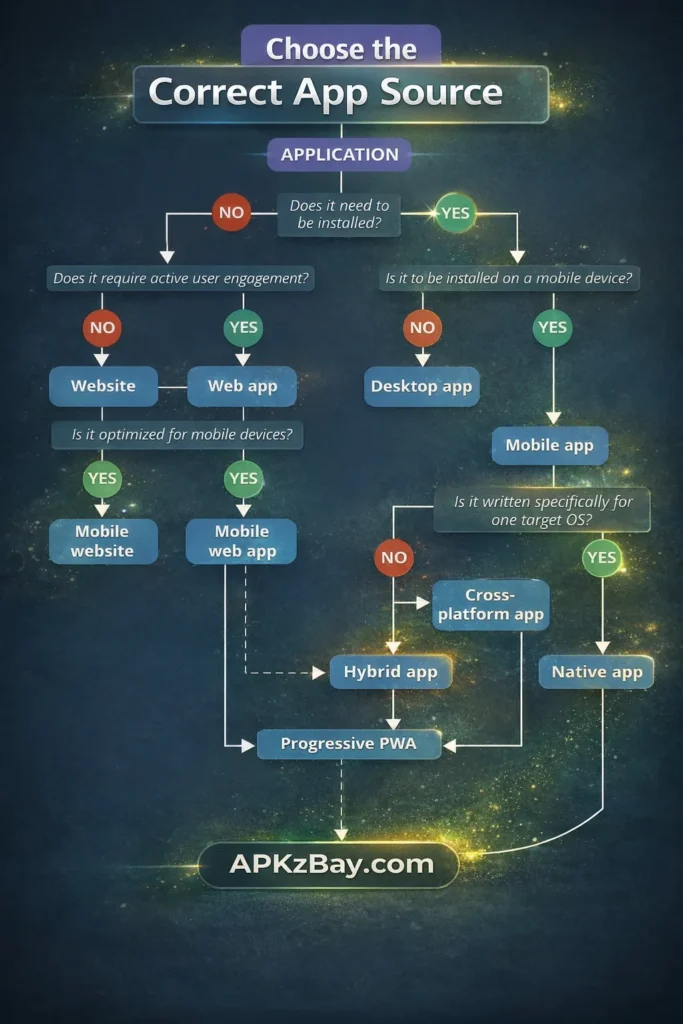
That is why searches such as install unknown apps chrome android and allow unknown apps for documents app android apk can produce different answers. The correct answer depends on which app launched the APK installer.
How to Allow Unknown Apps for Documents App Android Samsung
Samsung phones follow the same modern Android rule, but the menu names can be different.
Samsung steps
- Open Settings
- Tap Security and privacy
- Open More security settings
- Tap Install unknown apps
- Select the source app, such as My Files or Chrome
- Turn the switch on
Samsung also states that the Install unknown apps menu lets you enable installs for a chosen app source, while reminding users that sideloading may increase risk.
Important Samsung note: Auto Blocker
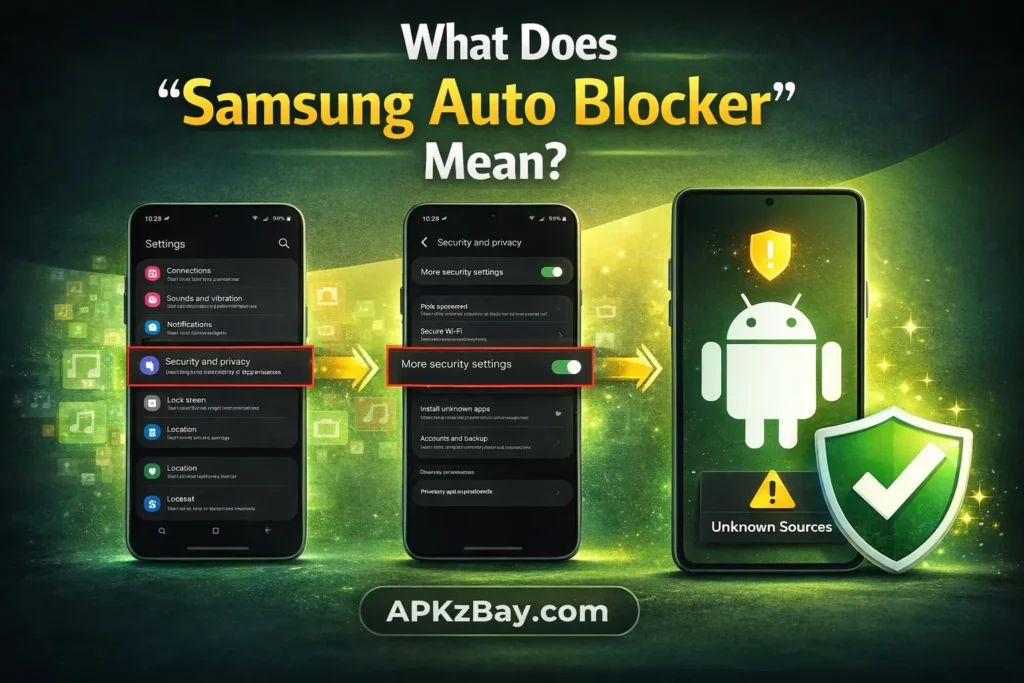
On some newer Galaxy devices, Samsung says Auto Blocker can disable the unknown-app install menu completely. When Auto Blocker is on, installs from unauthorized sources are blocked, including certain work-profile apps. If that menu looks greyed out or unavailable, check whether Auto Blocker is enabled and turn it off only if you trust the source.
This is one of the main reasons people search for allow unknown apps for documents app android samsung and think the permission setting is broken when it is actually being overridden by a security feature.
How It Works on Android 14
If you are searching install unknown apps android 14, the important point is that Android 14 still uses the modern per-source permission model. Android’s official documentation continues to describe Install unknown apps as a system settings screen where users grant permission for a particular source app, not as a single global switch.
So on Android 14, the usual solution is still:
- Find the app that opened the APK
- Go to Install unknown apps
- Turn on Allow from this source
- Retry the install
In practice, the wording may differ slightly by brand, but the logic remains the same.
Beginner Tips Before You Enable Unknown App Installs
If you are new to APK files, use these simple tips before turning on the setting.
1. Only enable the source you actually need
Do not allow every browser and file manager on your phone. Give permission only to the one app you are using at that moment. This keeps the attack surface smaller and is more in line with Android’s app-specific permission model.
2. Prefer trusted stores when possible
Google and Samsung both recommend trusted stores like Google Play and Galaxy Store where available. Sideloading should be reserved for cases where the app is unavailable through official channels or you have a good reason to install a manually downloaded APK.
3. Keep Play Protect on
Google Play Protect can help scan apps and may prompt to send unknown apps to Google for better harmful-app detection. That extra layer is useful when you install outside Play Store.
4. Turn the permission off after installation
Once the APK is installed, you can go back and disable Allow from this source for that documents app or browser. This is one of the safest habits for sideloading. The system makes it easy to revisit the same Install unknown apps screen later.
5. If it still fails, the permission may not be the real issue
Sometimes the install permission is enabled correctly, but the APK still will not install due to package conflicts, a damaged file, or a compatibility issue. If you keep seeing delays or stalls, read this guide on why Install Unknown Apps gets stuck on processing for deeper troubleshooting. For file-manager-specific problems, this article on APK downloaded in CX File Explorer not installing is also useful.
Comparison Table: Documents App vs Chrome vs Samsung My Files
| Source app | Best for | Where to enable permission | Common label | Good choice when | Main caution |
|---|---|---|---|---|---|
| Documents app / Files app | Opening APK already saved on phone | Settings > Apps > Special app access > Install unknown apps | Allow from this source | You downloaded the APK earlier and want to install from local storage | Easy to forget which file app actually launched the install |
| Chrome | Installing right after browser download | Settings > Apps > Special app access > Install unknown apps > Chrome | Allow from this source | You tapped the APK directly from browser downloads | Browsers expose you to more web downloads, so keep permission limited |
| Samsung My Files | Galaxy users opening APK from storage | Settings > Security and privacy > More security settings > Install unknown apps > My Files | Allow from this source | You are on Samsung and managing files locally | Samsung Auto Blocker may override the setting |
| Other file managers | Power users using third-party tools | Same install-unknown-apps area | Allow from this source | You organize many APK files manually | More apps with this permission means more risk |
Tips for Choosing the Right Source App
Choosing the right source app matters more than most users think.
Use a documents or file app when:
- The APK is already saved in Downloads
- You want to review the file name before installing
- You are managing several APK versions manually
- You do not want to re-download the file every time
Use Chrome when:
- You just downloaded the APK from a site
- You want the fastest path from download to install
- The site provides a direct APK download that opens immediately after download
Use Samsung My Files when:
- You are on a Galaxy phone
- You prefer Samsung’s built-in file manager
- You need a cleaner way to find Downloads, internal storage, or transferred APK files
Best practice for most users
For most beginners, a built-in file manager or documents app is often the better choice because it gives you a clearer view of what you are installing. It also makes it easier to find a copied APK from another device or from a Mac transfer. If that is your use case, this related guide on allow unknown apps for Mac transfer Android may help. (Android Developers)
Pros and Cons of Enabling Install Unknown Apps Permission
Pros
- Lets you install APK files that are not available in Play Store
- Useful for testing app versions, regional releases, or manually transferred APKs
- The permission is app-specific on modern Android, which is safer than the old global model
- Easy to turn on and off when needed
Cons
- Increases risk if you allow untrusted browsers or file managers
- Fake or modified APK files can still be dangerous
- Samsung or enterprise security settings may block the process anyway
- It can confuse beginners because the right source app is not always obvious
Common Problems and Fixes
Problem 1: “Install unknown apps” is on, but the APK still will not install
Possible reasons:
- Wrong source app has permission
- APK is corrupted
- App version is incompatible with your phone
- Existing installed version conflicts with the new APK
Fix: open the APK from the exact app you approved, or approve the app that is actually triggering the installer. Then retry.
Problem 2: The option is greyed out on Samsung
Possible reason:
- Auto Blocker is enabled
Fix: review Auto Blocker in Samsung security settings and disable it only when you trust the source and understand the risk.
Problem 3: Work phone or managed device will not allow it
Android Enterprise documentation says admins can restrict unknown-source installs on fully managed devices and work profiles. There are system restrictions for blocking installs from unknown sources, so the setting may be unavailable even if you are following the right steps.
Fix: contact your IT admin. This is usually not something a normal user can override on a managed device.
Problem 4: Chrome permission is on, but opening from Downloads fails
Possible reason:
- The APK is now being opened by Files or another documents app instead of Chrome.
Fix: enable the permission for the file app too, or reopen the APK directly from Chrome’s download list.
Security Tips for Safe Sideloading
If you are dealing with an unknown app download, follow a few safety rules:
- Download only from sources you trust
- Keep Google Play Protect enabled
- Do not leave unknown-app install permission on permanently
- Prefer the smallest number of approved source apps
- Avoid granting the permission to every browser on your phone
The goal is not just to get the app installed. The goal is to install it without making your phone less secure than necessary. That is the smart approach for both casual users and advanced Android fans.
FAQs
1. How do I allow unknown apps for documents app Android?
Go to Settings > Apps > Special app access > Install unknown apps, select your documents or file app, and turn on Allow from this source. On some phones the setting may be under Security or Privacy instead.
2. Is “install unknown apps permission” the same as “unknown sources”?
Not exactly. On Android 8.0 and newer, the old global Unknown sources setting was replaced by an app-specific Install unknown apps permission. Older Android versions used a device-wide switch.
3. How do I allow unknown apps for documents app Android Samsung?
On Samsung, go to Settings > Security and privacy > More security settings > Install unknown apps, then choose My Files, Chrome, or the source app you are using and enable it. (Samsung au)
4. Why can’t I install an APK even after enabling the setting?
The most common reason is that the wrong app has the permission. The app actually launching the installer must be approved. Other possibilities include Auto Blocker on Samsung, a corrupted APK, or enterprise restrictions on managed devices. (Samsung au)
5. How does “install unknown apps Chrome Android” work?
If you download and install directly through Chrome, enable Install unknown apps for Chrome. But if you later open the file in Files or another documents app, that second app may need permission instead.
6. Is it safe to keep unknown-app install permission on all the time?
It is safer to turn it on only when needed, then disable it again. Google and Samsung both frame these installs as higher-risk than trusted app-store installs.
7. Does Android 14 still support APK installs from outside Play Store?
Yes. Android still supports user-approved installs from other sources, but you must explicitly grant permission to the source app through the Install unknown apps settings flow.
Follow APKzBay for More Android Guides
If you want more APK tips, troubleshooting guides, and Android how-tos, you can follow APKzBay on YouTube, Instagram, Pinterest, Facebook, Telegram, X, and the WhatsApp Channel.
Conclusion
Understanding allow unknown apps for documents app android is much easier once you know the core rule: modern Android usually grants APK install permission per source app, not for the whole device. So the real question is not just “How do I allow unknown sources on Android?” It is “Which app is opening my APK right now?” If the answer is a documents app, file manager, My Files, or Chrome, that is the app you need to approve. (Android Developers)
For most users, the safest method is simple: approve only the exact app you need, install the APK, then turn the permission back off. On Samsung phones, also check Auto Blocker if the menu seems disabled. And if installation still fails, the permission might not be the problem at all. In that case, use the internal troubleshooting guides linked above to check stuck installs, file-manager issues, and transfer-related problems.
Recent Posts
- Allow Unknown Apps for Documents App Android: Safe Ways to Install APKs on Modern Phones

- Allow Unknown Apps for Mac Transfer Android: Complete Beginner-Friendly Guide
- APK Downloaded in CX File Explorer Not Installing FIx? Here’s the Fix for Android, Huawei, Quest 2, and Quest 3
- Why Is Install Unknown Apps Stuck on Processing on Android?
- How to Install APK from CX File Explorer on Android
- How to Install APK from My Files App on Android: A Complete Beginner-Friendly Guide
- How to Install APK Without Errors Android Guide
- How to Install APK After Downloading ZIP File
- This App Is Not Compatible With This Device Problem Solution
- How to Prevent Installing Harmful Apps
- How to Access Android Data Folder with Shizuku: Complete No-Root Guide
- How to Install APK on Amazon Fire Tablet Safely and Easily