APK Downloaded in CX File Explorer Not Installing FIx? Here’s the Fix for Android, Huawei, Quest 2, and Quest 3
07-04-2026
Description
Introduction
You download an APK, open CX File Explorer, tap the file, and expect the installer to show up in a second or two. Simple, right? But instead of getting that familiar install screen, nothing happens. Sometimes the screen freezes. Sometimes Android throws out an annoying message like “App not installed”, “There was a problem parsing the package,” or “Access denied.” And that is the part that makes this so frustrating.
he APK looks fine, the download finished properly, and CX File Explorer is supposed to make file handling easy. So why does the whole process suddenly feel like you are trying to unlock a door with the right key, but the lock still refuses to turn? The truth is, CX File Explorer is not always the real problem. In many cases, it is simply the app you are using when Android’s security system, storage rules, or app compatibility checks step in and stop the installation.
That is why this issue can feel random. On one phone, the same APK installs without a problem. On another device, it fails instantly. On a Quest headset, it may not even open the folder correctly. So if you are searching for the real apk downloaded in cx file explorer not installing fix, the smart move is not to blame the file manager too quickly. The smart move is to understand what is happening behind the scenes. Once you know what to check, the fix usually becomes much easier than it first looks.
Why APKs Downloaded in CX File Explorer Fail to Install
When an APK refuses to install from CX File Explorer, the failure usually comes from one of a few common causes. Android treats app installation as a sensitive action. It does not just open any APK and install it like a photo or video file. It checks permissions, storage access, app signatures, Android version support, and sometimes even the folder where the file is stored. If one of those checks fails, the result can look confusing. The installer may close. The file may seem to do nothing at all. Or you may get a vague error message that tells you almost nothing useful.
That is why these installation problems can be so annoying for normal users. The issue often feels bigger than it actually is. In reality, it usually comes down to something simple like missing “Install unknown apps” permission, a broken APK, low storage space, a wrong APK version for your device, or a conflict with an older installed build.
On devices like Huawei phones or Meta Quest headsets, there can also be extra restrictions that make CX File Explorer look like the problem even when the system itself is blocking the install. Think of it like a delivery driver arriving at your house with the package, but the gate, the lock, or the address check keeps getting in the way. The package is there. It just cannot be handed over yet.
The Most Common Cause: Install Unknown Apps Permission
One of the biggest reasons APK installation fails through CX File Explorer is the Install unknown apps setting. Since Android 8, this permission is handled on an app-by-app basis. That means your browser might be allowed to install APKs, but CX File Explorer might not be. A lot of people miss this because they assume that if sideloading worked before, it should work everywhere. But Android does not see it that way. It gives each app its own permission status, and if CX File Explorer is not approved, the installer may never appear at all.
To fix that, go into your phone’s settings and look for something similar to Apps > Special app access > Install unknown apps. The path can change depending on your phone brand, but the idea stays the same. Find CX File Explorer, open it, and allow the permission. Then go back and tap the APK again. For many users, that single step fixes everything.
It is one of those tiny settings that causes a huge amount of confusion because Android does not always explain the block clearly. Sometimes it just acts like the APK is broken when the real issue is that the file manager does not have permission to hand the file off to the package installer. So before trying anything more technical, always check this first.
Corrupted APKs, Incomplete Downloads, and Storage Problems
Not every APK that finishes downloading is actually safe to install. A file can look complete and still be damaged. Weak internet, interrupted downloads, bad transfers from another device, broken SD cards, or even overactive cleaning apps can leave you with an APK that exists but does not work properly. When that happens, Android may show errors like “Problem parsing package” or refuse to install the app without any useful explanation. In some cases, CX File Explorer loading error access denied can also show up if the file path, cache, or storage location creates reading issues.
This is where the basics matter more than people realize. First, make sure the file really ends in .apk. Then check whether the file size looks normal compared with the source you downloaded it from. If the APK came from an SD card or a random folder, move it to internal storage, preferably the Download folder, and try again. Also, make sure your device has enough free storage.
Installing an app is not just about the APK file itself. Android needs extra room to unpack, verify, and create the app’s data. When storage is too tight, installation can fail in weird ways that make no sense at first glance. It is a bit like trying to move furniture into a room that already has no walking space. The item may be fine, but there is simply no room to set it up.
Wrong APK Version, Signature Conflict, or Device Mismatch
Sometimes the APK is not damaged, permissions are enabled, and the install still fails. That is usually when compatibility becomes the real suspect. APKs are not universal in the way many users assume. Some are made for arm64-v8a, some for armeabi-v7a, some for x86, and some need a certain Android version to work at all. If you download the wrong build for your device, Android may reject it without giving you a beginner-friendly explanation. That is why people often think the file manager is broken when the APK itself is actually the wrong variant.
Another common issue is a signature conflict. If you already have an app installed and then try to update it using an APK signed by a different source, Android usually blocks it. This happens a lot when someone installs a Play Store version first and later tries a different APK build from another source. The system sees them as two versions of the same app, but not from the same signer, so it refuses the update.
There is also the issue of split APKs and bundle-based app files. Some apps are no longer distributed as one simple APK. They need several files or a special installer. In those cases, tapping the file in CX File Explorer will not work the way users expect. So if the installer keeps refusing a perfectly normal-looking APK, compatibility is the next place you should investigate.
APK Downloaded in CX File Explorer Not Installing on Android
On a regular Android phone or tablet, the smartest fix is to go step by step instead of trying random solutions. Start with the simplest possibility, then move toward the more technical ones. First, check the Install unknown apps permission for CX File Explorer. Then confirm that the APK is complete and stored in internal storage. After that, look at app compatibility and signature issues. That order matters because it saves time. There is no point diving into device architecture if Android is still blocking CX File Explorer from even opening the installer.
There is also something important to remember here: if the APK installs from another app but not from CX File Explorer, that does not always mean CX is broken. Some phones behave differently depending on which app launches the installer. For example, the same APK might install from Files by Google, My Files, or the browser’s download manager without any trouble.
That usually means the issue is tied to app permissions or storage handoff rather than the APK itself. So do not get stuck on one method. If your phone clearly dislikes installing through CX File Explorer, using another file manager is not a defeat. It is practical troubleshooting. Sometimes the shortest path back to normal is simply choosing the route Android prefers.
Quick Fix Checklist for Most Android Phones

If you want the fastest path to a working install, go through this checklist in order:
- Enable Install unknown apps for CX File Explorer
- Move the APK to internal storage
- Place it in the Download folder if possible
- Check that the file really ends in .apk
- Make sure the download is complete
- Free up storage space if your phone is nearly full
- Restart the phone
- Remove an older conflicting version of the app if needed
- Make sure the APK matches your device and Android version
- Try opening the APK from another file manager or the browser download list
In real-life troubleshooting, a surprising number of failed installs get fixed by just two actions: turning on the permission and moving the APK into internal storage. That is it. No deep Android magic. No complicated hacks. Just two simple changes that remove the most common roadblocks. So if you are stressed because the app “should work,” take a breath and go through the list one item at a time. The boring fixes are often the winning fixes.
A lot of users fix the problem by combining only two changes: enabling the permission and moving the file to internal storage. If the installer hangs on processing instead of finishing, this guide on why Install Unknown Apps gets stuck on processing on Android is especially useful. If the APK is fine but CX File Explorer still acts up, follow this walkthrough on how to install an APK from CX File Explorer on Android. And when a different file manager works better on your phone, this backup method on how to install an APK from the My Files app on Android is worth keeping in your toolkit.
APK Downloaded in CX File Explorer Not Installing on Huawei
Huawei devices add their own flavor to this problem. The basic Android rules still apply, but EMUI and HarmonyOS often include extra warnings, stricter checks, or additional security steps for apps installed outside the normal store experience. That is why a user can enable the usual permission and still get blocked. It feels unfair, but it is really just Huawei being more cautious with sideloaded apps. So when people search for apk downloaded in cx file explorer not installing fix huawei, they are often dealing with Android rules plus Huawei’s extra security layer at the same time.
The good news is that Huawei phones are usually consistent once the right settings are in place. The tricky part is finding those settings, because the menu names can vary depending on the model and software version. On one device, the relevant controls may be under Security. On another, they may appear under Apps, System Manager, or a special protection feature. So the goal is simple even if the path is not: allow trusted sideloading, keep the APK in a clean internal folder, and avoid using storage locations that Huawei handles less smoothly. Once those pieces line up, the install process usually becomes far less frustrating.
Huawei-Specific Fixes That Actually Help
Start with the same first step as on other Android phones: make sure CX File Explorer is allowed to install unknown apps. After that, pay attention to Huawei’s own warnings and prompts. Sometimes the system shows an extra security message that users dismiss too quickly. That one extra screen can contain the exact approval needed to continue. If your Huawei phone has a stricter security mode or app protection tool enabled, you may need to temporarily approve the APK as a trusted install before it will go through.
It also helps to move the APK into a simple folder like Downloads in internal storage. Huawei devices can be picky about external storage and nested custom folders. If CX File Explorer still refuses to install the APK, try opening the same file from the phone’s built-in file manager.
That is not a workaround to be embarrassed about. In fact, on Huawei devices, the built-in tools sometimes integrate better with the system’s security flow than third-party apps do. So if one method keeps hitting a wall, switch the route instead of assuming the APK is bad. On Huawei, the difference between failure and success can be as small as using the right folder and the right app to trigger the installer.
CX File Explorer Access Denied on Quest 2
The cx file explorer access denied quest 2 issue feels different because Quest headsets are not normal phones. They are built on Android foundations, but they layer on their own storage behavior, permission rules, and interface quirks. So CX File Explorer may seem perfectly fine while browsing basic folders, then suddenly throw an access denied message when you try to open certain directories or install an APK from a location the headset does not like. That can make the problem feel mysterious, but usually it comes down to storage restrictions rather than a broken file manager.
A lot of Quest 2 users notice this after updates. A folder that worked before suddenly becomes harder to access. A file that used to open normally now throws a loading error. That usually means the system has tightened storage rules, especially around protected or app-related directories. So if CX File Explorer starts acting stubborn on Quest 2, do not assume reinstalling the app will solve everything. Sometimes the better fix is simply to use a different folder, move the APK into a more accessible location, or sideload it through a cleaner method that the headset handles better.
How to Fix CX File Explorer on Quest 2
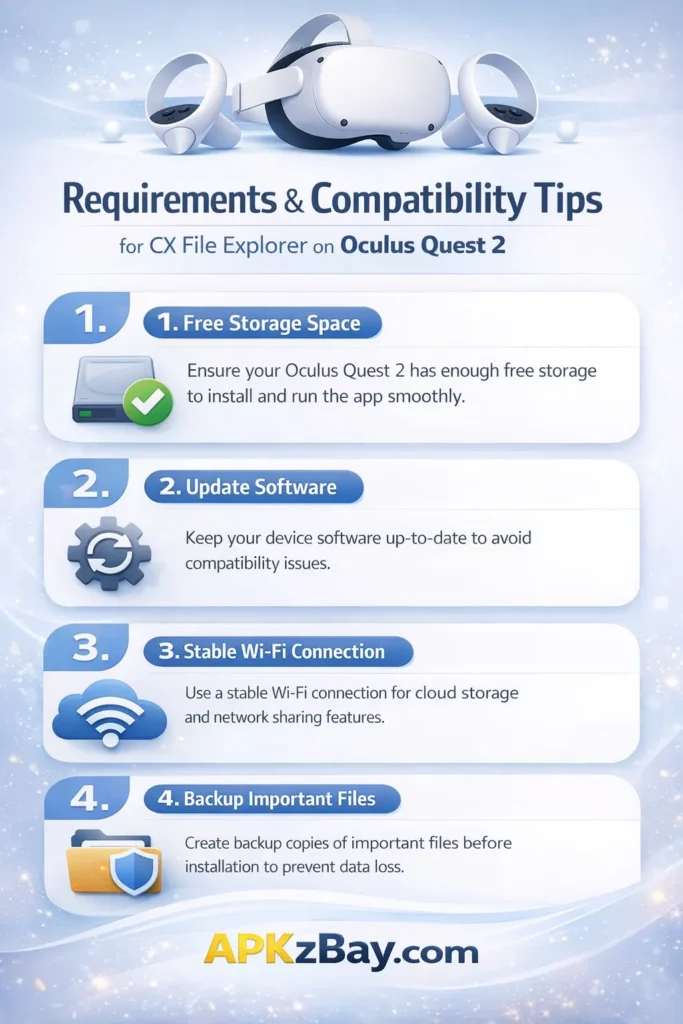
If you are trying to figure out how to fix CX File Explorer on Quest 2, start simple. Check whether the headset gives CX File Explorer whatever file or storage permissions it allows. Then move your APK into a straightforward location like the Download folder in internal storage. This matters more than many users expect. On Quest devices, where you place the file can be just as important as the file itself. If the APK opens from Downloads but not from another location, you have already identified the real issue: storage access, not app corruption.
It also helps to adjust expectations. Some Quest folders are intentionally more locked down than they used to be. If CX File Explorer says access denied, that may just be the system telling you that the path is off-limits now. In that case, do not waste time fighting protected directories like they owe you an explanation. Put the APK somewhere simpler, restart the headset if needed, and try again. When sideloading on Quest 2, the cleaner the path, the better the odds. It is less like hacking your way in and more like taking the front entrance instead of trying random side doors.
CX File Explorer Access Denied on Quest 3
The cx file explorer access denied quest 3 problem follows the same pattern as Quest 2, but Quest 3 can feel even stricter depending on the software version. Users often find that CX File Explorer can browse general areas without any problem, but the moment they try to open a restricted folder or install an APK from a tricky path, the headset pushes back. That is when people start blaming the APK, even though the file itself may be perfectly fine. The real issue is often the handoff between storage access and the installer.
The nice thing is that Quest 3 usually responds well to simple, practical fixes. You do not need a complicated tutorial for every failed install. In most cases, you need the right folder, a readable path, and a little patience. If you keep the APK in an easy internal location and avoid system-style directories, CX File Explorer becomes much more reliable. That is the pattern many users miss. They focus on the file, but the folder is the real problem. On Quest 3, the where can matter just as much as the what.
Quest 3 Storage Permission Workaround
A reliable workaround for Quest 3 starts with one decision: stop using complicated or protected storage paths. Place the APK in the Download folder or another plain internal location, then open it from there. Avoid app data folders, hidden directories, or anything that looks like system territory. If CX File Explorer throws a loading error or access denied message, restart the headset, reopen the file manager, and test the exact same file from a cleaner folder before trying anything advanced.
It is also important to separate folder problems from APK problems. A blocked folder does not automatically mean the APK is damaged. And a valid APK can still fail if Quest 3 does not like the location it is being opened from. That is why so many users solve the issue without changing the file at all.
They simply move it to a better place and try again. It sounds almost too easy, but that is often the difference between a failed install and a successful one. When it comes to Quest 3, the best workaround is usually not more complexity. It is less complexity.
Beginner Tips That Save Time and Frustration
If you are new to sideloading APKs, the easiest mistake is trying too many risky things at once. Downloading from a random website, saving the APK to an SD card, opening it from a deeply nested folder, and using a file manager that does not have permission is basically a recipe for confusion. Then when the install fails, you have no idea which step caused the problem. A cleaner workflow is not just safer. It is also much easier to troubleshoot.
Here are a few beginner-friendly habits that make a huge difference:
- Download APKs only from sources you trust
- Keep the file in internal storage during installation
- Use a simple folder like Download
- Read every install prompt carefully
- Enable unknown app installs only for trusted apps
- Remove older conflicting versions before updating
- Check if the app is a normal APK or a split package
- Keep a backup method ready, like another file manager
A little caution upfront saves a lot of headaches later. Think of sideloading like cooking with a recipe. If the ingredients are bad, the kitchen is messy, and the oven is wrong, the dish is not going to turn out well. Clean inputs usually lead to clean results.
One more practical tip: do not search random pages just to download cx file explorer apk or a replacement installer. Installing the file manager itself from a trusted store is usually safer than grabbing it from a mirror you have never seen before. For more tutorials, update posts, and quick troubleshooting clips, readers can also follow APKZBay on YouTube, Instagram, Pinterest, Facebook, Telegram, X, and the WhatsApp Channel.
Comparison Table: Problem, Likely Cause, and Best First Fix
| Problem or Symptom | Most Likely Cause | Best First Fix | Common On |
|---|---|---|---|
| APK tap does nothing | CX File Explorer lacks install permission | Enable Install unknown apps for CX File Explorer | Android, Huawei |
| App not installed | Signature conflict or wrong APK build | Remove old version or use the correct APK | Android, Huawei |
| Problem parsing package | Corrupted or incomplete APK | Re-download the file and move it to internal storage | Android, Huawei |
| Loading error / access denied | Storage path restriction | Open the APK from Download or another simple folder | Android, Quest |
| APK installs from browser but not CX | App-specific permission mismatch | Recheck CX permissions or use another file manager | Android, Huawei |
| CX File Explorer access denied on Quest 2 | Scoped storage restriction | Avoid protected folders and use a clean internal path | Quest 2 |
| CX File Explorer access denied on Quest 3 | Stricter storage controls | Retry from Downloads in internal storage | Quest 3 |
| Stuck on processing | Installer handoff or system issue | Restart device, free space, and try a fallback installer | Android, Huawei |
This table shows one important thing: different symptoms can point to different causes, even when they feel like the same problem. That is why the best troubleshooting is methodical. Check permission, then storage path, then file quality, then compatibility. In most cases, one of those four reveals the answer.
How to Choose Safe APK Files and Better Install Paths
A lot of people focus so hard on the installer that they forget the APK itself may be the weak link. A trustworthy source, the correct version, and a simple storage path can remove most installation problems before they even begin. If the APK is shady, outdated, incomplete, or made for the wrong device type, no file manager in the world is going to magically fix that. It is like trying to blame the door when the key was cut from the wrong template.
So when choosing an APK, pay attention to the basics. Download from a source you trust. Check whether the app supports your Android version. Make sure the file matches your device architecture if multiple variants exist. Avoid ancient APKs unless you have a very specific reason to use one. And while installing, keep the file in internal storage instead of a flaky SD card or a messy hidden folder. CX File Explorer is useful, but even a good tool works better when the file and the path are clean. On phones, that means fewer permission surprises. On Quest devices, it can be the difference between instant failure and an easy install.
Pros and Cons of Using CX File Explorer for APK Installs
CX File Explorer is popular because it is clean, lightweight, and easy to use. For many people, it is a great everyday file manager that also happens to be useful for APK handling. It makes it easy to find downloaded files, move them into better folders, and open them quickly. On many standard Android phones, it works just fine once the right permissions are enabled. So no, it is not a bad app. In fact, for basic file management, it is one of the more user-friendly options out there.
But it is also not magic. CX File Explorer is only one part of the install chain. Android still controls whether the file can be read, whether the folder is accessible, whether the app is compatible, and whether the install is allowed. That means CX can sometimes look guilty when it is really just standing in the middle of a bigger system problem. It also is not the best choice for split APK installs or bundle-based formats, and it may run into more trouble on Huawei devices or newer Quest software builds. The best way to think about it is this: CX File Explorer is a good messenger, but Android still decides whether the message gets through.
Conclusion
If an APK downloaded in CX File Explorer is not installing, the problem usually is not as dramatic as it feels in the moment. Most of the time, it comes down to a handful of common causes: missing permission, corrupted download, not enough storage, wrong APK version, signature conflict, or storage path restrictions. That is especially true on Huawei phones, Quest 2, and Quest 3, where the system may add extra roadblocks that make the issue look worse than it actually is.
The best fix is to keep things simple. Make sure CX File Explorer is allowed to install unknown apps. Move the APK into internal storage, ideally the Download folder. Check that the file is complete and compatible with your device. If needed, try another file manager or the built-in installer route. On Quest devices, avoid protected folders. On Huawei, pay attention to extra security prompts. Once you stop treating it like one mysterious bug and start checking each part of the install process one by one, the solution becomes much easier to spot.
FAQs
1. Why is an APK downloaded in CX File Explorer not installing on Android?
The most common cause is that CX File Explorer does not have permission to install unknown apps. Other possible reasons include a damaged APK, low storage, a mismatched APK build, or a conflict with an older installed version of the app.
2. How do I allow CX File Explorer to install unknown apps?
Go to Settings, then look for Apps, Special app access, or Install unknown apps depending on your device. Open CX File Explorer in that section and enable the permission.
3. Why does Huawei block APK installation from CX File Explorer?
Huawei devices often add extra security checks for sideloaded apps. Even when the normal permission is enabled, EMUI or HarmonyOS may still show warnings or prefer the built-in file manager for smoother installation.
4. What does CX File Explorer loading error access denied mean?
It usually means the file path or folder is restricted. Move the APK into a simpler internal location like Download and try again. On Quest devices, this is especially common in protected directories.
5. Can I fix CX File Explorer access denied on Quest 2 or Quest 3?
Yes, in many cases you can. Use a clean internal folder such as Download, avoid protected paths, and restart the headset if needed. The issue is often about storage access, not the APK itself.
6. Is it safe to download CX File Explorer APK from third-party websites?
It is generally safer to install CX File Explorer from a trusted app store whenever possible. Third-party APK mirrors can host modified, outdated, or incomplete files, which can create both security risks and installation problems.
If you want, I can also turn this into an even more SEO-polished blog version with stronger hook lines, better transitions, and a more natural ranking-friendly tone.
Recent Posts
- Allow Unknown Apps for Documents App Android: Safe Ways to Install APKs on Modern Phones

- Allow Unknown Apps for Mac Transfer Android: Complete Beginner-Friendly Guide
- APK Downloaded in CX File Explorer Not Installing FIx? Here’s the Fix for Android, Huawei, Quest 2, and Quest 3
- Why Is Install Unknown Apps Stuck on Processing on Android?
- How to Install APK from CX File Explorer on Android
- How to Install APK from My Files App on Android: A Complete Beginner-Friendly Guide
- How to Install APK Without Errors Android Guide
- How to Install APK After Downloading ZIP File
- This App Is Not Compatible With This Device Problem Solution
- How to Prevent Installing Harmful Apps
- How to Access Android Data Folder with Shizuku: Complete No-Root Guide
- How to Install APK on Amazon Fire Tablet Safely and Easily