App Not Installed Because Package Is Corrupted Fix: Complete Guide for Android, APK, and Samsung Users
30-03-2026
Description
If you are seeing the message “App Not Installed Because Package Is Corrupted Fix”, you are not alone. It is one of the most common Android installation problems, especially when users try to install APK, XAPK, split APK, or modified app files from outside the Play Store. The good news is that this error is usually fixable.
In most cases, the problem is not your phone. It is often caused by a damaged APK file, an incomplete download, a version conflict, missing permissions, or a package signature mismatch. Sometimes the message changes slightly and appears as “app not installed as package conflicts with an existing package” or “app not installed as package appears to be invalid.” Even though the wording is different, the root issue is usually related to the app package itself.
This guide breaks everything down in simple language. You will learn the real reasons behind the error, step-by-step fixes for Android and Samsung devices, what to do with APK and split APK files. I will also cover the best apps and tools that can help you solve installation problems faster.
Why This Error Happens
Before trying random fixes, it helps to understand what the message actually means.
When Android installs an app, it checks the package for several things:
- Whether the file downloaded correctly
- Whether the package signature is valid
- Whether the Android version is compatible
- Whether another version of the app is already installed
- Whether the app contains all required split files or OBB data
- Whether the installer has permission to install unknown apps
If any of these checks fail, Android blocks the installation.
Common variations of the error
You may see one of these messages:
- app not installed because package is corrupted fix
- app not installed because package is corrupted fix android
- app not installed because package is corrupted fix apk
- app not installed because package is corrupted fix samsung
- app not installed as package conflicts with an existing package
- app not installed as package appears to be invalid
Quick Fix Checklist
If you want the fastest possible solution, try these first:
- Delete the APK and download it again
- Make sure the APK matches your Android version and device architecture
- Remove any older version of the same app
- Enable Install unknown apps for your browser or file manager
- Use the correct installer for XAPK or split APK files
- Clear cache for Package Installer and your browser
- Restart the phone and try again
If the error still appears, use the detailed fixes below.
Step-by-Step: App Not Installed Because Package Is Corrupted Fix Android
1. Re-download the APK file
A broken or incomplete file is the most common reason for this error.
What to do:
- Delete the current APK
- Download it again using a stable internet connection
- Avoid pausing the download halfway
- Make sure you are downloading the complete file
Why it works:
If even one part of the package is damaged, Android may treat the whole file as corrupted.
2. Check whether the APK is compatible with your device
Not every APK works on every phone.
You need to confirm:
- Android version support
- CPU architecture like ARM64, ARMv7, or x86
- Whether the app is a regular APK or a split APK bundle
- Whether the app requires OBB or additional resource files
Trying to install the wrong build often triggers “package appears to be invalid” or “package is corrupted.”
3. Enable permission to install unknown apps
Modern Android phones block app installations from browsers and file managers unless you allow it.
Steps:
- Open Settings
- Go to Apps
- Tap your browser or file manager
- Open Install unknown apps
- Turn on Allow from this source
Without this permission, installations can fail silently or show misleading package errors.
4. Remove the older version of the same app
This is essential when you get “app not installed as package conflicts with an existing package.”
This usually happens when:
- You already have the Play Store version installed
- The new APK has a different signature
- You are installing a modded version over the official app
- The package name is the same, but the signing key is different
Fix:
- Back up your app data if needed
- Uninstall the current version
- Install the new APK again
This is especially common with apps like WhatsApp, social apps, and older game builds.
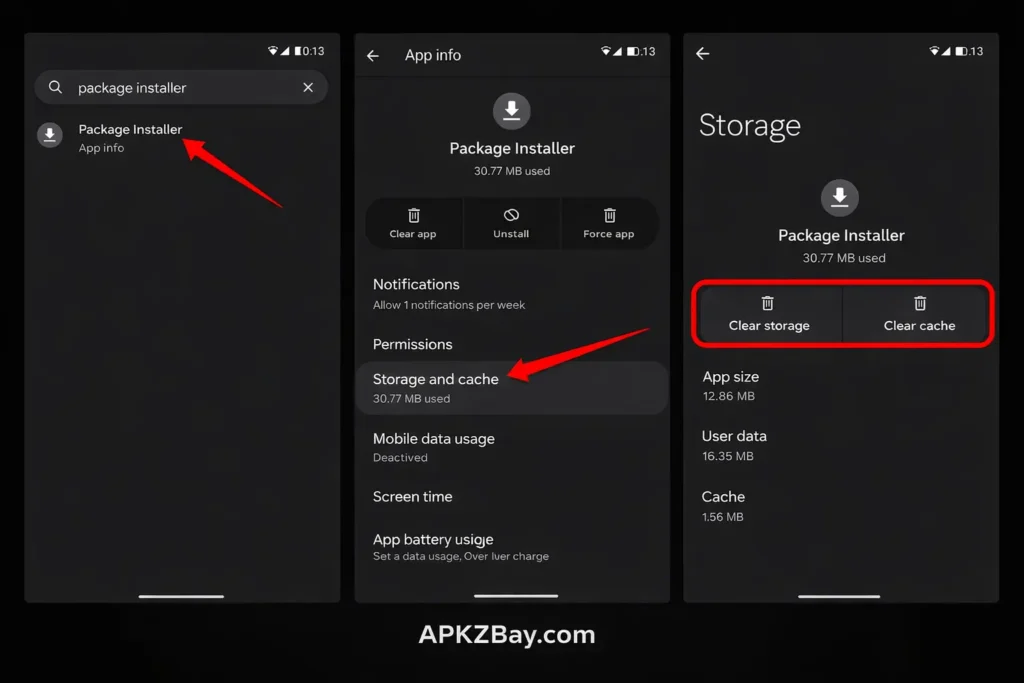
5. Clear Package Installer cache
The installer itself can get stuck.
Steps:
- Go to Settings > Apps
- Tap the three-dot menu and show system apps if needed
- Find Package Installer
- Tap Storage
- Clear cache and sometimes clear data
- Restart your phone
This simple reset can fix stubborn install errors.
6. Check storage space
Low storage can interrupt the installation process.
Even if the APK is small, Android may need extra temporary space for unpacking and verifying the app.
Try this:
- Free up at least 1 to 2 GB
- Delete junk files, old downloads, or duplicate media
- Use a cleanup tool like Files by Google
7. Use the correct installer for split APK, XAPK, or APKS files
Some apps are not a single APK anymore.
They may come as:
- XAPK
- APKS
- Split APK bundle
- APK + OBB
If you try to install these like a normal APK, Android may call the package invalid or corrupted.
For a full walkthrough, check this guide on how to install XAPK file on Android phone.
If you are dealing with a game that needs extra resource files, this guide on How to install obb file on android 14 explains the process clearly.
8. Move the file to internal storage
Some phones struggle to install apps directly from SD cards or from deeply nested folders.
Better approach:
- Move the APK to your phone’s internal storage
- Put it in the Downloads folder
- Try installing it from there
9. Update Android System WebView and Play Services
This does not fix every case, but it can help with installer behavior and app verification.
Open the Play Store and update:
- Android System WebView
- Google Play Services
- Google Play Store
- Package installer related system updates
10. Temporarily disable Play Protect only if the source is trusted
Sometimes Play Protect blocks an app and gives a vague package error.
Important: Only do this if you trust the file source completely.
Steps:
- Open Google Play Store
- Tap your profile
- Go to Play Protect
- Open settings
- Temporarily disable scanning
- Try the install
- Turn protection back on afterward
11. Restart your phone or use Safe Mode
A simple restart clears temporary conflicts.
If the issue continues:
- Boot into Safe Mode
- Try uninstalling the conflicting version
- Reboot normally
- Install the new package again
This is useful when another app or security layer is interfering.
12. Install the official version first, then update
For some apps, especially communication apps and games, the package installs more reliably if you first install the official release, then update to a compatible newer build.
This will not solve signature conflicts with modified apps, but it can help when the base package is missing.
App Not Installed Because Package Is Corrupted Fix APK
When the error specifically happens with APK files, focus on these four checks:
File integrity
The download may be incomplete or renamed incorrectly.
Signature mismatch
You cannot install a differently signed APK over an existing app with the same package name.
Wrong APK type
Some files are not standalone APKs and require a bundle installer.
Wrong Android version
An app built for a newer Android release may refuse to install on an older device.
A quick rule: if the file size looks unusually small or the app needs split resources, treat it as a compatibility issue first, not just a corrupted file.
App Not Installed Because Package Is Corrupted Fix Samsung
Samsung phones often add their own security layers, so the fix can be slightly different.
Samsung-specific things to check
- Enable Install unknown apps for Samsung Internet, My Files, or the browser you used
- Use My Files to move the APK into internal storage
- Turn off Auto Blocker temporarily if it is preventing sideloading
- Clear cache for Package Installer
- Check Device Care for storage and performance issues
Samsung users should also make sure that One UI and security updates are current. In some cases, a recent update improves package handling.
App Not Installed as Package Conflicts With an Existing Package
This error deserves its own section because it is very common.
What it means
Android sees another app with the same package name already installed. The new file cannot replace it because:
- The signatures are different
- The version code is lower
- The package was installed from another source
- A leftover app clone or work profile version exists
How to fix it
- Uninstall the existing app first
- Remove cloned app versions
- Check work profile or dual apps settings
- Clear installer cache
- Restart and reinstall
App Not Installed as Package Appears to Be Invalid
This version of the error usually points to one of these problems:
- The file is damaged
- The manifest is broken
- The APK was edited incorrectly
- The file is not meant for direct installation
- The package does not match your Android environment
This is why trusted file handling tools matter. More on those below.
Best Apps and Tools to Help Fix Installation Problems
Below are the most useful apps and tools for handling package issues, APKs, bundles, and file placement.
1. Files by Google
Overview
A lightweight file manager that helps you locate APKs, clear space, and organize downloads.
Key features
- Junk file cleanup
- Easy access to Downloads
- File search
- Storage management
Pros
- Beginner-friendly
- Fast and clean interface
- Helps free up install space
Cons
- Limited advanced package tools
- Not designed for split APK installation
Best for
Users who want a simple way to manage downloads and free storage before installing apps.
2. Samsung My Files
Overview
Samsung’s built-in file manager is a solid option for Galaxy users facing installation issues.
Key features
- Internal and external storage browsing
- Easy file moving and copying
- Integration with Samsung device tools
Pros
- Already installed on Samsung phones
- Works well with internal storage transfers
- Good for locating APK and OBB files
Cons
- Not ideal for split APK installation
- Limited advanced archive options
Best for
Samsung users who want a native tool for handling app files.
3. ZArchiver
Overview
ZArchiver is one of the best apps for opening compressed app packages and moving OBB files manually.
Key features
- Extract ZIP, RAR, and archive formats
- Move, copy, and rename files
- Useful for APK plus OBB setups
Pros
- Very powerful
- Great for advanced users
- Excellent for manual file placement
Cons
- Interface feels technical
- Can confuse beginners
Best for
Gamers and advanced Android users dealing with APK plus OBB combinations.
4. SAI (Split APKs Installer)
Overview
SAI is a popular installer for split APK packages that do not install like normal APKs.
Key features
- Install split APK sets
- Handles APKS files
- Backup and restore support
Pros
- Solves many “package invalid” issues
- Designed for modern app bundles
- Useful for tricky installations
Cons
- Not every bundle format is supported equally
- Can feel advanced for new users
Best for
Users trying to install split APK files that fail in the default package installer.
5. APKMirror Installer
Overview
This tool is built specifically for installing supported app bundle formats more easily.
Key features
- Guided installation flow
- Bundle support
- Device compatibility handling
Pros
- Cleaner than manual methods
- Great for supported bundle packages
- Helps reduce compatibility mistakes
Cons
- Best suited for its own ecosystem of app packages
- Less flexible than manual tools
Best for
Users who want a guided app bundle installation experience.
Comparison Table
| App/Tool | Main Use | Best Advantage | Main Drawback | Best For |
|---|---|---|---|---|
| Files by Google | Cleanup and file management | Great for freeing storage | No bundle installer | Beginners |
| Samsung My Files | Native file handling | Perfect for Galaxy users | Limited advanced controls | Samsung users |
| ZArchiver | Archive extraction and OBB handling | Powerful manual control | Not very beginner-friendly | Advanced users and gamers |
| SAI | Split APK installation | Handles tricky split packages | Slight learning curve | Power users |
| APKMirror Installer | Guided bundle installation | Easier bundle setup | Limited flexibility | Casual users |
| Common conflict case | Easy reinstall with backup | Version conflicts are common | Messaging app users |
Tips for Choosing the Right Fix
Do not apply every fix blindly. Match the fix to the problem.
Choose this route if the file seems broken
- Re-download the package
- Use a trusted source
- Check file size and version
Choose this route if the app is already installed
- Uninstall the old version
- Watch for signature conflicts
- Restart before reinstalling
Choose this route if it is a game or large app
- Check whether it needs OBB files
- Use a file manager like ZArchiver or My Files
- Follow a guide for How to install obb file on android 14
Choose this route if it is a bundle package
- Try SAI or APKMirror Installer
- Do not treat every file as a simple APK
Choose this route if you use Samsung
- Check Auto Blocker
- Use My Files
- Clear installer cache
- Move the package to internal storage
Beginner Tips to Avoid Package Errors in the Future
If you are new to APK installation, these habits will save you time.
- Always download the correct version for your Android release
- Check whether the app is APK, XAPK, APKS, or APK plus OBB
- Keep enough free storage on your phone
- Do not install over an existing app unless the signature matches
- Avoid renaming package files randomly
- Use a reliable file manager
- Back up app data before uninstalling important apps
- Restart after uninstalling a conflicting package
For more step-by-step visuals, tutorials, and installation tips, you can also follow APKZBay on YouTube, Instagram, Pinterest, Facebook, Telegram, X, and the WhatsApp Channel.
FAQs
1. Why does Android say app not installed because package is corrupted?
Usually because the APK is incomplete, incompatible, wrongly signed, or missing required split or OBB files.
2. How do I fix app not installed as package conflicts with an existing package?
Uninstall the existing version first, clear installer cache, restart the device, and then install the new package again.
3. Why does this happen more often with APK files than Play Store apps?
Play Store apps are verified automatically and installed with the right package structure. APK files downloaded manually may be damaged, outdated, or incompatible.
4. Can Samsung phones show this error even when the APK is fine?
Yes. Samsung security settings, Auto Blocker, storage handling, or installer cache can sometimes block a valid app package.
5. What does app not installed as package appears to be invalid mean?
It usually means the file is not structured correctly for your device or installer. It may also mean you are trying to install a split package as a normal APK.
6. Do I need a special installer for XAPK or split APK files?
Often yes. Many modern app packages need a dedicated installer or manual extraction. A standard package installer may report them as corrupted even when the file itself is fine.
Conclusion
The app not installed because package is corrupted fix is usually simpler than it looks. Most of the time, the real cause is one of a few common issues: a bad download, the wrong app build, a package signature conflict, missing permissions, or an installer that cannot handle bundled files properly.
The smartest way to solve it is to stop guessing and identify the type of package you have. If it is a regular APK, re-download it, check compatibility, and remove any conflicting version. If it is a split APK, XAPK, or game package with OBB files, use the right installation method instead of forcing a normal install. Samsung users should also check security settings and built-in file tools.
Take a careful, step-by-step approach, and this frustrating error becomes much easier to fix. For readers who regularly sideload apps and games, learning the difference between APK, XAPK, and OBB installation is the best long-term solution.
Recent Posts
- How to Install APK from CX File Explorer on Android

- How to Install APK from My Files App on Android: A Complete Beginner-Friendly Guide
- How to Install APK Without Errors Android Guide
- How to Install APK After Downloading ZIP File
- This App Is Not Compatible With This Device Problem Solution
- How to Prevent Installing Harmful Apps
- How to Access Android Data Folder with Shizuku: Complete No-Root Guide
- How to Install APK on Amazon Fire Tablet Safely and Easily
- Install Unknown Apps Not Showing for Browser Fix Android: A Complete Beginner-Friendly Guide
- Why XAPK Files Need Extra Installer Android: A Complete Beginner-to-Pro Guide
- Trusted APK Sites for Android Safety Guide: How to Download APKs Without Putting Your Phone at Risk
- Fake App Clone Warning Signs on Android: How to Spot Unsafe Apps Before You Install Them