App Not Installed Package Conflicts With Existing Package: Meaning, Causes, and Proven Fixes
01-04-2026
Description
If you have ever tried to install an APK on Android and suddenly saw the error “app not installed package conflicts with existing package”, you are not alone. This is one of the most common Android installation errors, especially when users install apps from outside the Play Store, update modded apps, restore old APKs, or switch between different versions of the same app.
The good news is that this error is usually fixable.
In simple terms, Android is telling you that the app you are trying to install is clashing with another version of the same package already present on your phone. That conflict may involve a different app signature, duplicate package name, incompatible version, cloned app data, or even leftovers from an old installation. This can happen with everyday apps, system apps, modded apps, and even games like Minecraft.
In this detailed guide, you will learn how to fix app not installed as package conflicts with an existing package, what the error actually means, why it happens, and which solution works best in each situation. I will also explain the app not installed as package conflicts with an existing package meaning in Hindi, include examples from popular apps, and share beginner-friendly tips so you can solve it without damaging your device.
What Does “App Not Installed Package Conflicts With Existing Package” Mean?
This message appears when Android detects that the APK you are trying to install uses the same package name as an app already installed on your phone, but something about the two versions does not match.
That mismatch may be related to:
- App signature
- Version code
- Package name duplication
- Existing app data
- App source differences
- System app restrictions
In other words, your phone sees two apps that look like they belong to the same identity, but Android does not trust them as compatible.
Simple example
Suppose you already have WhatsApp installed from the Google Play Store. Then you download a modified or older WhatsApp APK from another source. Even if both appear to be WhatsApp, Android checks the package identity and signature. If they do not match, installation fails with the message:
App not installed as package conflicts with an existing package
App Not Installed as Package Conflicts With an Existing Package Meaning in Hindi
A lot of users search for app not installed as package conflicts with an existing package meaning in hindi or app not installed as package conflicts with an existing package in hindi.
Here is the simple Hindi meaning:
इसका मतलब है कि जो ऐप आप इंस्टॉल करना चाहते हैं, उसका पैकेज नाम आपके फोन में पहले से मौजूद किसी ऐप से मैच कर रहा है, लेकिन दोनों ऐप एक जैसे या compatible नहीं हैं।
आसान भाषा में
- आपके फोन में उस ऐप का पुराना या अलग version पहले से installed है
- नया APK उसी package name के साथ install होना चाहता है
- लेकिन उसका signature, source, या version अलग है
- इसलिए Android उसे install नहीं होने देता
Hindi summary
“Package conflicts with existing package” का मतलब है कि नया ऐप और पहले से installed ऐप आपस में टकरा रहे हैं।
Why This Error Happens on Android
The error is common on Android because users install apps from many places, not just the Play Store. APKs can come from backups, browser downloads, Telegram groups, mod communities, app-sharing sites, or direct developer pages. Android treats app identity seriously, so even small differences can trigger a conflict.
Here are the most common reasons.
Detailed List of Causes Behind This Error
1. The app is already installed from a different source
This is the top cause. If the original app came from the Play Store and the new APK comes from another source, Android may block installation because the app signatures do not match.
2. You are trying to install a modded APK over the original app
This happens with games and media apps all the time. A modified APK often uses the same package name as the official app, but it is signed differently.
3. The old app was not removed completely
Sometimes you uninstall an app, but traces remain in app data, hidden profiles, or backup storage. When you try reinstalling a different version, Android still detects a conflict.
4. System app versus user app mismatch
If the app is preinstalled as a system app, installing another version manually can trigger a package conflict.
5. Cloned or dual apps are interfering
Phones from brands like Xiaomi, Samsung, Oppo, and Vivo often support cloned apps or dual apps. These copies can create package confusion during manual installation.
6. Different app signatures
Every legitimate Android app has a digital signature. If the installed app and the new APK do not share the same signature, Android usually refuses the install.
7. APK version is incompatible
Sometimes the APK version is older, newer, split into multiple files, or designed for another device variant. That mismatch can cause package conflicts.
8. Leftover app data from restored backups
If you restored apps using a backup app or transferred data from another phone, package metadata may still remain in the system.
9. The app is installed under another user profile
On some devices, the same package may exist in another profile, guest account, or work profile, which can block installation in your current profile.
10. Corrupted or repackaged APK
Some APK files are broken, incomplete, or edited badly. In that case, Android may show a package conflict even though the real issue is the APK itself.
If you are also facing parse or corruption errors, these guides may help:
- how to speed up Android phone without factory reset
- there is a problem parsing the package Android APK
- app not installed because package is corrupted fix
How to Fix App Not Installed as Package Conflicts With an Existing Package
Now let’s get to the main part: how to fix app not installed as package conflicts with an existing package.
Start with the safest methods first. You usually do not need root access.
1. Uninstall the Existing Version of the App
This is the easiest and most effective fix.
Steps
- Open Settings
- Tap Apps or App Management
- Find the app with the same name
- Tap Uninstall
- Restart your phone
- Try installing the APK again
Important note
If you uninstall the original app, you may lose local data unless it is synced to the cloud. Back up chats, saves, or files first.
This method works especially well for:
- Modded APK over official app
- Official APK over modded app
- Old APK over Play Store version
2. Remove App Data Before Reinstalling
Sometimes uninstalling is not enough. Cached data can still cause issues.
Steps
- Go to Settings > Apps
- Open the target app
- Tap Storage
- Select Clear Data and Clear Cache
- Uninstall the app
- Restart the phone
- Install the APK again
This helps when the app was partially removed or updated incorrectly.
3. Check for Cloned or Dual Apps
If your phone supports dual apps, the duplicate package may still exist even if the normal app is removed.
Look for features like
- Dual Apps
- App Twin
- Clone Apps
- Parallel Apps
What to do
- Turn off cloning for the problematic app
- Delete the cloned version
- Restart the phone
- Try installing again
This fix is very effective on Xiaomi, Realme, Vivo, Oppo, Huawei, and Samsung devices.
4. Install the Correct Version of the APK
Not every APK is compatible with every phone.
Make sure the APK matches:
- Android version
- CPU architecture
- Package type
- Region or device variant
For example, some apps use:
- Universal APK
- Split APK
- XAPK
- APKS bundle
If you try to install only part of a split package, Android may show a conflict or fail completely.
Tip
Whenever possible, download the APK from the official developer source or a reputable platform. For official Android guidance, the Android Developers site is a useful resource.
5. Avoid Installing a Mod APK Over the Original App
This is a very common mistake.
For example:
- Official Minecraft already installed
- User downloads a modded Minecraft APK
- Both share a package name
- Android detects a signature mismatch
- Installation fails
In this case, the solution is usually to remove the original app first or use a version with a different package name.
6. Update the Existing App Instead of Replacing It
If your goal is just to get a newer version, try updating through the app’s official channel first.
Use:
- Google Play Store
- Official website
- Developer’s official update file
This is safer than replacing an app manually with a random APK.
7. Check if the App Is a System App
Some apps come preinstalled and cannot be replaced like normal apps.
Examples:
- File manager
- Gallery
- Phone app
- Messaging app
- Browser
- Device utilities
If you try to install another APK using the same package name as a system app, Android may reject it.
What you can do
- Disable updates for the system app
- Uninstall updates instead of uninstalling the whole app
- Install an alternative app with a different package name
8. Use ADB to Detect Hidden Package Conflicts
This method is more advanced but very powerful.
ADB can help identify if the app still exists under another user profile or hidden install state.
Basic idea
You connect your phone to a computer and use Android Debug Bridge to inspect installed packages.
ADB is especially useful if:
- The app does not appear in the app list
- You suspect leftover package records
- The error keeps happening after uninstall
You can learn more from the official platform tools documentation.
9. Remove the App From Other User Profiles
Some Android devices have:
- Guest mode
- Work profile
- Second space
- Family profile
The same package installed there can block your installation.
Fix
- Check other profiles on your device
- Remove the app from all profiles
- Restart the phone
- Retry installation
10. Download a Fresh APK Copy
If the APK file is damaged, incomplete, or tampered with, installation errors become more likely.
Signs of a bad APK
- Download stopped midway
- File size looks unusually small
- You got the APK from an unknown source
- The app icon or package info looks odd
Solution
- Delete the APK
- Download it again from a trusted source
- Make sure the version is compatible
- Try installing once more
Popular Apps That Commonly Trigger This Error
This issue can happen with almost any Android app, but some categories are more likely to cause trouble.
Minecraft
The keyword minecraft app not installed as package conflicts with an existing package is popular for a reason.
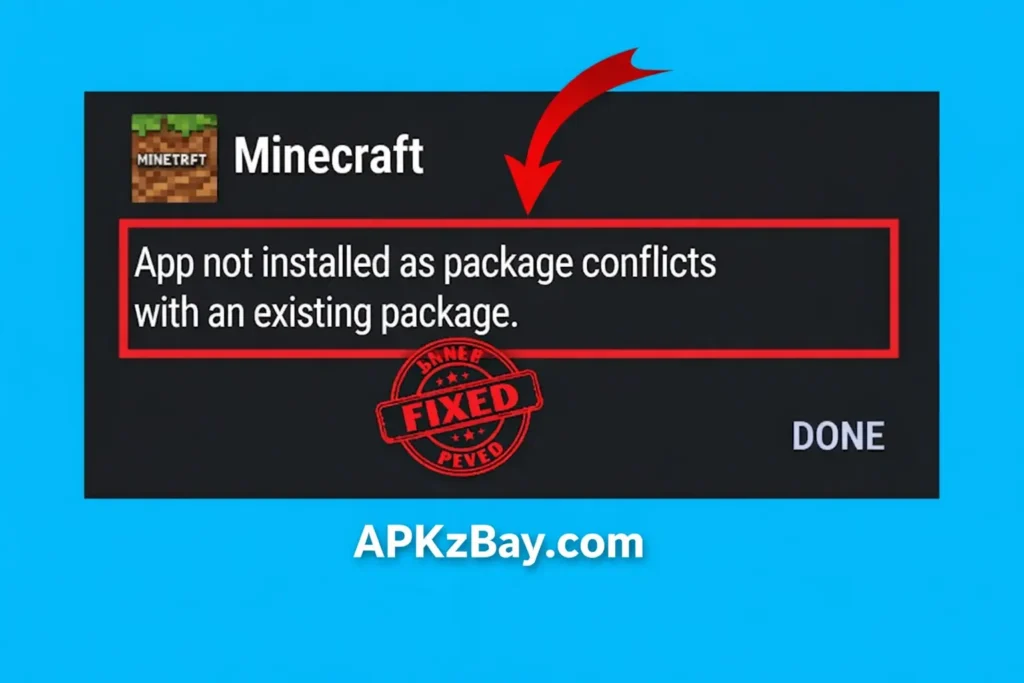
Why it happens:
- Official Minecraft already installed
- User tries a modded APK
- Different signature with same package name
- Existing game data creates a conflict
Best fix:
- Back up worlds if possible
- Uninstall the old version
- Remove leftover data
- Install the correct build
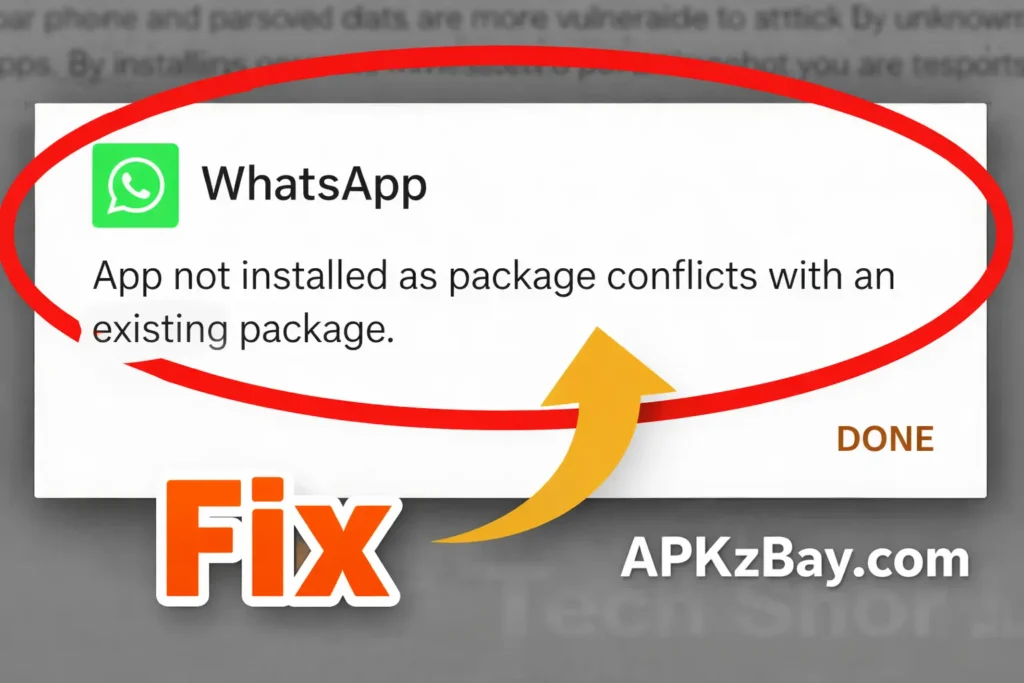
Conflicts happen when switching between:
- Play Store version
- Beta version
- GB WhatsApp or other mods
- Restored APKs from backups
Best fix:
- Back up chats
- Remove the old package fully
- Install only one trusted version
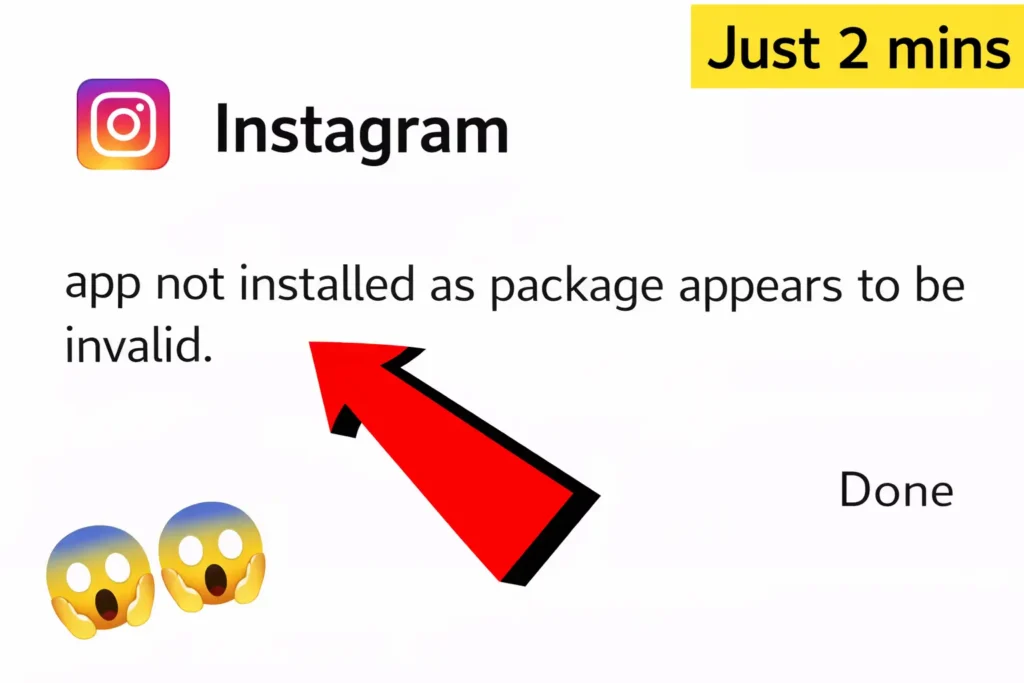
Instagram conflicts usually happen with:
- Cloned app versions
- Old APKs over current Play Store builds
- Customized or tweaked APK packages
YouTube
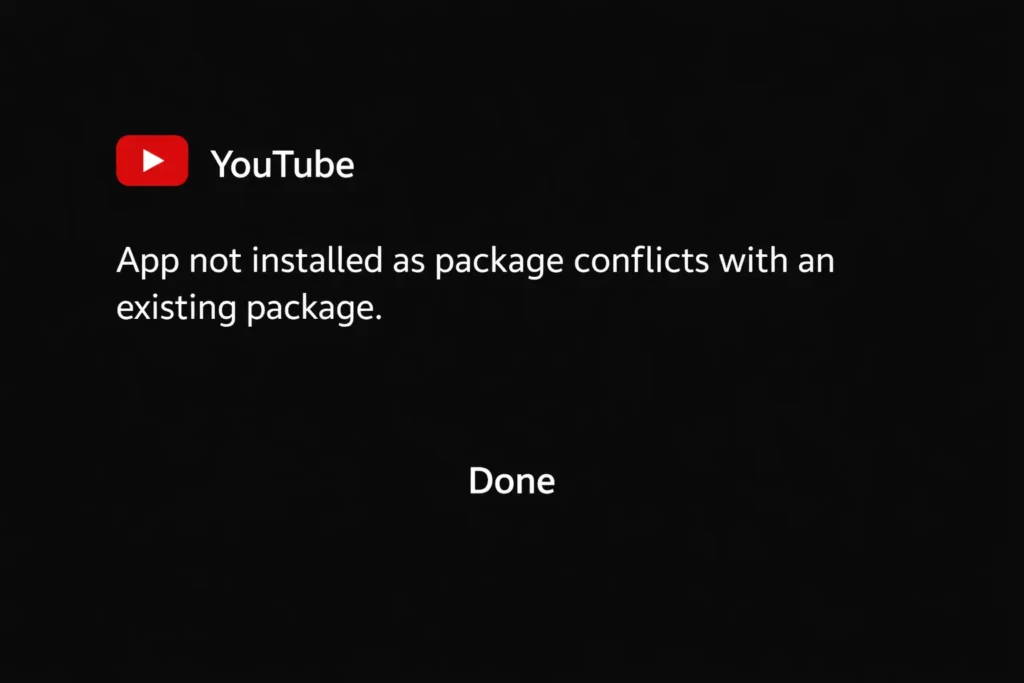
Users often see package conflicts when installing:
- YouTube mods
- Alternate builds
- ReVanced-related packages
- Older versions over a preinstalled app
Facebook and Messenger
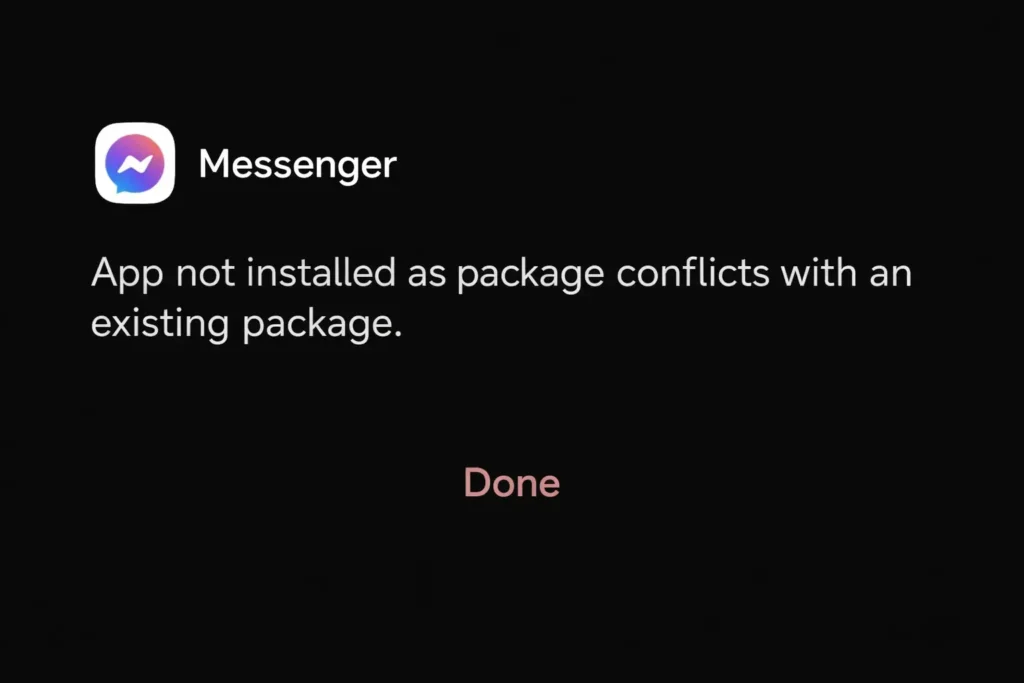
These are common on phones where the apps are preinstalled. Manual APK installation may conflict with built-in package versions.
Banking Apps
Banking apps are strict about signatures and security. If you try a sideloaded or outdated APK, package conflicts can appear quickly.
Signs That the Error Has Been Successfully Fixed
Many users also search for app not installed as package conflicts with an existing package done. In plain English, they want to know how to confirm the issue is solved.
You know the problem is fixed when:
- The APK installs without an error popup
- The app icon appears normally in the launcher
- The app opens and works correctly
- No duplicate version of the app remains
- Play Store or system updates no longer clash
Comparison Table: Cause, Symptom, and Best Fix
| Cause | Common Symptom | Best Fix | Difficulty |
|---|---|---|---|
| App already installed from Play Store | APK install fails immediately | Uninstall existing app first | Easy |
| Mod APK over official app | Conflict popup during install | Remove original app and install one version only | Easy |
| Leftover cache or data | Reinstall still fails after uninstall | Clear data, restart device, reinstall | Easy |
| Cloned app or dual app | Conflict remains even after uninstall | Remove cloned version in Dual Apps settings | Easy |
| System app conflict | APK cannot replace built-in app | Uninstall updates or use alternative app | Medium |
| Hidden install in work profile | App not visible but conflict continues | Remove package from all profiles | Medium |
| Wrong APK type or split file | Install fails or parses incorrectly | Download correct APK/APKS/XAPK version | Medium |
| Broken or corrupted APK | Random install failure | Download a fresh copy from a trusted source | Easy |
| Signature mismatch | Same app name but install blocked | Use official matching version only | Medium |
| Advanced hidden package issue | Normal fixes do not work | Use ADB to inspect and remove package | Advanced |
Tips for Choosing the Right APK and Avoiding Package Conflicts
Choosing the right app file matters as much as the installation itself.
Follow these practical tips
- Prefer official sources whenever possible
- Match the app version to your Android version
- Avoid mixing modded and official versions
- Do not install random APKs over preinstalled apps
- Read package details before downloading
- Keep one version of the same app on the phone
- Back up important data before uninstalling
- Be careful with app clone features
Trusted habits that reduce risk
- Update apps regularly
- Use security scanning
- Keep enough storage space free
- Avoid interrupted downloads
- Double-check app compatibility
If your device feels slow or unstable during repeated install attempts, this guide on how to speed up Android phone without factory reset is worth reading.
Beginner Tips for Solving This Error Safely
If you are not a technical user, do not worry. You can still fix this problem without doing anything risky.
Start with these beginner steps
1. Do not panic and keep tapping install
Repeated attempts usually do not fix the issue. Stop and check what version of the app is already on your device.
2. Search your phone for the same app
Sometimes the app is installed but hidden inside a folder or another profile.
3. Clear cache before trying again
This simple step fixes more issues than many users expect.
4. Restart the phone
A reboot can remove temporary installer glitches.
5. Use only one source
Do not mix Play Store, browser APKs, and modded versions of the same app.
6. Back up important data first
Before uninstalling apps like WhatsApp, Minecraft, or banking apps, make sure your data is safe.
7. Learn the difference between APK, XAPK, and APKS
Some installation failures happen because users download the wrong package type, not because the app is broken.
Common Mistakes Users Make
Avoiding these mistakes can save a lot of time.
- Installing a modded app over the official version
- Forgetting to uninstall the old version first
- Ignoring cloned apps
- Using old APK files from unknown sources
- Trying to replace system apps manually
- Downloading the wrong architecture build
- Restoring broken app backups
- Assuming all apps with the same name are compatible
When You Should Not Force the Install
There are cases where you should stop and reconsider instead of forcing the APK.
Avoid manual installation if:
- The app handles banking or payments
- The APK source looks suspicious
- The app is a system-level package
- The phone warns about security risks
- The APK version is not meant for your device
In those cases, the safest route is to install from the official store or developer website.
FAQs
1. What does app not installed as package conflicts with an existing package meaning?
It means Android found another app with the same package identity already on your phone, but the new APK is not compatible with it. The conflict is usually caused by signature mismatch, duplicate package name, cloned apps, or leftover app data.
2. How to fix app not installed as package conflicts with an existing package?
The best way is to uninstall the existing version of the app, clear app data and cache, restart the phone, and then install the correct APK again. If that does not work, check for dual apps, system app restrictions, or hidden profiles.
3. Why does Minecraft show package conflicts during installation?
This usually happens when the official Minecraft version is already installed and you try to install a modified or different APK build over it. The package name may match, but the app signature does not.
4. Can I fix this without losing app data?
Sometimes yes, but not always. If you need to uninstall the old version, local app data may be erased unless it is backed up or synced online. Always back up chats, game saves, and files before uninstalling.
5. Is this error caused by a virus?
Not necessarily. In most cases, it is just an Android package mismatch. However, untrusted APK files can be risky, so only download apps from reputable sources.
6. What is the Hindi meaning of this error?
In Hindi, it means the app you are trying to install is clashing with an app package already present on your phone.
सरल शब्दों में: नया ऐप और पहले से installed ऐप आपस में टकरा रहे हैं।
7. Can Play Store apps also cause this issue?
Yes. If a Play Store version is already installed and you try to install another APK with the same package name but different signature, Android can show the same conflict error.
Final Thoughts
The error “app not installed package conflicts with existing package” sounds technical, but the core issue is simple. Android is protecting your device from installing two incompatible versions of what appears to be the same app. Most of the time, the fix is straightforward: remove the old version, clear leftover data, install the correct APK, and avoid mixing official and modified builds.
If you were searching for apps not installed as package conflicts with an existing package, app not installed as package conflicts with an existing package android, or how to fix app not installed as package conflicts with an existing package, the key takeaway is this: focus on package identity, source, and compatibility.
Use trusted downloads, keep backups, and do not install random APKs over existing apps without checking what is already on your phone. That habit alone can prevent most Android installation headaches.
For more Android troubleshooting tips, installation fixes, and APK guides, you can also follow APKZBay on YouTube, Instagram, Pinterest, Facebook, Telegram, X, and the WhatsApp Channel
Recent Posts
- How to Access Android Data Folder with Shizuku: Complete No-Root Guide

- How to Install APK on Amazon Fire Tablet Safely and Easily
- Install Unknown Apps Not Showing for Browser Fix Android: A Complete Beginner-Friendly Guide
- Why XAPK Files Need Extra Installer Android: A Complete Beginner-to-Pro Guide
- Trusted APK Sites for Android Safety Guide: How to Download APKs Without Putting Your Phone at Risk
- Fake App Clone Warning Signs on Android: How to Spot Unsafe Apps Before You Install Them
- How to Install Split APK on Android Without PC
- How to Disable Battery Optimization in Android Setting: A Complete Beginner-to-Pro Guide
- App Not Installed Package Conflicts With Existing Package: Meaning, Causes, and Proven Fixes
- How to Speed Up Android Phone Without Factory Reset: 17 Smart Fixes That Actually Work
- SPG4X FF Panel APK Latest Version – Features, Download Guide, Update Info, and Honest Review
- There Is a Problem Parsing the Package Android APK: Complete Fix Guide for Samsung, Huawei, Android 12, and Android 14