Best Android Emulator for Gaming in 2026
09-03-2026
Description
Finding the best android emulator for gaming is not as simple as downloading the first app you see in search results. In 2026, the emulator market is more fragmented than ever. Some emulators are built almost entirely for competitive mobile games. Some focus on multi-instance grinding for gacha titles. Others work better on Mac, Linux, or lower-end hardware. And a few options are not really classic emulators at all, but still matter if your goal is to play Android games on a desktop.
Official product pages show that the field now spans Windows-first gaming emulators like BlueStacks, LDPlayer, MEmu, MuMu Player, NoxPlayer, and GameLoop, plus broader options like Google Play Games on PC, Genymotion, Android Studio Emulator, and Waydroid for Linux.
This guide is designed for real users, not just keyword stuffing. If you searched for terms like best android emulator for gaming free, best android emulator for low end pc, best android emulator for gaming windows 11, or best android emulator for gaming on mac, this article will help you choose the right tool for your setup. If you want more Android app recommendations, check out our guide to the best photo editing apps for Android 2026 and learn more about MovieBlast APK for streaming on Android devices.
Why Emulator for Gaming Is Popular
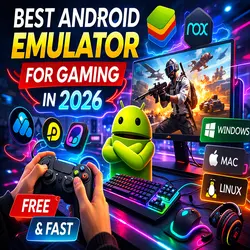
Android emulators are popular because they solve several problems at once. They let you play mobile games on a bigger screen, use a keyboard and mouse, map controls, run multiple accounts, and sometimes get better performance than you would on a mid-range phone. Google’s own support pages for Google Play Games on PC say playing on a computer can give you better graphics and keyboard-and-mouse controls, while emulator vendors like BlueStacks, LDPlayer, MEmu, MuMu Player, and NoxPlayer all market their platforms around smoother PC gaming, multi-instance support, or custom controls. (Google Help)
The other reason is convenience. Many people do not want to keep reaching for a phone when they are already sitting at a desk. Emulators make sense for RPG farming, battle royale games, strategy titles, mobile MOBAs, and casual games that feel better with a large display and stable input. GameLoop’s official site leans heavily into games like PUBG MOBILE, Call of Duty: Mobile, Free Fire MAX, Roblox, and Among Us, while BlueStacks highlights millions of Android games across Windows and Mac.
There is also a platform gap. Windows users have the widest choice, but Mac and Linux players are no longer stuck with almost nothing. BlueStacks Air now supports Apple Silicon Macs, MuMu Player offers both Windows and macOS downloads, Genymotion Desktop supports Windows, macOS, and Linux, and Waydroid gives Linux users a container-based route to running Android apps and games.
Key Features to Look for in an Emulator for Gaming
Choosing the best android emulator for gaming starts with knowing what actually affects the experience.
Look for these features first:
- Platform support: Windows still dominates, but Mac and Linux support matters if you are outside the usual PC setup.
- Keyboard and mouse mapping: Essential for shooters, MOBAs, and action games.
- Multi-instance support: Useful for gacha games, farming, and multi-account play.
- Graphics options: OpenGL, DirectX, Vulkan, and high-FPS support can matter a lot.
- Low-end PC friendliness: Some emulators are simply lighter than others.
- Game-specific optimization: A few emulators are better for certain titles.
- APK installation support: Important if you install apps manually.
- Update activity: A maintained emulator is usually safer and more compatible than an abandoned one.
My practical advice is simple: if you mostly play mainstream competitive games on Windows, choose a gaming-first emulator. If you are on Mac, pick one built for Apple Silicon or with active macOS support. If you are on Linux, choose the option that fits Linux best instead of forcing a Windows-style recommendation onto the wrong platform.
Detailed List of the Best Android Emulator for Gaming
1. BlueStacks
Overview
BlueStacks is still the safest all-around recommendation for most people. Its official site says it is a fast, lightweight Android emulator and cloud gaming platform for Windows and Mac, and its current download pages list Windows builds up to Android 13 beta plus BlueStacks Air for macOS. BlueStacks Air is built for Apple Silicon Macs and comes with pre-configured controls for keyboard and trackpad play.
Key features
BlueStacks offers multiple Android versions on Windows, Mac support through BlueStacks Air, pre-configured controls, multi-instance tools, and broad game compatibility. The Mac page also says it is free and built for Apple Silicon.
Pros
It is the best balance of ease, compatibility, and feature depth. It is also one of the strongest answers for best android emulator for gaming on mac, because BlueStacks Air is now an official Mac product instead of an afterthought.
Cons
It is not always the lightest choice for older PCs, and some users prefer leaner emulators for specific games or lower-end systems.
Best for
Most users, especially people who want the best android emulator for gaming pc without spending time tweaking every setting.
2. LDPlayer
Overview
LDPlayer is one of the clearest gaming-first picks for Windows users. Its official homepage describes it as a free, lightweight, and fast Android emulator for PC, focused on mobile gaming with mouse and keyboard support.
Key features
LDPlayer emphasizes speed, lightweight design, and Windows compatibility. It is one of the easiest names to recommend when people ask for the best android emulator for gaming free download or the best lightweight android emulator for gaming on Windows.
Pros
Good reputation for gaming performance, simple setup, and Windows-friendly optimization.
Cons
It is basically a Windows-first answer. If you are on Mac or Linux, this is not the solution.
Best for
Windows users who want a lean gaming emulator and especially those searching for the best android emulator for low end pc.
3. MuMu Player
Overview
MuMu Player has become a much more serious contender. Its official site says it runs Android games and apps on PC or Mac, offers no ads, and supports Windows, macOS, and Windows ARM. The homepage also highlights lightweight design and stability, while earlier official snippets mention Android 12 support and Mac compatibility.
Key features
MuMu Player supports Windows and macOS, promotes a no-ads experience, and positions itself as a stable gaming-focused emulator. Its official site also presents it as one of the few gaming-oriented emulators with meaningful Mac support.
Pros
Ad-free positioning is a real plus. It is also one of the strongest choices for users who want a gaming emulator that works on both PC and Mac.
Cons
It is less mainstream than BlueStacks in some regions, so tutorials and troubleshooting help may be less abundant.
Best for
Users who want a modern mumu emulator alternative to BlueStacks, especially across Windows and Mac.
4. MEmu Play
Overview
MEmu Play is still a strong option for Windows gamers who want speed and flexibility. Its official site describes it as a free Android emulator for PC, and its current download page highlights fast gameplay, enhanced OpenGL and DirectX 3D rendering, built-in key mapping, and multiple instances. It also states that you can run multiple accounts for the same game or different games simultaneously.
Key features
MEmu includes smart controls, keyboard mapping, multiple instances, and graphics optimization through OpenGL and DirectX. The site also positions it as a strong option even when you do not have a very powerful computer.
Pros
Excellent for multitasking, farming, and gacha players. It also fits users hunting for the best free gaming emulator for android on Windows.
Cons
It is Windows-centric and, like many free emulators, can feel busier than minimalist alternatives.
Best for
Gacha players, grinders, and users who want strong multi-instance support on Windows.
5. NoxPlayer
Overview
NoxPlayer is still one of the best-known names in emulator games. Its official site says it supports Windows and Mac, offers Android 9 plus an Android 12 beta, and is optimized for games and apps. It also explicitly advertises keyboard support, gamepad support, script recording, and multiple instances.
Key features
NoxPlayer supports keyboard and gamepad controls, script recording, multiple instances, and customization for gaming. The site also presents it as smooth and stable for mobile games.
Pros
Feature-rich and flexible. It is still useful for people who want more than just “install and play.”
Cons
It is not always the cleanest or lightest experience, and some users prefer newer-feeling interfaces.
Best for
Users who like to customize controls, run several instances, or automate repeated actions.
6. GameLoop
Overview
GameLoop is the specialist choice in this list. Its official site positions it as a leading free Android emulator for PC, and its game pages say it is developed by Tencent and is the official emulator for titles like Call of Duty: Mobile and PUBG MOBILE. That matters because official game ties often translate into smoother controls and fewer weird compatibility issues.
Key features
GameLoop focuses on popular multiplayer titles, especially Tencent-linked games. Its homepage showcases PUBG MOBILE, Call of Duty: Mobile, Free Fire MAX, Roblox, and other mainstream games.
Pros
Excellent fit for shooter fans and players who mainly care about a few big titles.
Cons
Less ideal if you want one emulator for absolutely everything. It feels more like a gaming platform than a general Android environment.
Best for
Players of COD Mobile, PUBG MOBILE, Free Fire, and similar competitive titles.
7. Google Play Games on PC
Overview
Google Play Games on PC is not a classic emulator in the same sense as BlueStacks or LDPlayer, but it absolutely belongs in this conversation. Google’s support page says it lets you play mobile games on a Windows computer with better graphics, keyboard and mouse support, synced progress, and Play Points. (Google Help)
Key features
It offers official Google support, synchronized progress between mobile and PC, better graphics on supported systems, and input support for PC play. (Google Help)
Pros
Official, cleaner, and less “emulator-like” than most third-party options. If you want a simple answer to whats the best android emulator for gaming and only care about supported games, this is one of the least messy paths.
Cons
It does not support the full universe of Android apps and games the way traditional emulators do.
Best for
Users who want an official Google route for Android games on Windows instead of a classic emulator.
8. Genymotion Desktop
Overview
Genymotion Desktop is mainly known as a developer tool, but it is still useful to know about because it supports Windows, macOS, and Linux. Its official pages say Genymotion Desktop is available for Windows 10/11, macOS, and Linux distributions including Ubuntu, Debian, and Fedora.
Key features
Cross-platform support is the real story here. Genymotion works on Windows, Mac, and Linux, and its desktop product remains one of the more mature Android virtualization tools outside the gaming-first crowd.
Pros
Very useful if you need broad OS support or want a more technical emulator environment.
Cons
Not really the first choice for pure gaming. There are better options if your only goal is frame rate and easy controls.
Best for
Advanced users, testers, and Linux or Mac users who want a serious cross-platform Android environment.
9. Android Studio Emulator
Overview
Android Studio Emulator is not designed as a gaming emulator, but it is still part of the conversation because it is official, stable, and useful for testing APKs or specific apps. Android Developers say you can manually install an APK by dragging it onto the emulator screen, which makes it convenient for testing builds. (Android Developers)
Key features
The biggest strengths are official Android support, broad device simulation, and easy APK drag-and-drop installation. (Android Developers)
Pros
Reliable, official, and flexible for testing.
Cons
It is not optimized around gaming comfort, custom control mapping, or easy setup for casual players.
Best for
Developers, testers, and users who want to check APK behavior instead of grinding mobile games all evening.
10. Waydroid
Overview
Waydroid is the strongest Linux-specific answer in this entire list. Its official site says it runs a full Android system in a Linux container using namespaces and LXC, with direct access to needed hardware. That makes it more interesting than many older Linux Android projects because it is built around a lightweight container approach instead of a more traditional heavy emulator model.
Key features
Waydroid supports GNU/Linux-based platforms across arm, arm64, x86, and x86_64, and its container model can feel more native on Linux than typical virtualization-heavy options.
Pros
Best answer for many Linux users asking for the best android emulator for gaming linux.
Cons
It is not a simple one-click install for everyone, and it is more Linux-specific than beginner-friendly.
Best for
Linux users who want the closest thing to a modern Android gaming environment on Linux desktops.
Comparison Table of the Top Apps
The table below summarizes current platform support and the main gaming angle each product emphasizes on its official site or support pages.
| Emulator | Platforms | Best strength | Best for | Main drawback |
|---|---|---|---|---|
| BlueStacks | Windows, Mac | Best all-around gaming balance | Most users | Not always the lightest |
| LDPlayer | Windows | Lightweight gaming focus | Low-end PCs | No Mac/Linux support |
| MuMu Player | Windows, Mac | Clean, ad-free positioning | Cross-platform gamers | Smaller support ecosystem |
| MEmu Play | Windows | Multi-instance and controls | Gacha and grinders | Windows-only focus |
| NoxPlayer | Windows, Mac | Customization and scripting | Power users | Less streamlined |
| GameLoop | Windows | Great for Tencent-linked shooters | PUBG/CODM players | Narrower general use |
| Google Play Games on PC | Windows | Official Google option | Supported game library only | Not a full classic emulator |
| Genymotion Desktop | Windows, Mac, Linux | Broad platform support | Advanced users and testers | Not gaming-first |
| Android Studio Emulator | Windows, Mac, Linux | Official APK testing | Developers and testers | Weak gaming-first UX |
| Waydroid | Linux | Best Linux-native route | Linux gamers | More technical setup |
Tips for Choosing the Best Android Emulator for Gaming
If you are wondering whats the best android emulator for gaming, the answer depends more on your PC and platform than on brand hype.
Choose BlueStacks if you want the easiest all-round recommendation. Choose LDPlayer if you need a lighter Windows pick. Choose MuMu Player if Mac matters and you want a more gaming-oriented alternative. Choose GameLoop if your life is basically PUBG MOBILE or Call of Duty: Mobile. Choose Waydroid if you are on Linux and want the most relevant modern option.
A few extra rules help a lot:
- If you have a low-end PC, prioritize lighter Windows-first emulators like LDPlayer and MEmu rather than chasing the most feature-heavy option.
- If you use Windows 11, BlueStacks and Genymotion both explicitly support current Windows releases, and Google Play Games on PC is also built for Windows play.
- If you use Mac, the strongest gaming-first answers are BlueStacks Air and MuMu Player. NoxPlayer also still supports Mac, but its positioning feels more legacy than BlueStacks Air’s newer Apple Silicon focus.
- If you need manual APK installs, Android Studio Emulator is the clearest official tool because drag-and-drop APK installation is documented directly by Android Developers. (Android Developers)
Beginner Tips for the Best Android Emulator for Gaming
Start with one emulator, not three. A lot of new users install multiple options at once, then end up confused about performance, keymaps, and account logins.
Turn on virtualization in your BIOS or UEFI if your emulator recommends it. Most gaming emulators perform much better when hardware virtualization is enabled, even if the vendor page does not scream it in giant letters.
Stick to official downloads. Search phrases like best android emulator for gaming apk are common, but emulator installers should come from the emulator’s official site, not random mirrors. If you later want to sideload games or apps, read our guide on how to install APK files on Android safely.
If you play on shared networks, hotel Wi-Fi, or public connections, it is worth reading our guide to the best VPN apps for Android 2026 as well.
Finally, match the emulator to the game. A general emulator is not always the best for every title. GameLoop exists for a reason, and so do lighter picks like LDPlayer and MEmu.
FAQs
1. What is the best android emulator for gaming overall?
For most people, BlueStacks is still the best all-around choice because it supports Windows and Mac, offers multiple Android versions on Windows, and now has a proper Mac gaming route through BlueStacks Air. (Bluestacks)
2. What is the best android emulator for low end pc?
LDPlayer and MEmu Play are the easiest answers here. LDPlayer markets itself as lightweight and fast, while MEmu’s site says you do not need a really powerful computer to run games well.
3. What is the best android emulator for gaming windows 11?
BlueStacks, LDPlayer, MEmu Play, MuMu Player, and Google Play Games on PC are the most practical current options. BlueStacks explicitly lists Windows-optimized builds, Genymotion supports Windows 10/11, and Google Play Games on PC is built for Windows gaming.
4. What is the best android emulator for gaming on Mac?
The best current answers are BlueStacks Air and MuMu Player. BlueStacks Air is built for Apple Silicon and free, while MuMu Player officially supports macOS too. NoxPlayer still supports Mac, but it feels less current as a Mac-first recommendation.
5. What is the best android emulator for gaming Linux?
For Linux users, Waydroid is usually the most relevant gaming-focused answer because it runs Android in a Linux container with direct hardware access. If you need a more conventional desktop emulator setup, Genymotion Desktop is another serious Linux-compatible option.
6. What is the best cloud gaming emulator for Android?
Strictly speaking, cloud gaming and emulation are different things. But BlueStacks does position itself as both an Android emulator and a cloud gaming platform, so it is one of the closest matches if you are thinking in hybrid terms. If you want an official PC route rather than a cloud platform, Google Play Games on PC is also worth considering.
7. Is Google Play Games on PC better than a traditional emulator?
It can be, if the games you want are supported. Google Play Games on PC is cleaner and more official, but traditional emulators like BlueStacks, LDPlayer, MEmu, and NoxPlayer usually offer broader Android app compatibility and more gaming-centric tools. (Google Help)
Conclusion
The best android emulator for gaming is not one universal app for everyone. It depends on what you play, what computer you own, and how much setup work you are willing to tolerate.
If you want the best overall pick, choose BlueStacks. If you want something lighter for Windows, choose LDPlayer. If you want a strong cross-platform contender for Windows and Mac, choose MuMu Player. If shooters are your whole reason for emulating, choose GameLoop. If Linux matters most, start with Waydroid. And if you want the official Google route instead of a classic emulator, try Google Play Games on PC.
That is the real answer to whats the best android emulator for gaming in 2026: pick the emulator that matches your platform and game style, not just the one with the loudest marketing.
Related apps


Recent Posts
- How to Access Android Data Folder with Shizuku: Complete No-Root Guide

- How to Install APK on Amazon Fire Tablet Safely and Easily
- Install Unknown Apps Not Showing for Browser Fix Android: A Complete Beginner-Friendly Guide
- Why XAPK Files Need Extra Installer Android: A Complete Beginner-to-Pro Guide
- Trusted APK Sites for Android Safety Guide: How to Download APKs Without Putting Your Phone at Risk
- Fake App Clone Warning Signs on Android: How to Spot Unsafe Apps Before You Install Them
- How to Install Split APK on Android Without PC
- How to Disable Battery Optimization in Android Setting: A Complete Beginner-to-Pro Guide
- App Not Installed Package Conflicts With Existing Package: Meaning, Causes, and Proven Fixes
- How to Speed Up Android Phone Without Factory Reset: 17 Smart Fixes That Actually Work
- SPG4X FF Panel APK Latest Version – Features, Download Guide, Update Info, and Honest Review
- There Is a Problem Parsing the Package Android APK: Complete Fix Guide for Samsung, Huawei, Android 12, and Android 14