Fake App Clone Warning Signs on Android: How to Spot Unsafe Apps Before You Install Them
02-04-2026
Description
Android gives users freedom. You can customize your device, install apps from different sources, and try tools that may not even exist on other platforms. That flexibility is one of Android’s biggest strengths, but it also creates room for fake apps and cloned APKs to spread.
If you have ever searched for a premium app, a modded game, a banking app, or even a social media tool outside the Play Store, you have probably seen suspicious lookalikes. Some are badly made copies. Others are polished clones designed to steal passwords, banking details, contacts, photos, or access to your device. That is why understanding fake app clone warning signs on android is now a basic security skill for every Android user.
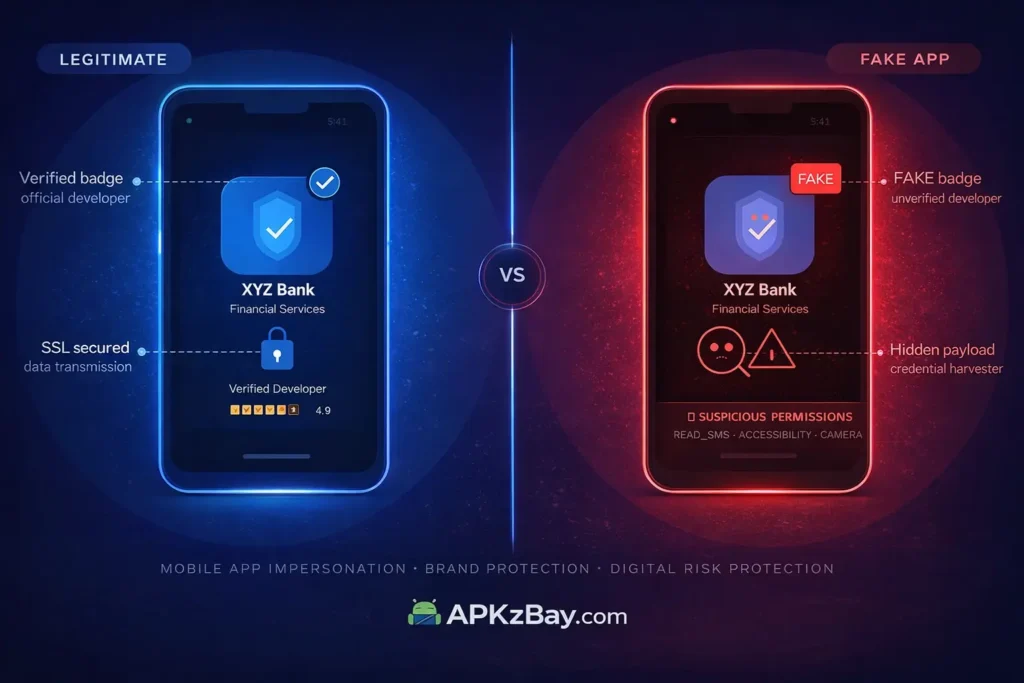
In this guide I will break the topic down. You will learn what fake clones are, how they trick people, how to find fake apps on Android, and what to check before tapping Install. I will also cover Samsung-specific tips, APK-related risks, a comparison table, beginner-friendly advice, and a practical FAQ section. Whether you are a casual user or a tech enthusiast, this article will help you protect your phone and your data.
Why Fake App Clones Are a Serious Android Problem
A fake app clone is an app that copies the identity, design, or purpose of a real app to trick users. It may imitate the original icon, app name, screenshots, login screen, or even package name. Some clones are obvious. Others look almost identical to the real thing.
These apps can be dangerous because they may:
- Steal login credentials
- Record your keystrokes
- Show aggressive ads
- Install hidden malware
- Ask for unnecessary permissions
- Redirect payments
- Access your messages or contacts
- Drain your battery in the background
The risk gets even higher when users download APK files from unknown sites, Telegram groups, or random file-sharing pages. That is where many people start searching for fake app clone warning signs on android apk, because sideloaded apps do not always go through the same checks as official store listings.
Detailed List of Fake App Clone Warning Signs on Android
Below is the core section of this guide. These are the most common and most useful warning signs to check before installing or using an Android app.
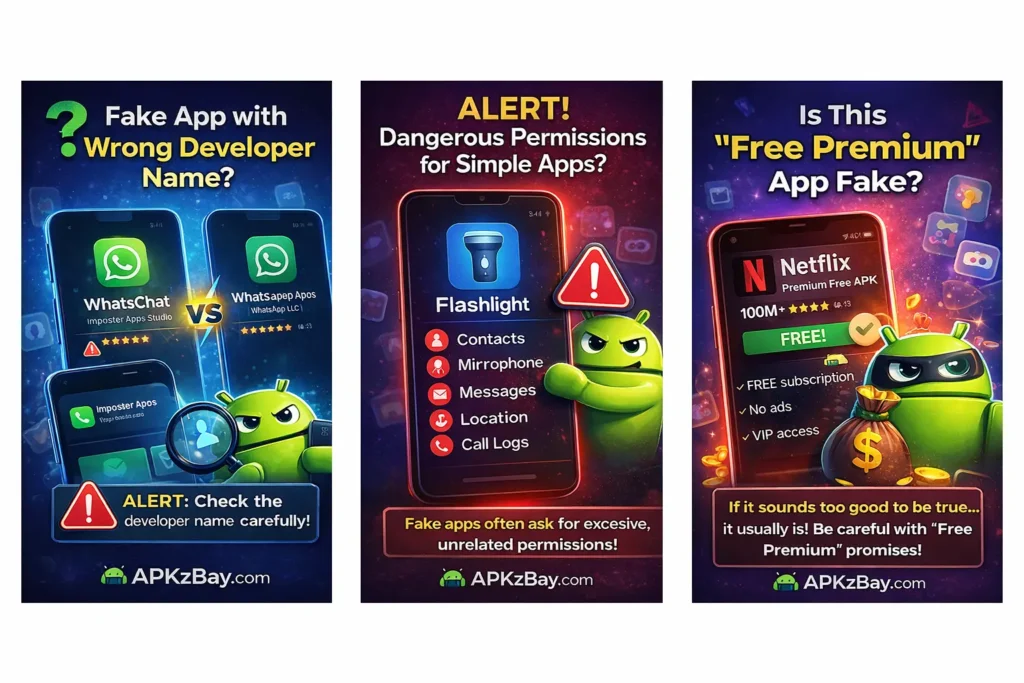
1. The Developer Name Looks Wrong
One of the easiest ways to spot a fake is to check the developer or publisher name.
A clone might use:
- A misspelled brand name
- An unrelated company name
- A generic name like “Best App Studio”
- Extra punctuation or symbols
- Slightly altered spellings such as “WhatsUp LLC” instead of the real publisher
For example, if an app claims to be a well-known service like Telegram, Spotify, PayPal, Instagram, or Netflix, but the developer name does not match the real company, that is a major red flag.
Rule: Always compare the app name and the developer name together, not separately.
2. The App Icon Looks Similar but Not Quite Right
Fake clones often copy the original icon but make small changes:
- Different shades of color
- Low-resolution graphics
- Slightly shifted shapes
- Missing shadows or outlines
- Extra text on the icon
At first glance, the icon may look genuine. On closer inspection, it feels off. That “almost correct” design is one of the classic fake app clone warning signs on android.
3. The App Name Uses Extra Words
Cloned apps often add unnecessary words to look more searchable.
Examples include:
- “WhatsApp Pro Fast Chat”
- “Instagram Plus HD”
- “Netflix Premium Free APK”
- “Telegram Gold Secure”
- “ChatGPT Unlimited AI Helper”
These names are designed to attract clicks. Legitimate apps usually keep their branding clean and consistent.
4. The Store Listing Is Full of Grammar Mistakes
Read the description carefully. Fake listings often contain:
- Broken English
- Random capitalization
- Awkward phrases
- Repeated keywords
- Overhyped promises like “100% free premium forever”
A professional company usually publishes a polished app description. Poor writing does not always mean an app is malicious, but it is a common warning sign.
5. The Permissions Do Not Match the App’s Purpose
Permissions are one of the strongest ways to judge whether an app is safe.
Here are some examples of suspicious permission requests:
- A flashlight app asking for contacts and microphone access
- A wallpaper app asking for SMS permissions
- A calculator app requesting location and call logs
- A fake video player asking for accessibility access
- A cloned banking app asking for screen overlay permissions
Always ask: Does this permission make sense for what the app actually does?
If the answer is no, stop there.
6. It Promises Paid Features for Free
Many fake clones use tempting offers to lure users:
- Premium subscription unlocked for free
- Unlimited coins or gems
- Ad-free paid version without payment
- VIP access without login
- Free streaming with no subscription
This is especially common when people search for fake app clone warning signs on android free. Attackers know that “free premium” is a strong click trigger. If a listing sounds too good to be true, it usually is.
7. The Reviews Look Fake or Repetitive
Reviews can help, but only if you read them critically. Suspicious review patterns include:
- Many five-star reviews with generic text
- Repeated phrases across different accounts
- Reviews that do not describe real app features
- Complaints about ads, pop-ups, or account theft
- Recent negative reviews after an update
Search for comments like:
- “This is not the original app”
- “My account was hacked”
- “Too many permissions”
- “Installed extra apps”
- “This app keeps opening ads”
That feedback often reveals more than the rating score.
8. The Download Count Does Not Match the Brand
A globally known app with only a tiny number of installs should make you pause.
For example:
- A major social app with only a few thousand downloads
- A famous payment app with a new upload date and low engagement
- A streaming brand with almost no verified feedback
Popular brands usually have huge visibility, large install counts, and a consistent update history.
9. The App Was Uploaded Very Recently
Clones often appear quickly after a popular trend or update. A new upload date by itself is not proof of fraud, but it is worth checking.
Be extra careful when:
- A trending game suddenly appears with “mod” or “premium” in the title
- An AI app becomes popular and many copycats appear
- A popular social media app gets a “lite” or “pro” clone from an unknown publisher
10. The Screenshots Feel Generic or Misleading
Store screenshots should show real app screens. Fake app listings often use:
- Stock photos
- Overedited promo images
- Screenshots copied from the original app
- Screens that do not match the app’s function
- Images with too much marketing text
If a messaging app shows fake banking screens or a utility app shows unrelated graphics, something is wrong.
11. The APK File Name Looks Suspicious
When users search for fake app clone warning signs on android apk, the APK file itself becomes an important clue.
Watch for file names like:
- app-premium-unlocked-final-final.apk
- original_whatsapp_mod_new_2026.apk
- netflix_vip_cracked_real.apk
- securebanking_latest_fixed.apk
These names often rely on hype, urgency, and fake trust signals. A legitimate APK usually has a cleaner naming style and comes from a trusted source.
If you are dealing with bundle formats, this guide on how to install Split APK on Android without PC can help you understand what is normal during installation and what should make you cautious.
12. The Package Name Does Not Match the Real App
Android apps have package names such as:
com.whatsapporg.telegram.messengercom.spotify.music
A clone may use something like:
com.whatschat.fastorg.telegram.securepluscom.spotify.premium.free
Checking package names takes a bit more effort, but it is a useful advanced step.
13. The App Shows Too Many Ads Too Early
Aggressive ad behavior is a major warning sign. Be suspicious if an app:
- Shows full-screen ads before setup is complete
- Pushes you to click “Allow” or “Continue” repeatedly
- Opens browser tabs automatically
- Installs shortcuts on your home screen
- Runs ads even when the app is closed
That does not always mean it is a clone, but it often indicates a low-trust app.
14. The App Tries to Disable Security Features
Some fake apps ask users to:
- Turn off Play Protect
- Ignore Android warnings
- Allow installation from unknown sources
- Disable battery optimization for no good reason
- Grant accessibility control immediately
There are legitimate cases where an app may need background access, but you should understand why before allowing it. This guide on how to disable battery optimization in Android setting explains when that setting makes sense and when it should make you slow down and verify the app first.
15. Installation Errors and Package Conflicts Keep Appearing
Sometimes a cloned APK conflicts with an existing genuine app because the signatures do not match. That can happen when:
- You already have the official app installed
- The clone uses the same package name but a different signature
- The APK has been modified or repackaged
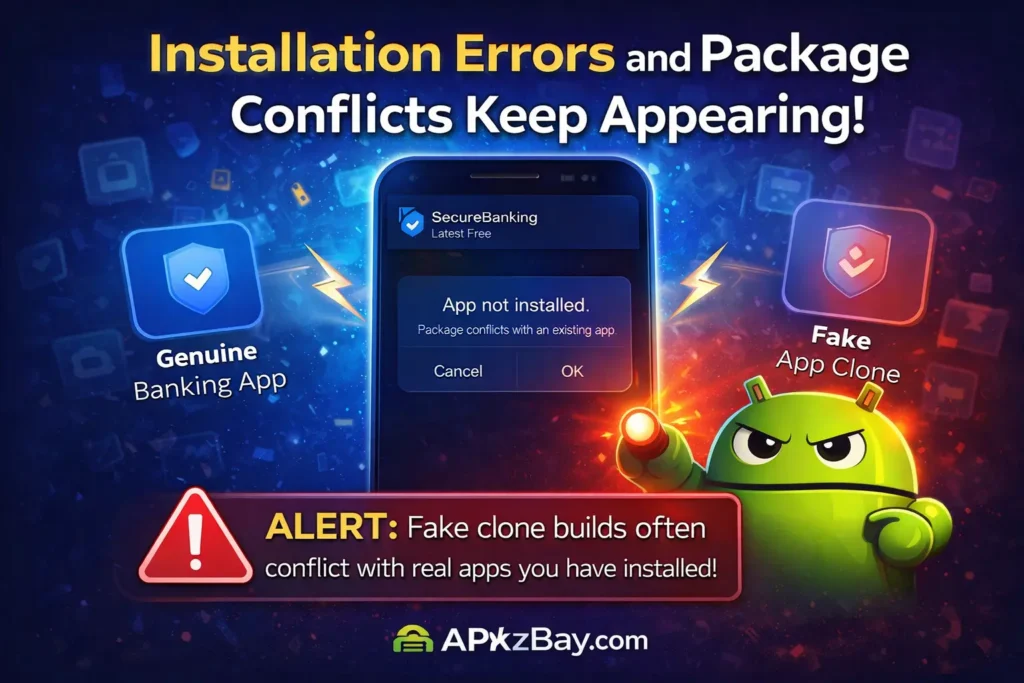
If you run into package mismatch problems, read app not installed package conflicts with existing package to understand what the error means and why it can signal a fake or altered build.
Fake Apps List: Popular Apps Commonly Imitated by Clones
This is not a blacklist of active malicious apps. Instead, it is a practical fake apps list for android showing the types of apps that are commonly impersonated.
Messaging and Social Apps
These apps are popular targets because users trust them and log in quickly.
- Telegram
- TikTok
- Snapchat
Common clone tricks include fake “Pro,” “Plus,” “Gold,” or “Premium” editions.
Payment, Banking, and Wallet Apps
These are especially dangerous because they handle money and identity.
- PayPal
- Cash App
- Google Wallet
- Popular banking apps
- Crypto wallet apps
- Trading apps
A fake version may copy the login screen to steal credentials.
Entertainment and Streaming Apps
These are often used in “free premium” scams.
- Netflix
- Spotify
- YouTube tools and downloaders
- Disney-related streaming apps
- CapCut-style editing tools
Attackers often promise ad-free or paid features for free.
Utility and Security Apps
These apps get broad device access, which makes them attractive to attackers.
- Cleaner apps
- Antivirus apps
- VPN apps
- File managers
- Launcher apps
- QR scanner apps
A fake utility app can hide in plain sight for weeks.
AI and Productivity Apps
As AI tools become more popular, clones follow fast.
- ChatGPT-style apps
- Note-taking tools
- Document scanners
- Password managers
- Cloud storage clients
A fake AI app may ask for subscriptions, card details, or broad permissions without real functionality.
Beginner Tips: How to Find Fake Apps on Android
If you are new to Android security, start with these simple checks. They are easy, fast, and highly effective.
1. Install From Official Sources First
Whenever possible, use:
- Google Play Store
- Samsung Galaxy Store for Samsung users
- The official website of the developer
Avoid downloading APKs from random blogs, comment sections, or short links.
2. Search the Developer, Not Just the App Name
Many users search only the app title. A better approach is to search:
App name + official developer
That extra step helps you compare the listing with the real publisher.
3. Use Play Protect
Google Play Protect is one of the easiest fake app checker free options available on Android. It scans apps on your device and can warn you about harmful behaviour.
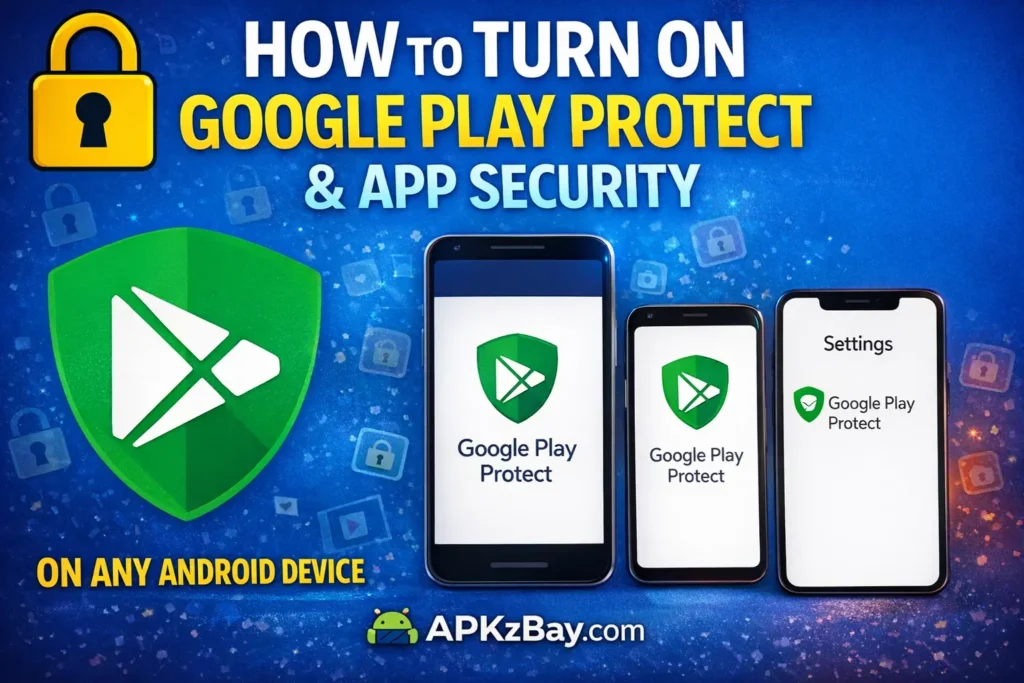
It is not perfect, but it is a strong first line of defense.
4. Check Permissions Before Opening the App
Do not rush through permission prompts. Review each one.
Ask yourself:
- Why does this app need this access?
- Does this feature require the permission?
- Can I deny it and still use the app safely?
5. Avoid “Modified” APKs Unless You Fully Trust the Source
Many fake clones hide inside modded APKs. Even when a modified version works, it may contain injected code, trackers, or malicious ads.
That is why searches around fake app clone warning signs on android apk are so important for sideloading users.
6. Scan APK Files Before Installing
For an extra check, use a fake app checker online tool like VirusTotal to scan an APK file or hash before installation. It can help flag known malware or suspicious behavior.
This does not replace good judgment, but it gives you another layer of verification.
7. On Samsung Devices, Watch Galaxy Store and APK Source Mixes
If you are specifically looking for fake app clone warning signs on android samsung, pay attention to where the app comes from.
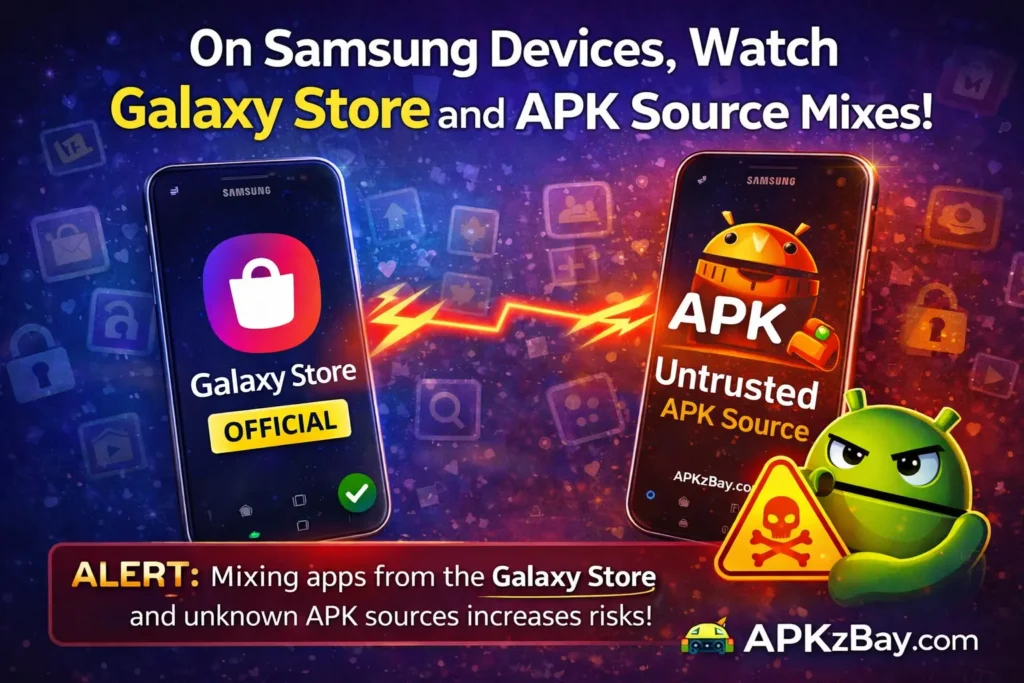
Samsung users often install apps from:
- Google Play
- Galaxy Store
- APK files from the web
That mix can create confusion. Before installing, confirm whether the real app normally comes from Play Store, Galaxy Store, or the developer’s official site. Do not assume every branded-looking listing is genuine just because it appears on the phone.
Comparison Table: Genuine App vs Fake Clone on Android
| Feature | Genuine App | Fake Clone App |
|---|---|---|
| Developer name | Matches the official company or known publisher | Misspelled, generic, or unrelated |
| App icon | Sharp, consistent, brand-correct | Similar but low quality or slightly altered |
| Permissions | Relevant to the app’s function | Excessive or unrelated |
| Description | Professional, clear, well written | Keyword stuffed, vague, or grammatically weak |
| Reviews | Mixed but believable, feature-specific | Repetitive, generic, suspicious praise |
| Update history | Consistent and logical | New, irregular, or unclear |
| File name / APK label | Clean and standard | Hype-driven, “premium/free/cracked” style |
| Ads | Limited and expected | Aggressive pop-ups and redirects |
| Login flow | Secure and familiar | Pushy, confusing, or phishing-like |
| Store source | Official app store or verified site | Unknown site, random forum, or shared link |
Tips for Choosing Safe Apps and Avoiding Clones
Choosing a safe app is not just about avoiding malware. It is also about selecting apps that respect your privacy, perform well, and stay updated.
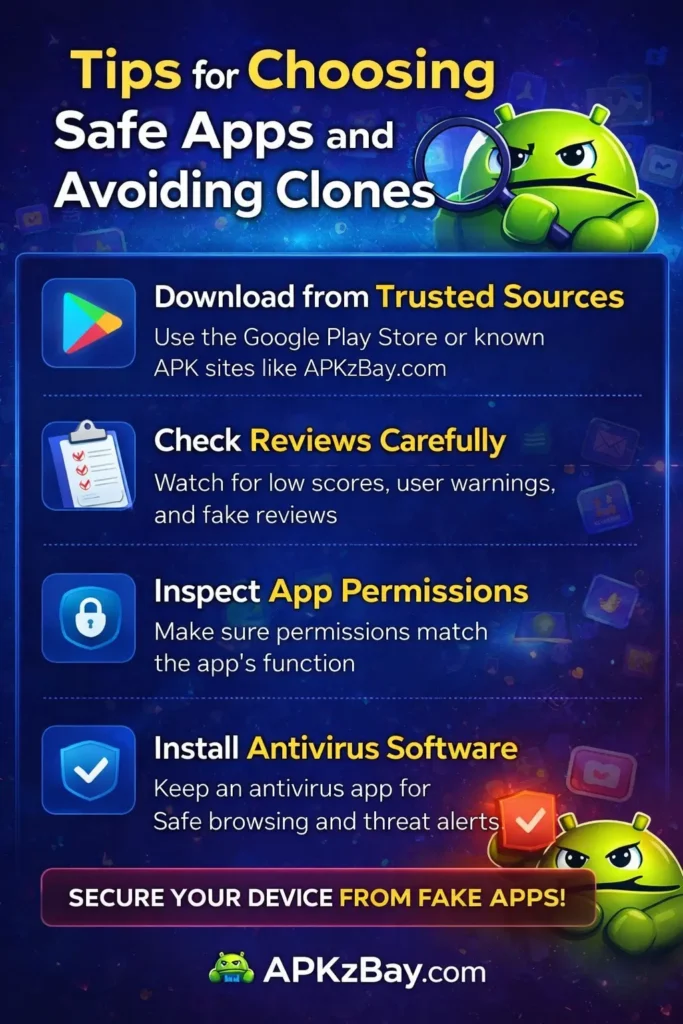
Choose Apps With a Clear Publisher Identity
Good apps usually have:
- A real company page
- Official support links
- Privacy policy access
- Consistent branding
- Legitimate contact information
Prefer Established Apps Over “Copycat Alternatives”
A flashy alternative with “Pro,” “Fast,” or “Ultra” in the name may be safe, but it deserves extra scrutiny. Unknown alternatives are not automatically bad, but they need stronger verification.
Read Recent Reviews, Not Just the Overall Rating
Recent reviews often reveal:
- Account lockouts
- Security warnings
- Adware behavior
- Fake subscription charges
- Broken updates
That helps you identify risks that older reviews miss.
Use More Than One Check
The best safety habit is layered checking:
- Verify the source
- Check the developer
- Read permissions
- Scan the APK
- Review user feedback
- Compare package details if needed
No single tool catches everything. Even the best fake app checker free option works better when combined with manual checks.
Be Careful With Search Terms Like “Free APK” and “Premium Unlocked”
These search terms attract the highest-risk results. That is where many fake clone installers get trapped.
If you keep searching phrases like:
- premium apk free
- unlocked mod apk
- no ads version
- original premium free
you will see more deceptive results than trustworthy ones.
Pros and Cons of APK Sideloading When Avoiding Fake Apps
Sideloading is not always bad. Many legitimate apps are distributed outside the Play Store. Still, it comes with trade-offs.
Pros
- Access to apps not available in your region
- Early access to updates
- Useful for testing beta builds
- Helpful for advanced users and developers
- Can solve compatibility issues in some cases
Cons
- Higher risk of fake clones
- Harder to verify authenticity
- Greater chance of modified packages
- More signature and package conflicts
- Easier for malware to hide in repackaged files
For most beginners, official stores remain the safest starting point.
Helpful Resources and Community Links
For more Android guides, updates, and troubleshooting content, you can follow APKZBay here:
You can also review Android security basics through trusted public resources such as Android Help and Google Play Protect information.
FAQs
1. What are the top fake app clone warning signs on Android?
The most common warning signs include a wrong developer name, suspicious permissions, poor grammar in the description, fake-looking reviews, low-quality icons, aggressive ads, and promises of paid features for free.
2. How to find fake apps on Android before installing them?
Start by checking the developer, reading recent reviews, verifying permissions, confirming the store source, and scanning APK files when sideloading. Using Play Protect and a fake app checker online adds another safety layer.
3. Are fake app clone warning signs on Android Samsung devices different?
The warning signs are mostly the same, but Samsung users often install apps from both Play Store and Galaxy Store, which can create confusion. The safest move is to confirm the real source of the app before downloading.
4. Is there a fake app checker free for Android users?
Yes. Google Play Protect is a built-in free option on many Android devices. You can also use online scanners for APK files, but manual checks are still important.
5. Can a fake APK look exactly like the original app?
Yes, some cloned APKs are visually very convincing. They may copy the app name, icon, screenshots, and even the login page. That is why you should also verify the developer, permissions, and package details.
6. What should I do if I installed a fake app by mistake?
Uninstall it immediately, revoke permissions, run a security scan, clear browser and app data, and change important passwords, especially for banking, email, and social accounts. If you entered payment details, contact your provider at once.
7. Why do fake apps ask for so many permissions?
Because permissions allow them to collect data, monitor activity, push ads, or take control of parts of your device. Excessive permissions are one of the strongest signs that an app is not trustworthy.
Conclusion
Learning the fake app clone warning signs on android is no longer optional. It is one of the smartest habits you can build as an Android user. A fake clone does not always look dangerous at first. In fact, the most successful ones look familiar, polished, and tempting. That is exactly why they work.
The good news is that most of them leave clues. A strange developer name, unnecessary permissions, bad reviews, a suspicious APK title, too many ads, or unrealistic promises can all help you spot a problem early. Once you know what to look for, you can avoid most of the traps that catch casual users.
Stick to trusted sources, verify the publisher, read before you tap, and use built-in tools like Play Protect along with online scans when needed. Whether you are searching for fake app clone warning signs on android samsung, fake app checker free, fake apps list, or how to find fake apps on android, the goal stays the same: install smarter, stay safer, and protect your data before a fake app gets the chance to exploit it.
Recent Posts
- How to Access Android Data Folder with Shizuku: Complete No-Root Guide

- How to Install APK on Amazon Fire Tablet Safely and Easily
- Install Unknown Apps Not Showing for Browser Fix Android: A Complete Beginner-Friendly Guide
- Why XAPK Files Need Extra Installer Android: A Complete Beginner-to-Pro Guide
- Trusted APK Sites for Android Safety Guide: How to Download APKs Without Putting Your Phone at Risk
- Fake App Clone Warning Signs on Android: How to Spot Unsafe Apps Before You Install Them
- How to Install Split APK on Android Without PC
- How to Disable Battery Optimization in Android Setting: A Complete Beginner-to-Pro Guide
- App Not Installed Package Conflicts With Existing Package: Meaning, Causes, and Proven Fixes
- How to Speed Up Android Phone Without Factory Reset: 17 Smart Fixes That Actually Work
- SPG4X FF Panel APK Latest Version – Features, Download Guide, Update Info, and Honest Review
- There Is a Problem Parsing the Package Android APK: Complete Fix Guide for Samsung, Huawei, Android 12, and Android 14