Hidden Android Features You Should Enable in 2026 Free Guide
15-03-2026
Description
Android phones are packed with useful tools, but many of the best options are buried deep inside Settings. That is exactly why so many people use their phones every day without ever unlocking their full potential. If you have ever wondered whether there are Hidden Android features you should enable right now to improve privacy, speed, battery life, and convenience, the answer is yes.
The good news is that you do not need to install risky apps or root your phone. Many of the most valuable tools are already built into Android. Some improve security. Some make multitasking easier. Others help you customize your phone in ways most users never discover. Whether you use Pixel, OnePlus, Xiaomi, Motorola, or are specifically searching for hidden android features you should enable samsung, this guide will help you get more from your device.
In this article, you will discover practical settings, lesser-known tools, and genuinely useful tweaks that work in real life. We will also compare the best features, explain who should use them, and share beginner tips so you can enable the right ones without confusion. If you enjoy finding cool things you can do on android, this guide will save you time and help you use your phone like a power user.
Why hidden Android features matter
Most people only use the basic parts of their phone:
- Calls
- Messages
- Camera
- Social media
- Web browsing
But modern Android devices include far more than that. Many of today’s hidden features in android phone settings can help you:
- Protect personal data
- Reduce distractions
- Improve battery life
- Use your phone one-handed
- Automate common tasks
- Speed up daily actions
- Make your phone feel more personal
Some of these options are small. Some feel like a small secret mobile phone trick that instantly improves everyday use. Others are powerful enough to change how you work, travel, game, or communicate.
1. App Pinning
Overview
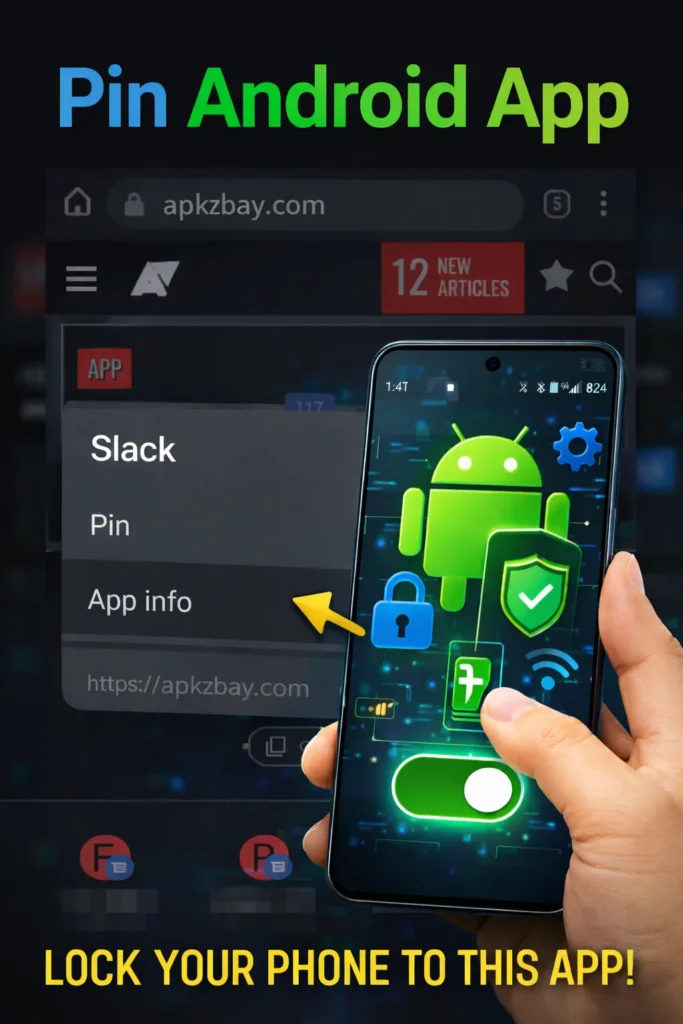
App Pinning lets you lock the phone to one app until you manually unpin it. This is perfect when you hand your phone to someone else and do not want them opening your photos, messages, or browser tabs.
Key features
- Locks the screen to a single app
- Requires your PIN, pattern, or password to exit
- Great for privacy when sharing your phone
Pros
- Simple and effective
- Built into Android
- Excellent for parents and professionals
Cons
- Not everyone knows where to find it
- Can feel inconvenient if you switch apps often
Best for
Users who hand their phones to children, friends, coworkers, or customers.
2. Private DNS
Overview
Private DNS is one of the most underrated privacy tools on Android. It helps encrypt your DNS requests, which can improve privacy while browsing on public or home networks.
Key features
- Adds an extra layer of privacy
- Helps reduce DNS-level tracking
- Works system-wide once enabled
Pros
- Strong privacy benefit
- Easy to set once
- No extra app required
Cons
- Some custom DNS providers may cause connection issues
- Setup can be confusing for beginners
Best for
Privacy-focused users and anyone who connects to public Wi-Fi often.
This is also a great example of a hidden android security feature that many people ignore, even though it can be useful every day.
3. Notification History
Overview
Have you ever swiped away a notification by mistake and then forgotten what it said? Notification History solves that problem by keeping a log of recent alerts.
Key features
- Stores dismissed notifications
- Helps recover important alerts
- Useful for email, messages, and app reminders
Pros
- Saves time
- Reduces missed information
- Very helpful for busy users
Cons
- Only works after you enable it
- Can feel cluttered if you get too many notifications
Best for
Students, professionals, and anyone who receives many notifications daily.
4. Live Caption
Overview
Live Caption automatically creates captions for audio playing on your device. It works for videos, podcasts, voice notes, and sometimes even calls on supported devices.
Key features
- Real-time subtitles for media
- Helpful for accessibility
- Useful in noisy or quiet environments
Pros
- Excellent accessibility feature
- Great for watching content without sound
- Works across many apps
Cons
- Can use extra battery
- Accuracy varies by language and audio quality
Best for
Commuters, students, hard-of-hearing users, and anyone who watches videos silently.
5. One-Handed Mode
Overview
Large phones are powerful, but they are not always easy to use with one hand. One-Handed Mode pulls the screen down so your thumb can reach more easily.
Key features
- Shrinks or lowers the display
- Makes large screens easier to manage
- Improves comfort while walking or multitasking
Pros
- Great for bigger phones
- Reduces accidental drops
- Easy to activate once configured
Cons
- Not useful on smaller devices
- Implementation varies by brand
Best for
Anyone using a tall or large-screen Android phone.
6. Digital Wellbeing Focus Mode
Overview
Focus Mode temporarily pauses distracting apps so you can work, study, or relax without constant interruptions.
Key features
- Blocks selected apps
- Can be scheduled automatically
- Helps manage screen time
Pros
- Very effective for productivity
- Good for mental focus
- Easy to customize
Cons
- You can still turn it off if your willpower slips
- Not all users like app restrictions
Best for
Remote workers, students, and anyone trying to reduce doomscrolling.
7. Nearby Share or Quick Share
Overview
Sharing files between Android devices has become much easier. Nearby Share, now improved on many devices and merged into Quick Share on some phones, lets you send photos, links, videos, and files quickly.
Key features
- Wireless file sharing
- Works between nearby devices
- Easier than Bluetooth for many users
Pros
- Fast and convenient
- Great for photos and documents
- No cables needed
Cons
- Both devices need compatible support
- Can be inconsistent on some older phones
Best for
Users who transfer files between phones, tablets, and computers.
8. Adaptive Battery
Overview
Adaptive Battery uses Android’s intelligence to prioritize power for the apps you use most and limit background activity for the ones you barely open.
Key features
- Learns your app habits
- Reduces background power drain
- Helps extend battery life over time
Pros
- Automatic once enabled
- Useful for most users
- No technical skill required
Cons
- May delay notifications from rarely used apps
- Benefits are not always dramatic on new flagship phones
Best for
People who want better battery performance with minimal effort.
If battery drain is already a problem, you may also like this guide on how to speed up a slow Android phone, which covers cleanup and performance tips in more detail.
9. Gesture Navigation
Overview
Gesture Navigation replaces the traditional three-button system with smooth swipes for going home, switching apps, and going back.
Key features
- Cleaner full-screen experience
- Faster app switching
- More modern interface
Pros
- Makes Android feel smoother
- Frees up screen space
- Great for multitasking
Cons
- Learning curve for new users
- Some apps may feel awkward at first
Best for
Users who want a modern Android experience and better navigation flow.
10. Screen Attention
Overview
Screen Attention keeps your display from turning off while you are looking at it. It is subtle, but it is one of those android phone features that can make daily use much more convenient.
Key features
- Uses the front camera to detect attention
- Prevents unwanted screen timeout
- Helpful during reading or viewing recipes
Pros
- Convenient and smart
- Great for reading long content
- Reduces constant tapping
Cons
- May use a little extra battery
- Not available on all devices
Best for
Readers, cooks, students, and users who often stare at long articles or documents.
11. Bedtime Mode
Overview
Bedtime Mode reduces distractions at night by dimming the display, muting notifications, and sometimes shifting the screen to grayscale.
Key features
- Supports healthier sleep habits
- Reduces late-night distractions
- Can be scheduled automatically
Pros
- Simple and useful
- Helps reduce screen addiction at night
- Good for sleep routines
Cons
- Some people ignore it and keep scrolling
- Feature details vary by device
Best for
Anyone trying to sleep earlier or reduce nighttime phone use.
12. Lockdown Mode
Overview
Lockdown Mode temporarily disables biometric unlocking, like fingerprint and face unlock, until you enter your PIN or password manually.
Key features
- Disables fingerprint and face unlock
- Protects your device in high-risk situations
- Adds extra emergency privacy
Pros
- Strong security value
- Easy to trigger when needed
- Useful while traveling
Cons
- Not something most users need every day
- Easy to forget if you never practice using it
Best for
Travelers, journalists, professionals, and privacy-conscious users.
This is another excellent hidden android security feature that deserves more attention.
13. Split Screen and App Pairing
Overview
Split Screen allows two apps to run side by side. On some devices, especially Samsung phones and foldables, app pairing makes this even better by letting you save common app combinations.
Key features
- Run two apps at once
- Great for notes plus browser, or video plus chat
- Samsung devices offer more advanced multitasking
Pros
- Excellent for productivity
- Useful on large displays
- Saves time during research or messaging
Cons
- Small screens can feel cramped
- Not all apps behave well in split mode
Best for
Students, multitaskers, and Samsung users.
If you are looking specifically for hidden android features you should enable samsung, this is one of the top picks.
14. Built-in QR Code Scanner
Overview
Many Android phones now include a built-in QR scanner in the camera app or quick settings panel. You do not need a third-party scanner app in most cases.
Key features
- Scans QR codes directly
- Opens links, menus, logins, and payment pages
- Safer than random scanner apps
Pros
- Fast and simple
- Avoids unnecessary apps
- More secure than unknown scanner tools
Cons
- Placement differs by phone brand
- Some older devices still need Google Lens or similar tools
Best for
Everyday users who want quick access without extra apps.
15. Auto-rotate Face Detection
Overview
On supported phones, Android can use your face orientation to rotate the display more accurately. This avoids annoying rotations when you are lying down.
Key features
- Smarter screen rotation
- Uses front-facing camera cues
- More accurate than standard auto-rotate
Pros
- Convenient quality-of-life improvement
- Reduces accidental rotation
- Works well for video watching and reading
Cons
- Can use a bit more battery
- Not available on every device
Best for
Users who read or watch videos in different positions.
16. Clipboard Preview and Smart Actions
Overview
Newer Android versions often show a small clipboard preview when you copy text or images. This lets you quickly edit, share, or paste copied content more efficiently.
Key features
- Preview copied content
- Quick edit shortcuts
- Useful for links, addresses, and screenshots
Pros
- Saves time
- Feels modern and efficient
- Great for communication and editing
Cons
- Some users find popups distracting
- Brand-specific versions can differ
Best for
People who copy and paste often for work or school.
17. Themed Icons and Material You
Overview
Android’s newer design system lets your phone adjust colors based on wallpaper. Themed icons and adaptive colors create a more unified, polished look.
Key features
- Matches system colors to your wallpaper
- Creates a cleaner home screen
- Improves personalization without launcher apps
Pros
- Beautiful and modern
- Makes Android feel fresh
- Easy to customize
Cons
- Not all app icons support it
- Mostly cosmetic rather than functional
Best for
Users who care about design, aesthetics, and personalization.
This is one of the cool things you can do on android without installing a custom launcher.
18. Hidden Game Dashboard or Performance Tools
Overview
Many Android phones include gaming tools that block notifications, boost performance, capture gameplay, or monitor frame rate. These are especially common on Samsung, ASUS, Xiaomi, and other gaming-friendly brands.
Key features
- Performance tuning
- Notification blocking
- Screen recording and quick tools
- Gaming shortcuts
Pros
- Better gaming sessions
- Reduces interruptions
- Helpful for streamers and mobile gamers
Cons
- Can increase battery drain
- Some tools are limited to certain brands
Best for
Gamers and power users.
19. Safety Check and Emergency Features
Overview
Android includes personal safety tools such as emergency SOS, location sharing, medical info, and safety checks on supported devices. These tools are easy to ignore until you truly need them.
Key features
- Emergency contact access
- Medical information on lock screen
- Quick SOS triggers
- Location sharing in emergencies
Pros
- Extremely useful in real life
- Can help in urgent situations
- Easy to configure once
Cons
- Availability varies by country and device
- Some users never set it up
Best for
Everyone, especially travelers, parents, and solo commuters.
For official Android safety guidance, you can review Google’s Android Help pages and security resources from the Android ecosystem:
20. Per-app Language Settings
Overview
On newer Android versions, some phones let you set different languages for different apps. That means you can keep your phone in one language and use specific apps in another.
Key features
- Separate app language choices
- Great for bilingual users
- Makes multilingual workflows easier
Pros
- Very practical
- Helps with study and work
- Great for international users
Cons
- Not every app supports it
- Usually found on newer Android versions
Best for
Bilingual users, language learners, and international professionals.
21. Android 14 hidden features worth trying
If you are specifically searching for android 14 hidden features, here are some standout options often associated with newer Android releases and updated device software:
Predictive back animations
This feature gives you a preview of where the back gesture will take you before you complete it.
Pros: smoother navigation
Cons: may feel unnecessary to some
Best for: users who rely on gesture controls
Better lock screen customization
Some devices offer improved lock screen shortcuts, wallpaper styling, and layout controls.
Pros: more personalization
Cons: depends heavily on manufacturer
Best for: design-focused users
More control over photo and media permissions
Newer Android versions have continued to improve how apps access your images and videos.
Pros: better privacy
Cons: occasional permission prompts may feel repetitive
Best for: privacy-conscious users
Improved background process behavior
Android keeps refining battery and memory management.
Pros: smoother performance
Cons: background apps may behave more aggressively
Best for: average users who want longer battery life
These may not look flashy, but they contribute to a better and safer experience over time.
22. Samsung-only hidden Android features you should enable
If your search is specifically about hidden android features you should enable samsung, here are some standout Samsung extras:
Edge Panels
A side panel for quick app access, tools, clipboard history, and contacts.
Secure Folder
A private, protected space for apps, files, photos, and accounts.
Modes and Routines
Samsung’s automation tool for changing settings based on time, place, battery, or activity.
Bixby Text Call
Lets your phone answer calls with text responses in supported regions.
Dual Messenger
Run two separate accounts for selected chat apps.
These additions make Samsung phones especially strong for multitasking, privacy, and automation.
23. Are there really 35 hidden Android features?
Many users search for 35 hidden android features, and that number is popular because Android is packed with small settings most people never notice. In practice, the exact number depends on:
- Your Android version
- Your phone brand
- Your region
- Your installed apps
- Whether your device is stock Android or customized by the manufacturer
So yes, there are easily dozens of hidden or lesser-known tools on most phones. But the smartest approach is not to enable everything. It is to choose the features that match how you use your device.
Comparison table: the best hidden Android features at a glance
| Feature | Main Benefit | Best For | Difficulty | Possible Downside |
|---|---|---|---|---|
| App Pinning | Privacy when sharing phone | Parents, professionals | Easy | Easy to forget where it is |
| Private DNS | Better privacy | Public Wi-Fi users | Medium | May affect some connections |
| Notification History | Recover missed alerts | Busy users | Easy | Can feel cluttered |
| Live Caption | Accessibility and quiet viewing | Students, commuters | Easy | Uses more battery |
| One-Handed Mode | Better reachability | Large phone users | Easy | Less useful on compact phones |
| Focus Mode | Fewer distractions | Students, remote workers | Easy | Can be bypassed |
| Adaptive Battery | Better battery life | Most users | Easy | Can delay some app activity |
| Gesture Navigation | Smoother interface | Modern Android users | Medium | Learning curve |
| Lockdown Mode | Strong emergency security | Privacy-focused users | Medium | Rarely needed daily |
| Split Screen | Better multitasking | Power users | Medium | Cramped on small screens |
| Secure Folder (Samsung) | Private storage and apps | Samsung users | Easy | Samsung only |
| Modes and Routines (Samsung) | Automation | Advanced users | Medium | Setup takes time |
| Emergency Features | Personal safety | Everyone | Easy | Often ignored until needed |
Tips for choosing the right hidden Android features
Not every feature is right for every person. The best settings depend on your habits.
Choose privacy features if you:
- Use public Wi-Fi
- Store personal files on your phone
- Travel often
- Hand your phone to others
Best picks:
- Private DNS
- App Pinning
- Lockdown Mode
- Emergency settings
- Secure Folder on Samsung
Choose productivity features if you:
- Study on your phone
- Work remotely
- Multitask often
- Use messaging and notes heavily
Best picks:
- Split Screen
- Gesture Navigation
- Notification History
- Clipboard tools
- Focus Mode
Choose convenience features if you:
- Want faster daily use
- Use a large phone
- Watch lots of videos
- Prefer smarter automation
Best picks:
- One-Handed Mode
- Auto-rotate face detection
- Screen Attention
- Nearby Share or Quick Share
- Adaptive Battery
Choose customization features if you:
- Enjoy making your phone feel personal
- Want a cleaner home screen
- Like modern design
Best picks:
- Themed icons
- Wallpaper color matching
- Samsung Edge Panels
- Lock screen customization
Beginner tips before enabling hidden Android features
If you are new to Android settings, start slowly. Do not switch on everything at once.
1. Enable one or two features first
Choose the options you will actually use daily, such as Notification History or One-Handed Mode.
2. Search inside Settings
Most Android phones now include a search bar in the Settings app. This is the easiest way to find hidden tools.
3. Learn your phone brand’s extras
Samsung, Xiaomi, OnePlus, and Pixel devices all add their own features. Stock Android and Samsung One UI can feel very different.
4. Test battery impact
Features like Live Caption, face-based rotation, and some gaming tools may use more battery. Try them for a few days and decide if they are worth it.
5. Review app permissions
A surprising number of issues come from overly broad permissions. Check what apps can access your camera, microphone, location, and files.
6. Keep your phone updated
Some of the best hidden features in android phone software appear only after system updates.
7. Fix existing Android issues first
If your phone struggles with downloads or performance, solve those problems before exploring extras. This step-by-step guide on Android download pending fix can help if app downloads are stuck.
Common mistakes people make with hidden Android features
Even useful settings can become annoying if you use them the wrong way.
Enabling too many battery restrictions
Battery-saving tools are helpful, but too much restriction can delay messages or break background syncing.
Ignoring emergency tools
Many users skip Safety, SOS, and medical information setup because they seem unimportant until an emergency happens.
Installing third-party apps for features Android already has
You usually do not need extra apps for QR scanning, captions, file sharing, or digital wellbeing.
Copying recommendations without checking compatibility
Some settings differ by phone model, Android version, and region.
Forgetting the basics
Sometimes the best upgrade is not a hidden feature at all. Cleaning storage, updating software, and removing junk apps still matter most.
FAQs about Hidden Android features you should enable
1. What are the most useful hidden Android features you should enable first?
Start with Notification History, App Pinning, Adaptive Battery, Focus Mode, and emergency features. These have practical value for most users and do not require advanced setup.
2. Are hidden Android features safe to enable?
Yes, built-in Android features are generally safe. They are part of the operating system. Just be careful with features that affect privacy, battery, or app behavior, and test them one by one.
3. Do Samsung phones have more hidden features than stock Android?
In many cases, yes. Samsung adds tools like Secure Folder, Edge Panels, Modes and Routines, and advanced multitasking. That is why many users search for hidden android features you should enable samsung specifically.
4. Which hidden Android security feature is the most important?
Private DNS, Lockdown Mode, App Pinning, and emergency contact tools are among the most useful. The best one depends on whether you care more about privacy, device access, or safety.
5. Are Android 14 hidden features worth using?
Yes. Many android 14 hidden features are not flashy, but they improve privacy, permissions, navigation, and background efficiency. They are especially useful if you like a smoother, more secure experience.
6. Will these features slow down my phone?
Most will not. In fact, some can improve the overall experience. However, tools like Live Caption, always-on personalization, and advanced gaming modes may use more battery or system resources.
7. Do I need apps to unlock hidden Android features?
Usually no. Most of the features in this article are already available in your phone’s settings. That is part of what makes them so useful.
Conclusion
Android is powerful because it gives users more control than many people realize. The real value is not just in flashy customization. It is in the small tools that improve privacy, convenience, security, focus, and performance every single day. That is why learning about Hidden Android features you should enable is one of the smartest ways to upgrade your phone experience without spending money.
If you are a beginner, start with the basics. Enable Notification History, App Pinning, Adaptive Battery, and emergency features. If you are a power user, go deeper with Private DNS, Split Screen, gesture controls, automation, and Samsung’s advanced options. And if you simply enjoy discovering cool things you can do on android, there is always another useful setting waiting inside the menu.
The best part is that you do not need all 35 or more possible tweaks. You only need the ones that fit your life. Pick the features that solve real problems, test them for a few days, and your Android phone will feel smarter, safer, and much more personal.
Related apps



Recent Posts
- How to Install APK from CX File Explorer on Android

- How to Install APK from My Files App on Android: A Complete Beginner-Friendly Guide
- How to Install APK Without Errors Android Guide
- How to Install APK After Downloading ZIP File
- This App Is Not Compatible With This Device Problem Solution
- How to Prevent Installing Harmful Apps
- How to Access Android Data Folder with Shizuku: Complete No-Root Guide
- How to Install APK on Amazon Fire Tablet Safely and Easily
- Install Unknown Apps Not Showing for Browser Fix Android: A Complete Beginner-Friendly Guide
- Why XAPK Files Need Extra Installer Android: A Complete Beginner-to-Pro Guide
- Trusted APK Sites for Android Safety Guide: How to Download APKs Without Putting Your Phone at Risk
- Fake App Clone Warning Signs on Android: How to Spot Unsafe Apps Before You Install Them