How to Access Android Data Folder with Shizuku: Complete No-Root Guide
04-04-2026
Description
Android used to make file browsing feel simple. You could open a file manager, tap into storage, and move around almost anywhere. Then Android 11 changed the rules. Google tightened storage privacy, blocked normal apps from freely browsing other apps’ private folders, and made Android/data and Android/obb much harder to open through the regular file picker. Official Android documentation says apps on Android 11 and higher can no longer access other apps’ app-specific directories, and the Storage Access Framework no longer exposes Android/data and Android/obb the same way it once did. (Android Developers)
That is exactly why so many users now search for how to access android data folder with shizuku. Shizuku has become one of the most popular ways to bridge the gap between Android’s stricter storage model and the real-world need to manage files, restore app backups, move game resources, or inspect folders for troubleshooting. Official Shizuku docs describe it as a tool that lets apps use system APIs with higher privileges through ADB or root, and its user manual explains that non-root startup via wireless debugging works on Android 11 and above. (Shizuku)
In this guide, I will show you how to access android data folder with shizuku, explain how it works without root, cover Android 11 through Android 16, mention Samsung-specific notes, compare your options, and help you choose the safest setup for your device.
Why the Android Data Folder Is Hard to Access Now
Before learning how to access android data folder with shizuku, it helps to understand why this folder is blocked in the first place.
Google’s storage model changed heavily with scoped storage. Android’s official documentation says that on Android 11 and higher, apps cannot access files in other apps’ private data directories, even if those files were previously world-readable. The same documentation also says apps can no longer access files in any other app’s dedicated app-specific directory within external storage.
That matters because the folders most people want are usually here:
/storage/emulated/0/Android/data/storage/emulated/0/Android/obb
These are not regular public folders in the old sense anymore. Android’s own docs explain that the Storage Access Framework can let apps work with user-selected files and folders, but Android 11 added document access restrictions that keep Android/data and Android/obb from appearing normally in many picker flows.
So if a regular file manager fails to open those folders, the problem usually is not the app. The problem is Android itself.
What Shizuku Actually Does
Shizuku is not magic, and it is not the same thing as root. That distinction matters.
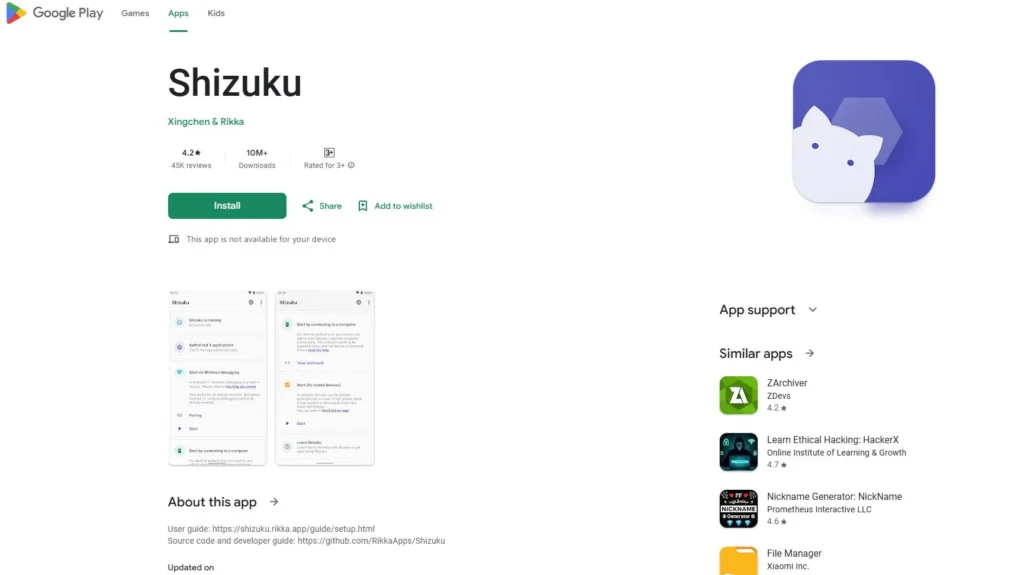
According to the official Shizuku project, the app works by having the user start a Shizuku server with ADB or root first. After that, supported apps can communicate with system services through Shizuku as a middle layer. The project’s own wording is that Shizuku lets apps use system APIs with higher permission and supports ADB-based usage for apps that only need ADB-level privileges rather than full root.
In plain English, that means:
- Shizuku does not root your phone
- Shizuku gives supported apps a smarter way to request elevated system access
- A Shizuku-compatible file manager can often browse
Android/datain situations where an ordinary file manager cannot - The exact result still depends on Android version, device brand, and the app you pair with Shizuku
This is why the keyword how to access android data folder with shizuku without root is so common. For many users, Shizuku is the cleanest middle ground between basic file browsing and full rooting.
Detailed List: What You Need Before You Start
Before you try how to access android data folder with shizuku, get these basics ready.
1. An Android Phone or Tablet Running Android 11 or Later
Shizuku’s official setup guide says that starting via wireless debugging works on Android 11 and above and does not require a computer, though you must repeat startup after each reboot. For Android 10 and below, the non-root startup path requires connecting to a computer.
2. Developer Options Enabled
To use wireless debugging or USB debugging, you need Developer options. Samsung’s developer documentation says you can enable it by going to Settings, opening About phone, tapping Software information, and tapping Build number seven times. Android’s ADB documentation also notes that USB debugging lives under Developer options.
3. The Shizuku App
The official Shizuku website provides download options and links to the project resources, while the Play Store listing identifies Shizuku as an open-source app for serving apps that require root or ADB.
4. A Shizuku-Compatible File Manager
Not every file manager works with Shizuku. A community-maintained “awesome-shizuku” list specifically names file-management apps such as File Manager Plus, FV File Manager, MiXplorer, MT Manager, Solid Explorer, and SwiftBackup as apps that support Shizuku in different ways. FV File Manager’s official site also says its Shizuku-based method can access Android/data and Android/obb on newer Android versions, including Android 14+, and says its method works on Android 11 through 16.
5. A Little Patience
This is not hard, but it is more technical than installing a normal app. If you rush, you will usually miss one permission screen and think the whole method is broken.
How to Access Android Data Folder with Shizuku Without Root
This is the step-by-step process most readers need.
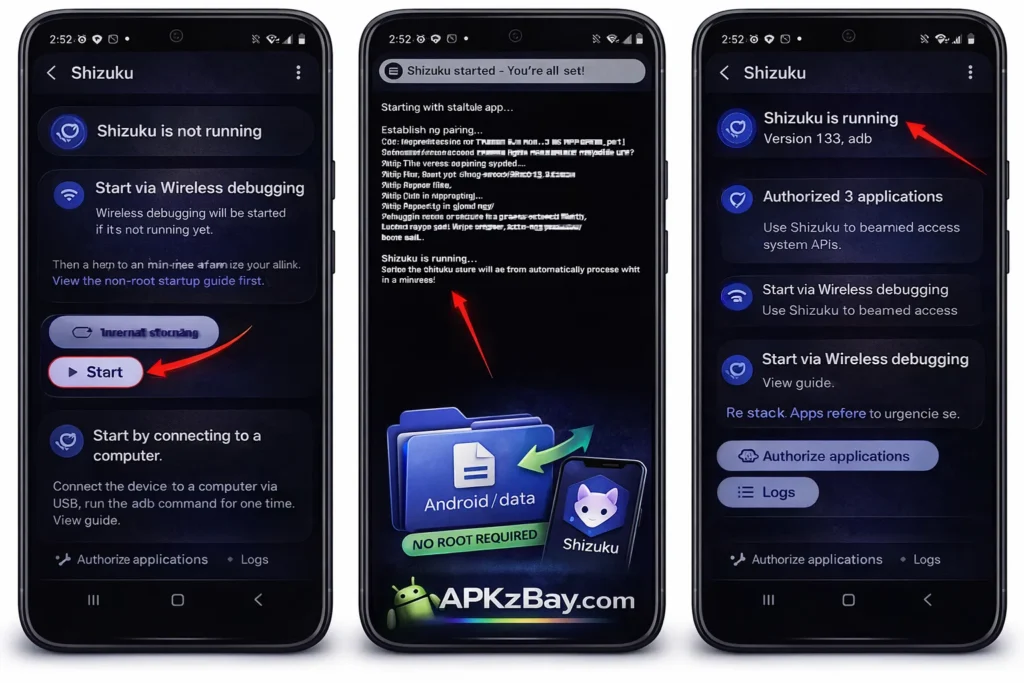
Step 1: Install Shizuku
Install the official Shizuku app from one of its official sources. The Shizuku download page links to Google Play and GitHub releases, which is the safest place to start if you want the genuine app rather than a random re-upload.
This is where the phrase how to access android data folder with shizuku apk naturally comes in. Yes, you can install the Shizuku APK from official sources, but always prefer the official site or official release links over unknown download pages.
Step 2: Enable Developer Options
On most Android phones, go to:
Settings > About phone > Software information > Build number
Tap Build number seven times.
Samsung’s developer guide confirms that exact flow for enabling Developer options on Galaxy phones.
After that, go back to Settings and open Developer options.
Step 3: Turn On USB Debugging and Wireless Debugging
Inside Developer options:
- Turn on USB debugging
- Turn on Wireless debugging if your device is on Android 11 or newer
Android’s official ADB guide says Android 11 and above support wireless debugging and pairing over Wi-Fi. It also notes that pairing can be done with a code and that this wireless method eliminates the need for a physical USB connection in many cases.
Step 4: Start Shizuku
Open the Shizuku app.
If you are on Android 11 or newer, Shizuku’s user manual says you can start it via wireless debugging, which does not require a computer. The same guide says the startup must be done again after each reboot because of system limitations.
The basic flow is:
- Open Shizuku
- Tap the option to pair/start using wireless debugging
- In Android’s Wireless debugging screen, choose Pair device with pairing code
- Enter the pairing code into Shizuku
- Start the Shizuku service
If you are on Android 10 or below and you are not rooted, Shizuku’s official guide says the startup method requires connecting to a computer.
Step 5: Install a Compatible File Manager
Now install a file manager that supports Shizuku-based storage access.
Popular options people use include:
- FV File Manager
- File Manager Plus
- MiXplorer / MiXplorer Silver
- MT Manager
- Solid Explorer
- SwiftBackup for backup-related tasks
These apps appear in the file-management section of the “awesome-shizuku” list, and FV File Manager’s official documentation explicitly discusses Shizuku access for Android/data and Android/obb.
Step 6: Grant Shizuku Permission to the File Manager
Open your chosen file manager and look for a setting related to:
- Shizuku
- Elevated access
- Special access
- Android/data access
- Advanced file access
The wording varies by app, but the idea is the same: the file manager must be authorized to use Shizuku.
Once granted, the app should be able to use Shizuku’s ADB-backed privileges rather than relying only on ordinary storage permissions.
Step 7: Open the Android Folder
In the file manager, go to:
Internal Storage > Android > data
or directly:
/storage/emulated/0/Android/data
If the authorization worked, you should now be able to browse folders that a normal file manager would usually fail to open.
This is the heart of how to access android data folder with shizuku without root.
Step 8: Work Carefully
You can now browse, copy, move, back up, or replace files depending on the app and folder permissions. But do not treat Android/data like a junk drawer.
These folders often contain:
- App caches
- Saved game data
- Downloaded assets
- Backups
- Settings databases
- Temporary files
Delete the wrong folder, and the app may crash, lose data, or force a full re-download.
Popular Apps People Commonly Use with Shizuku
If you are learning how to access android data folder with shizuku, the app you pair with Shizuku matters just as much as Shizuku itself.
FV File Manager
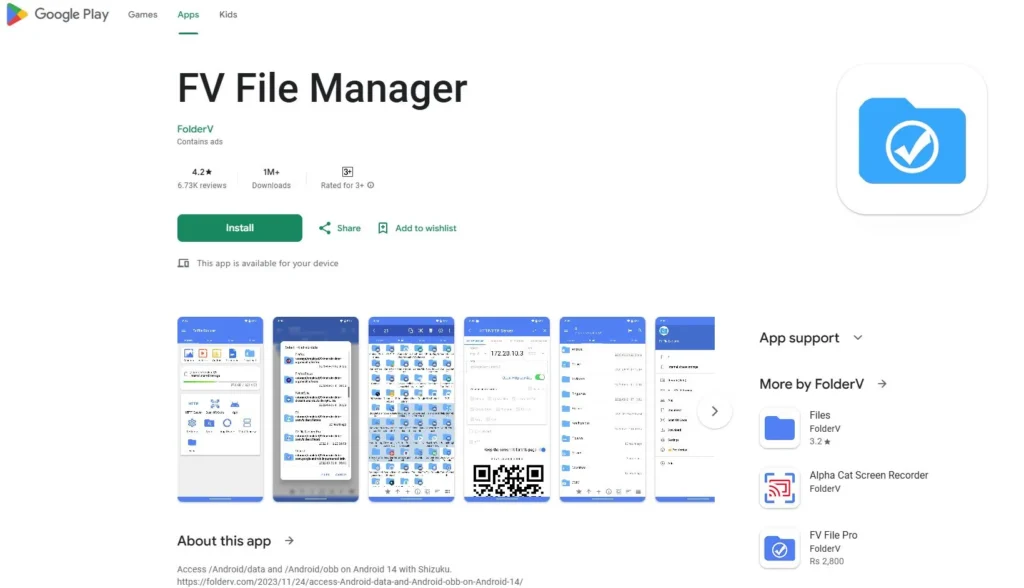
FV’s official site directly documents access to Android/data and Android/obb using Shizuku on newer Android versions and says its method works on Android 11 through 16.
File Manager Plus
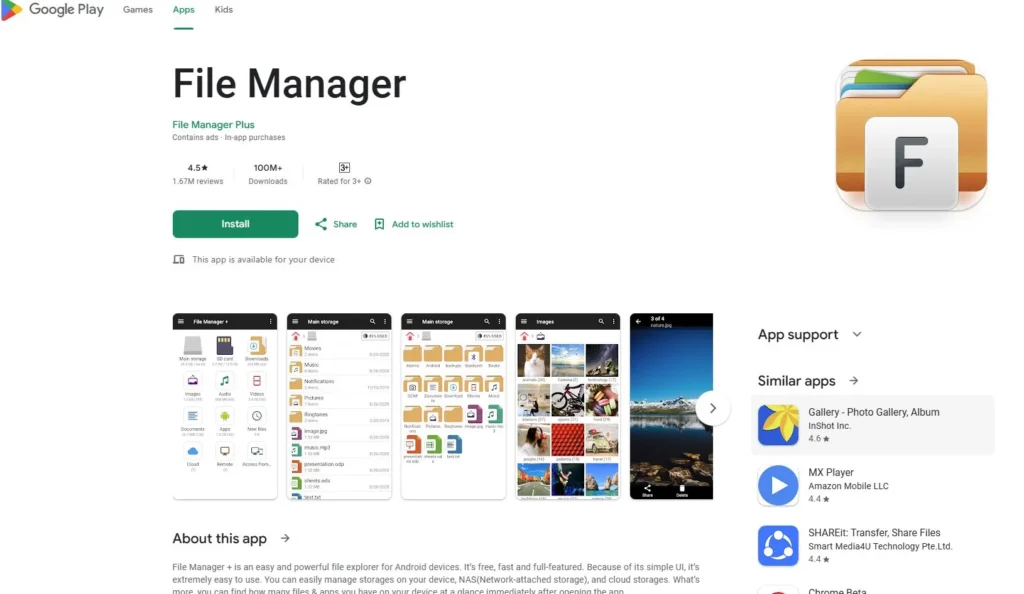
The “awesome-shizuku” list says File Manager Plus supports Shizuku for Android/data, Android/obb, and part of the root filesystem.
MiXplorer
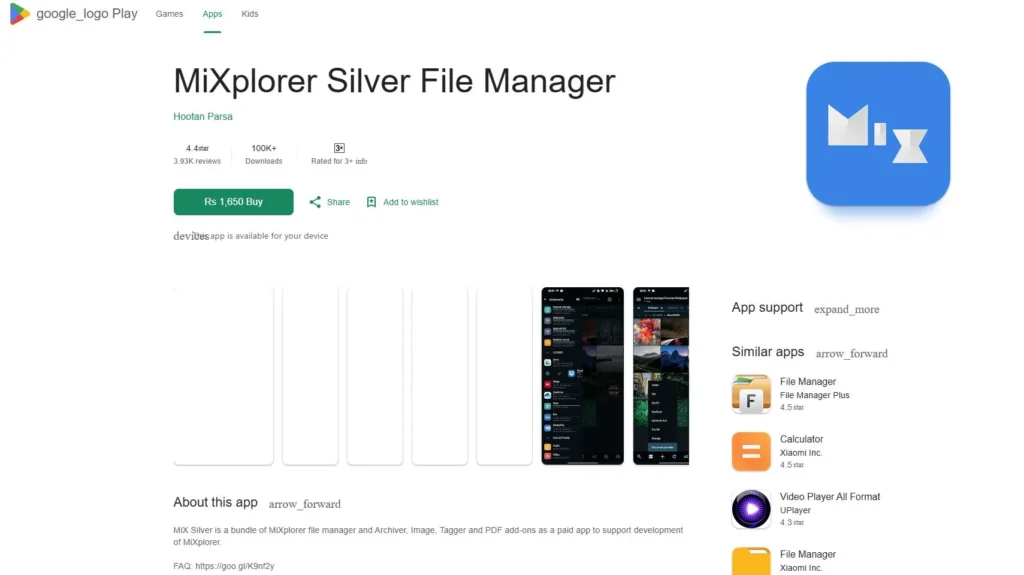
The same list says MiXplorer can access Android/data and Android/obb with Shizuku and can also batch install APKs.
MT Manager
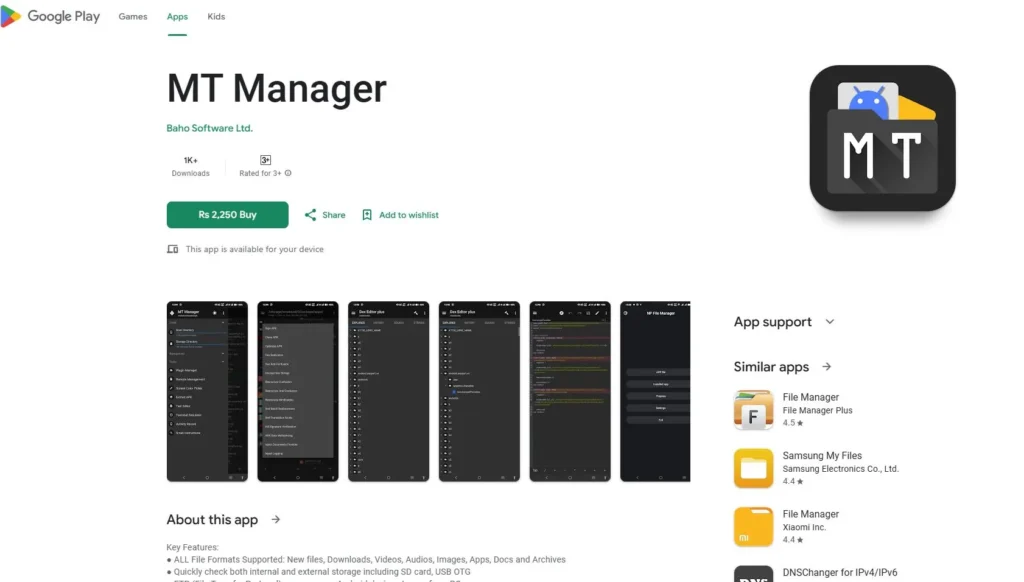
Again, the curated list identifies MT Manager as a Shizuku-capable file manager for Android/data and Android/obb.
Solid Explorer
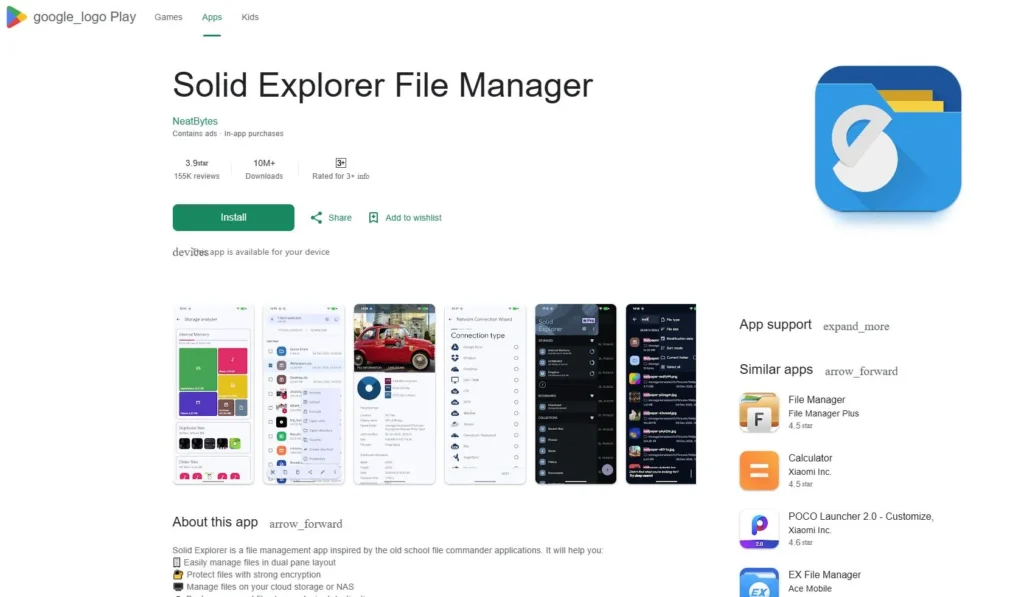
Solid Explorer also appears in that list, making it one of the names users often compare when deciding which tool to try.
SwiftBackup
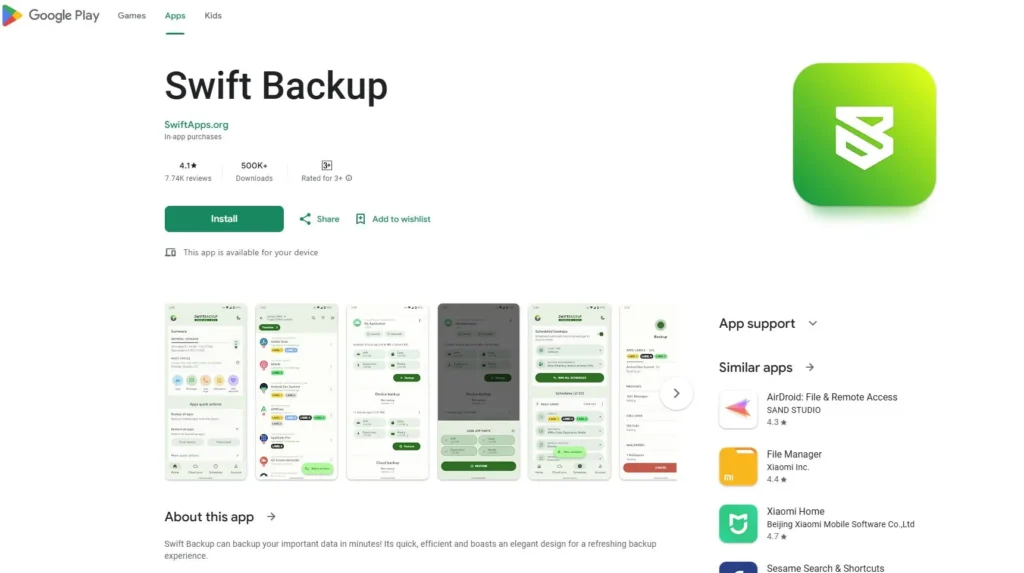
SwiftBackup is more backup-focused than browsing-focused, but the same list says it can back up external app files under Android/data and obb using Shizuku.
How to Access Android Data Folder in Android 11, 14, 15, and 16
A lot of users search by version, so let’s make that simple.
How to Access Android Data Folder in Android 11
Android 11 is where Google’s storage restrictions became much stricter. Android’s official storage updates say apps targeting Android 11 can no longer access files in other apps’ data directories, and document access restrictions affect Android/data and Android/obb. Android 11 is also the version where wireless debugging support for ADB became widely available for phones, which makes Shizuku’s no-root workflow much easier.
How to Access Android Data Folder in Android 14
Android 14 did not roll back the Android 11 storage model. Shizuku’s no-root workflow still relies on wireless debugging on Android 11+, and app developers and file manager authors continue to rely on Shizuku-based workarounds instead of standard file access. FV File Manager’s documentation specifically says its Shizuku-based access supports Android 14+.
How to Access Android Data Folder in Android 15
Android 15’s documented behavior changes do not show a restored, normal-access path to Android/data, so in practice you should expect the same privacy-first storage model and continue using a Shizuku-compatible manager if you need access. That is an inference based on Android’s continuing storage restrictions from Android 11 and the absence of a documented Android 15 reversal.
How to Access Android Data Folder in Android 16
Android 16’s developer pages are already live, but its published behavior-change pages likewise do not document a new general user-facing rollback of Android/data protections. In practice, that means the safest expectation is: use updated Shizuku builds and a file manager that explicitly says it supports recent Android versions. FV File Manager claims compatibility through Android 16, but you should still test on your own device because Android brand customizations can affect results.
How to Access Android Data Folder with Shizuku Samsung
Samsung users have one advantage: One UI usually exposes Developer options and debugging settings in a fairly standard way.
Samsung’s own developer guide says to enable Developer options by going to Settings, About phone, Software information, and tapping Build number seven times. Once Developer options are enabled, Android’s ADB docs confirm that USB debugging and wireless debugging can then be used on supported Android versions.
For Galaxy users, the practical steps are the same:
- Enable Developer options
- Turn on USB debugging
- Turn on Wireless debugging
- Pair and start Shizuku
- Grant Shizuku to your chosen file manager
- Browse
Android/data
The main Samsung-specific issue is not usually the menu path. It is background behavior. Shizuku’s user manual warns that some manufacturers limit local-network access or background activity, which can make wireless debugging pairing seem flaky unless the app is allowed to run properly in the background.
So if how to access android data folder with shizuku samsung is your exact situation, focus on two things:
- Keep Shizuku allowed in the background
- Recheck Wireless debugging after reboot
Beginner Tips
If this is your first time using Shizuku, these tips will save you a lot of frustration.
Start With Read-Only Browsing
Before moving or deleting anything, just confirm you can open the folder.
Use Trusted Apps Only
Shizuku gives supported apps more power than a normal file manager gets. Only grant access to apps you trust. Shizuku is open-source and has official documentation plus a public GitHub project, which makes it easier to verify than random unknown tools.
Expect to Re-Enable Shizuku After Reboot
The official user manual says the wireless-debugging startup steps need to be performed again after each reboot.
Remember That Shizuku Is Not Universal
A standard app without Shizuku support usually cannot suddenly browse Android/data just because Shizuku is installed. The app must be built to use it.
Back Up Before Editing
If you are replacing game files, mod assets, emulator saves, or backup folders, make a copy first.
Keep Related Android Fixes Handy
If your broader goal is installing apps or game packages, these guides may help:
- install unknown apps not showing for browser fix on Android
- why XAPK files need an extra installer on Android
- how to install APK on Amazon Fire Tablet
Comparison Table
| Method | Root Needed | Works on Android 11+ | Can Reach Android/data | Ease of Use | Best For |
|---|---|---|---|---|---|
| Built-in Files app | No | Yes | Usually no | Very easy | Basic browsing |
| Storage Access Framework | No | Yes | Limited / usually blocked for Android/data | Easy | User-selected normal files |
| ADB from a computer | No | Yes | Can help with advanced workflows | Medium | Power users |
| Shizuku + compatible file manager | No | Yes | Often yes | Medium | Most users who want no-root access |
| Full root + root file manager | Yes | Yes | Yes | Hard | Advanced modding users |
Android’s official storage docs explain why normal apps and SAF hit limits around Android/data, while Shizuku’s docs explain why supported apps can use ADB-backed privileges instead. Android’s ADB documentation also confirms that wireless debugging is available on Android 11+ and is the core enabler for Shizuku’s no-root setup.
Tips for Choosing the Best Setup
Choose Shizuku + a File Manager If…
- You want no-root access
- You are on Android 11 or newer
- You only need better file access, not full device modding
Choose ADB From a Computer If…
- You are on Android 10 or below
- You are comfortable with manual setup
- You only need occasional access or commands
Choose Root Only If…
- You know exactly why you need it
- You accept the risk
- You are doing advanced system-level work beyond file browsing
Choose a Simple File Manager If…
- You only need public folders like Downloads, Pictures, Movies, or Documents
- You do not need app-private folders at all
The key is not to overcomplicate the job. Most readers searching how to access android data folder with shizuku without root do not need root. They just need the right combination of Shizuku plus a compatible manager.
Pros and Cons of Using Shizuku for Android/data Access
Pros
- No root required on Android 11+ when using wireless debugging
- Easier than full ADB command workflows for most users
- Can restore practical access to
Android/datain supported apps - Works with several popular file managers and utility apps
- Cleaner and safer than rooting for many everyday use cases
Cons
- Needs Developer options and debugging enabled
- Must be restarted after reboot in common no-root setups
- Not every app supports Shizuku
- Device brands may behave differently with background/network limits
- You can still break app data if you edit the wrong files
FAQs
1. How to access android data folder with shizuku without root?
Install Shizuku, enable Developer options, turn on Wireless debugging, start Shizuku, install a Shizuku-compatible file manager, grant Shizuku permission inside that manager, and then browse to Android/data. This workflow is supported by Shizuku’s official wireless-debugging setup on Android 11+.
2. Does Shizuku work on Android 14?
Yes, many users still use Shizuku on Android 14, and FV File Manager’s official documentation explicitly discusses Android/data access on Android 14+ using Shizuku. (FV File Explorer)
3. How to access android data folder in android 14 without root?
The most practical method is still Shizuku plus a compatible file manager. Standard SAF access remains restricted, so the no-root method most people use is not the regular file picker but a Shizuku-enabled app.
4. Does this method work on Samsung phones?
Usually yes. Samsung’s Developer options path is standard, and once Wireless debugging and Shizuku are running, the process is similar to other Android phones.
5. Is Shizuku safe?
Shizuku is open-source and has official documentation plus a public GitHub repository, which is a good sign. Still, the real safety question is which apps you authorize to use it. Only grant Shizuku access to apps you trust.
6. Why do I lose access after restarting my phone?
Because Shizuku’s no-root wireless-debugging startup must usually be performed again after each reboot due to system limitations.
7. Can I use MANAGE_EXTERNAL_STORAGE instead of Shizuku?
Not as a general replacement for browsing other apps’ Android/data folders. Android’s official docs say even apps with all-files access still cannot access app-specific directories that belong to other apps under Android/data.
Conclusion
If you have been stuck trying to open Android/data with a regular file manager, the problem is not your phone skills. It is Android’s privacy model. Since Android 11, Google has restricted access to other apps’ private folders and tightened what the normal file picker can show. That is why how to access android data folder with shizuku has become such a popular search. (Android Developers)
For most people, the best answer is simple: use Shizuku + a compatible file manager. It gives you a practical no-root workflow, works especially well on Android 11 and newer thanks to wireless debugging, and avoids the bigger risks that come with rooting. Official Shizuku documentation supports this no-root startup path, and file managers like FV File Manager publicly document Android 14+ support for Android/data access through Shizuku.
The smart approach is to keep it safe and focused. Enable only the permissions you need. Authorize only apps you trust. Back up before editing anything important. And remember that Android 15 and Android 16 still follow the same privacy-first direction, so updated tools and careful testing matter more than ever.
For more Android guides and updates, you can follow APKzBay on YouTube, Instagram, Pinterest, Facebook, Telegram, X, and the WhatsApp Channel.
Recent Posts
- How to Access Android Data Folder with Shizuku: Complete No-Root Guide

- How to Install APK on Amazon Fire Tablet Safely and Easily
- Install Unknown Apps Not Showing for Browser Fix Android: A Complete Beginner-Friendly Guide
- Why XAPK Files Need Extra Installer Android: A Complete Beginner-to-Pro Guide
- Trusted APK Sites for Android Safety Guide: How to Download APKs Without Putting Your Phone at Risk
- Fake App Clone Warning Signs on Android: How to Spot Unsafe Apps Before You Install Them
- How to Install Split APK on Android Without PC
- How to Disable Battery Optimization in Android Setting: A Complete Beginner-to-Pro Guide
- App Not Installed Package Conflicts With Existing Package: Meaning, Causes, and Proven Fixes
- How to Speed Up Android Phone Without Factory Reset: 17 Smart Fixes That Actually Work
- SPG4X FF Panel APK Latest Version – Features, Download Guide, Update Info, and Honest Review
- There Is a Problem Parsing the Package Android APK: Complete Fix Guide for Samsung, Huawei, Android 12, and Android 14