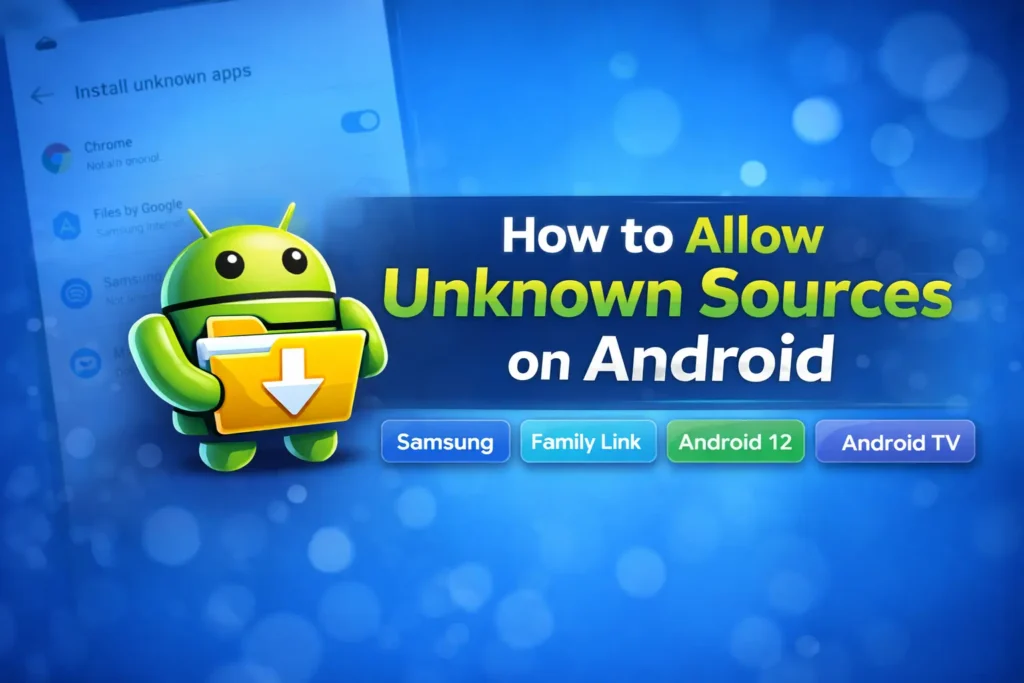
How to Allow Unknown Sources on Android Safely in 2026
17-03-2026
Description
Android is flexible, and that flexibility is one reason so many people love it. You are not locked into one app store or one way of installing apps. Sometimes you may need to install an APK from a developer’s website, a company portal, or a file manager on your device. That is where the setting often called “unknown sources” comes in.
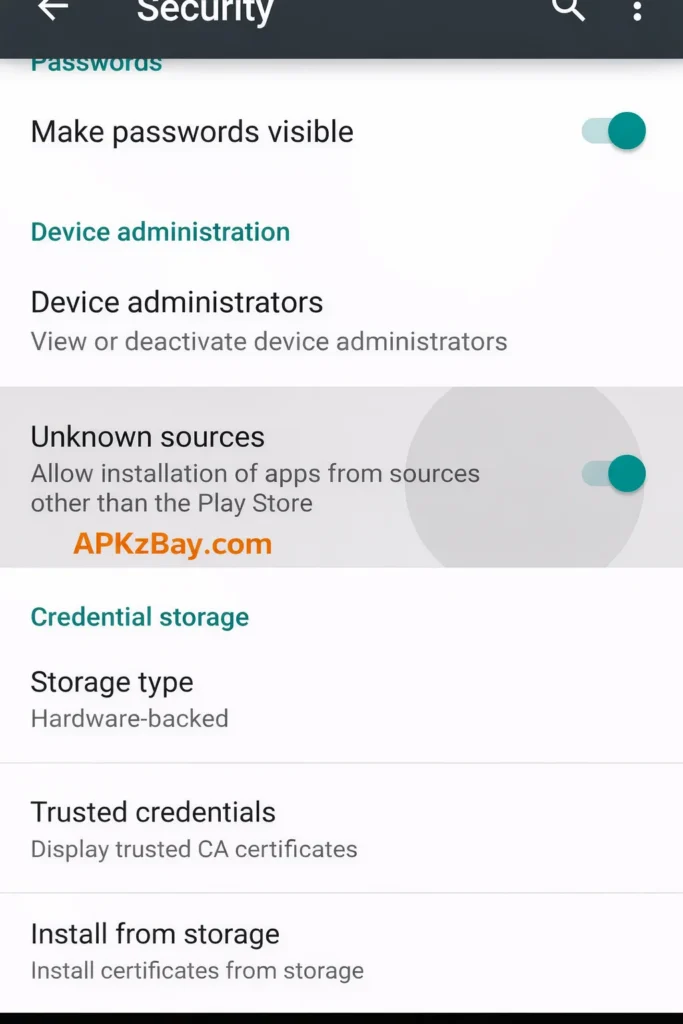
If you are searching for How to allow unknown sources on android, the first thing to know is that modern Android usually does not use one giant master switch anymore. Instead, most recent phones let you give install unknown apps permission to a specific app, such as Chrome, Files, My Files, or another trusted installer. Google also warns that apps from outside the Play Store can carry higher security risk, and newer Android versions may apply extra protections such as Play Protect scanning or restricted settings. (Google Help)
This guide explains how to allow unknown sources on android, including Android 12, Samsung phones, Android TV, Huawei devices, APK installs, and Family Link-managed devices. It is written for beginners, but it also includes practical tips for more advanced users who want a safe and clean sideloading workflow.
If you enjoy tweaking Android, you may also like our guide on hidden Android features you should enable and this practical tutorial on how to speed up a slow Android phone in 2026.
What “Unknown Sources” Means on Android Today
Years ago, Android had a single setting called Unknown sources. You turned it on once, and the phone allowed third-party app installs. On newer Android versions, including many Android 12 and newer devices, the process is more granular. You usually allow a specific source app to install apps. That source could be:
- Chrome
- Files by Google
- Samsung Internet
- My Files
- A browser
- A file manager
- A trusted enterprise installer
This is better for security because you can approve only the app you want to use, instead of opening your whole phone to third-party installs. Samsung’s current support pages show this clearly by directing users to Install unknown apps and then selecting the specific source app to allow.
Google also notes that apps installed from outside Google Play can put your data and device at risk, and Play Protect may scan those apps to help detect harmful behavior.
Quick Answer: How to Allow Unknown Sources on Android
On most modern Android phones, the steps are usually:
- Open Settings
- Go to Apps or Security & privacy
- Open Special app access or More security settings
- Tap Install unknown apps
- Choose the app that will open or install the APK
- Turn on Allow from this source
On some devices, the path looks slightly different. Samsung, Huawei, Android TV, and Family Link-managed devices all have their own variations.
Detailed List: Best Ways to Allow Unknown App Installs by App or Device Type
1. Chrome or Your Browser on Standard Android
Overview
If you download an APK directly from the web, the most common source app is your browser. That could be Chrome, Samsung Internet, Firefox, or another browser. When you tap the APK file, Android may block the install until you allow that specific browser to install apps.
Key features
- Lets you install APK files downloaded from websites
- Works well for one-time downloads from trusted developer pages
- Easy to turn off after installation
- Good for stock Android and many Android 12+ devices
Pros
- Fast and convenient
- Great for direct downloads
- Easy to manage per app
Cons
- Riskier if you download from random websites
- Easy to forget that the permission is still enabled
- Some websites bundle misleading download buttons
Best for
Users who install a trusted APK directly from a developer’s website.
How to do it
On many Android phones, go to:
Settings > Apps > Special app access > Install unknown apps > Chrome (or your browser) > Allow from this source
Samsung follows a similar model and explicitly tells users to open Install unknown apps and allow the source app they want, such as Chrome.
Practical tip
Use this method only if you trust the website. If the APK is coming from an official developer page, it is far safer than downloading from a random mirror.
2. Files by Google or a File Manager
Overview
If the APK is already on your phone, perhaps in Downloads, cloud storage, or shared over USB, you usually need to allow your file manager instead of your browser. This is one of the most common answers to how to allow unknown sources on android apk.
Key features
- Ideal for installing downloaded APK files from local storage
- Works even when the browser was not the source
- Helpful for offline installs and business apps
Pros
- Great for local APK files
- Cleaner than browsing from the web every time
- Useful for repeat sideloading tasks
Cons
- You still need to trust the APK itself
- Some file managers are cluttered or ad-heavy
- Not all file managers label the permission clearly
Best for
Users installing APK files from the Downloads folder, SD card, or cloud storage sync.
How to do it
The general path is often:
Settings > Apps > Special app access > Install unknown apps > Files / My Files / File Manager > Allow from this source
Google community guidance for current Android devices points users to Install unknown apps and then choosing the exact source app, such as Files. Samsung support uses the same idea by telling users to pick the source app they want to trust.
Practical tip
For many people, this is the safest sideloading setup: use a file manager, install the APK, and turn the permission back off immediately.
3. Samsung Galaxy Phones and Tablets
Overview
If you are searching for how to allow unknown sources on android samsung or how to allow unknown sources on samsung, Samsung gives one of the clearest menus for this setting. Galaxy devices normally block installs from outside Google Play and Galaxy Store by default.
Key features
- Clear menu structure on One UI
- Per-app permission model
- Works with Chrome, Samsung Internet, and My Files
- Easy to revoke after use
Pros
- Beginner-friendly menu
- Good security defaults
- Clear warnings before enabling
Cons
- Menu names can vary slightly by One UI version
- Some security tools may still warn after enabling
- Auto Blocker or security layers can sometimes add extra friction
Best for
Samsung Galaxy users who want the safest and simplest route to APK installation.
How to do it
Samsung’s current support steps are:
- Open Settings
- Open Security and Privacy
- Tap More security settings
- Tap Install unknown apps
- Select the source app, such as Chrome
- Turn on permission for that source
Samsung also notes that Galaxy devices are set by default to block installs from outside Play Store and Galaxy Store because of the added risk.
Practical tip
If the install still fails on Samsung, go back to the APK file and try again. Samsung says that Play Protect or other safety checks may still prompt during installation.
4. Allow Unknown Sources on Android 12 and Newer
Overview
A lot of users specifically ask about allow unknown sources android 12 because Android 12 made the setting feel more hidden. The option is still there, but on many phones it sits under Special app access or a privacy/security submenu.
Key features
- More granular control than older Android
- Better security through per-app approval
- Works well with browsers, file managers, and enterprise tools
- Compatible with newer security protections
Pros
- More secure than the old global switch
- Lets you approve only what you need
- Easy to disable after use
Cons
- Harder to find if you expect the old “Unknown sources” label
- Menu names vary by brand
- Restricted settings may still affect sideloaded apps
Best for
Users on Pixel, OnePlus, Motorola, Nothing, or other modern Android phones.
How to do it
Look for one of these paths:
- Settings > Apps > Special app access > Install unknown apps
- Settings > Security & privacy > Install unknown apps
- Settings search bar > type “Install unknown apps”
Newer Android also uses restricted settings for certain sensitive capabilities on sideloaded apps, which means installing the APK is not always the final step if the app later asks for high-risk permissions.
Practical tip
If you cannot find the setting, use the Settings search bar and type:
Install unknown apps
That is usually faster than digging through every submenu.
5. Android TV and Google TV
Overview
If you want to know how to allow unknown sources on android tv, the process is a bit different from a phone. Android TV is more locked down, and sideloading usually happens through a browser, a file manager, or a download utility. Security tools on Android TV can still scan these installs.
Key features
- Supports sideloading for TV-specific apps or utilities
- Useful when an app is unavailable in the TV Play Store
- Play Protect options remain available on supported Android TV versions
Pros
- Expands what your TV can do
- Helpful for niche streaming tools, utilities, or launchers
- Can be useful for testing and developer workflows
Cons
- TV apps may not be remote-friendly
- Installation flow can be more awkward
- Unknown-source installs may increase security risk
Best for
Power users, media enthusiasts, and testers who understand APK compatibility.
How to do it
The exact menu varies by brand and Android TV version, but the general idea is similar: you allow the source app that is trying to install the APK. After that, Android TV may still use Play Protect checks.
Google’s Android TV help confirms that on Android TV devices running Android 11 or later, you can manage Play Protect from the Play Store settings and choose whether apps are scanned. It also notes that unknown apps installed outside the Play Store may be sent to Google for analysis if harmful app detection is enabled.
Practical tip
Before sideloading on a TV, ask two questions:
- Is the app designed for a TV screen?
- Can it be controlled with a remote?
If the answer is no, the app may install successfully but still be frustrating to use.
6. Family Link Managed Android Devices
Overview
Many parents search for how to allow unknown sources on android family link because a child’s supervised device behaves differently. On Family Link-managed phones, app permissions can be controlled by parents, and some settings may be limited or require parent approval.
Key features
- Parent-managed app permissions
- Device-level supervision
- Control over what apps a child can use
- Stronger safety defaults
Pros
- Great for child safety
- Helps prevent accidental risky installs
- Gives parents visibility and control
Cons
- Can block legitimate installs
- Some options may appear grayed out
- Troubleshooting can be confusing
Best for
Parents managing a child’s Android device.
How it works
Google’s Family Link documentation says parents can manage app permissions on a child’s Android device through the Family Link app and can even set whether only parents can grant permissions. Family Link supports app management on Android 6.0 and higher devices.
A practical reality is that supervised devices may restrict the unknown-app install flow, so if the toggle is locked, the parent usually needs to review or change permissions from Family Link or on the device under parental supervision. Community reports show this can appear as a “Parent needed” restriction on some devices.
Practical tip
If you are the parent:
- Open Family Link
- Select your child
- Check Controls or App permissions
- Review whether only parents can grant permissions
- Recheck the child’s device afterward
If you are the child using the supervised device, you may not be able to change this alone.
7. Huawei Phones and Tablets
Overview
If you are asking how to allow unknown sources on android huawei, the menu may look different because Huawei devices can use EMUI, AppGallery, and Petal Search workflows. Huawei still supports per-app installation permissions.
Key features
- Per-app installation control
- Works with Petal Search and external app sources
- Useful on devices where AppGallery does not include the app you need
Pros
- Flexible app discovery options
- Per-source permission model
- Clear if you use Petal Search often
Cons
- Menu paths vary by EMUI version
- Some apps may not fully support HMS-based devices
- Compatibility issues can still block the install
Best for
Huawei users who install apps through Petal Search or external sources.
How to do it
Huawei support provides a path like:
- Settings > Apps > Apps > Petal Search > App info > Permissions > In-app installations > Allow
If that path is missing, Huawei also suggests:
- Settings > Security > More settings > Install apps from external sources > Petal Search > Allow app installs
Huawei also notes that installation may still fail if the file is damaged or the APK is incompatible with your device or HMS setup.
Practical tip
If an APK refuses to install on Huawei even after permission is enabled, redownload the file and verify that the app actually supports your device model and software environment.
Comparison Table
| Device or scenario | Typical setting path | Permission style | Best source app to allow | Good for | Main drawback |
|---|---|---|---|---|---|
| Standard Android browser install | Settings > Apps > Special app access > Install unknown apps | Per app | Chrome or browser | Direct APK downloads | Easy to trust the wrong site |
| File manager install | Settings > Apps > Special app access > Install unknown apps | Per app | Files or file manager | Local APK installs | Still depends on APK safety |
| Samsung Galaxy | Settings > Security and Privacy > More security settings > Install unknown apps | Per app | Chrome, Samsung Internet, My Files | Beginner-friendly sideloading | Extra Samsung security prompts |
| Android 12+ phones | Usually under Special app access | Per app | Browser or Files | Modern Android devices | Menu can feel hidden |
| Android TV / Google TV | Varies by TV brand and version | Usually per source app plus TV security checks | File manager or installer utility | TV-only sideloading | TV apps may not be remote-friendly |
| Family Link device | Controlled through Family Link permissions and supervision | Parent-managed | Only approved sources | Child safety | Settings may be locked |
| Huawei / EMUI | Security or app permissions menus | Per app | Petal Search or external source app | Huawei devices without needed store app | Compatibility can still block installs |
Tips for Choosing the Right Source App to Allow
When people search how to allow unknown sources on android, they often focus only on the toggle. But the smarter question is: which app should I trust as the installer?
Choose carefully.
Good choices
- Official browser for a trusted developer website
- Built-in file manager for a local APK you already verified
- A known enterprise installer used by your workplace or school
- Petal Search on Huawei when you trust the app source
Bad choices
- Random browsers full of pop-ups
- Unknown file managers with aggressive ads
- APK download tools from untrusted sites
- Any app you do not recognize
Best practice
Allow the permission only for the one app you need, install the APK, then turn the permission off again. That keeps your attack surface much smaller. This aligns with Android’s per-app permission model and the platform’s stronger security posture around non-Play installs.
Beginner Tips Before You Install Any APK
If you are new to sideloading, keep these tips in mind.
1. Prefer official stores first
Google Play, Galaxy Store, and App Gallery usually remain the safest route because they add extra review and security checks. Google explicitly warns that apps from outside Play can increase security risk.
2. Use the official developer website
If you must sideload, get the APK from the app developer’s own website whenever possible.
3. Keep Play Protect on
Play Protect scans apps and can warn you about risky behavior. Google also offers harmful-app detection on Android TV.
4. Turn the permission back off
After installation, go back to Install unknown apps and disable Allow from this source.
5. Check compatibility
A failed install is not always a permission issue. It may be:
- Wrong Android version
- Wrong CPU architecture
- Damaged APK
- Device brand restrictions
- TV app not built for TV
- Huawei app not fully compatible with HMS
Huawei’s support specifically lists damaged files and device incompatibility as common causes.
6. Watch for restricted settings
Some sideloaded apps may install fine but later fail when asking for high-risk permissions or services. Android’s restricted settings system is designed to reduce abuse from harmful apps.
7. Avoid repeated permanent access
Do not leave several apps permanently approved to install unknown apps unless you truly need them.
Common Problems and Fixes
The setting is missing
Search your Settings app for:
- Install unknown apps
- Unknown sources
- Special app access
Different brands rename the menu.
The toggle is greyed out
Possible causes include:
- Family Link supervision
- Work profile or device admin policies
- Restricted settings behavior
- Brand-specific security tools
Family Link and restricted settings are two common reasons permissions feel blocked.
The APK downloads but will not install
Possible causes:
- Corrupted file
- Incompatible app version
- Not enough storage
- Wrong source app allowed
- Play Protect warning
- Device-specific security policy
Huawei explicitly mentions damaged files and compatibility problems as common installation failures. Samsung also notes that extra security checks can still interrupt installs.
The app installs but does not work
That usually means:
- The app is not built for your device
- The app is not made for Android TV
- It needs services your phone does not support
- It needs restricted settings or permissions you have not granted
FAQs
1. Is it safe to allow unknown sources on Android?
It can be safe if you install only from trusted developers and disable the permission afterward. Google warns that apps from outside Play can expose your device and data to higher risk, so sideload only when necessary. (Google Help)
2. Why can’t I find “Unknown sources” on Android 12?
Because newer Android versions often replaced the old global switch with a per-app setting called Install unknown apps. Instead of enabling your whole phone, you approve a single source app such as Chrome or Files. (Samsung jp)
3. How do I allow unknown sources on Android Samsung?
On many Galaxy devices, go to Settings > Security and Privacy > More security settings > Install unknown apps, then pick the source app and allow it.
4. How do I allow unknown sources on Android APK files already downloaded?
Allow your file manager instead of your browser. In most cases, open Install unknown apps, choose Files, My Files, or your file manager, and enable Allow from this source.
5. How do I allow unknown sources on Android TV?
The exact path varies by brand, but Android TV still applies security protections. Google’s Android TV help says Play Protect settings are available on Android TV devices running Android 11 or later, and unknown apps may be checked for harmful behavior.
6. Can Family Link block APK installs from unknown sources?
Yes, supervised devices can restrict app permissions and may require a parent to approve or manage them. Google says parents can manage app permissions in Family Link, and users report that unknown-source settings may appear locked on supervised devices.
7. Should I turn off install unknown apps after I am done?
Yes. That is one of the smartest security habits on Android. Enable it only for the source app you need, complete the install, then disable it again. This reduces the chance of accidental or malicious installs later.
Conclusion
Understanding How to allow unknown sources on android is easier once you know one key fact: modern Android usually uses per-app install permission, not one global switch. That means the safest approach is to allow only the specific source you trust, such as Chrome, Files, My Files, or Petal Search, install the app you need, and then switch that permission back off.
For most users, the best workflow is simple:
- Download only from trusted sources
- Allow the source app temporarily
- Install the APK
- Keep Play Protect enabled
- Turn the permission off when finished
That approach works well whether you are learning how to allow unknown sources on android samsung, how to allow unknown sources on android tv, how to allow unknown sources on android family link, or handling allow unknown sources android 12 on a newer phone.
For more Android tips, updates, and how-to guides, follow APKZBay on YouTube, Facebook, Instagram, Telegram, and the WhatsApp Channel. You can also visit the community page at APKZBay on Facebook.
Related apps




Recent Posts
- How to Access Android Data Folder with Shizuku: Complete No-Root Guide

- How to Install APK on Amazon Fire Tablet Safely and Easily
- Install Unknown Apps Not Showing for Browser Fix Android: A Complete Beginner-Friendly Guide
- Why XAPK Files Need Extra Installer Android: A Complete Beginner-to-Pro Guide
- Trusted APK Sites for Android Safety Guide: How to Download APKs Without Putting Your Phone at Risk
- Fake App Clone Warning Signs on Android: How to Spot Unsafe Apps Before You Install Them
- How to Install Split APK on Android Without PC
- How to Disable Battery Optimization in Android Setting: A Complete Beginner-to-Pro Guide
- App Not Installed Package Conflicts With Existing Package: Meaning, Causes, and Proven Fixes
- How to Speed Up Android Phone Without Factory Reset: 17 Smart Fixes That Actually Work
- SPG4X FF Panel APK Latest Version – Features, Download Guide, Update Info, and Honest Review
- There Is a Problem Parsing the Package Android APK: Complete Fix Guide for Samsung, Huawei, Android 12, and Android 14