How to Disable Battery Optimization in Android Setting: A Complete Beginner-to-Pro Guide
01-04-2026
Description
Battery optimization is one of Android’s smartest features, but it can also be one of the most frustrating. It is designed to extend battery life by limiting background activity, syncing, location access, and notifications for apps that Android thinks do not need to run all the time. That sounds useful on paper. In real life, it can delay messages, pause tracking apps, break alarms, stop fitness syncing, and make important apps feel unreliable.
That is why so many users search for how to disable battery optimization in android setting, how to turn off battery optimization on android, and how do you turn off battery optimization. They are not trying to drain their battery for no reason. They are trying to keep essential apps working properly.
In this guide, you will learn what battery optimization in Android settings really means, when you should turn it off, and how to disable it safely on different brands like Samsung, Vivo, and Infinix. I will also cover app-specific cases such as Life360, messaging apps, music apps, and navigation tools. Whether you are a beginner or a more advanced Android user, this article will help you make the right choice without harming your phone’s overall performance.
What Is Battery Optimization in Android?
Before changing anything, it helps to understand what is battery optimization in android.
Battery optimization is a power-saving system built into Android. Its job is to reduce battery drain by controlling how apps behave when you are not actively using them. It can:
- Limit background activity
- Delay app sync
- Restrict location refresh
- Reduce push notification frequency
- Stop apps from waking the phone too often
Android does this to improve standby time and keep your phone running longer between charges. On paper, it is great. But not every app works well with these restrictions.
Why this matters
Some apps need background access to function properly, such as:
- Telegram
- Gmail
- Life360
- Google Maps
- Spotify
- Fitness trackers
- Reminder apps
- Security or smart home apps
If Android aggressively optimizes them, you may miss alerts, delay messages, or lose live location accuracy.
Why You Might Want to Turn Off Battery Optimization
Many users assume battery optimization should always stay enabled. In most cases, that is true. But for specific apps, disabling it can improve reliability.
Common signs you should check battery optimization settings Android
- Notifications arrive late
- Messages come only when you open the app
- GPS or live tracking stops in the background
- Music playback pauses when the screen turns off
- Fitness apps stop syncing
- Alarm or reminder apps fail
- Video call apps disconnect too easily
If any of these issues sound familiar, the problem may not be the app itself. It may be your android battery optimization settings.
How to Disable Battery Optimization in Android Setting
Let’s start with the general method that works on most Android phones.
Standard Android steps
- Open Settings
- Tap Apps or Apps & notifications
- Tap Special app access
- Select Battery optimization
- Change the view from Not optimized to All apps
- Find the app you want
- Tap the app
- Choose Don’t optimize
- Confirm your selection
This is the standard answer to how to disable battery optimization in android settings and how to disable battery optimization on android phone.
Another common path
On some phones, the steps look like this:
- Open Settings
- Tap Battery
- Tap Battery optimization
- Select the app
- Turn off optimization
Because Android skins differ by brand, the wording may change slightly. But the idea is the same: allow the selected app to run with fewer background restrictions.
How to Turn Off Battery Optimization for an App
A lot of users do not want to disable optimization system-wide. They only want to allow one important app to work better. That is the smarter approach.
How to turn off battery optimization for an app
- Open Settings
- Go to Apps
- Open the app you want to change
- Tap Battery
- Choose Unrestricted or Don’t optimize
Some Android versions offer three options:
- Restricted
- Optimized
- Unrestricted
In that case, choose Unrestricted for apps that must run in the background.
Best apps to exempt from optimization
You should only do this for apps that truly need it:
- Messaging apps
- Emergency contact apps
- GPS sharing apps
- Alarm and reminder apps
- Health monitoring apps
- Music streaming apps
- Delivery partner apps
- Device security apps
Detailed List: Apps That Often Need Battery Optimization Disabled
The user prompt asked for a detailed list, so here is a practical one based on common Android usage.
1. Life360
Life360 is one of the biggest reasons users search how to turn off battery optimization for life360 on android.
Why it needs background access:
- Live location tracking
- Drive detection
- Emergency alerts
- Circle member updates
If battery optimization is too aggressive, Life360 may stop updating location accurately.
2. WhatsApp
WhatsApp may delay:
- Messages
- Calls
- Voice note upload
- Backup sync notifications
Disabling optimization can improve real-time communication.
3. Telegram
Telegram often needs unrestricted background activity for:
- Instant message delivery
- Voice/video call reliability
- Media upload/download in the background
4. Gmail
If Gmail sync is inconsistent, the issue may not be the app. Android optimization can delay new mail alerts.
5. Spotify or YouTube Music
Music apps may pause when:
- Screen turns off
- Phone enters sleep mode
- Background activity is restricted
Turning off optimization for the music app often fixes playback interruptions.
6. Google Maps
Maps may need relaxed optimization for:
- Navigation continuity
- Live trip tracking
- Location sharing
7. Fitness apps
Examples:
- Fitbit
- Strava
- Google Fit
- Samsung Health
These apps rely on sensor data and background syncing.
8. Banking or OTP apps
You usually should not broadly change security app settings, but some banking apps may require reliable notification delivery for OTP or fraud alerts.
9. Smart home apps
Apps that control cameras, locks, or sensors may need consistent background access for alerts.
10. Reminder and alarm apps
If reminders arrive late, battery restrictions are often part of the problem.
How to Turn Off Battery Optimization on Android by Brand
Android brands customize settings menus. Here is how it usually works on popular phones.
How to Disable Battery Optimization in Android Setting Samsung
Many users specifically search how to disable battery optimization in android setting samsung or turn off battery optimization samsung.
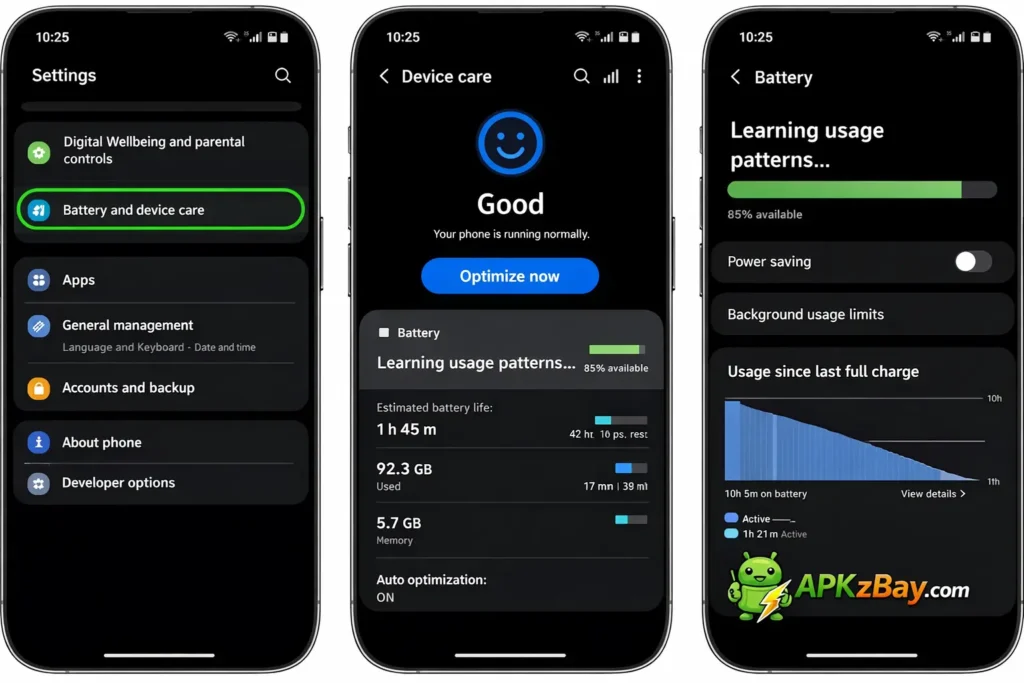
Samsung phones add extra battery management tools on top of standard Android, so apps can get restricted more aggressively.
Steps on Samsung
- Open Settings
- Tap Apps
- Select the app
- Tap Battery
- Choose Unrestricted
You should also check these Samsung-specific settings:
Turn off app sleeping features
- Open Settings
- Tap Battery and device care
- Tap Battery
- Tap Background usage limits
- Review:
- Sleeping apps
- Deep sleeping apps
- Never sleeping apps
Add important apps to Never sleeping apps if needed.
Why Samsung users face this often
Samsung’s battery tools are powerful, but they can interfere with:
- Messaging apps
- Tracking apps
- Email sync
- Background music
- Smartwatch syncing
How to Disable Battery Optimization in Vivo
If you want to know how to disable battery optimization in vivo, the process may include both battery settings and startup permissions.
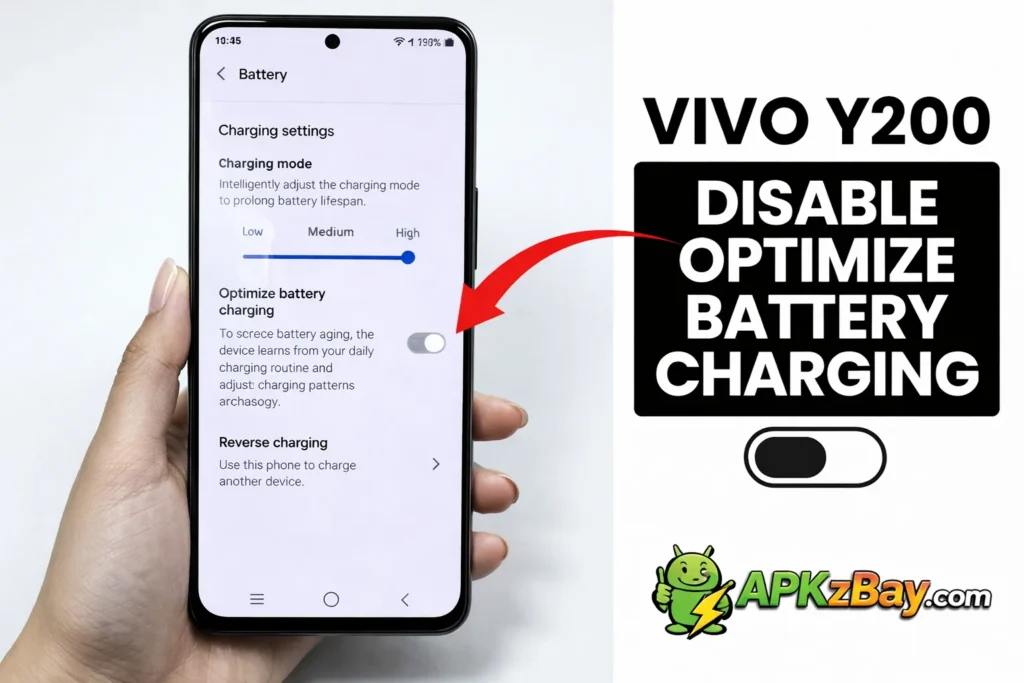
Vivo steps
- Open Settings
- Tap Battery
- Tap Background high power consumption or Battery optimization
- Select the target app
- Disable optimization or allow background activity
Also check these on Vivo
- Auto-start permission
- Background app management
- iManager battery controls
Some Vivo phones restrict apps even after you disable standard battery optimization, so check the brand’s own battery manager too.
How to Disable Battery Optimization in Infinix
Users also search how to disable battery optimization in infinix because Infinix phones often include aggressive battery-saving features.
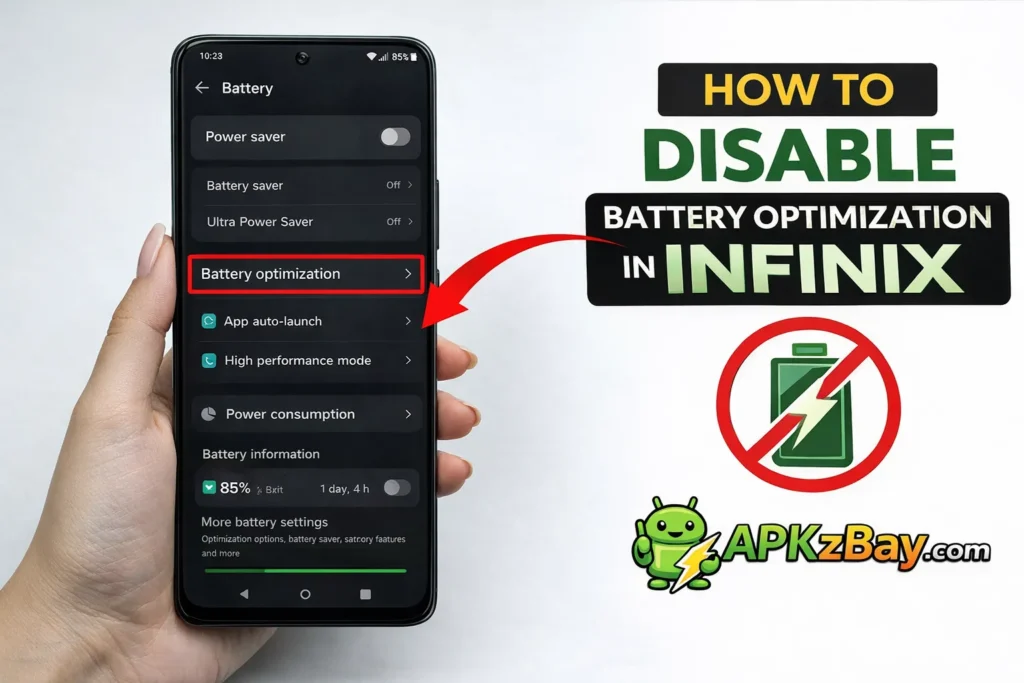
Infinix steps
- Open Settings
- Tap Battery
- Tap Power Marathon or Battery optimization
- Find your app
- Allow background activity or disable optimization
Extra things to review on Infinix
- Phone Master optimization settings
- Auto-start settings
- Background app restrictions
- Power-saving mode status
If power-saving mode is turned on, it may override your app preferences.
How to Turn Off Battery Optimization in Android Without Affecting Everything
Some people search how to disable battery optimization in android setting without wanting to affect all apps. That is the right mindset.
You should almost never disable battery optimization for every app. Instead, choose app-by-app control.
Best practice
Turn optimization off only for apps that need:
- Instant notifications
- Constant GPS
- Persistent background sync
- Media playback
- Health data monitoring
Leave optimization enabled for:
- Games
- Shopping apps
- Casual social apps
- Utility apps you rarely use
That balance gives you better app performance without killing battery life.
What Happens When You Disable Battery Optimization?
Here is the practical impact.
Pros
- Faster notifications
- Better background syncing
- More reliable GPS tracking
- Fewer connection drops
- Better music playback
- More stable fitness and reminder apps
Cons
- More battery drain
- Possible higher mobile data use
- More background activity
- Slightly warmer phone in some cases
That is why you should only disable it where it truly matters.
Comparison Table: Battery Optimization On vs Off
| Setting | Battery Life | Notifications | Background Sync | GPS Tracking | Best For |
|---|---|---|---|---|---|
| Optimized | Better | May be delayed | Limited | Can pause | Most apps |
| Unrestricted | Lower | Faster | Reliable | More accurate | Messaging, tracking, alarms |
| Restricted | Best | Often delayed | Very limited | Poor | Rarely used apps |
Quick app comparison
| App Type | Keep Optimized | Turn Off Optimization |
|---|---|---|
| Games | Yes | No |
| Messaging apps | Sometimes | Often yes |
| GPS sharing apps | No | Yes |
| Streaming music apps | Sometimes | Often yes |
| Fitness trackers | Sometimes | Often yes |
| Banking apps | Usually yes | Only if alerts are delayed |
| Alarm/reminder apps | No | Yes |
Tips for Choosing Which Apps Should Be Exempt
This section matters because not every app deserves unrestricted access.
Choose apps based on function, not popularity
A famous app does not automatically need battery optimization turned off. Ask this question:
Does this app need to work in real time when I am not using it?
If the answer is yes, consider disabling optimization.
Good reasons to turn it off
- You rely on live location
- Delayed alerts cause problems
- The app must sync in the background
- You use it for work or safety
- The app controls smart devices or monitoring tools
Poor reasons to turn it off
- You think it might make the app faster overall
- You want every app to stay active
- You want to boost gaming performance
- You never use the app in the background
Beginner Tips for Battery Optimization Settings Android
If you are new to Android settings, start here.
1. Change one app at a time
Do not modify ten apps at once. Change one important app, test it for a day, then decide.
2. Restart the app after changing settings
Close the app fully and open it again after disabling optimization.
3. Check app permissions too
Sometimes the issue is not optimization alone. It may also involve:
- Background location permission
- Notification permission
- Auto-start permission
- Mobile data restriction
4. Watch your battery for 24 to 48 hours
After changing settings, monitor:
- Screen-on time
- Idle battery drain
- Notification speed
- App reliability
5. Avoid permanent power saving mode
If battery saver is always on, many app settings may be ignored.
6. Do not disable optimization for everything
That creates unnecessary battery drain and can make your phone feel less efficient.
7. Keep your phone updated
Some battery-related bugs are fixed in system updates.
If your phone also feels slow, read this guide on how to speed up Android phone without factory reset.
Common Problems Users Confuse With Battery Optimization
Battery optimization is a common cause, but it is not always the only one.
Similar issues may come from
- Notification permissions being blocked
- Mobile data restrictions
- Background data disabled
- App cache corruption
- Outdated app version
- Phone-specific auto-start restrictions
If you are troubleshooting broader Android app problems, these guides may also help:
- There is a problem parsing the package Android APK
- App not installed package conflicts with existing package
And yes, if you are fixing installation issues at the same time, it is useful to know how to fix app not installed as package conflicts with an existing package so you can solve app setup problems before adjusting battery settings.
Battery Optimization in Android Settings: Brand-Specific Warnings
Some phone makers go beyond stock Android. Even if you disable standard optimization, brand tools may still interfere.
Samsung
Watch for:
- Sleeping apps
- Deep sleeping apps
- Adaptive battery
Xiaomi
Watch for:
- Battery saver per app
- MIUI background restrictions
- Auto-start permissions
Vivo
Watch for:
- iManager
- Background restrictions
- Smart power saving
Infinix
Watch for:
- Power Marathon
- Phone Master
- Auto-launch restrictions
Oppo and Realme
Watch for:
- App battery management
- Startup manager
- Background freeze
The exact menu names may change by Android version, but the idea stays the same.
Should You Turn Off Battery Optimization for Life360 on Android?
This deserves its own short section because it is one of the most searched cases.
The short answer
Yes, if:
- Live location updates are delayed
- Driving reports are incomplete
- Family members cannot see your real-time location
- The app stops working in the background
What else to allow for Life360
Besides turning off optimization, also enable:
- Background location
- Always allow location
- Physical activity permission if available
- Auto-start permission on some brands
Without those permissions, disabling battery optimization alone may not fully solve the issue.
Best Practices for Safer Battery Management
You want reliable apps, but you also want good battery life. Here is the best middle ground.
Smart approach
- Keep battery optimization enabled by default
- Disable it only for essential apps
- Review settings after system updates
- Remove exceptions for apps you no longer use
- Test before making more changes
Even better approach
Group your apps into three levels:
Level 1: Keep optimized
Examples:
- Shopping apps
- Casual games
- Wallpaper apps
- Rarely used tools
Level 2: Monitor first
Examples:
- Social media apps
- News apps
- Light productivity apps
Level 3: Turn off optimization if needed
Examples:
- Telegram
- Life360
- Google Maps
- Spotify
- Fitbit
- Alarm apps
FAQs
1. What is battery optimization in Android?
Battery optimization is an Android feature that reduces battery use by limiting background activity for apps. It helps extend battery life but can delay notifications and restrict some apps.
2. How to disable battery optimization in Android setting?
Open Settings, go to Apps or Battery, find Battery optimization, select the app, and choose Don’t optimize or Unrestricted, depending on your phone.
3. How to turn off battery optimization on Android for one app?
Go to the app’s settings page, tap Battery, and choose Unrestricted. This allows that app to run more freely in the background.
4. How to disable battery optimization in Android setting Samsung?
On Samsung, open Settings > Apps > select app > Battery > Unrestricted. Also check Battery and device care > Battery > Background usage limits to remove the app from sleeping lists.
5. Should I disable battery optimization for all apps?
No. That is not recommended. Only disable it for apps that need real-time background access, such as messaging, tracking, reminder, or music apps.
6. How to turn off battery optimization for Life360 on Android?
Set Life360 to Unrestricted or Don’t optimize, then also allow background location, auto-start, and related permissions if your phone brand uses extra battery controls.
7. Does disabling battery optimization drain battery faster?
Yes, it can. Apps allowed to run freely in the background may use more battery, mobile data, and system resources. That is why selective use is best.
Conclusion
Learning how to disable battery optimization in android setting is not just a technical trick. It is a practical way to make important apps work the way they should. If your messages are late, your music pauses, your GPS tracking fails, or your reminders do not show up on time, battery optimization may be the hidden reason.
The best approach is simple: do not turn it off for everything. Instead, adjust battery optimization in android settings only for apps that truly need real-time background access. For most users, that includes apps like WhatsApp, Telegram, Life360, Spotify, Google Maps, and reminder tools. Samsung, Vivo, and Infinix users should also check their brand-specific battery controls, because those can override normal Android app settings.
When used wisely, battery optimization helps your phone last longer. When adjusted carefully, it also helps your most important apps stay reliable. That balance is the real goal.
For more Android tips and fixes, you can follow APKzBay on YouTube, Instagram, Pinterest, Facebook, Telegram, X, and the WhatsApp Channel.
Recent Posts
- How to Access Android Data Folder with Shizuku: Complete No-Root Guide

- How to Install APK on Amazon Fire Tablet Safely and Easily
- Install Unknown Apps Not Showing for Browser Fix Android: A Complete Beginner-Friendly Guide
- Why XAPK Files Need Extra Installer Android: A Complete Beginner-to-Pro Guide
- Trusted APK Sites for Android Safety Guide: How to Download APKs Without Putting Your Phone at Risk
- Fake App Clone Warning Signs on Android: How to Spot Unsafe Apps Before You Install Them
- How to Install Split APK on Android Without PC
- How to Disable Battery Optimization in Android Setting: A Complete Beginner-to-Pro Guide
- App Not Installed Package Conflicts With Existing Package: Meaning, Causes, and Proven Fixes
- How to Speed Up Android Phone Without Factory Reset: 17 Smart Fixes That Actually Work
- SPG4X FF Panel APK Latest Version – Features, Download Guide, Update Info, and Honest Review
- There Is a Problem Parsing the Package Android APK: Complete Fix Guide for Samsung, Huawei, Android 12, and Android 14