How to Install APK After Downloading ZIP File
05-04-2026
Description
Downloading an Android app in a ZIP file can be confusing, especially if you expect to tap once and install it right away. Many users search for how to install apk after downloading zip file because the app they downloaded is not in a normal .apk format. Instead, it may be packed inside a ZIP archive, bundled with extra files, or compressed for faster downloading.
The good news is that this problem is usually easy to solve. In most cases, a ZIP file is simply a container. You do not install the ZIP itself. You first extract it, find the actual APK file inside, and then install that APK on your Android phone. Sometimes the ZIP may also include OBB files, data folders, or split APK files, which need a slightly different method.
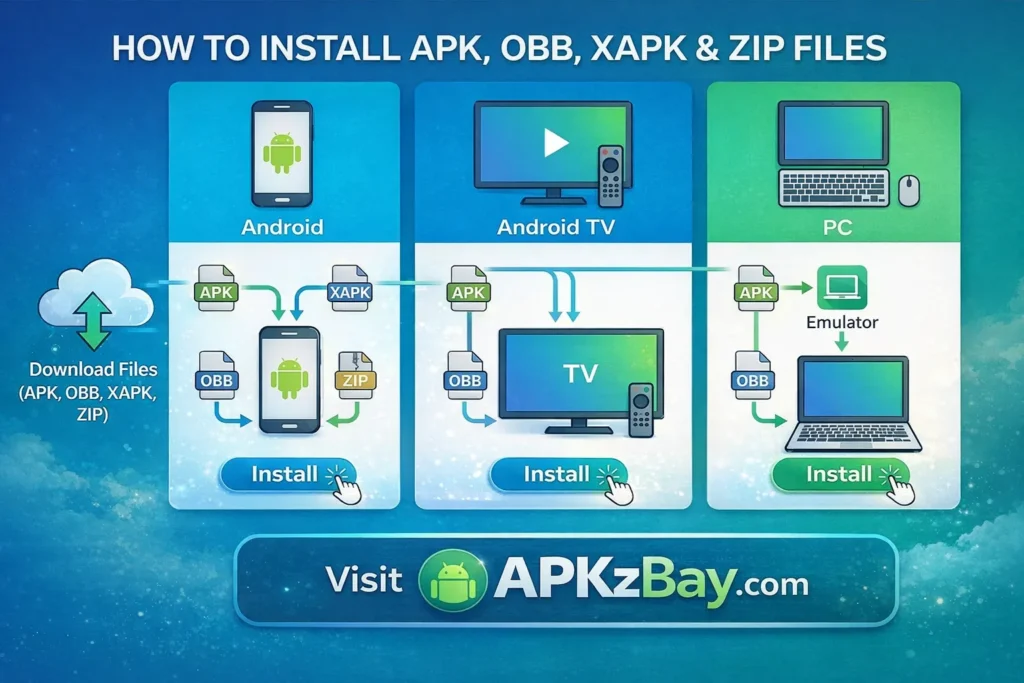
In this guide, you will learn exactly how to install apk after downloading zip file on android, how ZIP and APK files differ, when you need ZArchiver, what to do if the ZIP contains game files, and why “ZIP to APK converter” tools are often misunderstood. This article is written for beginners, but it also includes practical details for advanced Android users who want a cleaner and safer installation process.
What Does It Mean When an APK Comes in a ZIP File?
A ZIP file is a compressed archive. It can hold one file or many files inside it. Developers, websites, and sharing platforms often use ZIP files to bundle app files together because ZIP makes downloads smaller and easier to manage.
For example, a ZIP package may contain:
- A single APK file
- An APK plus OBB data
- Multiple APK files for split installation
- A game folder with cache or data files
- Instructions or text documents
This is why users often ask how to install zip file apk or how to install zip file game in android phone. The real answer depends on what is actually inside the ZIP.
Important point
A ZIP file is not automatically an installable app.
You usually need to:
- Open the ZIP file
- Extract its contents
- Locate the APK or app package
- Install it manually
APK vs ZIP: Understanding the Difference
Before you try installing anything, it helps to know what each file type does.
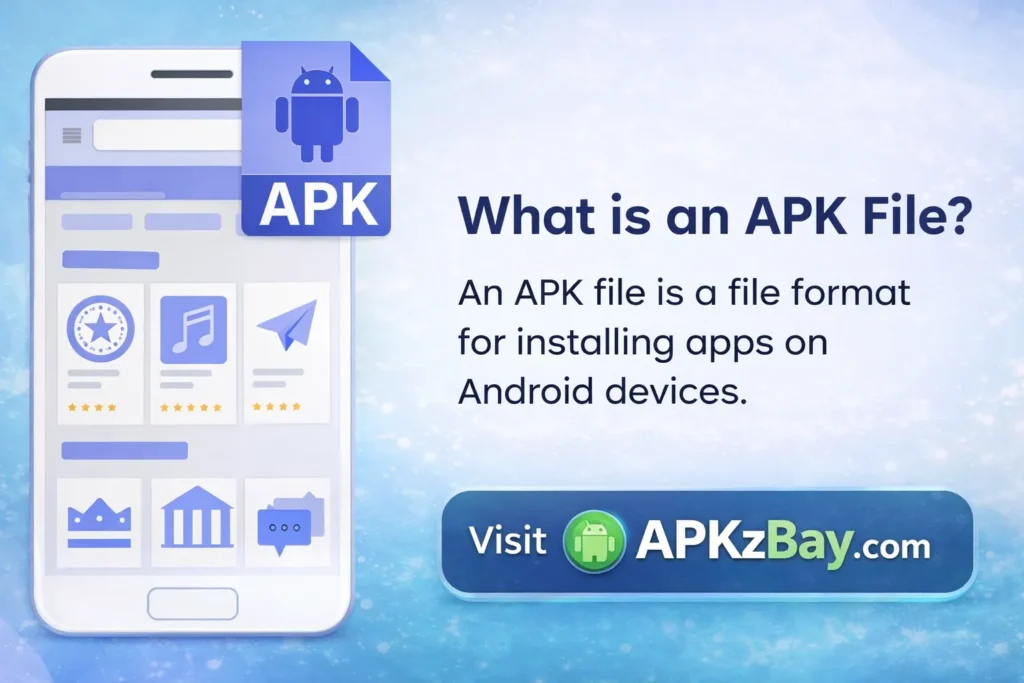
APK file
An APK is the actual Android application package. This is the file Android can install directly.
ZIP file
A ZIP is a compressed folder. Android does not install ZIP files as apps by default.
Why websites use ZIP files
Websites may provide APKs in ZIP format because:
- The file uploads more easily to servers
- Compression reduces download size
- APK and extra files can be bundled together
- Some large games need APK + OBB in one package
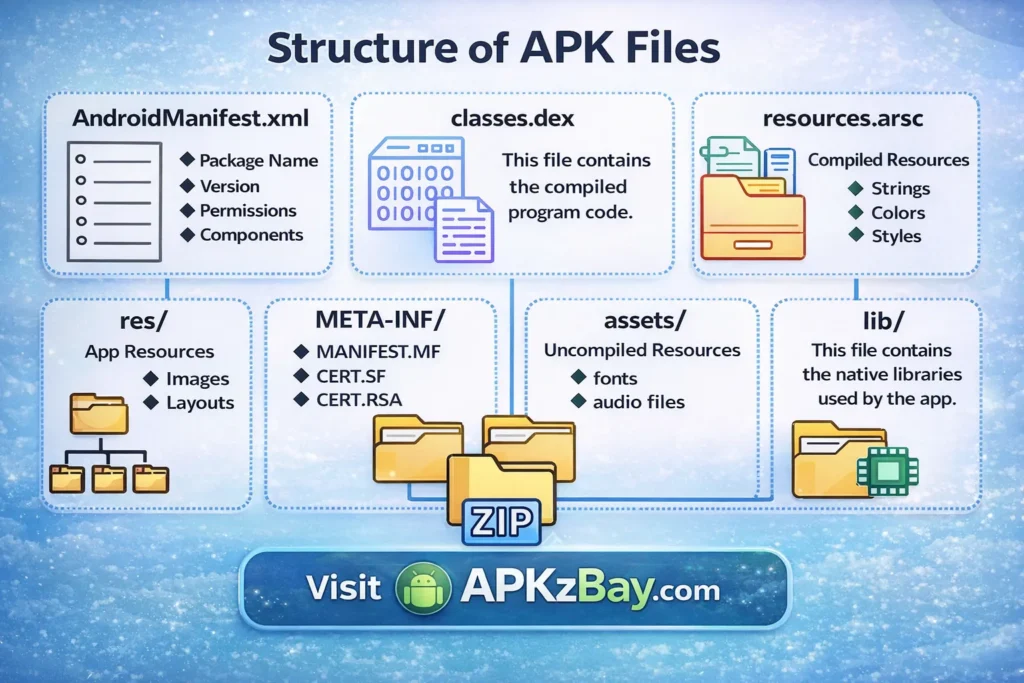
This is also where confusion around zip to apk begins. People assume they must convert the ZIP into an APK. In reality, most of the time there is nothing to convert. You only need to extract the archive and find the APK inside.
When You Need to Extract the ZIP First
You need to extract the ZIP if any of the following are true:
- The downloaded file ends with
.zip - Your phone shows the file as an archive
- Tapping the file does not open the Android installer
- The file contains multiple folders and app resources
- The app page says the package includes OBB or data files
If your file is already .apk, skip extraction and install it directly.
How to Install APK After Downloading ZIP File on Android
This is the most common method and works for most users.
Step 1: Locate the ZIP file
Open your phone’s file manager and go to:
- Downloads
- Browser download folder
- Telegram or WhatsApp downloads
- The folder used by your download manager
Check the file extension. If it ends in .zip, continue.
Step 2: Extract the ZIP file
Most Android phones now support built-in extraction through the default Files app. If not, you can use a file manager like ZArchiver.
Using the default file manager
- Open the ZIP file
- Tap Extract or Unzip
- Choose a folder
- Wait for extraction to finish
Using ZArchiver
If you are searching how to install zip files on android zarchiver, this is the easiest way:
- Install ZArchiver from a trusted source
- Open ZArchiver
- Browse to the ZIP file
- Tap the file
- Select Extract here or Extract to ./foldername/
- Open the extracted folder
Step 3: Find the APK file
Inside the extracted folder, look for:
appname.apkbase.apkinstaller.apk
If you see one APK file, that is usually the file you need to install.
Step 4: Allow unknown app installs
Before installing a downloaded APK, Android may block it by default.
To allow installation:
- Go to Settings
- Open Security or Apps
- Tap Install unknown apps
- Select the browser or file manager you used
- Enable Allow from this source
This setting name may vary by device brand.
Step 5: Install the APK
Now tap the APK file and choose Install.
Wait for Android to complete the installation. Once done, tap Open or Done.
That is the standard process for how to install apk after downloading zip file on android.
How to Install ZIP APK in Android When the ZIP Contains Extra Files
Sometimes the extracted folder does not contain only one APK. You may see folders like:
Android/obbAndroid/datacom.gamenamesplit_config.arm64_v8a.apksplit_config.en.apk
In that case, the process changes slightly.
Case 1: ZIP contains APK + OBB
This is common with games.
You should:
- Extract the ZIP
- Install the APK
- Copy the OBB folder to:
Android/obb/ - Make sure the folder name matches the game package name
- Open the game
If you have trouble accessing protected Android folders, this guide on how to access Android data folder with Shizuku can help.
Case 2: ZIP contains APK + Data folder
Some apps or games use a data folder instead of OBB.
You should:
- Extract the ZIP
- Copy the data folder to:
Android/data/ - Install the APK
- Open the app
Case 3: ZIP contains multiple APK files
This usually means the app uses split APKs. You cannot always install these by tapping only one file. You may need a split APK installer such as SAI.
Files may look like:
base.apkconfig.arm64.apkconfig.xxhdpi.apkconfig.en.apk
This is not a normal ZIP-to-APK conversion issue. It is a split installation package.
How to Install ZIP File Game in Android Phone
Game ZIP files are often bigger and more complex than normal app ZIP files. They may include:
- One APK installer
- OBB files for graphics and sound
- Extra cache or save files
- Mod resources
Here is the practical method.
For a simple game ZIP
- Extract the ZIP
- Find the APK
- Install the APK
- Launch the game
For a game ZIP with OBB
- Extract the ZIP
- Install the APK
- Move the OBB folder to
Android/obb/ - Open the game
For a game ZIP with data files
- Extract the ZIP
- Copy the data folder to
Android/data/ - Install the APK
- Open the game
Common mistakes
- Installing the APK before copying required files
- Putting the OBB folder in the wrong location
- Renaming folders incorrectly
- Extracting only part of the archive
- Deleting the extracted folder too early
If the installed game still does not run, the issue may be Android version compatibility. This guide on this app is not compatible with this device problem solution explains what to check next.
Comparison Table: APK, ZIP, OBB, and Split Packages
| File Type | What It Is | Can Android Install It Directly? | Typical Use | What You Should Do |
|---|---|---|---|---|
| APK | Android app package | Yes | Regular app installation | Tap and install |
| ZIP | Compressed archive | No | Bundled APK or game files | Extract first |
| OBB | Extra game data | No | Large game resources | Place in Android/obb/ |
| Data Folder | App support files | No | Game cache or assets | Place in Android/data/ |
| Split APKs | Multiple APK parts | Not always | Modern app bundles | Use a split APK installer |
| XAPK/APKS | Packed app bundles | No, not directly | Bundled APK + resources | Use a compatible installer |
This table helps explain why people search how to install zip file apk and get stuck. The ZIP is often just the wrapper, not the app itself.
How to Install ZIP Files on Android ZArchiver
ZArchiver remains one of the most popular tools for handling compressed files on Android. It is especially useful if your built-in file manager cannot properly open archives.
Step-by-step with ZArchiver
- Open ZArchiver
- Find your downloaded ZIP file
- Tap the ZIP file once
- Choose Extract here or Extract to
- Open the new extracted folder
- Locate the APK file
- Tap the APK and install it
Why users like ZArchiver
- Supports ZIP, RAR, 7z, and more
- Easy extraction on older Android phones
- Useful for moving OBB and data files
- Good control over file paths
When ZArchiver is helpful
Use it when:
- Your default file manager cannot extract the ZIP
- The ZIP contains multiple folders
- You need to move OBB or data files
- You want better control over installation files
That is the practical answer to how to install zip files on android zarchiver.
Can You Convert ZIP to APK?
This is where many people get misled.
The phrase zip to apk sounds simple, but most of the time you do not actually convert anything. You extract the ZIP and use the APK that is already inside.
When conversion is not needed
If the ZIP already contains an APK, do this:
- Extract ZIP
- Find APK
- Install APK
No conversion required.
When people think conversion is needed
People usually search zip to apk converter online because:
- They cannot see the APK inside
- The file manager hides file extensions
- The ZIP contains split packages
- The ZIP includes game resources, not a standalone APK
The truth about online ZIP to APK converters
Be careful with so-called online converters. A ZIP archive cannot magically become a working APK unless it already contains an Android package or valid app source structure. Many converter websites are misleading, low-quality, or unsafe.
In most cases:
- Online conversion is unnecessary
- Extraction is the correct solution
- Unknown converter tools can expose your files and device to risk
For safer Android habits, read how to prevent installing harmful apps.
How to Convert ZIP File to APK in ZArchiver
Let’s clear this up properly because this keyword is searched often.
There is no normal one-tap feature in ZArchiver that says “convert ZIP to APK.” ZArchiver is a file extraction and archive management app, not a real APK builder.
What you can do in ZArchiver
You can:
- Open the ZIP
- Extract the contents
- Locate the APK
- Rename files if needed
- Move related folders
What you usually cannot do
You usually cannot:
- Build a real app from random ZIP contents
- Turn game resources into a standalone APK
- Create a valid signed Android app without proper tools
So when users ask how to convert zip file to apk in zarchiver, the real workflow is usually:
- Open ZIP in ZArchiver
- Extract contents
- Check for APK inside
- Install the APK
If no APK exists, then the ZIP may not be an installable Android app package at all.
Beginner Tips Before Installing Any APK from a ZIP File
If you are new to sideloading Android apps, these tips will save you time and reduce risk.
1. Always check the file extension
Do not assume the downloaded file is ready to install. Verify whether it is .zip, .apk, .xapk, or .apks.
2. Extract first, then inspect
Never try random renaming before you look inside the file. Extraction is safer than guessing.
3. Use trusted file managers
A good file manager or archive tool makes the process much easier.
4. Keep enough storage space
Extraction can fail if your device is low on storage.
5. Do not delete the ZIP too early
Keep the original ZIP until the app works properly.
6. Scan files if you are unsure
Only install files from sources you trust.
7. Read the folder structure
If the package includes OBB or data files, you must place them correctly.
8. Match app version and Android version
Some APKs fail to install because they require a newer Android release or a specific CPU architecture.
Tips for Choosing the Right Installation Method
Not every ZIP package should be handled the same way. Use the method that matches the file type.
Choose direct APK installation when:
- The extracted folder has one clear APK file
- No extra folders are included
- The app is lightweight and simple
Choose APK + OBB installation when:
- The ZIP includes an
obbfolder - It is a large game
- The app needs extra assets to run
Choose split APK installation when:
- You see several APK files
- One file is named
base.apk - Other files include
configin the name
Choose caution and stop installation when:
- The ZIP contains strange scripts or unknown executables
- The source looks suspicious
- The file names appear random or misleading
- The archive asks for unusual permissions or instructions
A trustworthy package should have a clear structure and a sensible file layout.
Pros and Cons of Installing APKs from ZIP Files
Pros
- Smaller download size in some cases
- Easier bundling of APK + OBB + data
- Useful for large games and offline transfers
- Convenient for archiving and sharing files
- Helps keep multiple installation files organized
Cons
- Confusing for beginners
- Requires manual extraction
- Sometimes includes extra steps with OBB or data folders
- Higher risk of downloading unsafe packages from unknown sources
- Split APKs can be harder to install
- Wrong file placement may cause app crashes
The method is practical, but only when you understand what the ZIP actually contains.
Common Problems and How to Fix Them
APK file is missing after extraction
Possible causes:
- The ZIP contains split APK files instead
- The app package uses a different format
- The archive is incomplete or corrupted
What to do:
- Check for
base.apk - Look for multiple APK files
- Re-download the file
- Verify the source
App says “Cannot open file”
Possible causes:
- Your phone is trying to open the ZIP, not the APK
- The APK is corrupted
- The file extension changed incorrectly
What to do:
- Extract the ZIP first
- Use a proper file manager
- Download again if needed
Installation blocked
Possible causes:
- Unknown app installation is disabled
- Play Protect or phone security settings are blocking it
What to do:
- Enable Install unknown apps for your browser or file manager
- Review device security prompts carefully
Game opens and then crashes
Possible causes:
- Missing OBB or data files
- Wrong folder path
- Unsupported Android version
What to do:
- Recheck
Android/obb/orAndroid/data/ - Confirm folder names
- Install a compatible version
ZIP file will not extract
Possible causes:
- Corrupted archive
- Not enough storage
- Unsupported archive format
What to do:
- Try ZArchiver
- Free up storage
- Re-download the file
Safe Installation Practices That Matter
APK sideloading is common, but safety should always come first.
Best practices
- Download only from trusted sources
- Avoid modified or suspicious installers
- Check file names before installation
- Keep Play Protect enabled unless you have a reason not to
- Do not give unnecessary permissions after installation
- Remove unused APK files after a successful install
- Back up important data before testing unknown game packages
Also remember that some users mistake unsafe or broken archives for normal installation packages. If the process feels suspicious, stop and verify the source first.
Helpful APKzBay Community Links
You can also stay connected through APKzBay’s social channels for updates, Android tips, and installation help:
FAQs
1. How to install apk after downloading zip file?
First, extract the ZIP file using your phone’s file manager or ZArchiver. Then open the extracted folder, find the APK file, and tap it to install. If the ZIP also contains OBB or data files, place them in the correct Android folder before launching the app.
2. How to install apk after downloading zip file on android without PC?
You do not need a computer. Use your Android phone’s built-in Files app or ZArchiver to extract the ZIP, then install the APK directly from the extracted folder.
3. How to install zip apk in android if there are multiple APK files?
That usually means the app uses split APKs. In that case, you may need a split APK installer instead of tapping one file manually. Look for files such as base.apk and config.apk.
4. How to install zip file game in android phone?
Extract the ZIP first. Then install the APK and move any included OBB or data folder into the correct path, usually Android/obb/ or Android/data/.
5. Can I use a zip to apk converter online?
Usually, no real conversion is needed. Most ZIP files already contain the APK inside. Online ZIP-to-APK converter tools are often unnecessary and may be unsafe. Extraction is normally the correct solution.
6. How to convert zip file to apk in zarchiver?
ZArchiver does not truly convert ZIP into APK. It helps you open the ZIP and extract the APK file inside. If no APK exists in the archive, the ZIP may not be an installable app package.
7. Why is my extracted APK not installing?
The app may be incompatible with your device, the APK may be corrupted, installation from unknown sources may be disabled, or the file may require additional OBB/data files to work properly.
Conclusion
If you have been wondering how to install apk after downloading zip file, the most important thing to remember is this: a ZIP file is usually just a container, not the app itself. In most cases, the correct process is to extract the ZIP, locate the APK, allow installation from your chosen source, and then install the app normally.
Things get slightly different when the ZIP includes OBB files, data folders, or split APK packages, but the principle stays the same. You first inspect what is inside the archive, then use the right installation method for that file structure. That is why understanding ZIP, APK, OBB, and split packages makes the whole process much easier.
For beginners, the safest approach is simple: use a trusted file manager, extract carefully, do not rely on random “zip to apk converter online” tools, and always double-check the source of the files you install. For advanced users, tools like ZArchiver make the process smoother when you need to manage game resources and app folders manually.
Once you understand the workflow, installing apps from ZIP files on Android becomes much less confusing. Instead of trying to convert the file blindly, you can handle it the right way and avoid the most common installation mistakes.
Related apps




Recent Posts
- How to Install APK Without Errors Android Guide

- How to Install APK After Downloading ZIP File
- This App Is Not Compatible With This Device Problem Solution
- How to Prevent Installing Harmful Apps
- How to Access Android Data Folder with Shizuku: Complete No-Root Guide
- How to Install APK on Amazon Fire Tablet Safely and Easily
- Install Unknown Apps Not Showing for Browser Fix Android: A Complete Beginner-Friendly Guide
- Why XAPK Files Need Extra Installer Android: A Complete Beginner-to-Pro Guide
- Trusted APK Sites for Android Safety Guide: How to Download APKs Without Putting Your Phone at Risk
- Fake App Clone Warning Signs on Android: How to Spot Unsafe Apps Before You Install Them
- How to Install Split APK on Android Without PC
- How to Disable Battery Optimization in Android Setting: A Complete Beginner-to-Pro Guide