How to Install APK from CX File Explorer on Android
06-04-2026
Description
Installing an APK manually can be useful when an app is unavailable in your region, when you need an older version for testing, or when you have a file shared directly by a trusted source. One of the easiest ways to do that is with CX File Explorer, a popular Android file manager that lets you browse internal storage, SD cards, USB drives, network storage, and compressed files.
On Google Play, CX File Explorer describes itself as a file manager that can browse, move, copy, compress, extract, rename, delete, and share files across internal and external storage. Android also warns that apps installed from outside Google Play may carry extra risk, so it is smart to use APK files only from sources you trust and keep Play Protect enabled. (Google Play)
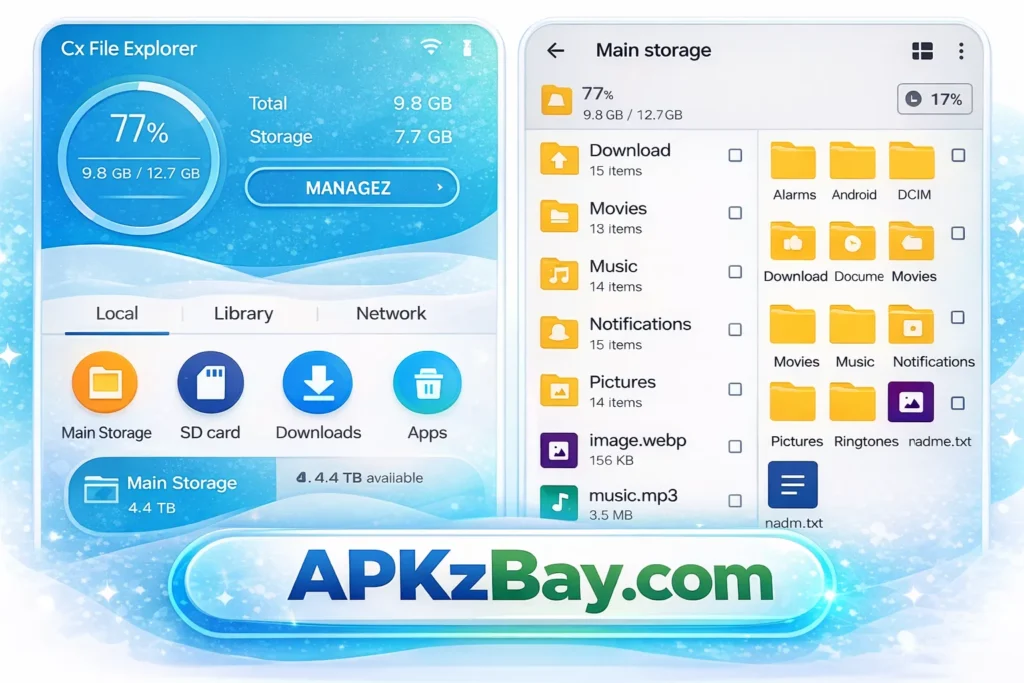
In this guide, you will learn how to install apk from cx file explorer on android step by step. I will also cover common errors, beginner-friendly safety tips, Huawei-specific notes, and how CX File Explorer compares with other methods. Whether you are new to sideloading or already comfortable with Android tools, this article will help you install APK files with fewer problems and more confidence.
What Is an APK on Android?
Before jumping into the process, it helps to know what an APK actually is.
An APK stands for Android Package Kit. It is the file format Android uses to distribute and install apps. Think of it as the Android version of an .exe installer on Windows. When you download an APK, you are getting the package that contains the app’s code, resources, and manifest.
People usually install APKs manually for a few reasons:
- The app is not available in the Play Store for their country
- They want to try a version not currently listed in Play Store
- They received the app from a trusted developer or testing team
- They are installing a companion app on Android TV or Quest devices
Android supports installing apps from outside Google Play, but it treats that as an unknown source install. On newer Android versions, permission is granted per app, which means you allow a specific app such as CX File Explorer, Chrome, or My Files to install APKs rather than turning on one global setting. Google’s help documentation also warns that sideloaded apps can pose security and privacy risks if the source is not trustworthy. (Google Help)
What Is CX File Explorer?
CX File Explorer is a free Android file manager known for its clean interface and practical tools. According to its Google Play listing, it supports browsing files, copying, moving, compressing, extracting, renaming, deleting, creating, and sharing content from internal and external storage. It also supports cloud and network locations. (Google Play)
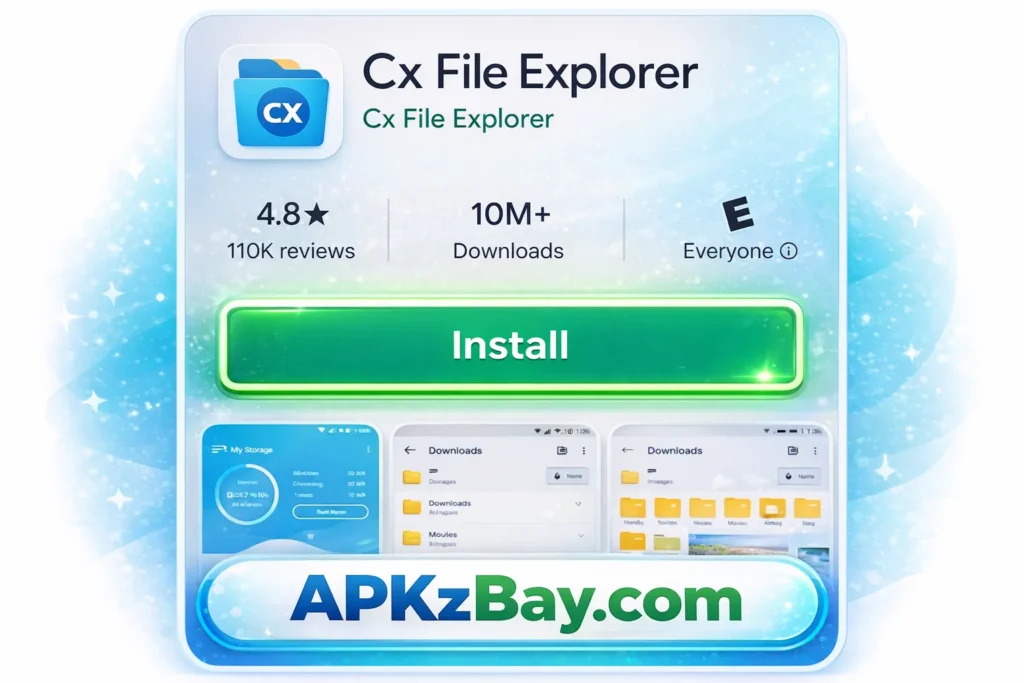
That makes it a handy choice for users who want to:
- Find downloaded APK files quickly
- Open ZIP folders and extracted files
- Move APK files from Downloads to another folder
- Access files on USB, SD card, or network storage
- Install apps from a cleaner interface than some stock file managers
If your main goal is how to install apk from cx file explorer on android, the good news is that the process is simple once the right permission is enabled.
Why Use CX File Explorer Instead of Another File Manager?
There are many file managers on Android, but CX File Explorer is popular because it is lightweight and easy to understand. Some stock file apps hide advanced folders or make side-loading feel awkward. CX File Explorer usually gives you a more direct path to the APK file and lets you manage archives and storage locations in one place.
It can be especially useful when:
- The APK is inside a ZIP file
- The file is stored on an SD card
- You downloaded the APK to a custom folder
- You want to check file names and organize app installers
- You need a file manager that feels consistent across different Android devices
For many users, it sits in the sweet spot between simplicity and control.
How to Install APK from CX File Explorer on Android
Here is the complete process.
Step 1: Download the APK File from a Trusted Source
First, download the APK you want to install. Save it to your phone’s internal storage, Downloads folder, SD card, or another easy-to-find location.
Best practices:
- Use only trusted websites or the official developer source
- Avoid heavily modified or suspicious APKs
- Check the file name carefully
- Do not install random APKs from unknown groups or messages
If your file is compressed, extract it first before trying to install it. If you need help with that process, read this guide on how to install APK after downloading a ZIP file.
Step 2: Install or Open CX File Explorer
If you do not already have it, install CX File Explorer from the Play Store or another trusted source. Google Play lists it as a file manager for browsing and organizing files on Android devices.
Once installed, open the app.
Step 3: Locate the APK File
Inside CX File Explorer:
- Tap Main Storage or Downloads
- Browse to the folder where your APK was saved
- Look for the file ending in
.apk
If the APK came from a browser download, it is usually in the Download folder. If it came from a ZIP archive, you may find it in an extracted folder with the same or similar name.
Step 4: Tap the APK File
Once you find the file, tap it.
Android will usually show one of these outcomes:
- The installer opens immediately
- You see a warning that the app is not allowed to install unknown apps
- You are redirected to settings to grant permission
On current Android versions, this permission is generally managed through Install unknown apps for the specific app you are using, such as CX File Explorer. Google and Android community guidance describe this path under Settings and Special App Access on supported devices.
Step 5: Allow CX File Explorer to Install Unknown Apps
If prompted:
- Tap Settings
- Find Install unknown apps
- Select CX File Explorer
- Turn on Allow from this source
Then go back and tap the APK again.
This step is the key part of how to install apk from cx file explorer on android. Without it, Android blocks the installation for security reasons. Google explicitly notes that apps from unknown sources may put your device or data at risk, which is why Android asks for permission first.
Step 6: Tap Install
Now the Android package installer should open.
You will usually see:
- App name
- Requested actions or install confirmation
- Options for Install or Cancel
Tap Install and wait a few seconds.
Step 7: Open the App or Done
After installation finishes, tap:
- Open to launch the app now
- Done to close the installer
That is it. You have successfully learned how to install apk from cx file explorer on android.
How to Install APK from CX File Explorer on Android Without Errors
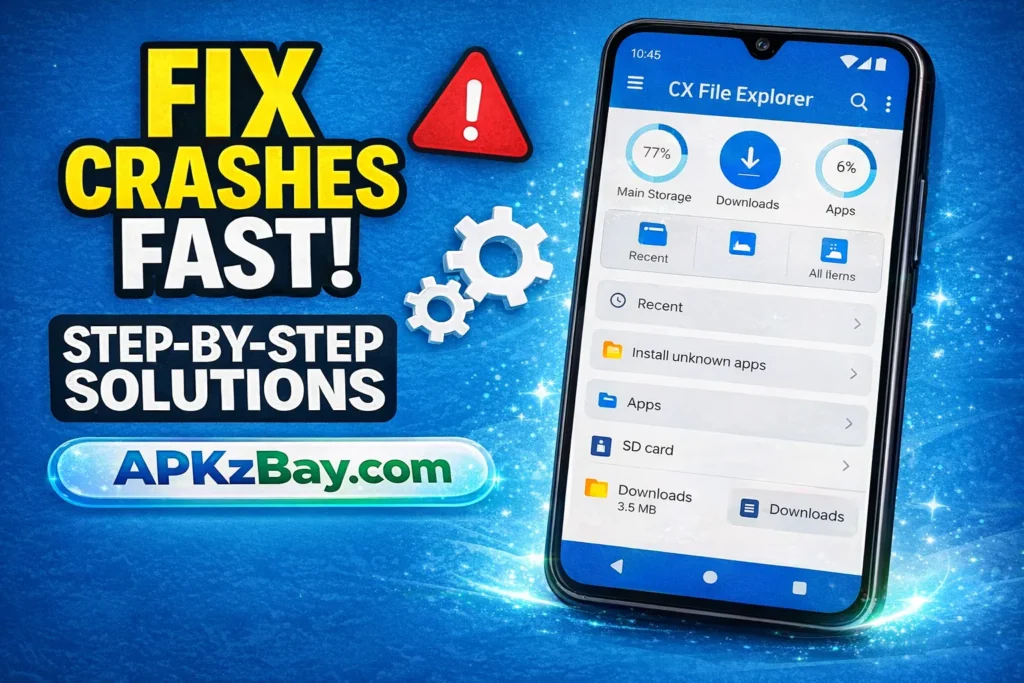
A lot of users search for how to install apk from cx file explorer on android without running into errors, warnings, or failed installations. In practice, that usually means avoiding the common mistakes below.
1. Make Sure the APK Is Complete
Sometimes the file is partially downloaded or corrupted. If the install fails, delete it and download it again.
2. Check Your Android Version
Some apps require newer Android versions. If your phone is too old, the APK may fail to install even if the file itself is valid.
3. Watch for Split APKs
Not every Android app is a single APK file. Some apps are packaged as split APKs or app bundles and may require a different installer. If tapping the file does nothing useful, the app may not be a normal standalone APK.
4. Free Up Storage
Low storage can stop installations. Make sure you have enough free space before trying again.
5. Uninstall a Conflicting Version
If the app is already installed with a different signature or from another source, Android may reject the new APK. Removing the old version can solve it, though you should back up app data first if needed.
6. Keep Play Protect On
Google Play Protect can help detect harmful apps installed from outside Play Store. That extra layer is worth keeping enabled.
If you want a broader troubleshooting walkthrough, see this internal guide on how to install APK without errors on Android.
How to Install APK from CX File Explorer on Android Huawei Devices
Many people also search for how to install apk from cx file explorer on android huawei because Huawei phones can behave a little differently depending on model, Android version, and EMUI or HarmonyOS layer.
The general process is still very similar:
- Download the APK
- Open CX File Explorer
- Find the APK file
- Tap it
- Allow install permission for CX File Explorer if prompted
- Tap Install
Things to keep in mind on Huawei devices:
- The menu labels may look different from stock Android
- Security settings can be grouped differently
- Some devices add extra warnings before sideloading
- App compatibility can vary if the app expects Google services
If the install is blocked, look for settings related to:
- Install unknown apps
- Special access
- Security
- App permissions
The method is usually the same, but the menu path may differ slightly.
Comparison Table: CX File Explorer vs Other APK Installation Methods
Below is a practical comparison table for beginners.
| Method | Ease of Use | Good for Beginners | Best Use Case | Main Limitation |
|---|---|---|---|---|
| CX File Explorer | Very easy | Yes | Finding and installing APKs from local storage, ZIP extracts, SD cards | Needs unknown-app permission |
| My Files app | Easy | Yes | Samsung and stock-style file browsing | Features vary by brand |
| Chrome or browser install | Easy | Yes | Installing right after download | Harder to organize files later |
| ADB on PC | Moderate to advanced | No | Developers, testing, debugging | Requires computer and commands |
| Package installer apps | Moderate | Sometimes | Split APK support | Extra app needed |
| Android TV / Quest sideload tools | Moderate | Not always | TV, headset, device-specific installs | Often more setup required |
If you prefer a stock file manager method, read how to install APK from My Files app on Android.
Beginner Tips for Installing APKs Safely
If you are new to Android sideloading, these tips will save you time and headaches.
Use Trusted Sources Only
This is the most important rule. Android’s own guidance warns that apps from other sources can harm your device or data.
Read the File Name Carefully
Scam APKs often use names that look similar to popular apps.
Scan Before Installing
If you have a mobile security app or file scanner, use it on unknown APKs.
Avoid “Pro” or “Mod” Claims Unless You Truly Trust the Source
Search terms like cx file explorer pro apk may appear online, but unofficial modified APKs carry extra risk because they are often repackaged. Safer installs come from trusted or official distribution channels.
Keep Your Phone Updated
Security patches and newer Android versions reduce installation issues and improve protection.
Remove Permission After Installing
After you finish, you can return to settings and disable Allow from this source for CX File Explorer if you want tighter security.
Keep a Backup of Important Data
This is especially smart before testing niche or older APKs.
Tips for Choosing the Right APK Installation Method
Not every situation needs CX File Explorer. Here is how to choose the best option.
Choose CX File Explorer When:
- You already manage files with it
- The APK is stored in a folder or SD card
- The APK came in a ZIP archive
- You want a clean, beginner-friendly interface
- You need to browse local or external storage
Choose My Files When:
- You use Samsung and prefer stock tools
- The APK is already in Downloads
- You want fewer third-party apps on your device
Choose ADB When:
- You are testing apps professionally
- You need debugging features
- You are working with development workflows
Choose a Split APK Installer When:
- The app comes as
.apks,.xapk, or split packages - A single tap install from CX File Explorer does not work
The best method depends on the type of file, your device, and your comfort level.
Pros and Cons of Using CX File Explorer for APK Installation
Pros
- Very easy for beginners
- Clean interface
- Good file organization
- Helpful for ZIP extraction and local storage browsing
- Useful on phones, tablets, and some media devices
- Lets you find APK files quickly
Cons
- You still need Android installer permission
- Some APK formats require another installer
- Unofficial APK downloads can still be risky
- Menu paths may differ across devices
- Not every app is compatible with every phone
Common Problems and Fixes
App Not Installed
Possible causes:
- Corrupted APK
- Conflicting installed version
- Unsupported Android version
- Not enough storage
Fixes:
- Re-download the APK
- Remove the older conflicting version
- Free storage space
- Verify the app supports your Android version
Parse Error
This often means the APK is damaged, incomplete, or not compatible with your device.
Install Button Is Disabled
Sometimes a screen overlay, accessibility feature, or device security setting can interfere. Close other floating apps and try again.
Permission Screen Keeps Appearing
Make sure CX File Explorer specifically is allowed under Install unknown apps, not just your browser.
APK Is Inside ZIP and Will Not Install
Extract the ZIP first. Android usually cannot install directly from a compressed archive. Use CX File Explorer’s extract tools, then tap the actual .apk file.
CX File Explorer for Android TV and Quest Devices
Some users look for cx file explorer for android tv or how to get cx file explorer on quest 3. These cases are slightly different from a normal phone install.
For Android TV, the interface and navigation can differ, and some TV devices have their own security or unknown-source settings. Google TV community guidance shows that unknown-source permissions may live under security or restrictions settings on those devices.
For Quest devices, guides online often use sideloading methods through tools like SideQuest rather than a simple phone-style tap-to-install workflow. The CX File Explorer site itself has a separate Quest-focused installation page, which suggests this use case needs a more device-specific process. (CX File Explorer Apk Download)
So, while the keyword appears often, how to install apk from cx file explorer on android is most straightforward on standard Android phones and tablets.
Helpful Resources and Community Links
If you want more Android APK tips, updates, and tutorials, you can also follow APKzBay on these platforms:
These links can be useful if you want quick visual walkthroughs, Android tips, and future update alerts.
FAQs
1. Is it safe to install APKs with CX File Explorer?
It can be safe if the APK comes from a trusted source. CX File Explorer is just the file manager used to open the file. The real safety issue depends on where the APK came from. Google warns that apps from unknown sources may harm your device or personal data. (Google Help)
2. Why can’t I install an APK after tapping it in CX File Explorer?
Most often, Install unknown apps permission is not enabled for CX File Explorer. Go to settings, allow installs from that source, then try again.
3. Can I use CX File Explorer on Huawei phones?
Yes, in most cases. The steps are similar, but Huawei phones may place the permission in slightly different security menus.
4. Do I need internet to install an APK from CX File Explorer?
No. Once the APK file is already on your device, the installation itself is usually offline. You only need internet to download the APK in the first place.
5. What if the APK is inside a ZIP file?
Extract it first using CX File Explorer, then tap the .apk file. You cannot usually install an app directly from a ZIP archive.
6. Can CX File Explorer install split APK files?
Not always in the same simple way as a standard APK. Some split packages need a dedicated installer app.
7. Should I disable unknown app installs after I’m done?
Yes, that is a smart security step. You can turn off permission for CX File Explorer after installation if you do not plan to sideload again soon.
Conclusion
Learning how to install apk from cx file explorer on android is easier than many people think. Once the APK is downloaded and the correct permission is enabled, the process usually takes only a few taps. CX File Explorer is useful because it helps you find files quickly, extract ZIP archives, and manage APKs in a clean interface.
The key is to combine convenience with caution. Use trusted sources, verify the file, keep Play Protect on, and avoid suspicious modified packages. If you do that, CX File Explorer can be one of the simplest ways to sideload apps on Android.
For related guides, you can also explore:
Recent Posts
- How to Install APK from CX File Explorer on Android

- How to Install APK from My Files App on Android: A Complete Beginner-Friendly Guide
- How to Install APK Without Errors Android Guide
- How to Install APK After Downloading ZIP File
- This App Is Not Compatible With This Device Problem Solution
- How to Prevent Installing Harmful Apps
- How to Access Android Data Folder with Shizuku: Complete No-Root Guide
- How to Install APK on Amazon Fire Tablet Safely and Easily
- Install Unknown Apps Not Showing for Browser Fix Android: A Complete Beginner-Friendly Guide
- Why XAPK Files Need Extra Installer Android: A Complete Beginner-to-Pro Guide
- Trusted APK Sites for Android Safety Guide: How to Download APKs Without Putting Your Phone at Risk
- Fake App Clone Warning Signs on Android: How to Spot Unsafe Apps Before You Install Them