How to Install APK from My Files App on Android: A Complete Beginner-Friendly Guide
06-04-2026
Description
If you have ever downloaded an APK file and then stared at it inside your phone’s file manager wondering what to do next, you are not alone. A lot of Android users download an app manually, open My Files, tap the APK, and then get stopped by a warning, a blocked install message, or the classic App not installed error. The good news is that the process is much easier once you understand how Android handles app installs outside the Play Store.
This guide explains how to install apk from my files app on android in a simple, modern, and safe way. It is written for beginners, but it also includes useful details for advanced users, Samsung owners, and even developers who want to test APK files more deeply. On current Android versions, installing an APK from a file manager is not controlled by one old “Unknown Sources” switch anymore. Instead, Android uses a per-source permission called Install unknown apps, which means you allow a specific app, such as My Files, Chrome, or another file manager, to launch APK installs.
Samsung also adds extra protection on newer Galaxy phones through Auto Blocker, which can stop APK installs from unauthorized sources until you disable it. Google Play Protect can also scan apps installed from outside Google Play. (Android Developers)
So whether you are trying to install a simple APK document from your Downloads folder, use a Samsung APK installer flow through My Files, or understand why Android keeps rejecting your file, this article will walk you through the whole process step by step.
What Is APK in Android?
An APK is the installable app file format used by Android. Google’s Android documentation describes an Android package as an archive file with an .apk suffix that contains the contents of an Android app required at runtime, and it is the file Android devices use to install the app. Google also notes that an AAB file is a publishing format and cannot be installed directly on Android devices.
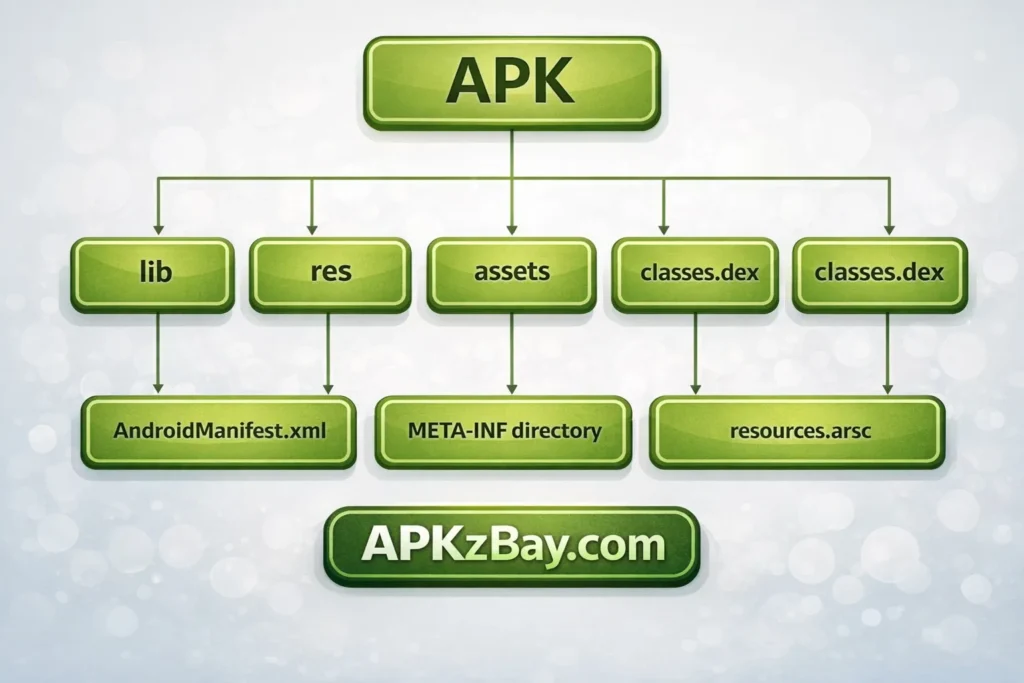
In plain English, an APK is the Android version of an installer file. It includes the app’s code, resources, manifest, and other components needed for installation. Android’s developer docs also explain that an APK is essentially a ZIP-based archive structure, which is why people sometimes confuse APK files with compressed files or refer to them loosely as an apk document.
What Is an APK Installer?
An APK installer is the tool or process that installs an APK file onto your Android device. On most phones, this is handled by Android’s built-in package installer after you tap the APK from a source like My Files, Chrome, or Downloads. The file manager itself is usually not the full installer. Instead, it passes the APK to the Android package installation system after the proper source permission is granted. Android’s current docs describe this through the Install unknown apps permission for each source app.
So when people search for:
- what is an apk installer
- samsung apk installer
- zip apk installer
they are usually talking about one of three things:
- The Android package installer prompt
- A file manager like Samsung My Files or Files by Google
- A third-party tool that helps install APK-related packages
For normal users, the safest route is still the built-in Android installer launched from a trusted source app.
Why Use My Files to Install an APK?
Installing from My Files is one of the easiest methods because the APK is already on your phone. You do not need a PC, a developer setup, or complicated commands.
This method is ideal when:
- You downloaded the APK from a browser
- Someone shared the APK through email, Telegram, or Bluetooth
- You moved the file into the Downloads folder
- You saved the APK on internal storage for later use
- You use a Samsung phone where My Files is preinstalled
For Samsung users in particular, Samsung’s official support pages still direct people to the Install unknown apps permission and note that Galaxy devices block outside sources by default until you approve the source app.
How to Install APK from My Files App on Android
This is the core part of the guide.
Step 1: Locate the APK File in My Files
Open My Files or your phone’s file manager.
Then go to one of these folders:
- Downloads
- Documents
- Internal Storage
- Any custom APK folder you created
Tap the APK file once.
If it opens an installer screen, great. If it shows a warning or says installs are blocked, move to the next step.
Step 2: Allow My Files to Install Unknown Apps
On Android 8.0 and above, Google requires users to grant install permission to each source app separately instead of using a single global unknown-sources toggle. Android’s documentation states that on Android 8.0+ users must go to the Install unknown apps settings screen and enable app installs for the particular source they want to use. Samsung’s current support steps follow that same model.
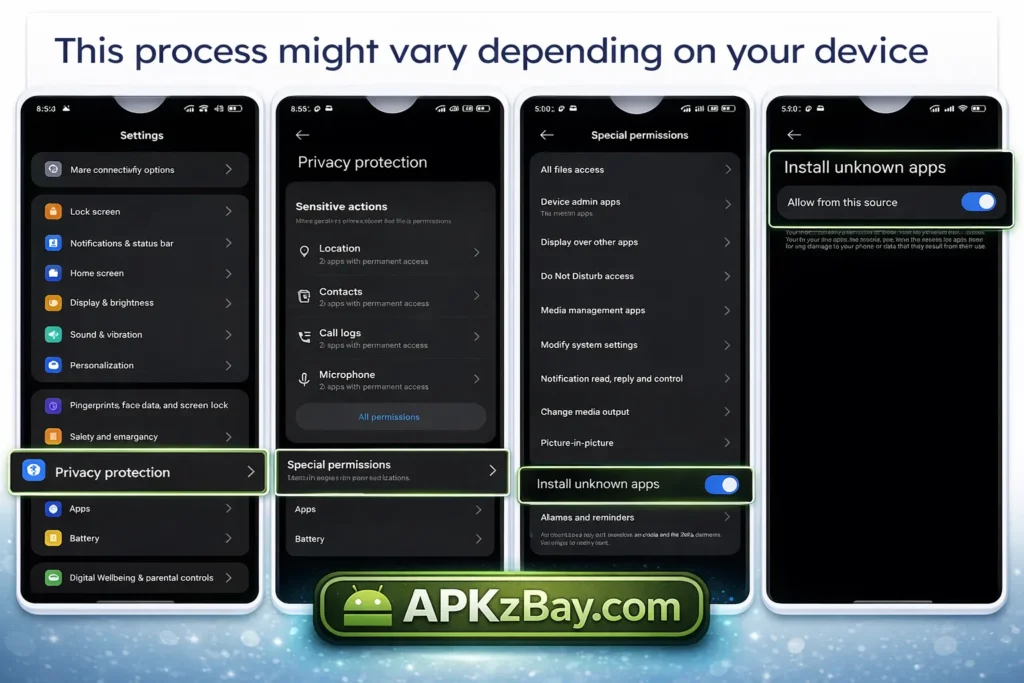
On Samsung phones
Follow these steps:
- Open Settings
- Tap Security and privacy
- Tap More security settings
- Tap Install unknown apps
- Tap My Files
- Turn on Allow from this source
Samsung’s official support article specifically lists this path and notes that Galaxy phones are configured by default to prevent app installs from sources other than Google Play or Galaxy Store until you change that permission.
On many other Android phones
The exact labels vary, but the path is usually similar:
- Open Settings
- Go to Apps, Security, or Special app access
- Tap Install unknown apps
- Choose your file manager app
- Enable permission for that source
After this, go back to My Files and tap the APK again.
Step 3: Review the Installer Prompt
Once Android opens the package installer, you will usually see:
- The app name
- An install prompt
- Cancel and Install buttons
Tap Install and wait.
When it finishes, Android will usually show:
- Open
- Done
Tap Open if you want to launch it right away, or Done if you want to finish later.
That is the normal process for how to install apk from my files app on android.
Step 4: Turn Off the Permission Later for Better Safety
If you do not install APKs often, it is smart to switch the permission off after you finish. Samsung’s support pages note that you can deny all again after granting source access. That adds a little extra protection if you only sideload apps occasionally.
How to Install APK from My Files App on Android Samsung
Samsung users often have an extra step because newer Galaxy phones may use Auto Blocker. Samsung explains that on One UI 6 and Android 14, Auto Blocker can prevent installation of apps from unauthorized sources. If it is enabled, you may get a warning even when My Files already has permission. Samsung also says you can temporarily disable Auto Blocker if you have determined the app is safe.
If your Samsung phone still refuses to install the APK
Try this:
- Open Settings
- Tap Security and privacy
- Tap Auto Blocker
- Turn it off temporarily
- Return to My Files
- Tap the APK again
Samsung’s support guidance also notes that when Auto Blocker is on, only apps from authorized sources such as Galaxy Store or Play Store can be installed.
That is why many people search phrases like how to install apk from my files app on android samsung even after they already allowed My Files. In many cases, Auto Blocker is the real reason.
Is It Safe to Install APK Files?
It can be safe, but only when you are careful. Google’s Android Help warns that downloading apps from unknown sources can put your device and personal information at risk. Google Play Protect may also inspect apps installed from outside the Play Store, and Google recommends keeping Play Protect on.
Here is the practical version:
Safer situations
- The APK comes from an official developer source
- You know the app and trust the publisher
- You checked the file before installing
- The app is compatible with your device
Riskier situations
- The APK came from a random website
- It asks for strange permissions
- It is a modified or unofficial build
- The installer warns you multiple times
So yes, you can install APKs safely, but you should never treat every APK like it is harmless.
Beginner Tips Before Installing Any APK
These tips will save you time and reduce errors.
1. Make sure the file is really an APK
Some people download a ZIP file, an XAPK file, or another package format and think it is a standard APK. If the file is compressed, extract it first before trying to install it from My Files.
For that case, read this guide on installing an APK after downloading a ZIP file.
2. Keep Play Protect enabled
Google says Play Protect is on by default and recommends keeping it on for security. It can scan apps during install and warn you about potentially harmful apps from outside Google Play.
3. Check your storage space
Low storage can break an installation even when the APK is fine. If an app refuses to install, free some space and try again.
4. Verify compatibility
An APK may fail because it is not built for your Android version, device architecture, or screen type. If you hit compatibility trouble, this related guide on fixing the “this app is not compatible with this device” problem may help.
5. Use a trusted source app
If you are installing from My Files, let My Files be the approved source. If you are installing directly from Chrome, approve Chrome instead. Android’s current install model is based on the source app, not on one general system-wide switch.
6. Do not rush past warnings
A warning is not always a disaster, but it is also not something to ignore blindly.
Common Reasons APK Installation Fails
Even when you know how to install apk from my files app on android, the process can still go wrong.
1. My Files does not have source permission
This is the most common issue. You tap the file, but Android blocks it because My Files is not yet allowed as an install source.
Fix: recheck Settings > Security and privacy > More security settings > Install unknown apps > My Files.
2. Auto Blocker is enabled on Samsung
This is very common on newer Galaxy devices. Samsung says Auto Blocker can stop installs from unauthorized sources and must be turned off temporarily if you trust the app.
3. Play Protect blocks or warns about the app
Google says Play Protect checks apps when you install them and may warn, disable, or remove harmful apps. It can also request scanning information for unknown apps outside Google Play.
4. The APK is corrupted
If the download was incomplete or modified badly, Android may show errors such as:
- App not installed
- Parse error
- Package appears invalid
5. The APK is not compatible
This is a huge reason behind failed installs. If the APK is built for a different Android version or hardware target, the installation can fail even when the file is legitimate.
6. You are mixing versions
If you already have a different version of the same app installed, Android may reject the new APK if the signatures or package details do not match.
Comparison Table: Different Ways to Install APK on Android
The best method depends on your situation. Android’s official docs currently support per-source installs on modern Android, ADB-based command-line installs, and drag-and-drop APK installation inside the Android Studio emulator.
| Method | Best For | Difficulty | Main Advantage | Main Drawback |
|---|---|---|---|---|
| My Files / File Manager | APK already on phone | Easy | Fast and beginner-friendly | Blocked if source permission is missing |
| Browser Direct Install | Fresh APK download from Chrome | Easy | Quick after download | Browser must be approved as source |
| ADB from PC | Testing, troubleshooting, advanced installs | Medium | Precise and powerful | Needs a PC and USB debugging |
| Android Studio Emulator | Developer testing | Medium | Easy test install in emulator | Not meant for casual users |
| ZIP then Extract then Install | APK packed in an archive | Medium | Works for compressed downloads | Extra step before install |
Tips for Choosing the Best APK Installation Method
Choose My Files when:
- The APK is already saved on your phone
- You want the simplest method
- You are a beginner
- You use Samsung and prefer built-in tools
Choose Chrome or your browser when:
- You want to install right after downloading
- You do not want to hunt through folders later
Choose ADB when:
- My Files keeps failing
- You are comfortable using a computer
- You want a reliable technical install method
- You are testing an app build
Google’s ADB documentation says ADB is a command-line tool that lets you communicate with a device and perform actions such as installing and debugging apps. The Android command-line build docs also show the standard install command adb install path/to/your_app.apk.
Choose Android Studio when:
- You are a developer
- You need to inspect or debug an APK
- You want to test in an emulator
Android Studio’s documentation says you can drag an APK directly onto the emulator screen to install it, and Android Studio also offers Profile or Debug APK and APK Analyzer tools for debugging and inspection.
How to Test APK File in Android Studio
This keyword comes up often, and it is useful for developers or advanced users.
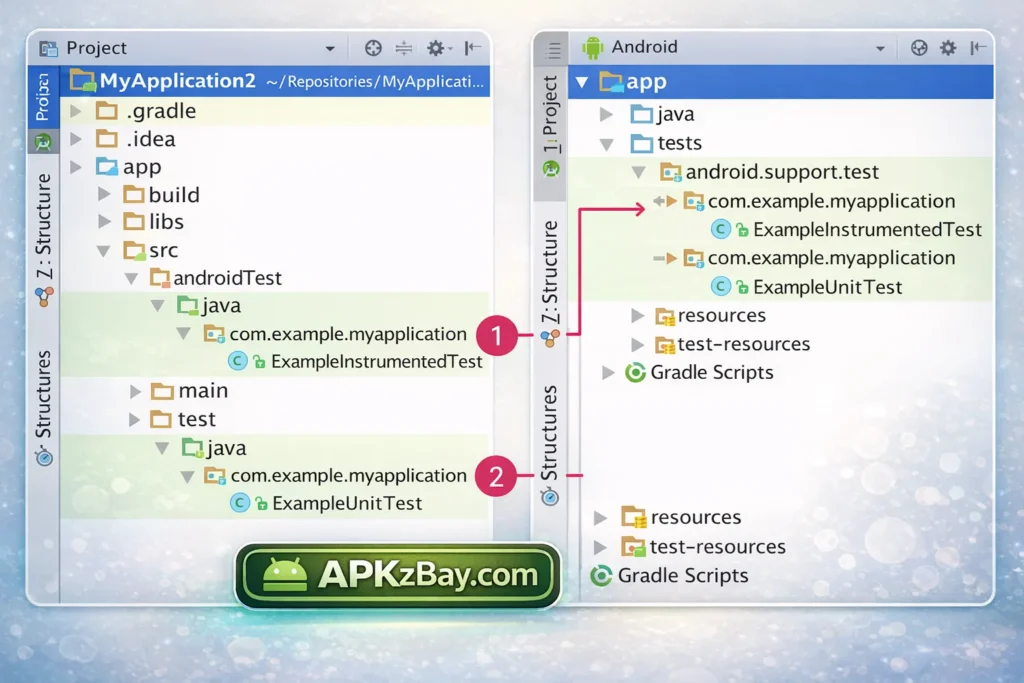
If you want to know how to test apk file in android studio, there are a few official options.
1. Debug a pre-built APK
Google’s Android Studio docs say Android Studio 3.0+ lets you profile and debug APKs that have debugging enabled without needing to build them from an Android Studio project. The path is:
- Open Android Studio
- Click Profile or Debug APK
- Select the APK
- Inspect it inside Android Studio
This is helpful when you want to investigate how a prebuilt app behaves.
2. Analyze the APK structure
Android Studio’s APK Analyzer lets you inspect the internal contents of an APK, compare APKs, view file sizes, inspect DEX files, and look at the final manifest. It is helpful for debugging and optimization.
3. Install on the emulator
Google’s emulator docs say you can drag an APK onto the emulator screen and Android Studio will open an APK Installer dialog.
So if you are a developer or tester, Android Studio is one of the best environments for checking whether an APK works before sharing it more widely.
Can You Download APK Online for PC or Laptop?
Yes, you can download APK online for PC, but remember this: the PC is only storing the file unless you plan to use ADB or an emulator. The actual installation target is still an Android device or an Android virtual device.
A smart workflow looks like this:
- Download the APK on your PC
- Scan and verify it
- Either:
- transfer it to your phone and install via My Files, or
- install it through ADB, or
- test it in Android Studio’s emulator
ADB and Android Studio are the most official PC-side routes for handling APKs in a technical way.
What About an APK Document?
Some users see the APK file listed like a regular file or “document” in a file manager and assume it behaves like a PDF or a photo. It does not. An APK document is still an executable Android app package. Android documentation makes clear that an .apk file is the installable file Android uses for app installation.
So if your phone shows the file in Documents or Downloads, that is just where the file is stored. The real action starts when Android hands that file to the package installer.
Pros and Cons of Installing APKs from My Files
Pros
- Very easy for beginners
- No computer required
- Great for one-time installs
- Convenient on Samsung phones
- Lets you keep APK backups locally
Cons
- Less secure than the Play Store if the source is untrusted
- Easy to get blocked by source permission settings
- Samsung Auto Blocker may interrupt the process
- Corrupt or incompatible files still fail
- Not every downloaded package is a normal APK
Extra Troubleshooting Checklist
If the app still will not install, go through this list:
- Re-download the APK
- Make sure it is a real APK and not a ZIP or another format
- Confirm My Files is allowed under Install unknown apps
- Turn off Auto Blocker temporarily on Samsung if needed
- Free up storage
- Restart your phone
- Remove any conflicting old version
- Check compatibility with your Android version
- Try ADB or Android Studio if you are an advanced user
If you want a deeper troubleshooting walkthrough, visit this internal guide on how to install APK without errors on Android.
Stay Connected for More Android Guides
If you want more Android tips, APK walkthroughs, and quick visual tutorials, follow APKzBay on these platforms:
FAQs
1. How do I install APK from My Files app on Android?
Open My Files, find the APK, tap it, and allow My Files under Install unknown apps if Android blocks the install. Then tap Install. On Android 8.0 and higher, this permission is granted per source app.
2. How do I install APK from My Files app on Android Samsung?
On Samsung, go to Settings > Security and privacy > More security settings > Install unknown apps > My Files, then allow the source. If it still fails, check whether Auto Blocker is turned on.
3. What is APK in Android?
An APK is Android’s installable app package file. Google describes it as the archive file with the .apk suffix that Android devices use to install apps.
4. What is an APK installer?
An APK installer is the system process or tool that installs an APK file. In normal use, Android’s package installer handles the final installation after a source app like My Files or Chrome is approved.
5. Is it safe to install APK files manually?
It can be, but only if the source is trustworthy. Google warns that apps from unknown sources can risk your device and data, and Play Protect may scan or warn about them. (Google Help)
6. How can I test an APK file in Android Studio?
You can use Profile or Debug APK, APK Analyzer, or drag the APK onto the Android Studio emulator screen to install and inspect it.
7. Why does my APK say “App not installed”?
Usually it is because of one of these reasons:
- Source permission is off
- The APK is corrupted
- The app is incompatible
- Auto Blocker is preventing the install on Samsung
- Another installed version conflicts with the APK
Samsung and Google both document source permissions, Auto Blocker behavior, and app scanning as common parts of the modern install flow.
Conclusion
Learning how to install apk from my files app on android is much easier once you know how modern Android works. The basic process is simple: open the APK in My Files, allow My Files as an approved source, review the installer, and tap Install. On Samsung phones, you may also need to deal with Auto Blocker, especially on newer Galaxy devices. And if you are a developer or advanced user, Android Studio and ADB give you stronger tools for testing, debugging, and installing APK files. (Samsung es)
The real key is not just getting the APK installed. It is doing it in a way that is safe, clean, and reliable. Use trusted sources, keep Play Protect on when possible, make sure the file is compatible, and choose the install method that fits your level of experience. That is the smartest way to handle APK files on Android today. (Google Help)
Related apps




Recent Posts
- Allow Unknown Apps for Documents App Android: Safe Ways to Install APKs on Modern Phones

- Allow Unknown Apps for Mac Transfer Android: Complete Beginner-Friendly Guide
- APK Downloaded in CX File Explorer Not Installing FIx? Here’s the Fix for Android, Huawei, Quest 2, and Quest 3
- Why Is Install Unknown Apps Stuck on Processing on Android?
- How to Install APK from CX File Explorer on Android
- How to Install APK from My Files App on Android: A Complete Beginner-Friendly Guide
- How to Install APK Without Errors Android Guide
- How to Install APK After Downloading ZIP File
- This App Is Not Compatible With This Device Problem Solution
- How to Prevent Installing Harmful Apps
- How to Access Android Data Folder with Shizuku: Complete No-Root Guide
- How to Install APK on Amazon Fire Tablet Safely and Easily