How to Install APK from Network Shared Folder on Android
09-04-2026
Description
Installing apps from a network share sounds advanced, but once you understand Android’s security model, the process becomes surprisingly simple. The core idea is this: your APK sits in a shared folder on a PC, NAS, or another storage device, and your Android phone accesses that folder through a file manager that supports SMB, LAN, WebDAV, FTP, or a similar network protocol. The catch is that Android does not treat these installs like normal Play Store installs.
On Android 8.0 and newer, the permission to sideload apps is granted per source app, not through one old global “Unknown sources” switch. That means the file manager or browser you use to open the APK must be allowed to install apps from that source. Google also states that Play Protect checks apps when you install them and continues scanning the device afterward, including apps from outside Google Play.
So if you are searching for how to install apk from network shared folder on android, this guide will walk you through the modern method step by step. You will learn how to connect to a shared folder, when to copy the APK locally first, how to handle Samsung’s extra restrictions, and how this process compares with adjacent topics like how to install apk from pc to android or how to install apkm file on android.
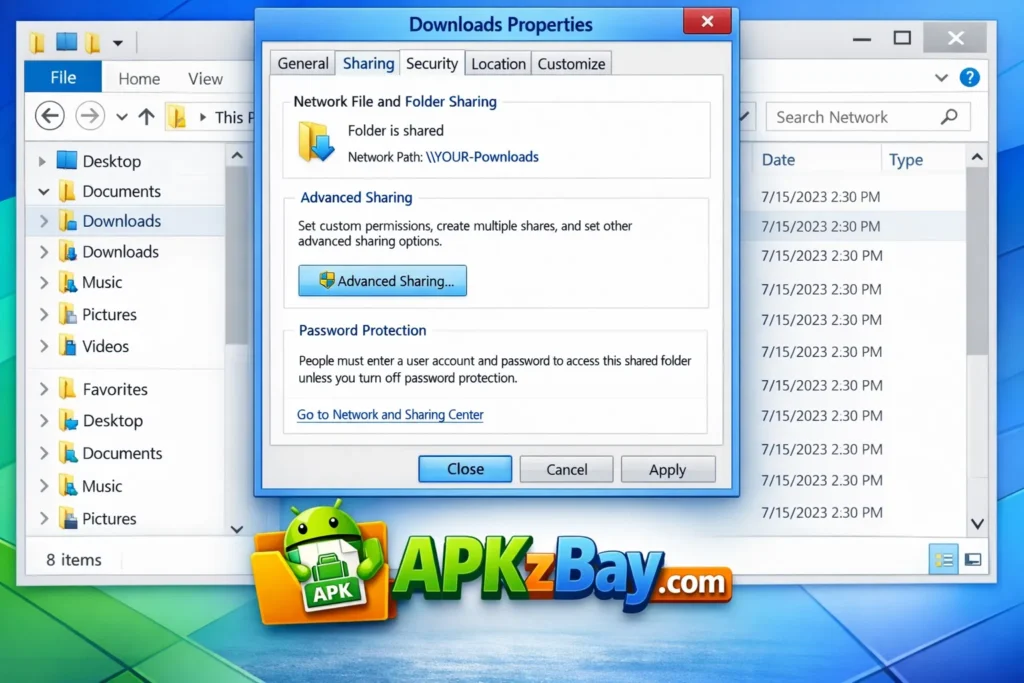
The goal is to make the whole workflow clear, safe, and beginner-friendly without watering down the technical details. File managers such as CX File Explorer support remote storage types including SMB, WebDAV, FTP, FTPS, SFTP, and LAN access, which is why this method works well for network-based APK installs.
What does “install APK from a network shared folder” actually mean?
A network shared folder is simply a folder stored on another device that your Android phone can access over Wi-Fi or a local network. In real-world use, that usually means one of these setups:
- A Windows PC sharing a folder over SMB
- A NAS drive on your home or office network
- A Mac or Linux machine exposing a shared directory
- A router with network storage
- A remote storage path available through WebDAV, SFTP, or FTP
A file manager like CX File Explorer can connect to several of these storage types, including SMB, WebDAV, FTP, FTPS, SFTP, and LAN shares, which is what makes this method practical for normal Android users and not just developers.
In simple terms, instead of downloading the APK into your phone first, you browse to it over the network and then install it from there. Sometimes you can install directly from the share. Other times, the cleaner approach is to copy the APK to local storage and install it afterward. Both methods work, and choosing the right one depends on your device, your file manager, and how stable your network is.
Why people use this method
There are a few very practical reasons to learn this workflow.
- You keep one installer on a PC or NAS instead of sending the same file to every phone.
- It is convenient for testing apps across multiple Android devices.
- It is useful in homes, offices, and workshops where APK files are stored centrally.
- It avoids the mess of repeated downloads, USB transfers, or emailing files to yourself.
- It works well when your phone’s download folder is already cluttered.
For many users, this is simply a cleaner version of how to install apk from pc to android without needing to plug in a cable every time. It also fits nicely into a power-user workflow where apps, backups, and tools are stored in one organized network location.
How Android handles unknown app installs now
This is the single most important thing to understand.
On Android 8.0 and higher, users must enable installation from a particular source app by going to the Install unknown apps settings screen. On Android 7.1.1 and lower, Android used the older Unknown sources system setting in Security. That older wording is why many users still search things like how to allow unknown sources on android, even though newer phones do not use the same global switch anymore.
That means Android cares about which app opened the APK:
- If you opened it in a browser, the browser needs permission.
- If you opened it in a file manager, the file manager needs permission.
- If you opened it through a documents app, that documents app needs permission.
This is why searches like allow unknown apps for documents app android, install unknown apps chrome android, and unknown app download are so common. People often grant permission to the wrong app, then wonder why the APK still will not install.
Google also states that Play Protect checks apps when you install them and periodically scans the device afterward. That does not make every sideload automatically safe, but it does mean Android adds another layer of protection even when the file did not come from the Play Store.
What you need before you start
Before you begin, make sure these basics are in place:
- A trusted APK file from a source you actually trust
- A shared folder you can access from your phone
- A file manager that supports network locations
- A stable Wi-Fi or LAN connection
- Enough free storage for the APK and install process
- Permission to install unknown apps from the app you will use to open the APK
If you use Samsung, add one more checkpoint: make sure Auto Blocker is not stopping installs from unauthorized sources. Samsung says Auto Blocker on newer Galaxy software can prevent sideloading even before the normal install flow completes.
Step-by-step guide: how to install APK from network shared folder on Android
1. Put the APK in the shared folder
Start on the device that stores the APK. Copy the installer into a shared folder on your PC, NAS, or server. Give the file a clean name so it is easy to identify later.
Examples:
myapp-v2.4.apkandroid-tool-arm64.apkbeta-build-android14.apk
Avoid mystery filenames. If you manage multiple versions, naming discipline saves time and prevents accidental installs.
2. Open your Android file manager and connect to the share
Use a file manager with network support. CX File Explorer is a common choice because its Play Store listing explicitly says it can access NAS and shared storage through SMB, WebDAV, FTP, FTPS, SFTP, and LAN.
A typical connection flow looks like this:
- Open the file manager.
- Go to Network, Remote, or Storage from LAN.
- Choose the protocol, usually SMB for Windows or NAS shares.
- Enter the server IP, shared folder name, username, and password if needed.
- Save the connection.
- Browse to the folder containing the APK.
If the share does not appear automatically, try the server’s IP address instead of the device name. Also confirm both devices are on the same network.
3. Tap the APK file
Once you find the APK, tap it. At this point Android may do one of several things:
- Open the package installer right away
- Ask which app should handle the file
- Show a security warning that installation from this source is not allowed
That warning is normal. It just means the app you used to open the APK is not yet approved as an install source.
4. Enable “Install unknown apps” for the correct source app
This is the step where most people get stuck.
Android’s official guidance says that on Android 8.0 and newer, the user must enable unknown-app installation for the specific location or source app that is being used. So if the APK is opened in Chrome, Chrome needs the permission. If the APK is opened in a file manager or documents app, that app needs the permission instead.
A common Android path is:
Settings > Apps > Special app access > Install unknown apps
Then select the app and turn on:
Allow from this source.
On Samsung Galaxy phones, Samsung’s support docs point users to the security settings area, where you can choose the app source and enable installations from that source. Samsung also warns that this can increase security risk, which is one reason it is better to allow only the exact app you need and then disable it later.
Samsung-specific note
If you are on a newer Galaxy device and the setting still does not behave as expected, check Auto Blocker. Samsung says Auto Blocker in newer One UI versions can prevent apps from unauthorized sources from being installed.
5. Try the install again
Go back to the file manager and tap the APK again. This time, Android should launch the installer screen.
Tap Install and wait for the package installer to finish. After that, tap either:
- Open to launch the app
- Done to return to the file manager
If the install fails, the issue is often not the network share itself. More often it is one of these:
- Wrong app permission
- Corrupted APK
- Version conflict with an existing install
- Not enough free storage
- CPU architecture mismatch
- Android version incompatibility
6. Copy locally first if direct install fails
This is one of the most useful real-world tricks.
Even if your file manager can browse a network share, some devices behave better when the APK is copied into local storage first. Move or copy the file into Downloads or another easy folder, then install it from there. This often reduces strange interruptions caused by network latency, background permission quirks, or remote file handling.
For beginners, this is often the most reliable approach. It still teaches the same core process, but with fewer moving parts.
7. Turn the permission off afterward if you want tighter security
This is optional, but it is a good habit.
After the app installs successfully, go back to Install unknown apps and disable Allow from this source for the file manager or browser you used. Since Android ties the permission to the app source, turning it off again helps reduce future risk without affecting already installed apps.
Beginner Tips
If this is your first time doing this, these tips will make the process smoother.
Use a trusted file manager
A network-capable file manager is the foundation of this workflow. CX File Explorer supports the most useful remote storage protocols for this task, which is why it is so often recommended for Android network storage access.
Keep Play Protect enabled
Google says Play Protect checks apps during installation and periodically scans the device, including apps installed outside Google Play. That extra safety net is worth keeping on.
Grant permission only to the app you are actually using
Do not turn on unknown-app permissions for every browser and file manager on the phone. Only enable the one that is opening the APK.
Copy locally when troubleshooting
If direct-from-share installation acts weird, copy the file into local storage and retry. This one step solves a surprising number of install failures.
Confirm the APK matches your device
A valid APK can still fail if it was built for a different CPU architecture, Android version, or screen environment.
Avoid old “Unknown sources” tutorials
Many older guides still explain the pre-Android-8 method. Those tutorials can confuse users on Android 12, 13, or install unknown apps android 14 workflows because the settings now work per app source, not system-wide.
Comparison Table
| Method | Best For | Reliability | Difficulty | Main Permission Needed | Recommended For |
|---|---|---|---|---|---|
| Direct install from network share | Fast installs on a stable LAN | Medium | Medium | File manager or documents app | Experienced users |
| Copy APK locally, then install | Cleaner troubleshooting | High | Easy | File manager used to open local file | Beginners |
| Browser download from local server | NAS or internal web panels | Medium | Easy | Browser such as Chrome | Users with web-based file access |
| USB transfer from PC to phone | Offline transfers | High | Easy | File manager or files app | People comparing with how to install apk from pc to android |
Bundle installer for .apkm | Split-package installs | High | Medium | Bundle-aware installer | Users dealing with APKM, XAPK, or APKS |
This table combines the official Android install-permission model with the practical network-storage options exposed by file managers like CX File Explorer and the bundle-file support offered by APKMirror Installer. APKMirror Installer’s official listing says it supports .apkm, .xapk, .apks, and standard .apk files.
Tips for Choosing the best method
Choose direct network install when convenience matters most
If your home or office Wi-Fi is stable and your file manager handles remote storage well, direct install is fast and efficient.
Choose local copy when reliability matters more than speed
For most readers, copying the APK locally first is the safer recommendation. It removes one variable from the process.
Choose browser download only if the file is exposed through a web interface
If your NAS or server provides a browser-based download page, then the permission must usually be granted to that browser. This is where install unknown apps chrome android becomes relevant.
Choose a bundle-aware installer for APKM files
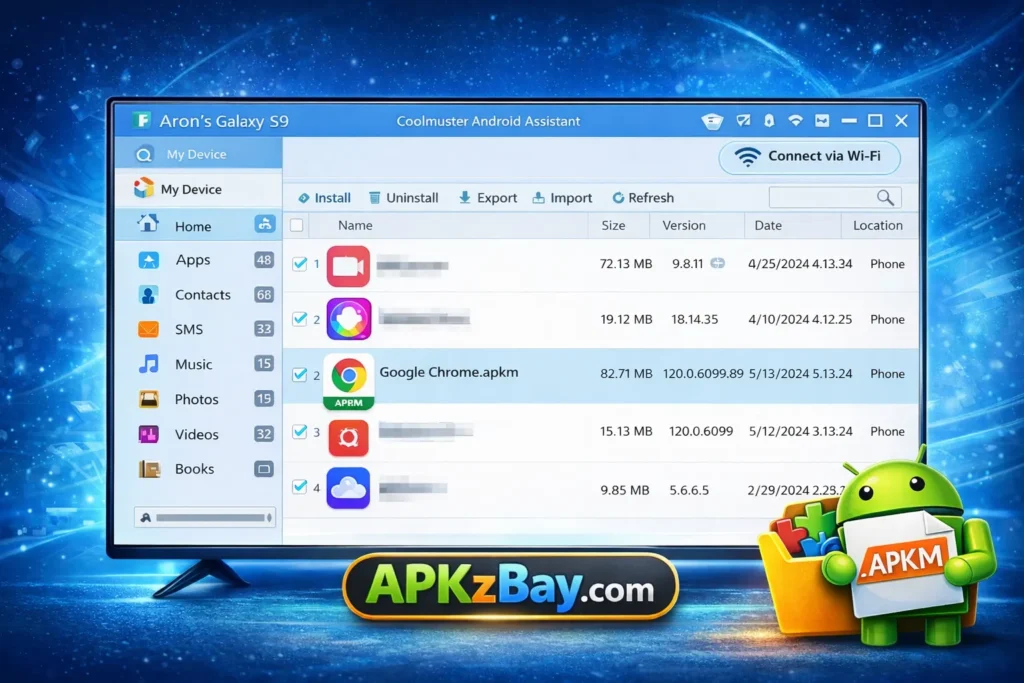
A standard .apk is not the same as an .apkm bundle. APKMirror Installer’s official listing says it can install .apkm, .xapk, .apks, and regular .apk files. So if you are wondering how to install apkm file on android, the answer is usually: do not treat it like a plain APK; use an installer that understands bundle packages.
Choose official app-store installs when they exist
If an app is available through the Play Store, Galaxy Store, or another trusted official channel, that route is usually simpler and safer than sideloading. That is especially true for streaming apps and mainstream utilities.
For related help, you can naturally guide readers to your existing posts on allow unknown apps for Documents app Android, allow unknown apps for Mac transfer Android, and APK downloaded in CX File Explorer not installing fix.
Related scenarios people often confuse with this topic
This keyword overlaps with a lot of nearby search intent, so it helps to separate them clearly.
How to install APK from PC to Android
This is closely related, but not identical. A network shared folder is one way to move an APK from a PC to Android without a cable. The older cable-based alternative is to copy the APK through USB and install it locally. The permission model on Android is the same either way: the app that opens the APK must be allowed as a source.
How to install APKM file on Android
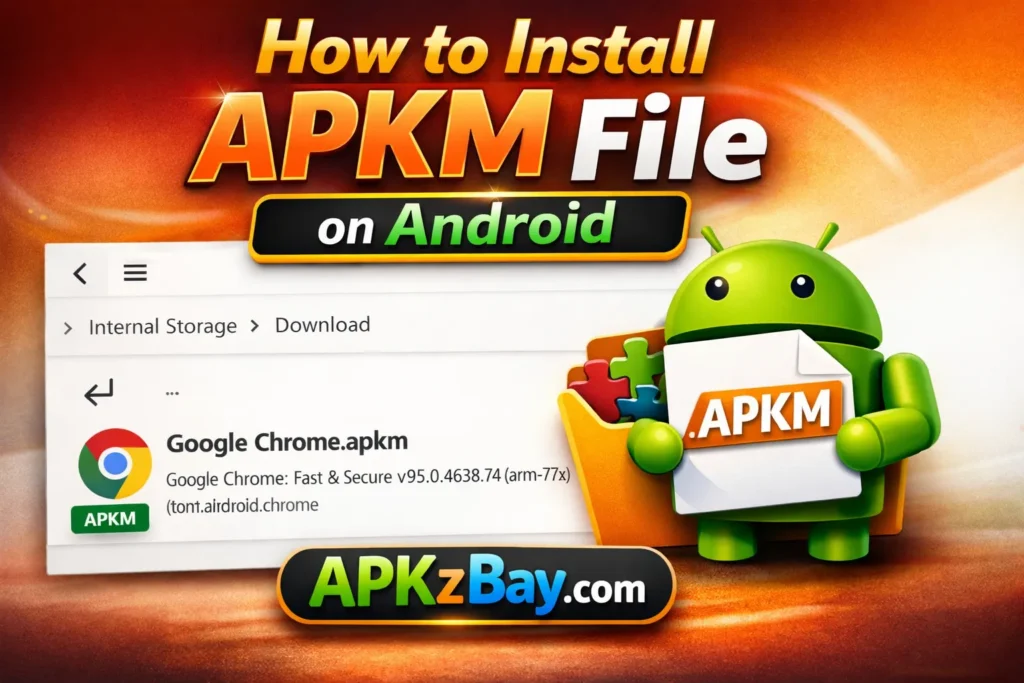
This is different from a plain APK. .apkm is a bundled format, and APKMirror Installer’s official description says it is designed to handle .apkm, .xapk, .apks, and regular APK files. So if a reader tries to open an APKM file the same way they open a plain APK, the process can fail or feel confusing.
How to install APK file on Chromebook
Chromebooks are a separate world. Google’s Chromebook help centers on installing Android apps through the Play Store, and ChromeOS developer docs recommend ADB-based deployment methods for testing workflows, with network ADB preferred over the old limited USB method. Community guidance also notes that the older easy Developer Mode sideload path is no longer the normal option on current ChromeOS. So Chromebook readers should not assume that a standard Android-phone sideload tutorial maps perfectly onto ChromeOS.
How to install APK on PTCL Smart TV or Android TV
Android TV and operator-branded TV platforms may support APK installs differently from phones, and some apps are optimized for TV while others are not. If a reader is trying to figure out how to install apk on ptcl smart tv or how do i install netflix apk on android tv, the right process depends heavily on the device software, launcher restrictions, and whether the app has an official TV build. In other words, the phone method in this article is a useful foundation, but TV devices often add their own rules and limitations.
How to share APK of installed app
That is the reverse problem. Instead of installing from a network share, you first extract or share an APK from an already installed app, then place that APK into a local or shared folder for use elsewhere. It is related, but it is a different workflow from the install process itself.
Pros and Cons
Pros
- Convenient when APK files live on a PC, NAS, or server
- No need to repeatedly download the same installer
- Useful for testing on multiple Android devices
- Faster than cable transfers in some setups
- Works well with modern file managers that support SMB and LAN access
Cons
- The per-app permission model can confuse beginners
- Network issues can interrupt access to the installer
- Some devices behave better when the APK is copied locally first
- Samsung Auto Blocker can add another hurdle on newer Galaxy devices
- Sideloading always carries more risk than installing from an official store
FAQs
1. Is it safe to install an APK from a network shared folder on Android?
It can be safe if the APK comes from a trusted source and you keep Play Protect enabled. Google says Play Protect checks apps on install and continues scanning afterward, but that does not replace careful judgment about where the APK came from.
2. Why does Android say it cannot install from this source?
Because Android 8.0 and newer require you to approve the specific app that opened the APK. If you used a file manager, that file manager needs permission. If you used a browser, the browser needs permission.
3. What is the best file manager for installing from a network share?
A good answer is any file manager that supports SMB or equivalent network protocols and handles APK files cleanly. CX File Explorer is one popular choice because its official listing says it supports NAS, SMB, WebDAV, LAN, FTP, FTPS, and SFTP access.
4. Does Android 14 still use “Install unknown apps”?
Yes. The modern per-source model still applies. Users looking up install unknown apps android 14 are still dealing with the same core rule: enable the exact app source you are using to open the APK.
5. Why will my Samsung phone not install the APK even after I allowed the source?
Samsung says Auto Blocker on newer Galaxy devices can prevent app installs from unauthorized sources. If the normal install path still fails, check that setting in Security and Privacy.
6. Can I install an APK directly from a shared folder without copying it first?
Often yes, especially with a capable network file manager. But in practice, copying the APK to local storage first is often more reliable, especially for beginners or on slower networks. The network capability itself is supported by tools like CX File Explorer; the extra copy step is just a troubleshooting best practice.
7. What if the file is .apkm instead of .apk?
Then you probably need a bundle-aware installer. APKMirror Installer’s official description says it supports .apkm, .xapk, .apks, and standard .apk files.
Conclusion
If you want the simplest answer to how to install apk from network shared folder on android, here it is: connect to the share in a trusted file manager, locate the APK, allow that app as an install source, and install the file. If anything feels unstable, copy the APK to local storage and try again. That one change often turns a frustrating install into a smooth one.
The real secret is not the network share at all. It is understanding Android’s modern sideloading model. Once you know that the permission is tied to the app source and not just to the APK itself, the rest of the process starts making sense. Add good file hygiene, a trusted APK source, and Play Protect, and you have a practical workflow that works for both beginners and more advanced Android users.
For updates, tutorials, and Android guides, readers can also follow APKzBay on YouTube, Instagram, Pinterest, Facebook, Telegram, X, and the WhatsApp Channel.
Related apps


Recent Posts
- How to Install APK from Network Shared Folder on Android

- Allow Unknown Apps for Documents App Android: Safe Ways to Install APKs on Modern Phones
- Allow Unknown Apps for Mac Transfer Android: Complete Beginner-Friendly Guide
- APK Downloaded in CX File Explorer Not Installing FIx? Here’s the Fix for Android, Huawei, Quest 2, and Quest 3
- Why Is Install Unknown Apps Stuck on Processing on Android?
- How to Install APK from CX File Explorer on Android
- How to Install APK from My Files App on Android: A Complete Beginner-Friendly Guide
- How to Install APK Without Errors Android Guide
- How to Install APK After Downloading ZIP File
- This App Is Not Compatible With This Device Problem Solution
- How to Prevent Installing Harmful Apps
- How to Access Android Data Folder with Shizuku: Complete No-Root Guide