How to Install APK on Amazon Fire Tablet Safely and Easily
03-04-2026
Description
Amazon Fire tablets are affordable, reliable, and great for streaming, reading, and casual gaming. But there is one catch: they do not come with the full Google Play Store experience. Instead, they use Amazon’s own Appstore, which means some Android apps you want may be missing. That is why so many users search for how to install apk on amazon fire tablet.
The good news is that Fire tablets run Fire OS, which is built on Android, so installing APK files is often possible. The process is not hard, but it does require a few settings changes and some extra care with file sources. On newer Fire tablets, Amazon may show app-specific “Allow from this source” prompts rather than one simple global toggle, and Amazon also makes clear that apps from unknown sources are not officially supported. Amazon’s Appstore still remains the default app source on Fire tablets, even after Amazon discontinued the Appstore for regular Android devices in August 2025. (amazonforum.com)
In this guide, you will learn exactly how to install apk on amazon fire tablet, how to use a downloader apk for fire tablet, whether you can install Google Play, how XAPK files work, what “fire tablet emulator online” really means, and whether it is realistic to install android on fire tablet. I will keep it simple, practical, and beginner-friendly.
Why People Install APKs on a Fire Tablet
Many Fire tablet users want access to apps that are not available in the Amazon Appstore. That includes some productivity tools, launchers, messaging apps, browser alternatives, and niche streaming or utility apps.
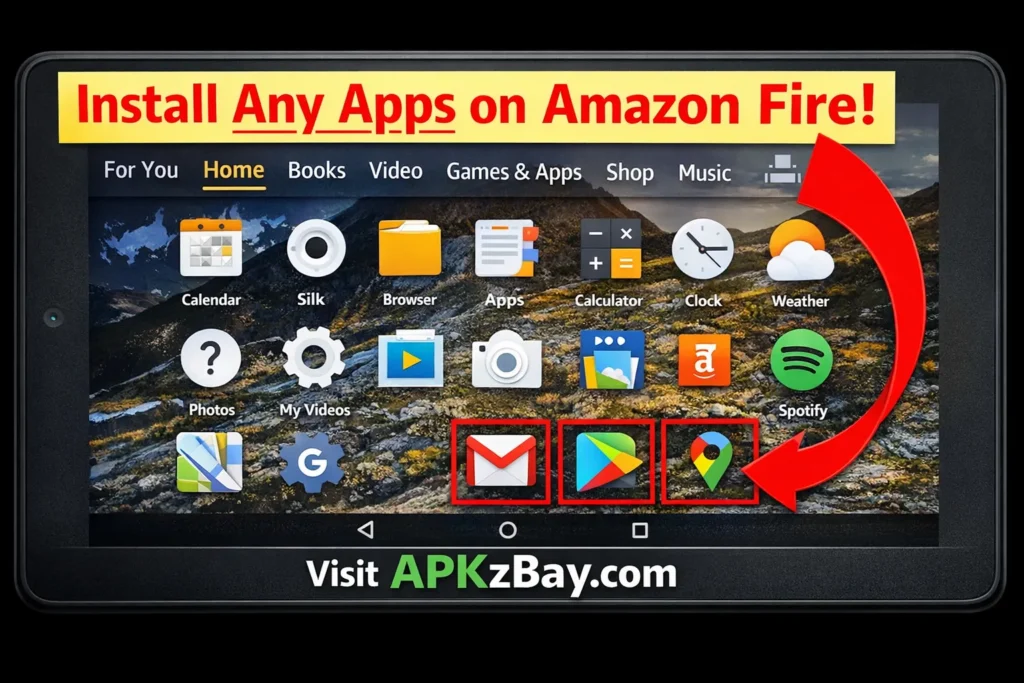
Here are the most common reasons:
- You want an app that is missing from Amazon’s Appstore
- You prefer a newer version than the Amazon listing offers
- You need a regional app that Amazon does not provide
- You want to install Google apps or the Play Store
- You need a companion app for work, school, or smart home devices
Because Fire OS is based on Android, sideloading APK files can work on many models. However, compatibility is never guaranteed, especially for apps that rely heavily on Google Play Services or hardware features not optimized for Fire devices. Amazon’s developer documentation also encourages testing on real Fire tablets, which tells you something important: Fire OS behaves differently enough from standard Android that not every app will act the same way. (Developer Portal Master)
What Is an APK on a Fire Tablet?
An APK is the installation package for Android apps. Think of it like an .exe file on Windows or an installer package on a Mac. When you download an APK, you are downloading the app itself outside the official store.
On a Fire tablet, APK installation usually works like this:
- Enable permission to install from an outside source
- Download the APK file using Silk Browser, a file manager, or a downloader app
- Open the APK
- Confirm installation
- Launch the app
Simple in theory. A little tricky in practice if you use the wrong file type, wrong app version, or untrusted source.
How to Install APK on Amazon Fire Tablet
This is the main process most readers need. Follow these steps carefully.
Step 1: Check Your Fire Tablet Model and Fire OS Version
Before installing anything, check what device you have.
Go to:
Settings > Device Options > About Fire Tablet
This matters because older Fire tablets and newer Fire tablets may handle unknown app installs differently. Some older versions use a simple Apps from Unknown Sources switch. Newer models can show a per-app permission, where the browser or file manager must be approved as the install source. Amazon community guidance around Fire OS 7 and Android 9-style behavior reflects this app-by-app permission flow. (amazonforum.com)
Step 2: Enable Installation from Unknown Sources
On many Fire tablets, go to:
Settings > Security & Privacy > Apps from Unknown Sources
Then do one of the following:
- Turn on the main setting, or
- Select the app you will use to open APK files, such as Silk Browser or Files/Documents, then enable Allow from this source
If the option does not look like old tutorials you found online, do not panic. On many newer Fire tablets, the permission screen is app-based rather than a single toggle. That change matches how Android 9-style installs are handled on Fire OS 7 devices. (amazonforum.com)
Step 3: Download the APK File
You can now download the APK file from a trusted source using:
- Silk Browser
- A file manager app
- A downloader apk for fire tablet tool
- A cloud storage app like Dropbox or Google Drive if already available on your device
Do not install random APKs from unknown sites. If you want a safety checklist first, read this guide on trusted APK sites for Android safety.
Step 4: Open the APK File
After downloading, tap the completed file from the browser download list or open it from the Files app.
You may see a prompt such as:
- “For your security, your tablet is not allowed to install unknown apps from this source”
- “Allow from this source”
- “Install blocked”
If that happens, tap Settings in the prompt and enable the permission for the app that opened the APK.
Step 5: Tap Install
The Fire tablet will show the app permissions and ask whether you want to install it.
Tap Install, wait a few moments, then choose:
- Done if you want to exit
- Open if you want to launch the app immediately
Step 6: Turn Off Unknown Source Access Again
For better security, disable the install permission after you finish.
This is not mandatory, but it is smart. It reduces the chance of accidental installs later.
Detailed List: Best Ways to Install APK Files on Fire Tablet
There is more than one method. Here are the most practical options.
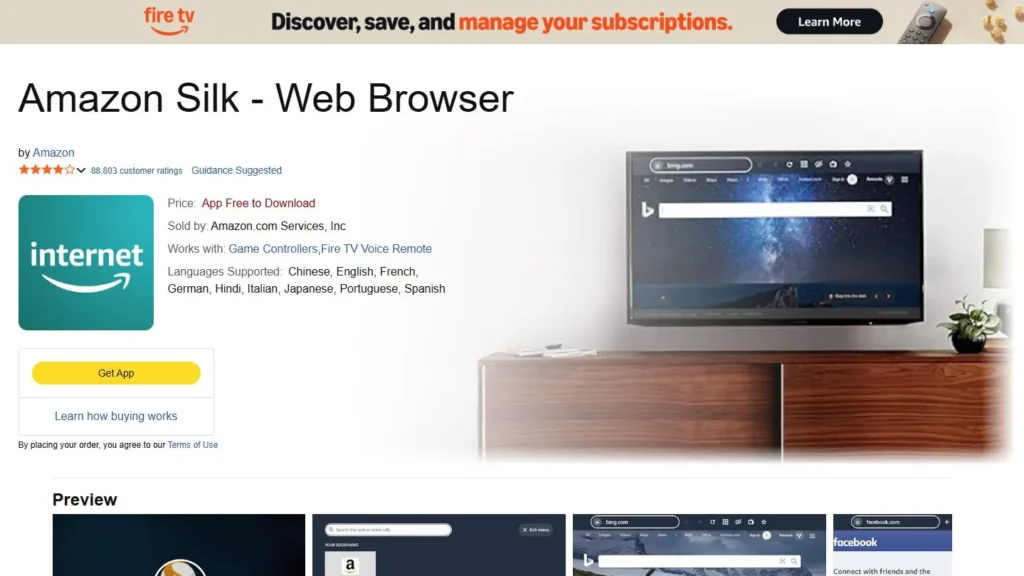
1. Install APK Using Silk Browser
This is the easiest route for most people.
Best for: Beginners
What you do: Download the APK in Silk, approve Silk as the allowed source, then install
Pros
- Fast
- No extra tools required
- Built into most Fire tablets
Cons
- Easy to accidentally download the wrong file
- Browser pop-ups can confuse new users
2. Install APK Using a File Manager
A file manager lets you browse your downloads and install manually.
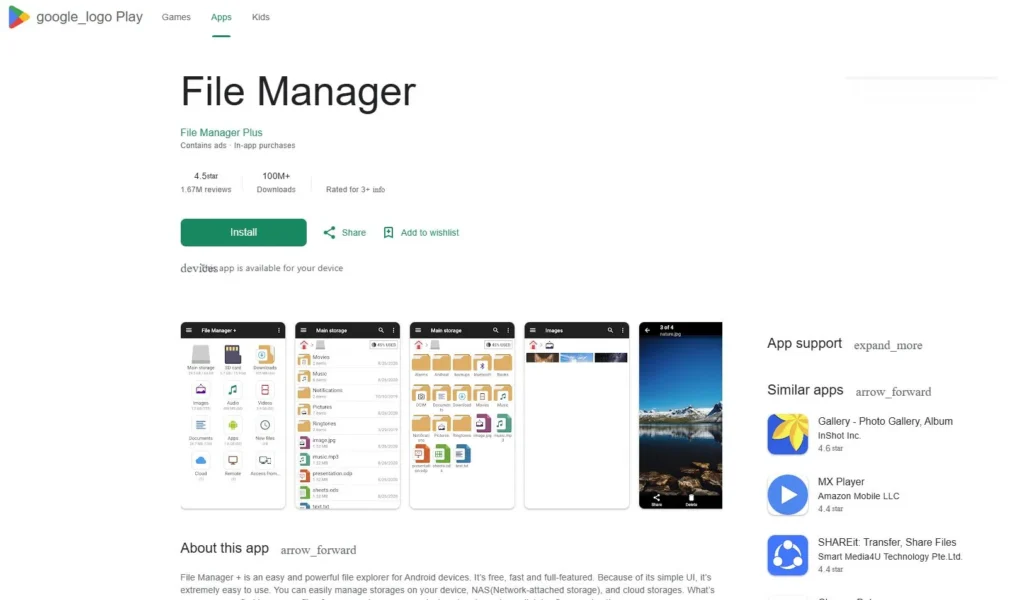
Best for: Users who organize multiple APK files
What you do: Download the APK, find it in Downloads, then open and install
Pros
- Easy to manage several files
- Useful for backups and app updates
Cons
- One more app to learn
- Some file managers work better than others on Fire OS
3. Use a Downloader APK for Fire Tablet
Some users install a dedicated downloader app to fetch APK files directly from URLs.
Best for: Faster sideloading from direct links
What you do: Install a downloader tool, paste the APK link, then install
Pros
- Convenient for repeat installs
- Great for direct download pages
- Handy when tutorials provide exact URLs
Cons
- Not all downloader apps are equally reliable
- Easy to mistype a URL
- Still requires caution with source quality
4. Transfer APK from a PC
You can download the APK on your computer and move it to your Fire tablet over USB.
Best for: Careful users who prefer desktop downloads
What you do: Download on PC, transfer file, open it on Fire tablet
Pros
- Easier to verify files before moving them
- Great if browser downloads are acting weird
Cons
- Slightly slower
- Requires cable access
5. Install Through Cloud Storage
You can store APKs in Google Drive, Dropbox, or similar tools, then open them on the tablet.
Best for: Users switching between devices
What you do: Upload APK to cloud, download or open it on Fire tablet
Pros
- Convenient for multi-device setups
- Easy to keep app files organized
Cons
- Can create duplicate downloads
- Still needs source permission approval
Popular Apps People Commonly Sideload on Fire Tablets
Many people learn how to install apk on amazon fire tablet because they want apps that are not easily available in Amazon’s ecosystem.
Popular examples include:
- Google Chrome
- Gmail
- Google Maps
- YouTube alternatives or wrappers
- Discord
- Telegram
- Spotify
- VLC Media Player
- Microsoft Outlook
- Firefox
- Google Drive
- Zoom
- Kodi
- Roblox updates not yet live in Amazon’s Appstore
- Smart home apps that support Android but not Fire OS directly
A quick warning: some of these apps may install but not run perfectly unless Google Play Services are present. That is why users often move from basic APK sideloading to learning how to install google play store on amazon fire tablet. Guides from major Android-focused publications continue to note that Play Store installation on Fire tablets typically requires four Google components, and exact compatibility can vary by model and Fire OS version. (How-To Geek)
How to Install Google Play Store on Amazon Fire Tablet
This is one of the most requested topics, so let’s cover it clearly.
Amazon does not officially support Google Play Store on Fire tablets, and Amazon staff guidance consistently warns that unknown-source apps are outside Amazon’s supported experience. Still, many users do install it successfully because Fire OS is Android-based. (uk.amazonforum.com)
What You Usually Need
Most modern Fire tablet Play Store installs involve these four APKs:
- Google Account Manager
- Google Services Framework
- Google Play Services
- Google Play Store
That four-file setup is widely documented in current Fire tablet guides. (Android Police)
Basic Process
- Enable unknown app installs
- Download the correct four APK files for your Fire tablet generation
- Install them in the correct order
- Restart the tablet
- Open Play Store and sign in
Important Warning
This is where many people mess up. You must install versions that match your Fire tablet’s Android base and CPU architecture. Using the wrong one can cause:
- App crashes
- Sign-in errors
- Endless loading
- Play Store not opening
- Battery drain
- Random system instability
So yes, you can learn how to install google play store on amazon fire tablet, but it is not as simple as tapping one single file. It is more accurate to call it a compatibility-based sideload setup.
Should You Install Google Play?
Good idea if:
- You need Google apps daily
- You want more app choices
- You are comfortable troubleshooting
Maybe skip it if:
- You only need one or two missing apps
- You bought the Fire tablet for simple media use
- You want the most stable, no-fuss experience
Install XAPK on Fire Tablet: Is It Different?
Yes, a little.
An XAPK file is not the same as a regular APK. It usually includes:
- The main APK
- Extra OBB or data files
- Additional resources needed for the app or game
That is why you cannot always install an XAPK by tapping it directly like a standard APK.
How to Install XAPK on Fire Tablet
You generally have three options:
Option 1: Use an XAPK Installer App
Some installer tools are built specifically to unpack and install XAPK bundles.
Option 2: Extract the XAPK Manually
Since XAPK is basically an archive format, advanced users can sometimes rename it to ZIP, extract the contents, then place files in the correct Android folders.
Option 3: Download a Normal APK Version Instead
This is the easiest option if available.
For a deeper explanation, check this guide on why XAPK files need an extra installer on Android.
Why XAPK Fails on Fire Tablets
Common reasons include:
- Missing split APK support
- Wrong Android version
- Missing OBB folder placement
- Storage access permission problems
- Incompatible installer app
If your app comes as XAPK, do not assume your Fire tablet will handle it the same way as a normal Android phone.
Beginner Tips for Installing APKs on Fire Tablet
If this is your first time, these tips will save you from frustration.
1. Start with One Simple App
Do not begin with a huge app bundle or modified package. Start with a basic APK so you can confirm your install permissions work.
2. Use Trusted Sources Only
A bad APK can expose your tablet to malware, ads, trackers, or broken apps. Use trusted sources and verify version details.
3. Match the Right App Version
Older Fire tablets may not support the latest app build. If an APK fails, the issue may be compatibility, not your method.
4. Keep Storage Free
Low space causes partial downloads and failed installs.
5. Restart After Major Changes
This helps when installing service-based apps, launchers, or Play Store components.
6. Turn Off Install Permission Afterward
It is a small security habit that makes a big difference.
7. Learn the “Unknown Apps Not Showing” Fix
If your browser or file app is not showing as an allowed install source, this troubleshooting guide is helpful: install unknown apps not showing for browser fix on Android.
Comparison Table: APK vs XAPK vs Google Play on Fire Tablet
| Method | Best For | Difficulty | Stability | Extra Tools Needed | Main Risk |
|---|---|---|---|---|---|
| Standard APK install | Single apps | Easy | Good | No | Wrong version or bad source |
| Downloader APK for Fire Tablet | Direct-link installs | Easy to Medium | Good | Sometimes | Unsafe URL or wrong file |
| XAPK install | Large games or bundled apps | Medium | Mixed | Usually yes | Missing resources or failed extraction |
| Google Play Store install | Full Android-style app access | Medium to Hard | Mixed to Good | Yes | Wrong package versions |
| PC transfer APK install | Careful manual installs | Easy to Medium | Good | USB cable | File handling confusion |
| Install Android on Fire Tablet | Advanced customization | Hard | Low to Mixed | Yes | Bricking, bugs, unsupported setup |
Tips for Choosing the Best APK Installation Method
Not every sideloading method is right for every user. Here is how to choose.
Choose Standard APK Install If…
- You only need one or two apps
- You want the simplest method
- You are new to Fire tablet sideloading
Choose a Downloader APK for Fire Tablet If…
- You frequently install apps from direct links
- You like a fast workflow
- You follow trusted guides with verified URLs
Choose Google Play Store If…
- You want long-term access to many Android apps
- You need Google services
- You are okay doing extra setup
Choose XAPK Support If…
- The app you need is only distributed as XAPK
- It is a game with large data files
- You are comfortable with manual steps
Avoid Complex Mods If…
- This is your only tablet
- You are buying it for a child or family member
- You do not want to troubleshoot crashes
The biggest mistake people make is using the most advanced method first. Usually, it is smarter to start with the simplest possible install path.
Pros and Cons of Installing APK on Amazon Fire Tablet
Pros
- Access apps not available in the Amazon Appstore
- More freedom and customization
- Can add useful productivity and media tools
- Possible to expand the life of an affordable tablet
- Lets power users get closer to a regular Android experience
Cons
- Not officially supported by Amazon for unknown-source apps (uk.amazonforum.com)
- Some apps may not work properly on Fire OS
- Google-dependent apps can break without Play Services
- Wrong APK versions can fail or crash
- Security risks increase if you use shady download sources
- Major system mods can reduce stability
Fire Tablet Emulator Online: What Does That Mean?
A lot of people search for fire tablet emulator online, but the phrase can mean two different things.
Meaning 1: A Browser-Based Android Emulator
Some websites offer cloud Android emulators you run in a browser. These are usually generic Android systems, not true Fire tablet emulators.
Meaning 2: A Fire OS Testing Environment
Amazon’s developer documentation focuses on testing apps on actual Fire tablets and provides development guidance for running apps on Fire tablets. In practice, real-device testing is still the most reliable way to confirm compatibility and user experience on Fire OS. (Developer Portal Master)
The Reality
If you are just trying to see whether an APK will run on a Fire tablet, an “online emulator” is not the best answer. Fire OS has its own quirks, and the safest test is still:
- Use a real Fire tablet
- Install the APK
- Check performance directly
So while fire tablet emulator online is a popular search phrase, most casual users do not actually need one.
Install Android on Fire Tablet: Is It Worth It?
Another common search is install android on fire tablet. This usually means one of three things:
- Sideload Android apps on Fire OS
- Add Google Play Store and Google services
- Replace Fire OS with a custom Android ROM
The first two are realistic for many users. The third is a completely different level.
Can You Replace Fire OS with Full Android?
On some older models, hobbyists have experimented with custom ROMs. But for modern Fire tablets, fully replacing Fire OS is not a casual project. It can involve bootloader limitations, device-specific procedures, missing drivers, and the real possibility of breaking the tablet. Public guides in 2026 still frame full Android installs as niche, model-dependent work rather than a universal option. (TechBriefly)
A Better Alternative
For most people, “install Android on Fire tablet” really means:
- Install the apps you want via APK
- Optionally add Google Play Store
- Change the launcher if supported
- Use the tablet like an Android-like device without replacing Fire OS
That approach is safer, faster, and far more practical.
Common Problems and Fixes
APK Won’t Install
Possible reasons:
- Wrong Android version
- Corrupt APK file
- Incompatible CPU architecture
- Permission not enabled for install source
Fix: Re-download the APK, confirm compatibility, and check source permission again.
App Installs but Crashes
Possible reasons:
- Requires Google Play Services
- Not optimized for Fire OS
- Older tablet hardware cannot handle the app
Fix: Try an older version, install required Google components, or use a lightweight alternative.
“Install Unknown Apps” Option Is Missing
Possible reasons:
- Newer Fire OS handles it per app
- You are looking in an older tutorial’s menu path
- You have not triggered the install prompt from the browser or file app
Fix: Use the app-based “Allow from this source” permission. The linked troubleshooting article above can also help.
XAPK Does Nothing
Possible reasons:
- No XAPK installer
- Missing data extraction
- File association issue
Fix: Use a proper XAPK installer or switch to a standard APK version.
Google Play Store Keeps Crashing
Possible reasons:
- Wrong file order
- Wrong APK variant
- Missing reboot
- Older cached data conflict
Fix: Uninstall the Play Store components, restart, and reinstall the correct versions in order.
Best Practices for Safe APK Installation
If you want the benefits without the headaches, follow these simple rules:
- Download only from reputable APK sources
- Avoid cracked or modded apps
- Read version notes before installing
- Scan files when possible
- Keep Fire OS updated
- Turn off install permission after use
- Test one app at a time
- Back up important data before major changes
- Do not rush into system-level modifications
This is the difference between smart sideloading and risky sideloading.
Helpful Resources and Community Links
If you want more tutorials, app tips, and Android file guides, these channels can be useful:
- APKZBay on YouTube
- APKZBay on Instagram
- APKZBay on Pinterest
- APKZBay on Facebook
- APKZBay on Telegram
- APKZBay on X
- APKZBay WhatsApp Channel
You can also review Amazon’s official Fire tablet help hub and Fire tablet developer documentation for device basics and testing guidance. (Amazon)
FAQs
1. Is it legal to install APK on Amazon Fire tablet?
Yes, installing APK files on your own device is generally legal. The key issue is whether the app source and app license are legitimate. Avoid pirated or modified apps.
2. Can I install any Android app on a Fire tablet?
No. Many apps work, but not all. Fire OS compatibility, hardware limits, and Google service dependencies can affect results.
3. What is the best downloader APK for Fire tablet users?
The best option is the one that is simple, reputable, and fits your workflow. Many users do fine with Silk Browser alone, while others prefer a dedicated downloader app for direct links.
4. Is Google Play Store safe on a Fire tablet?
It can work well when installed correctly, but it is not officially supported by Amazon. If you use the wrong APK versions, the setup can become unstable. (uk.amazonforum.com)
5. Can I install XAPK on Fire tablet without extra apps?
Sometimes, but usually not easily. XAPK files often contain extra resources that need an installer or manual extraction.
6. Do I need to root my Fire tablet to install APK files?
No. Standard APK sideloading does not usually require root access. Google Play Store installation also typically does not require rooting in common Fire tablet guides.
7. Should I replace Fire OS and install full Android?
For most users, no. It is much safer to sideload the apps you need or install Play Store components than to attempt a full OS replacement. Full Android replacement is model-dependent and advanced.
Conclusion
Learning how to install apk on amazon fire tablet is one of the best ways to get more value from a budget-friendly device. Amazon Fire tablets are great out of the box, but sideloading opens the door to many more apps, features, and workflows. For most users, the easiest path is simple: enable unknown app installs, download a trusted APK, install it, and disable the permission again when finished.
If you want broader app access, you can also explore how to install google play store on amazon fire tablet, though that takes more care and compatibility checking. If you need bundled game files, understanding how to install xapk on fire tablet will save you time. And if you were thinking about a fire tablet emulator online or trying to install android on fire tablet, it helps to know that those are more niche and advanced routes.
The smart approach is to start small, stay safe, and only use trusted sources. That way, your Fire tablet stays useful, flexible, and secure without turning a simple upgrade into a frustrating mess.
Recent Posts
- How to Access Android Data Folder with Shizuku: Complete No-Root Guide

- How to Install APK on Amazon Fire Tablet Safely and Easily
- Install Unknown Apps Not Showing for Browser Fix Android: A Complete Beginner-Friendly Guide
- Why XAPK Files Need Extra Installer Android: A Complete Beginner-to-Pro Guide
- Trusted APK Sites for Android Safety Guide: How to Download APKs Without Putting Your Phone at Risk
- Fake App Clone Warning Signs on Android: How to Spot Unsafe Apps Before You Install Them
- How to Install Split APK on Android Without PC
- How to Disable Battery Optimization in Android Setting: A Complete Beginner-to-Pro Guide
- App Not Installed Package Conflicts With Existing Package: Meaning, Causes, and Proven Fixes
- How to Speed Up Android Phone Without Factory Reset: 17 Smart Fixes That Actually Work
- SPG4X FF Panel APK Latest Version – Features, Download Guide, Update Info, and Honest Review
- There Is a Problem Parsing the Package Android APK: Complete Fix Guide for Samsung, Huawei, Android 12, and Android 14