How to Install APK Without Errors Android Guide
05-04-2026
Description
Installing an APK on Android sounds simple: download the file, tap it, and press Install. In real life, that is exactly where many people get stuck. The install button stays gray, the phone shows App not installed, Samsung blocks the file, Play Protect throws a warning, or the package turns out not to be a normal APK at all.
This guide is built to solve that problem from start to finish. If you have been searching for how to install apk without errors android guide, this article will walk you through the safest and most reliable method for regular APK files, split APK packages, Samsung phones, Android 14 and Android 15 devices, and even APK installation from a PC using ADB.
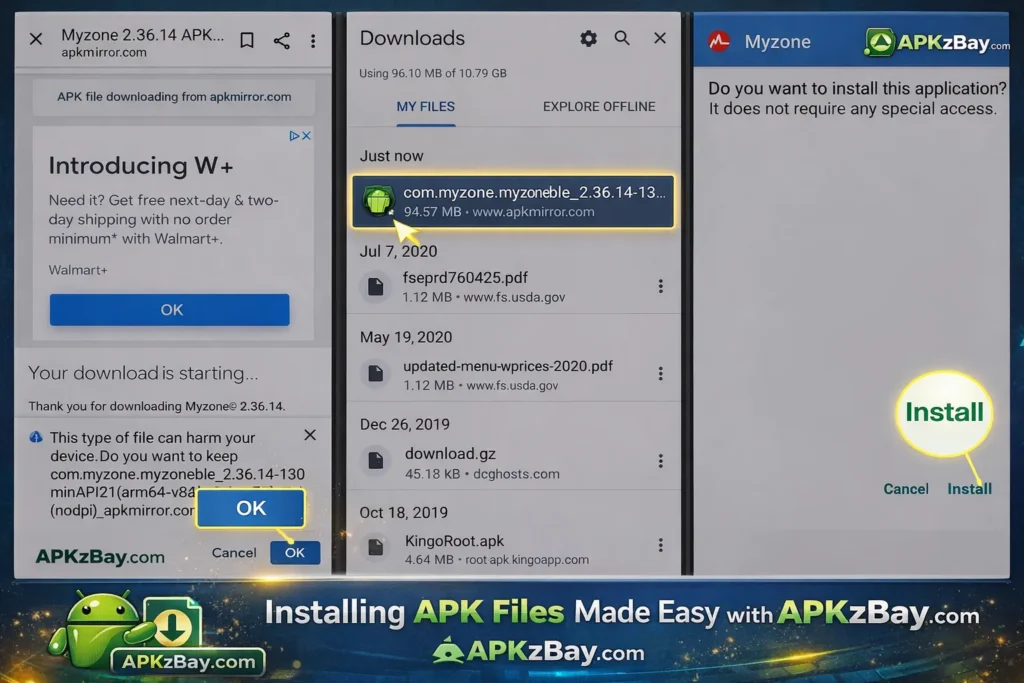
The good news is that most APK errors come from a small set of causes: the wrong install permission, a damaged file, a version conflict, a split package, or a device-specific blocker. On Android 8.0 and later, installs from outside the Play Store are allowed per source app, not as one global switch. Google Play Protect also scans apps during installation, and Samsung devices may block unknown-source installs with Auto Blocker. (Android Developers)
Once you understand those checks, sideloading becomes much easier.
Why APK installation errors happen in the first place
Before jumping into the steps, it helps to understand what Android is checking.
When you install an app outside Google Play, Android looks at more than just the file name. It checks whether the source app is allowed to install unknown apps, whether the package is safe enough to pass security checks, whether the file matches your device, and whether the app version conflicts with something already installed. On recent Android versions, these checks are normal behavior, not bugs.
Here are the most common reasons an APK fails to install:
- The browser or file manager does not have permission to install unknown apps
- The file is incomplete or corrupted
- The package is a split APK set, not a single standard APK
- The app version is older than the one already installed
- The installed app uses a different signature than the APK you downloaded
- Samsung Auto Blocker or Play Protect stops the install
- The file is a test-only build meant for ADB, not normal tap-to-install use
- Your phone is low on storage or running a heavily customized Android version
Step-by-step: how to install APK without errors on Android
1. Download the APK from a trustworthy source
The first step is obvious, but it matters more than most people think. If the download is incomplete, renamed incorrectly, Android may show a parsing error, an install failure, or a warning about harmful software.
Use these quick checks before installing:
- Make sure the file extension is really
.apk - Re-download the file if the size looks unusually small
- Avoid random “zip to apk converter online” tools
- Do not rename ZIP, XAPK, or APKS files to
.apkand expect them to work - If the file came compressed, extract it first and identify what is actually inside
If your download came in a compressed folder, read this guide on installing an APK after downloading a ZIP file. It explains how to tell the difference between a real APK, a bundle, and extra data files.
Google also warns that apps from unknown sources can put your device and personal information at risk, which is why careful source selection matters. (Google Help)
2. Allow the correct app to install unknown apps
This is the step many users miss.
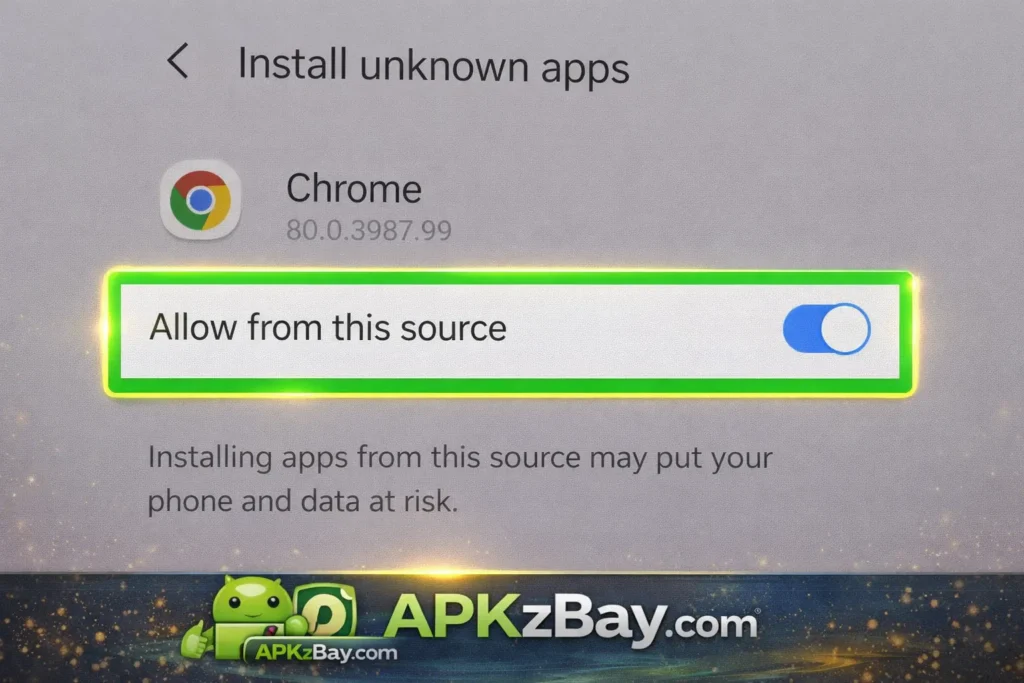
On Android 8.0 and higher, the permission is granted to the source app that opens the APK. That means you may need to allow Chrome, Samsung Internet, Files, My Files, or another app individually. It is not just one universal switch anymore.
Typical path on many Android phones:
Settings > Apps or Security > Special app access > Install unknown apps
Then:
- Open the app you used to download or open the APK
- Turn on Allow from this source or Allow app installs
After that, return to the APK and try again.
3. Use the right app to open the file
Sometimes the APK itself is fine, but the app opening it is the problem.
Best options:
- Your phone’s built-in Files app
- My Files on Samsung
- The same browser you downloaded from, if it has install permission
- A known package installer app for split packages, if the file is not a normal APK
If a file manager does nothing when you tap the APK, switch to another file manager or go to the Downloads folder and open it from there.
4. Check whether the file is a normal APK or a split package
Not every download that looks like an APK is a simple single-file installer.
Some apps are distributed as:
.apk— normal single APK- multiple
.apkfiles — split APK package .apks— APK set.xapk— packaged bundle with APK plus extra data
Android’s official tooling supports split APK installation. ADB can install multiple APK files with install-multiple, and bundletool installs .apks sets with install-apks.
So if tapping the file does not work, ask this question:
Is this actually one installable APK, or is it a bundle that needs a different method?
That single check solves a huge number of “app not installed” errors.
5. Remove version conflicts
If the app is already installed, Android may refuse to install the APK because of a version or signature conflict.
One official rule is especially important: Android prevents downgrades by blocking installation of an APK with a lower version Code than the version currently installed.
That means if you try to install an older build over a newer one, installation can fail.
Try this:
- Check whether the app is already installed
- If you are testing an older version, uninstall the current one first
- Back up important app data before uninstalling
- Then install the APK again
How to install APK without errors android guide Samsung
Samsung phones deserve their own section because Galaxy devices often add one extra barrier: Auto Blocker.
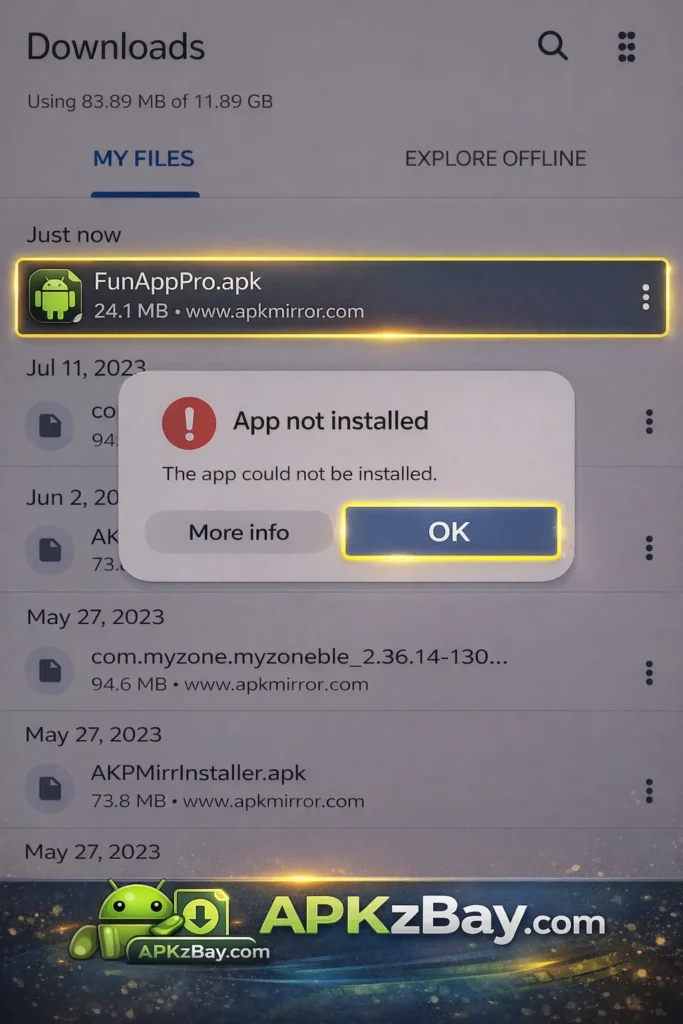
Samsung’s official support says Galaxy devices are set up by default to prevent installs from sources other than Play Store and Galaxy Store unless you manually allow them. Samsung also notes that Auto Blocker can prevent apps from unauthorized sources from being installed, and on One UI 6 / Android 14-era devices it is a major reason sideloading fails. (Samsung)
If you are looking for performance helpers or utility apps for mobile play, these best free Android tools for gaming are also worth checking out.
Samsung steps that usually fix the issue
- Open Settings
- Search for Install unknown apps
- Tap the browser or app you used to download the APK
- Enable permission for that source
- Go to Settings > Security and privacy > Auto Blocker
- If you trust the file and still cannot install it, temporarily turn Auto Blocker off
- Try the install again
Samsung specifically says Auto Blocker can block unknown-source apps and that the install may work only after disabling it for a trusted file.
This is one reason people search for how to install apk without errors android guide samsung and still get stuck even after allowing unknown apps.
How to force install APK on Android
Most people use “force install” to mean one of two things:
- keep trying until Android accepts the file
- install from a PC with ADB instead of tapping the APK on the phone
ADB is Android’s official command-line tool for communicating with a device, and one of its standard uses is installing apps.
When ADB is useful
ADB helps when:
- the phone installer fails for no clear reason
- you are installing from a PC
- you need to install multiple APK files together
- the APK is test-only
- you want cleaner error output
How to install APK on Android from PC using ADB
If you are specifically searching for how to install apk on android from pc using adb, here is the clean method.
What you need
- A Windows, Mac, or Linux PC
- Android SDK Platform Tools
- A USB cable
- USB debugging enabled on your phone
ADB is included in the Android SDK Platform Tools package.
Steps
- Download Platform Tools on your PC
- Extract the folder
- On your Android phone, enable Developer options
- Turn on USB debugging
- Connect the phone to the PC with a USB cable
- Accept the USB debugging prompt on the phone
- Put the APK inside the Platform Tools folder
- Open Command Prompt or Terminal in that folder
- Run:
adb devices
If your device appears, install the APK with:
adb install appname.apk
Android’s official ADB documentation lists adb install path_to_apk as the normal installation command. It also documents install-multiple for installing more than one APK together.
If you have split APKs, use:
adb install-multiple base.apk config.arm64_v8a.apk config.xxhdpi.apk
If the APK is marked as test-only, Android’s documentation notes that this kind of package installs only through ADB.
Beginner tips
If you are new to sideloading, follow these habits every time:
- Read the file extension carefully.
.apkis not the same as.zip,.xapk, or.apks. - Use one trusted source app. Download and install from the same browser or file manager.
- Keep enough storage free. Low storage can make installs fail or unpack incorrectly.
- Uninstall old versions when necessary. Especially for renamed packages.
- Restart the phone after repeated failures. It clears temporary installer glitches.
- Do not ignore warnings blindly. Play Protect and Samsung’s security features exist for a reason.
- Avoid “converter” myths. A ZIP file does not magically become an APK because a website says so.
- Check device compatibility. If the app still will not install, it may not match your Android version, ABI, or device configuration.
If compatibility is the problem, this guide on fixing the “this app is not compatible with this device” issue is worth reading next.
Comparison table
| Method | Best for | Pros | Common Problems | Recommended For |
|---|---|---|---|---|
| Direct tap-to-install APK | Standard single .apk files | Fast, simple, beginner-friendly | Unknown source permission, damaged file, version conflict | Most users |
| Samsung direct install | Galaxy phones and tablets | Easy once settings are correct | Auto Blocker, source permission, security warning | Samsung users |
| ADB install from PC | Advanced installs, stubborn errors | Reliable, official, better debugging | Needs PC setup and USB debugging | Power users and testers |
| ADB install-multiple | Split APK files | Official way to install multiple APKs together | Harder for beginners | Advanced users |
| Bundletool install-apks | .apks files from bundles | Best for APK sets | More technical steps | Developers and experienced users |
| Third-party bundle installer | XAPK/APKS convenience | Easier than command line | Quality varies, security risk depends on tool | Only if trusted |
ADB officially supports adb install and install-multiple, while bundletool officially supports install-apks for APK sets.
Tips for choosing the right install method
Choose direct installation if:
- the file is one normal
.apk - your device recognizes it
- you only need a quick app install
Choose ADB if:
- the phone keeps rejecting the APK
- you want to install from a PC
- you need clearer error behavior
- the APK is test-only
- you are dealing with multiple APK files
Choose a bundle-aware method if:
- the file ends in
.apks - you downloaded several APK files for one app
- the app uses split packages for language, screen density, or CPU architecture
This matters because Android supports split APK delivery, and some packages simply are not meant to be installed as a single file.
If you mainly install APKs for creative apps, it also helps to explore the best free video editing apps for Android so you can compare safe app options before downloading from third-party sources.
Pros and cons of APK sideloading
Pros
- Lets you install apps not available in your region
- Useful for testing beta or legacy versions
- Helpful when you need an app outside Play Store
- Gives more control over installation files
- Works well for developers and advanced users
Cons
- Higher security risk than trusted app stores
- More chances of signature and version conflicts
- Some files are bundles, not simple APKs
- Samsung and Play Protect may block risky installs
- Beginners can easily install the wrong package or an unsafe file
Google explicitly warns that apps from unknown sources can harm your device or personal information, which is why sideloading should be done carefully.
How to fix app not installed APK on Android
If you are searching for how to fix app not installed apk on android, use this checklist in order.
Quick fix checklist
Fix 1: Re-download the file
The APK may be broken or incomplete.
Fix 2: Allow the source app
Grant install permission to the app opening the APK. On Android 8+, this is source-based, not global.
Fix 3: Disable Samsung Auto Blocker temporarily
If you use a Galaxy phone and trust the file, turn it off briefly and retry.
Fix 4: Remove the old app version
If the installed app is newer, Android blocks the downgrade.
Fix 5: Check if it is a split APK
If there are multiple APK files or an .apks package, normal tapping may not work. Use ADB or bundletool.
Fix 6: Watch for Play Protect
If Google flags the app, there may be a genuine safety issue.
Fix 7: Try ADB
When tap-to-install keeps failing, adb install often works better for testing and diagnosis.
Fix 8: Restart the phone
This is basic, but it can clear stuck installer behavior.
For safer sideloading habits overall, read how to prevent installing harmful apps.
Frequently Asked Questions
1. Why can’t I install APK on Android 14?
A common reason behind can’t install apk android 14 is that the app opening the file does not have permission to install unknown apps, or your phone is blocking the file through Play Protect or Samsung Auto Blocker. On Samsung devices running the One UI 6 / Android 14 generation, Auto Blocker is a very common cause.
2. Is it safe to install APK files manually?
It can be safe if the source is trustworthy and the file is clean, but it is riskier than using Google Play or Galaxy Store. Google says apps from unknown sources may damage the device or expose personal data, and Play Protect may scan or block such apps.
3. Can I install an older APK over a newer app?
Usually no. Android prevents downgrades when the APK has a lower versionCode than the version already installed. In most cases, you need to uninstall the current version first.
4. What if the install button is disabled or grayed out?
Check whether the source app has install permission. Also close screen overlay apps, switch file managers, and retry. On Samsung, review Auto Blocker settings too.
5. Can I install APK files from my PC?
Yes. The official way is with ADB after enabling USB debugging. The standard command is adb install yourfile.apk.
6. What is the difference between APK and APKS?
A normal APK is one installable file. An APKS file is an APK set that may include multiple required package parts for different device configurations. Android’s official bundletool uses install-apks for those sets. (Android Developers)
More helpful APKzBay resources
If you want extra guides, updates, and walkthroughs from APKzBay, these channels can help:
- YouTube tutorials
- Instagram updates
- Pinterest visuals
- Facebook page
- Telegram channel
- X profile
- WhatsApp Channel
Conclusion
If you want the simplest answer to how to install apk without errors android guide, it is this:
Start by making sure you have a real APK, allow the correct source app, remove version conflicts, and check whether the file is actually a split package. If you use Samsung, review Auto Blocker. If normal installation still fails, move to ADB. That sequence fixes most APK installation problems without guesswork.
The biggest mistake people make is assuming every download should install with a single tap. Many do, but many do not. Some are split packages, some are older builds, some are test-only, and some are blocked because Android is doing exactly what it is supposed to do.
Once you follow the correct method for the correct file type, sideloading becomes much cleaner, safer, and more predictable. That is the real secret behind installing APKs on Android without errors.
Related apps





Recent Posts
- How to Install APK Without Errors Android Guide

- How to Install APK After Downloading ZIP File
- This App Is Not Compatible With This Device Problem Solution
- How to Prevent Installing Harmful Apps
- How to Access Android Data Folder with Shizuku: Complete No-Root Guide
- How to Install APK on Amazon Fire Tablet Safely and Easily
- Install Unknown Apps Not Showing for Browser Fix Android: A Complete Beginner-Friendly Guide
- Why XAPK Files Need Extra Installer Android: A Complete Beginner-to-Pro Guide
- Trusted APK Sites for Android Safety Guide: How to Download APKs Without Putting Your Phone at Risk
- Fake App Clone Warning Signs on Android: How to Spot Unsafe Apps Before You Install Them
- How to Install Split APK on Android Without PC
- How to Disable Battery Optimization in Android Setting: A Complete Beginner-to-Pro Guide