How to Install OBB File on Android 14 (Complete Guide for Beginners & Experts)
22-03-2026
Description
If you’ve recently upgraded your phone to Android 14, you may have noticed that installing games and apps with OBB files has become more complicated. Many users struggle with restricted file access, especially when trying to manually move OBB files into the correct directory. This guide will walk you through how to install OBB file on Android 14 in the simplest and safest way—without root.
OBB (Opaque Binary Blob) files are essential for running large Android games. These files contain extra data like graphics, maps, and media that APK files alone cannot handle. However, due to enhanced privacy and security changes in Android 13, 14, and even upcoming Android 15, accessing the OBB folder is no longer straightforward.
Don’t worry—this article covers everything from basic concepts to advanced solutions, including how to access OBB folders, install files without root, and fix common issues. Whether you’re using Samsung, Xiaomi, or any other Android device, this guide is designed to help you succeed.
What is an OBB File?
An OBB file is a data file used by Android apps (mostly games) to store large assets.
Overview
- Used for games like PUBG, GTA, and more
- Contains graphics, sounds, maps, and other data
- Stored in:
Android > obb > package-name
Why OBB Files Matter
- Reduces APK size
- Improves performance
- Enables high-quality graphics
How to Install OBB File on Android 14 (Step-by-Step)
Here’s the easiest method to install OBB files on Android 14 without root.
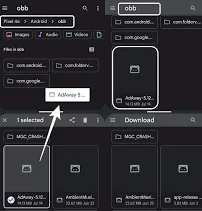
Method 1: Using File Manager (Recommended)
Steps:
- Download APK + OBB File
- Install APK (do NOT open it yet)
- Extract the OBB file using a file manager
- Navigate to:
Android > obb - Create folder with package name (if not exists)
- Move extracted OBB file into that folder
- Launch the game
Method 2: Using ZArchiver (Best Tool)
Overview
ZArchiver is a powerful file manager that bypasses some Android restrictions.
Key Features
- Extract ZIP/RAR/OBB files
- Access restricted folders
- Lightweight and fast
Pros
- Free to use
- Works without root
- Easy UI
Cons
- Needs manual permissions
- May not work on all devices
Best For
- Beginners and advanced users
Method 3: Using Files by Google
Overview
A safe and official file manager by Google.
Key Features
- Clean interface
- Secure file access
- Smart storage management
Pros
- Trusted app
- Easy navigation
Cons
- Limited access to Android/obb in Android 14
Best For
- Users who prefer official apps
How to Install OBB File on Android 14 Samsung
Samsung devices often have extra restrictions.
Steps:
- Use My Files app
- Enable “Allow access to all files”
- Use split-screen trick:
- Open File Manager + ZArchiver
- Move OBB file manually
How to Install OBB File on Android 14 Without Root
You don’t need root to install OBB files.
Working Methods:
- ZArchiver access method
- Split-screen file transfer
- Using PC (drag & drop method)
How to Access OBB Folder in Android 14
Android 14 restricts access to:
Android > obb
Android > data
Working Solutions:
1. Use ZArchiver
Grant full storage access
2. Use PC
- Connect phone via USB
- Copy files directly
3. Split-Screen Trick
- Open two file managers
- Move files between them
How to Access OBB Folder Without Root (Android 14)
Steps:
- Install ZArchiver
- Grant “All Files Access”
- Use internal storage path
- Navigate manually
How to Access OBB Folder in Android 13 & 15
Android 13:
- Similar restrictions
- Use same methods
Android 15 (Expected):
- Even stricter security
- Likely requires app-specific permissions
How to Move Files to OBB in Android 15
- Use PC transfer (recommended)
- Use advanced file managers
- Follow app-specific installation instructions
Popular Apps to Install OBB Files
1. ZArchiver
Overview
Best file extraction and management tool
Key Features
- Extract OBB, ZIP, RAR
- Full storage access
Pros
- Fast and reliable
- Free
Cons
- Basic UI
Best For
- Everyone
2. X-plore File Manager
Overview
Advanced dual-pane file manager
Key Features
- Dual-pane view
- Cloud integration
Pros
- Powerful features
- Easy file transfer
Cons
- Complex UI
Best For
- Advanced users
3. Solid Explorer
Overview
Premium file manager with great UI
Key Features
- Dual panel
- Encryption support
Pros
- Clean interface
- Secure
Cons
- Paid app
Best For
- Professionals
Comparison Table
| App Name | Free | Root Required | Android 14 Support | Ease of Use |
|---|---|---|---|---|
| ZArchiver | Yes | No | Yes | Easy |
| X-plore | Yes | No | Yes | Medium |
| Solid Explorer | No | No | Yes | Easy |
Tips for Choosing the Right Method
- Use ZArchiver for simplicity
- Use PC method for large files
- Avoid unknown apps (security risk)
- Always check file compatibility
Beginner Tips for Installing OBB Files
- Always install APK first
- Don’t open app before placing OBB
- Match folder name with package name
- Use trusted sources only
👉 For safe APK installation, read:
How to Allow Unknown Sources Safely
https://apkzbay.com/how-to-allow-unknown-sources-on-android-safely-in-2026/
👉 Discover more useful tricks:
Hidden Android Features You Should Enable
https://apkzbay.com/hidden-android-features-you-should-enable/
Useful External Resources
- YouTube Tutorials: https://www.youtube.com/channel/UCR2YuaWhGhsZ1NUb3R573Gg
- Instagram Updates: https://instagram.com/apkzbay
- Facebook Community: https://www.facebook.com/apkzbay
- Telegram Channel: https://t.me/apkzbay
- WhatsApp Channel: https://whatsapp.com/channel/0029Vb7EErqEVccMr8Aova0s
FAQs
1. Why can’t I access the OBB folder on Android 14?
Because Android 14 restricts access for security reasons.
2. Can I install OBB files without root?
Yes, using tools like ZArchiver or PC transfer.
3. Where should I place OBB files?
Inside:
Android > obb > package-name
4. Why does my game crash after installing OBB?
- Wrong file placement
- Corrupt file
- Version mismatch
5. Is installing OBB files safe?
Yes, if files are from trusted sources.
6. Do all games require OBB files?
No, only large games need them.
7. Can I use Google Files to install OBB?
Limited support—better use ZArchiver.
Conclusion
Installing OBB files on Android 14 may seem tricky at first, but once you understand the process, it becomes much easier. With the right tools like ZArchiver and proper file placement, you can successfully run high-quality games without rooting your device.
This guide covered everything from how to install OBB file on Android 14, accessing restricted folders, and troubleshooting common issues. As Android continues to evolve, staying updated with new methods is essential.
If you follow the steps carefully, you’ll never struggle with OBB files again. Stay safe, use trusted sources, and enjoy your favorite Android games without limits!
Recent Posts
- How to Access Android Data Folder with Shizuku: Complete No-Root Guide

- How to Install APK on Amazon Fire Tablet Safely and Easily
- Install Unknown Apps Not Showing for Browser Fix Android: A Complete Beginner-Friendly Guide
- Why XAPK Files Need Extra Installer Android: A Complete Beginner-to-Pro Guide
- Trusted APK Sites for Android Safety Guide: How to Download APKs Without Putting Your Phone at Risk
- Fake App Clone Warning Signs on Android: How to Spot Unsafe Apps Before You Install Them
- How to Install Split APK on Android Without PC
- How to Disable Battery Optimization in Android Setting: A Complete Beginner-to-Pro Guide
- App Not Installed Package Conflicts With Existing Package: Meaning, Causes, and Proven Fixes
- How to Speed Up Android Phone Without Factory Reset: 17 Smart Fixes That Actually Work
- SPG4X FF Panel APK Latest Version – Features, Download Guide, Update Info, and Honest Review
- There Is a Problem Parsing the Package Android APK: Complete Fix Guide for Samsung, Huawei, Android 12, and Android 14