How to Install Split APK on Android Without PC
01-04-2026
Description
Installing a normal APK on Android is easy. You tap the file, allow the installer, and finish the setup. Split APKs are different. Instead of one file, the app may come as a base APK plus several config or feature APKs, or as a bundled file like .apks, .xapk, or .apkm. That is why many users hit a wall and start searching for how to install split apk on android without pc.
The good news is that you do not need a computer for most split APK installs. On modern Android, the real trick is using a split-aware installer app or extracting the bundle correctly first. Android’s own package system supports installing multiple APKs in a single session, and split packages are a normal part of how modern Android apps are delivered. Google Play’s app bundle system generates optimized APKs for each device, which is one big reason split APKs exist in the first place. (Android Developers)
In this complete guide, I will explain how to install split apk on android without pc, how split installers work, how to install split APK using ZArchiver, what to do on Android 13, 14, 15, and even Android 16, and how to avoid common errors like signature conflicts or incomplete installs. I will also compare popular tools, share beginner tips, and show which method makes the most sense for different file types.
What Is a Split APK on Android?
A split APK is an app package that is broken into parts instead of being shipped as one large universal APK.
Why apps are split
Google’s app bundle system lets Play generate optimized APKs for each device, so users download only the code and resources they actually need. That can include:
- Base APK
- Language APKs
- DPI or screen-density APKs
- CPU architecture APKs
- Optional feature modules
This reduces download size and can make app delivery more efficient. Android’s PackageInstaller also officially supports apps packaged as either a single APK or as multiple split APKs, installed together in one session.
Why a normal file tap often fails
If you tap just one split file, Android may reject it because the install session needs the correct base APK and matching split files together. Android’s package session rules also require matching package names, version codes, and signing certificates.
How to Install Split APK on Android Without PC: The Short Answer
If you want the fastest answer, here it is:
- Download the split package to your Android phone.
- Install a split APK installer such as SAI or another bundle-aware installer.
- Allow that installer app to install unknown apps.
- Open the split package or select all required APK parts.
- Confirm installation.
- If the file is archived, extract it first with a tool like ZArchiver.
That is the core workflow for how to install split apk on android without pc in 2026 as well. Android still supports split-package installs through its package installer model, while modern delivery formats continue to rely on split APK generation.
Detailed List: Split APK File Types You May See
Before you install anything, identify the file format.
1. Standard .apk
A normal single-file app package. This is the easiest format.
2. Multiple .apk files
You may see files like:
base.apkconfig.arm64_v8a.apkconfig.xxhdpi.apkconfig.en.apk
These must usually be installed together.
3. .apks
A container format often used by backup/export tools and split installers.
4. .xapk
A bundled package that may include APK splits and sometimes extra game data.
5. .apkm
A bundled format handled by APKMirror Installer. APKMirror says its installer app supports .apkm, .xapk, .apks, and regular APK files.
6. Archived zip or multi-part archive
Sometimes the split package is shared inside a zip, 7z, or multipart archive. ZArchiver is useful here because it can open compressed files and extract split archives. (Google Play)
Popular Apps That Commonly Appear as Split APKs
Many popular Android apps are distributed through app-bundle style packaging in the modern Android ecosystem. Users often run into split APKs when sideloading or restoring apps like:
- YouTube
- Messenger
- Spotify
- Google Maps
- Minecraft
- Telegram
- Large games and region-specific apps
The reason is simple: modern Android app delivery often uses optimized APK generation instead of a one-size-fits-all file
Best Method 1: Use a Split APK Installer App
For most users, this is the easiest method.
Why this method works
A dedicated split installer handles the install session correctly. Instead of tapping one file and hoping Android understands the rest, the installer groups the required APK parts and passes them to the system in the proper way.
One well-known example is SAI (Split APKs Installer). Its GitHub page describes it as an Android app that lets you install split APKs, including those distributed as Android App Bundles.
Step-by-step
1. Download the split package
Save the .apks, .xapk, .apkm, or split .apk files to your phone.
2. Install the split installer
Install a trusted split APK installer app.
3. Allow installation permission
On Android, sideloaded app installs usually require granting the installer app permission to install unknown apps. Google notes that Android recommends Play, but it also allows apps from other sources; Play Protect may scan or warn about unknown apps. (Google Help)
4. Open the installer app
Choose the downloaded bundle or select all split files manually.
5. Confirm the selected splits
The installer typically detects the base APK and required config splits.
6. Tap install
Wait for the package session to finish.
7. Open the app
If everything matches, the app installs like any normal app.
When to use this method
Use a split APK installer when:
- You have multiple
.apkfiles - You have a
.apksfile - You have a
.apkmfile - Your normal package installer fails
Best Method 2: Use APKMirror Installer for Supported Bundle Files
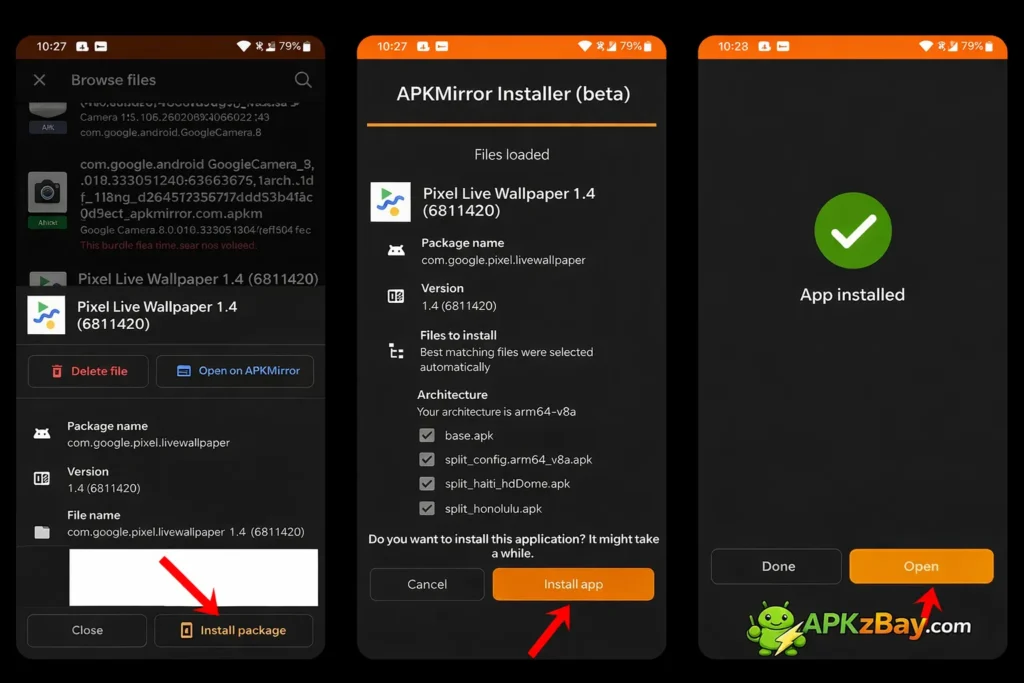
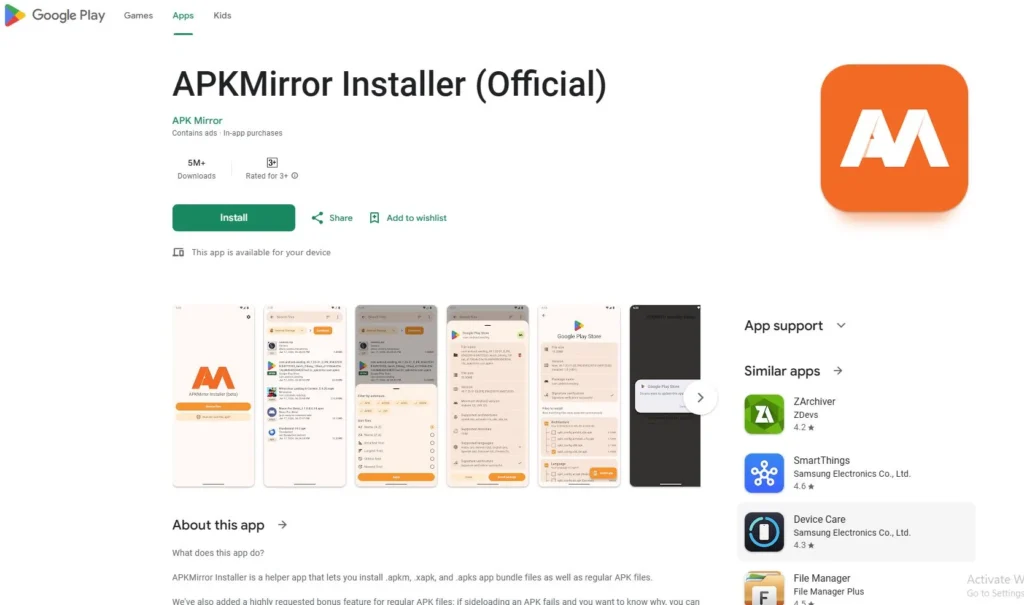
If your download is in .apkm, .apks, or .xapk format, APKMirror Installer can be a simple option. APKMirror states that its installer app can install .apkm, .xapk, .apks, and regular APK files.
Step-by-step
- Download the bundled app file to your phone.
- Install APKMirror Installer.
- Open the bundle through the installer.
- Review the package details.
- Proceed with installation.
- Accept system prompts.
Best for
- Users who download
.apkmfiles - People who want a simpler UI
- Users who want failure reasons for some installs
How to Install Split APK Using ZArchiver
This is one of the most searched questions, and the answer is practical.
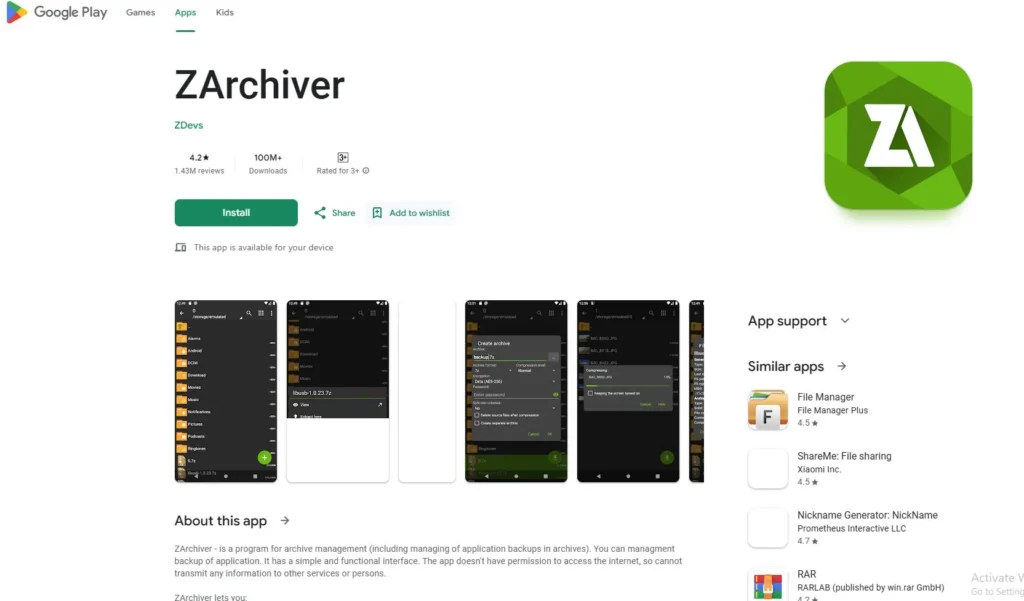
What ZArchiver is good for
ZArchiver is primarily an archive and file-management tool. Its Play listing highlights support for opening compressed files and extracting split archives like zip and 7z variants.
What ZArchiver is not ideal for
ZArchiver is great for extracting bundled or archived split packages, but for actual split installation, you will usually still want a split-aware installer.
Step-by-step: how to install split apk using zarchiver
Option A: .zip, .7z, or archive file
- Open ZArchiver.
- Go to the folder where the package is saved.
- Extract the archive.
- Look for files such as:
base.apkconfig.arm64_v8a.apkconfig.xxhdpi.apk- language APKs
- Open your split installer app.
- Select all required split APK files together.
- Install them in one session.
Option B: .xapk package
- Open the
.xapkfile in ZArchiver. - Extract it if needed.
- Check whether it contains:
- split APK files
- OBB or game data
- Install the APKs with a split installer.
- Move any OBB data to the correct game folder if required.
Important tip
If you install only the base APK and ignore required config APKs, the app may fail to install or crash later.
Split APK Installer Android 13, Android 14, Android 15, and Android 16
Many users search for:
- split apk installer android 13
- split apk installer android 14
- split apk installer android 15
- split apk installer android 16
The practical answer is that the workflow is still broadly similar on recent Android versions: you need a trusted installer app, permission to install unknown apps, and the correct split set. Android’s package installer still supports multi-APK sessions, and Android 16 remains part of the same modern Android platform family rather than a separate sideloading world.
What changes between versions
Usually, the differences are small:
- Menu names may vary
- Unknown app install permission may appear in a different place
- File picker behavior can differ
- Play Protect warnings may be stronger on some devices
In practice
Android 13
Usually works fine with SAI and similar tools.
Android 14
Often similar to Android 13, but some OEM file permissions can be stricter.
Android 15
Still follows the same general split-installer workflow for sideloading.
Android 16
The core logic remains the same: use a split-aware installer and correct files.
How to Install Split APKs on Android: Full Beginner Workflow
If you are completely new to this, use this checklist.
Step 1: Check the file type
Is it:
- one
.apk - many
.apkfiles .apks.apkm.xapk- zip/7z archive
Step 2: Choose the right tool
- Single APK: default installer is enough
- Multiple APK files: split installer
.apkm: APKMirror Installer- Archived package: ZArchiver first, then split installer
Step 3: Allow unknown-app installation
Grant permission to the installer app you will use. Google says Android allows apps from other sources, but Play Protect checks for potentially harmful apps and may warn, scan, or even block harmful installs.
Step 4: Select all matching parts
Do not guess. Make sure the selected split files belong to the same app version.
Step 5: Install in one session
That matters because Android expects the required split set to be staged together.
Step 6: Launch the app
If it opens normally, you are done.
Common Problems and Fixes
Split APK installs fail for a few predictable reasons.
1. Missing base APK
Without base.apk, most split installs will fail.
2. Missing required config split
If you forget the CPU, DPI, or language split the app needs, installation or launch may fail.
3. Signature mismatch
Android requires identical package names, version codes, and signing certificates for compatible updates. If these do not match, the install fails.
4. Existing app conflict
If an app with a different signature is already installed, you may see package conflict errors. For that problem, read this guide on app not installed package conflicts with existing package.
5. Wrong installer for the file type
A .apkm file is easier with APKMirror Installer than with a random file manager.
6. Corrupted download
If the file is incomplete, nothing works reliably.
7. Device restrictions or Play Protect warnings
Google Play Protect can scan new installs and may warn or block apps it considers harmful.
Beginner Tips
If this is your first time, keep things simple.
Start with these rules
- Use a trusted split installer
- Keep all split files in one folder
- Do not rename package files unless you know what you are doing
- Install all matching parts from the same version
- Avoid mixing files from different websites or app builds
- If the file is archived, extract it first with ZArchiver
Easy rule of thumb
If your download contains base.apk plus several config.*.apk files, treat them as one app and install them together.
Another smart tip
If your phone feels slow while handling large installs, clean up storage and background clutter first. This guide on how to speed up Android phone without factory reset can help.
Comparison Table
| Method | Best For | Supports Bundles | Beginner Friendly | Main Limitation |
|---|---|---|---|---|
| Default Android installer | Single APK | No | Yes | Fails with most split sets |
| SAI / split APK installer | Multiple .apk files and .apks | Yes | Yes | Needs unknown-app permission |
| APKMirror Installer | .apkm, .apks, .xapk | Yes | Very | Best with supported formats |
| ZArchiver + installer | Archived bundles | Extraction first | Medium | Usually not enough by itself |
The logic behind dedicated installers is straightforward: Android supports split APKs, but the files need to be staged together in a proper install session, which is why split-aware installer apps are useful.
Tips for Choosing the Right Split APK Installer
Not every tool is best for every file.
Choose based on format
Use SAI if:
- You have many
.apkfiles - You exported an
.apksbackup - You want a general split APK installer
Use APKMirror Installer if:
- You downloaded
.apkm - You want a guided install flow
- You prefer a simpler bundle-focused option
Use ZArchiver if:
- Your file is zipped or archived
- You need to inspect package contents
- You need to extract split files before installation
Choose based on your Android version
For split apk installer android 14, split apk installer android 15, and split apk installer android 16, the safest choice is usually a maintained installer that still works with recent Android permission flows and file-picker behavior. The underlying Android package model still supports multi-APK sessions, so the main issue is app compatibility and user permissions, not the concept itself disappearing.
Pros and Cons of Installing Split APKs Without PC
Pros
- No computer needed
- Fast for backups and restores
- Useful for region-limited apps
- Helpful when a bundle is shared as
.apks,.xapk, or.apkm - Convenient for power users
Cons
- More confusing than a normal APK
- Easy to miss required split files
- Can trigger signing conflicts
- Greater risk if files come from unsafe sources
- Play Protect warnings may appear for unknown apps
Safety Tips Before You Sideload
This matters more than people think.
Google says Android recommends getting apps from Google Play, though apps can also come from other sources. Google Play Protect scans for harmful apps and may warn, disable, or remove apps it flags as unsafe.
Safer habits
- Prefer trusted sources
- Check file names carefully
- Avoid mixed-version split sets
- Do not ignore signature warnings
- Scan suspicious files
- Back up important app data first
Also useful
If background restrictions are breaking downloads or installer behavior on your phone, check how to disable battery optimization in Android setting.
Real-World Example: Installing a Split App Without PC
Let’s say you downloaded a game or social app and got this folder:
base.apkconfig.arm64_v8a.apkconfig.xxhdpi.apkconfig.en.apk
What to do
- Install a split APK installer.
- Open the installer.
- Select all four files.
- Confirm installation.
- Let Android finish the session.
What not to do
- Do not tap only
base.apk - Do not mix another version’s config file
- Do not install over an app with a different signing certificate
That is exactly why many people searching how to install split apks on android get stuck. The problem is usually not Android itself. It is incomplete or mismatched file selection.
FAQs
1. How to install split apk on Android without PC?
Use a split-aware installer app on your phone. Download the split package, grant installer permission, select all required APK parts or open the bundle file, and install it in one session.
2. What is a split APK installer?
It is an Android app that helps install apps packaged as multiple APKs instead of one single APK. Android supports split APK installs, but a split installer makes the process easier.
3. How to install split apk using ZArchiver?
Use ZArchiver mainly to extract archived packages like zip or 7z files. After extraction, install the split APKs with a split-aware installer rather than relying on the default installer alone.
4. Does split APK installer work on Android 14, 15, and 16?
In most cases, yes. The general workflow is still the same on modern Android: allow the installer app, then install the split files together through a compatible installer.
5. Why does my split APK fail to install?
Common causes include missing base APK, missing config split, wrong file version, corrupted download, or a signing conflict with an already installed version. Android requires matching package names, version codes, and signing certificates for compatible installs.
6. Can I install .apkm and .xapk without PC?
Yes. A bundle-aware installer can usually handle those file types directly. APKMirror Installer specifically says it supports .apkm, .xapk, .apks, and regular APK files.
7. Is split APK sideloading safe?
It can be safe if you use trusted sources and pay attention to warnings. Android recommends Play, and Play Protect actively scans unknown app installs for harmful behavior.
Conclusion
Learning how to install split apk on android without pc is mostly about understanding the file format and using the right tool. Split APKs are not broken files. They are a normal result of modern Android app delivery. Google Play’s app bundle system produces optimized APKs, and Android’s package installer supports staging multiple APKs together in one install session. That is why a regular one-tap install often fails while a split-aware installer succeeds.
For most users, the easiest path is simple:
- use a split APK installer for
.apksor multiple.apkfiles - use APKMirror Installer for supported bundle formats like
.apkm - use ZArchiver when you first need to extract an archive
If you stay organized, choose matching files, and avoid suspicious sources, installing split APKs on Android without a PC is very manageable.
For more Android guides and app-installation tips, you can follow APKzBay on YouTube, Instagram, Pinterest, Facebook, Telegram, X, and the WhatsApp Channel.
Related apps





Recent Posts
- How to Access Android Data Folder with Shizuku: Complete No-Root Guide

- How to Install APK on Amazon Fire Tablet Safely and Easily
- Install Unknown Apps Not Showing for Browser Fix Android: A Complete Beginner-Friendly Guide
- Why XAPK Files Need Extra Installer Android: A Complete Beginner-to-Pro Guide
- Trusted APK Sites for Android Safety Guide: How to Download APKs Without Putting Your Phone at Risk
- Fake App Clone Warning Signs on Android: How to Spot Unsafe Apps Before You Install Them
- How to Install Split APK on Android Without PC
- How to Disable Battery Optimization in Android Setting: A Complete Beginner-to-Pro Guide
- App Not Installed Package Conflicts With Existing Package: Meaning, Causes, and Proven Fixes
- How to Speed Up Android Phone Without Factory Reset: 17 Smart Fixes That Actually Work
- SPG4X FF Panel APK Latest Version – Features, Download Guide, Update Info, and Honest Review
- There Is a Problem Parsing the Package Android APK: Complete Fix Guide for Samsung, Huawei, Android 12, and Android 14