How to Prevent Installing Harmful Apps
04-04-2026
Description
Introduction
Installing a new app should feel simple, useful, and safe. In reality, it can sometimes feel like walking through a crowded market where a few polished stalls are hiding bad products behind bright signs. That is exactly why so many Android users search for how to prevent installing harmful apps before downloading anything new. A harmful app may look harmless on the surface, but behind the icon it can collect too much data, flood your phone with ads, steal login details, slow performance, or trick you into giving extra permissions you never meant to allow.
The good news is that staying safe does not require expert-level technical skills. You do not need to become a cybersecurity analyst to protect your phone. You only need a reliable checklist, some common sense, and an understanding of how risky apps usually behave. This guide breaks everything down in plain English, with a beginner-friendly approach that still offers enough depth for more experienced Android users. By the end, you will know how to prevent installing harmful apps on Android, how to find harmful app in Android, when to trust a download source, and what to do if Google Play Protect harmful app blocked a file you were about to install.
Why Harmful Apps Still Fool Smart Users
Harmful apps do not succeed because users are careless all the time. They succeed because many of them are designed to look polished, useful, and familiar. Some copy the name, logo style, screenshots, or description of real apps. Others promise attractive features like free premium access, ad-free streaming, speed boosts, battery optimization, hidden chat tools, or game modifications. That promise can be tempting, especially when the app appears to solve a problem quickly. A rushed user often installs first and checks details later.
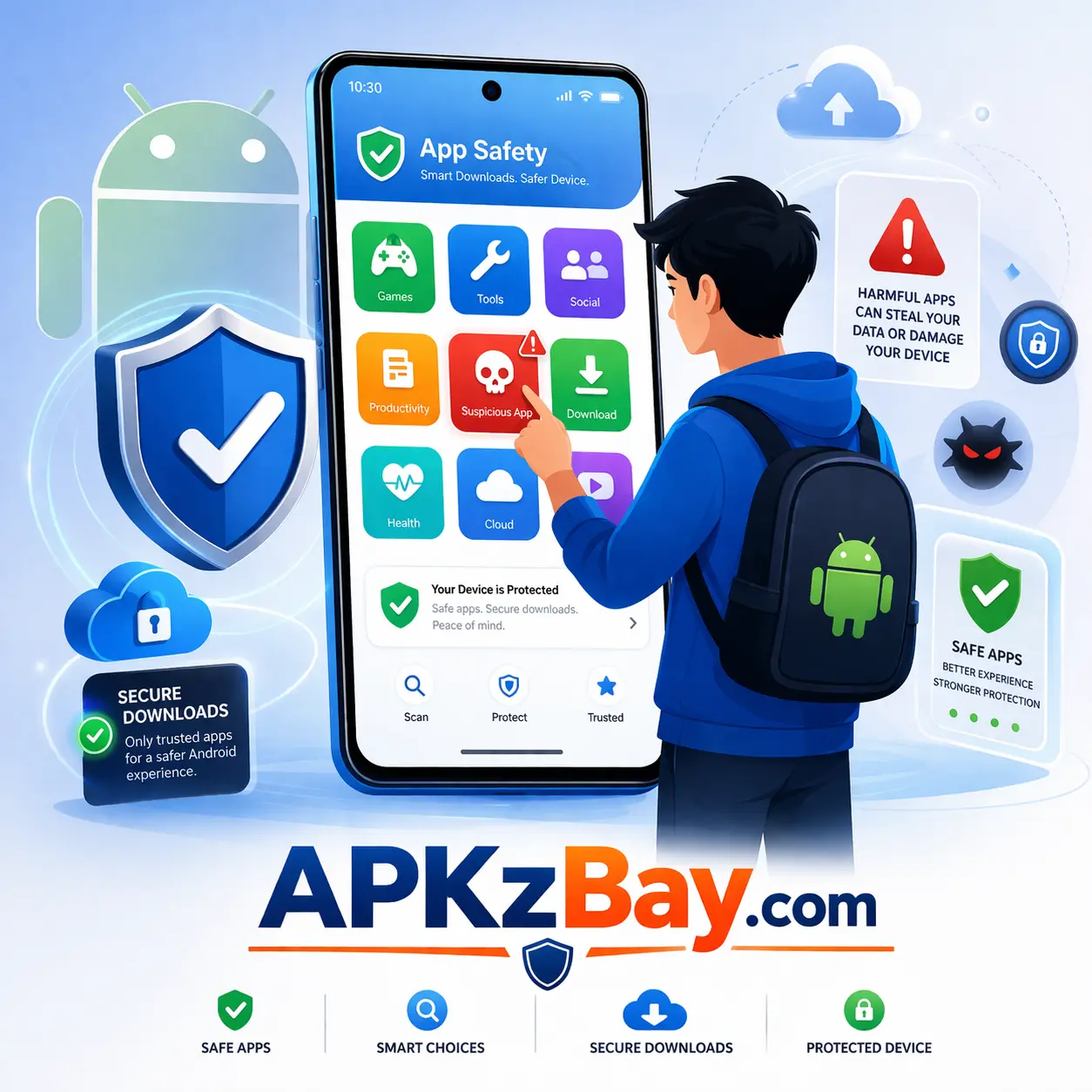
Another reason these apps spread is simple overload. Most people install apps while multitasking. They are checking messages, searching for a file, looking for a quick tool, or trying to solve a setup problem. In that moment, reading permissions, developer details, and reviews feels like extra work. Harmful apps take advantage of that behavior. They depend on speed, trust, and distraction more than on technical sophistication.
The Android ecosystem also gives users more freedom than some other mobile platforms. That flexibility is useful, but it comes with responsibility. You can install apps from official stores, developer websites, APK files, and third-party marketplaces. That freedom is great when you know what you are doing. It is risky when you install based only on a download button and a catchy title. Learning how to prevent installing harmful apps starts with understanding that dangerous apps usually win through imitation, urgency, and convenience rather than obvious red flags.
Common Tricks Used by Risky Apps
Most risky apps follow the same playbook. First, they make themselves look legitimate. The icon is clean, the screenshots look polished, and the description is packed with buzzwords like secure, fast, premium, or optimized. Some use fake review patterns that feel positive at a glance but sound repetitive when you read closely. Others imitate famous tools, file managers, cleaners, VPNs, or messaging apps because those categories naturally ask for more permissions and attract more installs.
A second trick is the fake update or urgent fix message. You might see prompts such as “Your app is outdated,” “Install this patch now,” or “Download this version to continue.” That is one reason many users later search phrases like harmful app blocked download or harmful app blocked how to unblock. They are often caught between urgency and uncertainty. The installer makes it sound essential, but Android or Play Protect raises a warning. In many cases, that warning is doing exactly what it should do.
Another common trick is permission inflation. A simple wallpaper app should not need access to your SMS, call logs, accessibility settings, microphone, notifications, and installed app list all at once. A flashlight app should not ask to manage calls or monitor usage access. Harmful apps often request broad access because data is their real goal. They may not steal information immediately. Some wait quietly, collect behavior data over time, and push aggressive ads or suspicious pop-ups later. That delayed behavior is why dangerous apps can feel normal during the first few hours after installation.
Why Android Users Face More Installation Choices
Android gives users real flexibility. You can install apps from the Play Store, brand-specific stores, developer websites, direct APK files, enterprise deployment systems, and device maker app hubs. That freedom is useful when an official update is not available in your region or when you need a niche tool from a trusted developer. It is also why the question how to prevent installing harmful apps on android matters so much. More choice means more convenience, but it also means more ways to make a bad call.
Not every third-party source is dangerous, but not every source follows the same review process either. Official stores usually apply some level of scanning, policy enforcement, and post-publication review. Direct downloads may skip that layer entirely. In those cases, you are the last line of defense. You need to check the source, the file type, the app reputation, and the permissions before installing. That sounds like extra work, but it is far easier than dealing with a compromised phone.
Android also makes app settings more flexible. You can allow installs from certain sources, manage accessibility services, grant notification access, and let apps appear over other apps. Those features exist for good reasons, but harmful apps love them because they can be abused. So the goal is not to fear Android’s openness. The goal is to use it wisely. Think of Android like a powerful workshop. A skilled user can build almost anything in it, but the doors should not be left wide open for every stranger walking by.
How to Prevent Installing Harmful Apps on Android
The best defense is not one magic tool. It is a repeatable routine. Safe Android users develop habits that filter out risky apps before they ever touch the install button. That routine starts with trusted sources, but it also includes checking the developer, scanning permissions, keeping security features enabled, and resisting the lure of modified downloads. When people ask how to prevent installing harmful apps, they are really asking how to reduce risk without making Android frustrating to use. The answer is balance.
A good safety routine takes less time than most people think. Once you know what to look for, it becomes automatic. You glance at the source, confirm the developer, skim reviews, inspect permissions, and move on. You also stop treating every warning as an inconvenience. A warning from Android or Play Protect is not there to slow you down for fun. It is there because something about the file, installer, or behavior triggered concern. That does not always mean the app is malicious, but it definitely means you should pause.
The sections below cover the most practical habits for how to prevent installing harmful apps on android. None of them are complicated. Together, they create a strong filter that helps you avoid fake tools, shady APKs, repackaged apps, and risky permissions before they become a problem.
Stick to Trusted App Sources First
The easiest way to lower risk is to start with trusted app sources. For most users, that means the Google Play Store first. It is not perfect, but it adds an important screening layer through policy checks, app reviews, and Google Play Protect scanning. If an app is available there from the official developer, that should usually be your first choice. The goal is not blind trust. It is smarter starting points.
When you need an app outside the Play Store, check whether the download comes from the official developer website. A legitimate developer will usually have a proper site, clear branding, a privacy policy, contact information, release notes, and consistent links across platforms. A suspicious download page often feels rushed, overloaded with ads, and designed to push one action fast. That is a red flag. So is a site that changes filenames, versions, or descriptions in ways that do not match the official product.
If you ever install APK files manually, make sure you understand Android’s source controls. On newer versions, installation permission is usually granted per app source, such as a browser or file manager. If that option is missing, this guide on install unknown apps not showing for browser fix on Android can help you troubleshoot the setting safely. For Kindle-style devices and Fire OS users, this tutorial on how to install APK on Amazon Fire Tablet is also useful. The main rule stays the same: download only when the source is verified, the file makes sense, and the installer is not pushing you into a rushed decision.
Check Developer Reputation Before You Tap Install
A safe app is not just about the name of the app. It is also about who made it. Many users ignore the developer line entirely, even though it is one of the fastest ways to catch a fake. Before installing, tap into the developer profile and look for consistency. Does the developer have other real apps? Are those apps relevant to the same category? Is the company name spelled correctly across the store listing, website, and support page? A fake app often falls apart when you check that one layer deeper.
Reviews matter too, but you should read them like a detective, not a fan. Look beyond the star rating. Repeated phrases, vague praise, and strange timing patterns can signal manipulated reviews. Focus on the lower and middle ratings. Those often reveal real user experiences about ad overload, overheating, battery drain, forced pop-ups, permission abuse, or suspicious behavior after updates. If several users mention the same problem, pay attention.
The developer’s update history is another clue. Real apps are usually maintained with some consistency. That does not always mean frequent updates, but it does mean the version history feels logical. A file-sharing app suddenly turning into a “coin earning booster” is the kind of identity shift that should make you step back. If you use advanced Android tools, you may also want to inspect app folders and behavior more carefully. For that, this guide on access the Android data folder with Shizuku can help you understand app storage access and file-level behavior more clearly.
Read Permissions Like a Safety Checklist
Permissions are where an app reveals its real intentions. A calculator asking for camera access should make you stop. A note-taking app that wants call logs and SMS should make you stop even faster. This is one of the clearest answers to how to prevent installing harmful apps because permission abuse is common, visible, and often ignored. Before tapping install, ask one basic question: does this permission match what the app actually does?
Some permissions are reasonable. A navigation app may need location. A camera app may need storage, photos, and microphone. A messaging app may request contacts and notifications. But harmful apps often combine unrelated permissions to collect extra data or take deeper control of the device. Watch carefully for accessibility access, notification access, device admin privileges, “display over other apps,” usage access, and broad file access. These can be useful for legitimate tools, but they are also powerful enough to be abused.
Do not just check the install-time permissions either. Some apps behave politely at first, then request more access after launch. That is why you should review permissions again in Settings > Apps > [App Name] > Permissions. Android wording varies by device, but the path is usually similar. If the app feels pushy, refuses to work without unrelated permissions, or asks for security-sensitive access for a weak reason, back out. The best users do not treat permissions as boring setup steps. They treat them like a contract. If the contract is suspicious, they do not sign it.
Keep Google Play Protect Turned On
Google Play Protect is one of the most useful built-in Android safety layers, and many people forget it exists until they see a warning. If you have ever searched google play protect harmful app blocked, you have already seen the system doing its job. Play Protect scans apps from the Play Store and can also check installed apps for suspicious behavior. It is not flawless, but it adds a strong safety net that most users should keep enabled.
On many Android phones, you can open the Play Store, tap your profile, and find Play Protect in the menu. From there, you can check whether scanning is active and review warnings. Device menus vary a little, but the idea is the same. Keep the feature on, let it scan, and do not ignore alerts just because the app came from a source you wanted to trust. A warning does not always mean confirmed malware, but it does mean the app deserves another inspection before installation or use.
Many users ask about harmful app blocked how to unblock after seeing a Play Protect warning. The safest answer is simple: do not override the block unless you are absolutely certain the app is legitimate, the source is official, and the file has been verified. Most of the time, the smarter move is to find the same app from the official developer or the Play Store. Security warnings are like a smoke alarm. Even if it turns out to be burnt toast instead of a fire, you do not disable the alarm just to make the noise stop.
Avoid Modified APKs and Fake Update Prompts
Modified APKs are one of the biggest traps in Android downloading culture. They promise premium features, ad-free access, unlocked tools, game cheats, or region bypasses. On the surface, that feels like a shortcut. In reality, it often means installing a repackaged file that may contain trackers, aggressive ad modules, hidden installers, or worse. That is why searches like harmful app download, harmful app blocked download, and even harmful app list show up so often. Users are trying to figure out whether a file is simply unofficial or actively dangerous.
There is no permanent, reliable harmful app list you can use forever because risky files change names, versions, and packaging constantly. One file may be clean in one release and risky in another repackaged version. That is why source validation matters more than memorizing names. A download page that screams “latest mod,” “instant unlock,” or “no verification needed” is not being generous. It is often using desire as bait.
Fake update prompts work the same way. You may visit a page and see “Your player is outdated” or “Install this app to continue.” Those prompts often have nothing to do with your device’s actual needs. Real Android updates usually come through system settings, trusted stores, or official app channels. So when something pressures you to install a file immediately, slow down. Harmful apps love urgency because urgency shuts down judgment. The safest habit is boring, and that is exactly why it works: verify first, install second.
How to Find Harmful App in Android
Sometimes the risky part starts after installation. Maybe the app looked fine at first. Maybe it came from a source you thought was trustworthy. Maybe a family member installed it, or it slipped in during a rushed setup. That is when the question changes from prevention to detection. Knowing how to find harmful app in Android can help you stop damage early before the app drains battery, floods your phone with ads, reads sensitive data, or interferes with normal use.
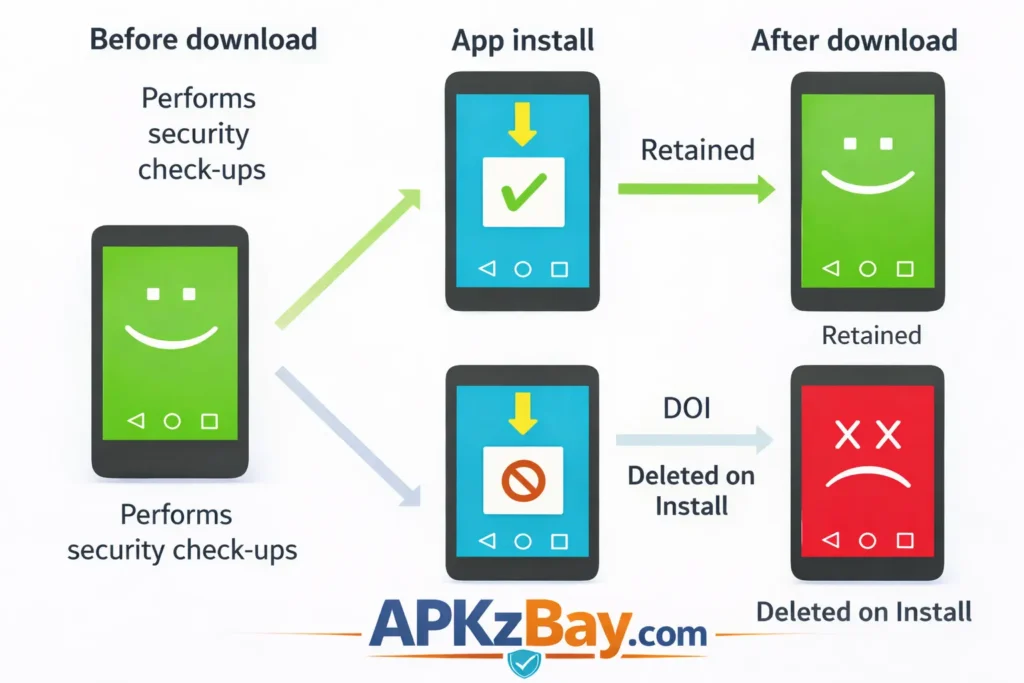
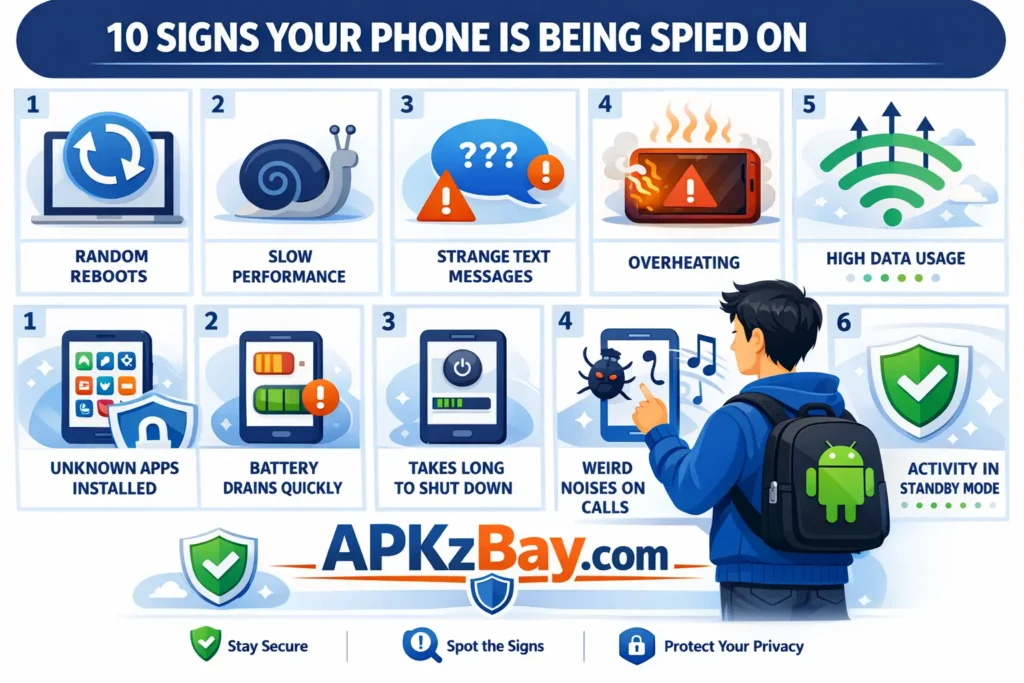
The first step is observation. Phones often show distress before users recognize the cause. Random pop-ups, sudden lag, new icons, battery drops, overheating, unexplained network activity, and permission prompts are all clues. One strange behavior alone may not prove anything. Several together usually deserve attention. A harmful app rarely announces itself directly. It leaks its presence through weird patterns.
The second step is checking app settings and system behavior. Android gives you useful signals if you know where to look. You can review installed apps, permission access, accessibility services, notification access, battery usage, mobile data usage, and app install history. That makes detection more practical than people think. You do not need expensive software to spot something off. You just need to stop treating odd behavior as random.
Warning Signs After Installation
A harmful app often changes how your phone feels before you understand what changed. One common sign is aggressive advertising outside the app itself. If ads suddenly appear on your home screen, lock screen, browser, or notification shade, a recently installed app may be responsible. Another classic sign is battery drain that feels unusual for your normal usage pattern. If the phone heats up while idle or drains overnight, background activity may be happening where it should not.
Watch for apps that become strangely persistent. They may resist removal, hide their launcher icon, reinstall helpers, or ask for sensitive permissions after a recent update. Some try to gain accessibility or device admin access because those permissions make them harder to control. Others flood you with fake security alerts, cleaning prompts, or “urgent action required” messages to keep you engaged and anxious. Fear is a powerful retention strategy for bad apps.
Also pay attention to network behavior. If your phone consumes more mobile data than usual and you cannot explain why, an app may be pushing ads, collecting telemetry, or contacting remote servers too often. That does not automatically mean malware, but it is enough to investigate. Users searching uninstall harmful app settings are usually in this stage already. They know something feels wrong, and they need the fastest path back to a stable phone. The key is to act early rather than waiting for symptoms to become severe.
Where to Check App Behavior and Security Settings
Android settings are your control room. Start with Settings > Apps and sort by recently installed if your phone allows it. Look for unfamiliar names, generic icons, odd duplicates, or apps you do not remember installing. Then open suspicious apps one by one and inspect permissions, battery usage, data usage, notifications, and default opening behavior. If an app is doing too much for its category, that is a strong sign to remove it.
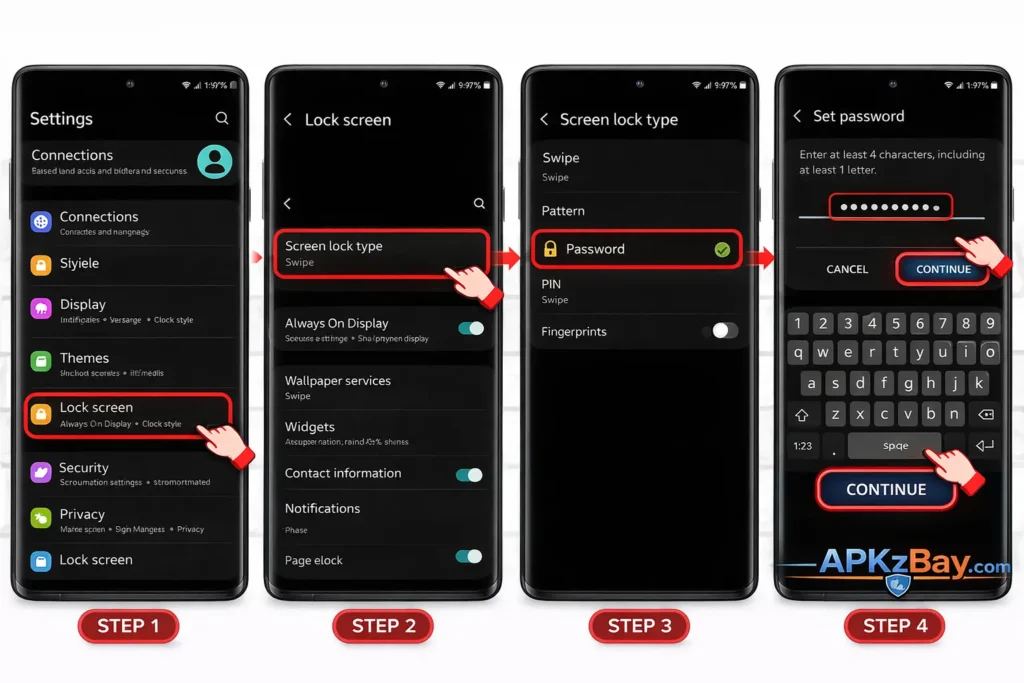
Next, check Security or Privacy settings, depending on your device brand. Look for Play Protect, Device Admin Apps, Accessibility, Install unknown apps, and Special app access sections. These areas reveal whether an app has gained powerful privileges. For example, an unknown cleaner app with accessibility access and overlay permission deserves immediate scrutiny. The wording changes across Samsung, Pixel, Xiaomi, OnePlus, and other brands, but these sections are usually present somewhere under security or privacy menus.
If removal is difficult, first revoke high-level permissions. Turn off device admin access, remove accessibility access, disable “display over other apps,” and then uninstall. Restart the phone if needed. If Android warns that an app was blocked, treat that warning seriously. It may save you from digging deeper later. Safe phone maintenance is not about paranoia. It is about noticing when one app is behaving like a guest who has quietly started rearranging the whole house.
Beginner Tips
If you are new to Android security, do not overcomplicate it. The safest routine is built from small habits that are easy to repeat. Start by slowing down before every install. That one pause is surprisingly powerful. Harmful apps win when users move fast. A ten-second check can stop a ten-hour headache. Before installing, confirm the app name, the developer, the review pattern, and the permissions. That simple scan eliminates a huge amount of risk.
Here are a few beginner-friendly habits that work well:
- Use the Play Store first whenever the official version is available.
- Read the developer name carefully, not just the app title.
- Avoid “mod,” “premium unlocked,” and “cracked” APK promises.
- Do not grant accessibility access casually.
- Keep Play Protect enabled.
- Review recently installed apps once in a while.
- Update Android and your apps regularly.
Another smart beginner move is limiting how many sources can install apps. If your browser or file manager has permission to install unknown apps, leave that permission off unless you actively need it. After installation, turn it back off. Think of it like locking a side door after bringing in a package. The goal is controlled access, not permanent openness.
Beginners should also trust discomfort. If a download page feels pushy, cluttered, or suspicious, leave. If an app asks for too much too soon, leave. If a blocked file makes you search harmful app blocked how to unblock, take that as a sign to verify the source rather than forcing the install. In Android security, hesitation is not weakness. It is often your best safety feature.
Comparison Table
The table below compares common app sources and installation paths so you can quickly judge risk, convenience, and when each option makes sense.
| Source or Method | Safety Level | Convenience | Best Use Case | Main Risk |
|---|---|---|---|---|
| Google Play Store | High | Very easy | Official public apps | Fake listings can still slip through sometimes |
| Official developer website | Medium to high | Easy to moderate | Apps not listed on Play Store or direct beta builds | User must verify domain and file authenticity |
| Well-known device maker app store | Medium to high | Easy | Brand-specific apps and local distribution | Review quality varies by store |
| Direct APK from unknown website | Low | Moderate | Rarely justified | Repackaged files, hidden adware, fake versions |
| Modified or cracked APK | Very low | Easy at first, costly later | Not recommended | Malware, spyware, account theft, unstable behavior |
| Shared APK from messaging app or forum | Very low | Easy | Not recommended | No trust chain, file tampering, fake updates |
This table makes one thing obvious: convenience is not always the same as safety. A risky APK can feel easy to install, but that ease is often part of the trap. The safer path is usually slower by a minute or two, and that trade-off is worth it. When you compare app sources, do not just ask, “Can I install it?” Ask, “Who checked this before it reached me?” The fewer trustworthy answers you have, the higher the risk becomes.
Tips for Choosing Safe Apps and Download Sources
Choosing a safe app is a bit like choosing a restaurant in a city you do not know. A nice sign is not enough. You check the reputation, the reviews, the consistency, and whether the place looks legitimate beyond the front door. Safe app selection works the same way. Start with the source, then evaluate the developer, the permissions, the update history, and the quality of the listing. When all those pieces align, risk drops significantly.
A strong app listing usually feels coherent. The screenshots match the app’s purpose. The description explains features clearly. The change log sounds real. The support information is visible. The developer name matches the website and social channels. Be careful with listings filled with exaggerated claims like “1000x faster,” “secret hack,” “guaranteed boost,” or “earn instantly.” Apps that oversell themselves often underdeliver at best and overcollect data at worst.
It also helps to choose creators who educate users openly. For more Android tips, installation walkthroughs, and platform updates, APKZBay shares content on YouTube, Instagram, Pinterest, Facebook, Telegram, X, and its WhatsApp Channel. Following reliable Android-focused sources can help you spot scams faster because you start recognizing normal installation behavior versus suspicious shortcuts. The more familiar you are with safe patterns, the harder it becomes for harmful apps to fool you.
Pros and Cons of Android’s Open App Ecosystem
Android’s openness is one of its best features. It gives users freedom, flexibility, and access to tools that may not be available through a single official channel. Developers can distribute beta builds, direct utilities, enterprise tools, and region-specific apps without relying on one gatekeeper. Power users benefit the most because they can customize workflows, install niche apps, and manage devices with fewer restrictions. That freedom is part of what makes Android feel like a powerful computer in your pocket.
The downside is that freedom increases decision-making pressure. The more doors you can open, the more important it becomes to know which doors should stay closed. Harmful apps take advantage of that openness by mimicking legitimate software and appearing in places where users expect flexibility. That does not mean Android is unsafe. It means Android expects more judgment from the user. In other words, Android gives you the keys, but it also expects you to lock the garage.
Here is the real trade-off:
Pros
- More installation flexibility
- Access to niche and region-limited apps
- Easier sideloading for trusted tools
- Greater control over settings and permissions
Cons
- Higher exposure to risky APK sources
- More fake listings and cloned apps outside official stores
- Greater chance of permission abuse when users rush
- Extra responsibility for verifying files and developers
Once you understand that balance, Android becomes much easier to use safely. Openness is not the enemy. Unchecked trust is.
Conclusion
Learning how to prevent installing harmful apps is less about fear and more about habits. The safest Android users are not always the most technical. They are the ones who verify the source, inspect permissions, respect Play Protect, and stay cautious when something feels rushed or too good to be true. That approach works because harmful apps usually depend on fast installs, weak checks, and distracted users.
When you want a simple rule to remember, use this one: verify before you install, and review after you install. Start with trusted sources, confirm the developer, read permissions like they matter, and treat security warnings as useful signals instead of obstacles. If you ever need to figure out how to find harmful app in Android, check recent installs, permissions, accessibility access, battery usage, and weird behavior patterns right away.
Android is powerful because it gives you options. Use that power like a careful driver uses a fast car. Enjoy the control, but do not ignore the dashboard lights. That mindset will help you avoid risky downloads, reduce exposure to fake installers, and keep your phone clean, stable, and secure for the long run.
FAQs
1. How do I know if an app is harmful before installing it?
Check the source first, then inspect the developer name, reviews, permissions, and update history. If the app asks for unrelated permissions or comes from a sketchy page full of pressure tactics, skip it. Harmful apps often reveal themselves through bad context rather than obvious labels.
2. How to prevent installing harmful apps on Android without extra security apps?
Use the Play Store when possible, keep Google Play Protect enabled, avoid unknown APK sites, and review permissions before installing. Android already includes helpful safeguards. Most problems happen when users override them too quickly.
3. How to find harmful app in Android after it is already installed?
Check recently installed apps, unusual battery usage, high data consumption, strange ads, and special permissions like accessibility or device admin access. If something feels off, revoke powerful permissions first and then uninstall the app.
4. What does “Google Play Protect harmful app blocked” mean?
It means Android detected behavior or file patterns that may be unsafe. The warning does not always prove malware with certainty, but it is a serious signal. The safest choice is to avoid the file and look for an official version.
5. Harmful app blocked how to unblock — should I do it?
Only if you are completely certain the app is legitimate, the file came from the official source, and you understand the risk. In most cases, overriding the block is not worth it. A safer download path is usually available.
6. Is there a reliable harmful app list I can keep forever?
Not really. A static harmful app list becomes outdated quickly because bad actors rename apps, repackage files, and change versions. It is better to learn the warning signs and verification process than to depend on a permanent list.
7. Where are uninstall harmful app settings on Android?
Open Settings > Apps, select the suspicious app, revoke sensitive permissions if needed, disable admin or accessibility access, and then uninstall. Menu names vary by brand, but the process is usually similar across Android devices.
Related apps





Recent Posts
- How to Install APK Without Errors Android Guide

- How to Install APK After Downloading ZIP File
- This App Is Not Compatible With This Device Problem Solution
- How to Prevent Installing Harmful Apps
- How to Access Android Data Folder with Shizuku: Complete No-Root Guide
- How to Install APK on Amazon Fire Tablet Safely and Easily
- Install Unknown Apps Not Showing for Browser Fix Android: A Complete Beginner-Friendly Guide
- Why XAPK Files Need Extra Installer Android: A Complete Beginner-to-Pro Guide
- Trusted APK Sites for Android Safety Guide: How to Download APKs Without Putting Your Phone at Risk
- Fake App Clone Warning Signs on Android: How to Spot Unsafe Apps Before You Install Them
- How to Install Split APK on Android Without PC
- How to Disable Battery Optimization in Android Setting: A Complete Beginner-to-Pro Guide