How to Speed Up Android Phone Without Factory Reset: 17 Smart Fixes That Actually Work
01-04-2026
Description
If your Android phone feels slow, freezes during simple tasks, or takes forever to open apps, you are not alone. Over time, even a good phone can start to lag because of cluttered storage, background apps, outdated software, animation overload, and battery-saving restrictions that do more harm than good.
The good news is that you do not need to wipe everything and start over. If you have been searching for how to speed up android phone without factory reset, this guide will walk you through practical, beginner-friendly methods that can make a noticeable difference. Some fixes take less than 10 seconds. Others take a few minutes but can dramatically improve everyday speed.
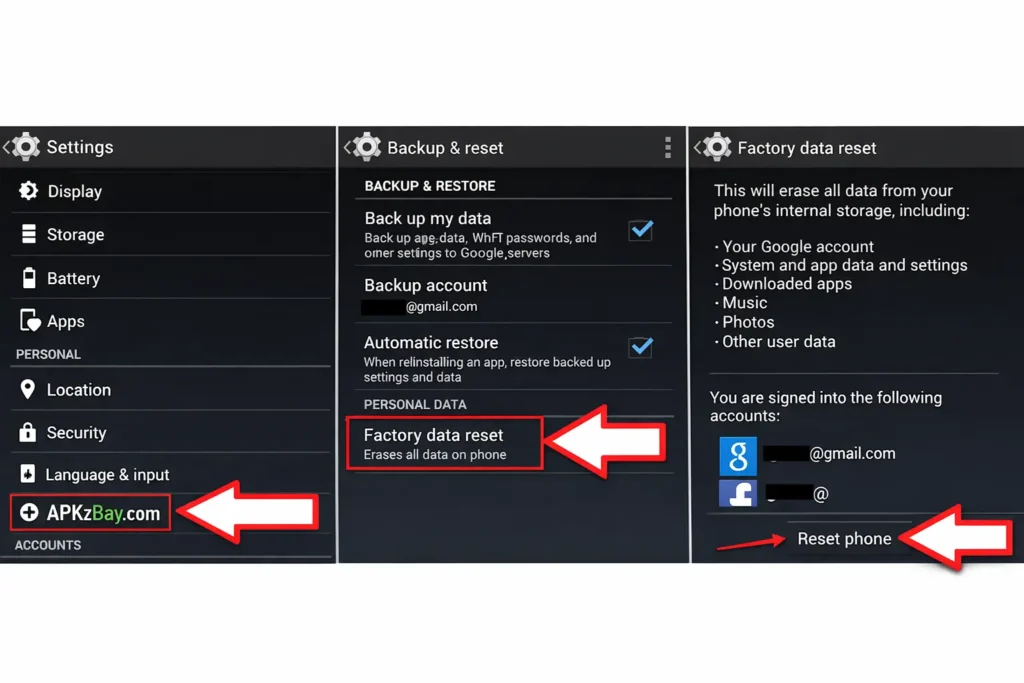
This article is written for both casual users and tech-savvy readers. You will learn how to make your phone run faster on stock Android, Samsung phones, and even through Developer Options. I will also cover helpful apps that can support performance, plus the mistakes to avoid if your android phone running slow and freezing has become a daily problem.
Let’s fix the lag without losing your photos, apps, or settings.
Why Android Phones Slow Down Over Time
Before jumping into the fixes, it helps to understand what causes the slowdown.
Common reasons include:
- Too many apps running in the background
- Low internal storage
- Large cached files
- Outdated apps or Android version
- Heavy widgets and live wallpapers
- Too many animations
- Weak battery health
- Malware or shady apps
- Cheap memory chips filling up over time
When people ask how to make your phone run faster android, the real answer is usually a combination of storage cleanup, background control, software maintenance, and a few system tweaks.
Detailed List of the Best Ways to Speed Up an Android Phone
Below is a mix of useful apps and built-in methods. For each one, you will find an overview, key features, pros, cons, and who it is best for.
1. Files by Google
Overview
Files by Google is one of the safest and most useful apps for cleaning up junk on Android. It helps remove duplicate files, old screenshots, large downloads, and cached leftovers that quietly eat storage. When storage gets tight, Android performance often drops fast.
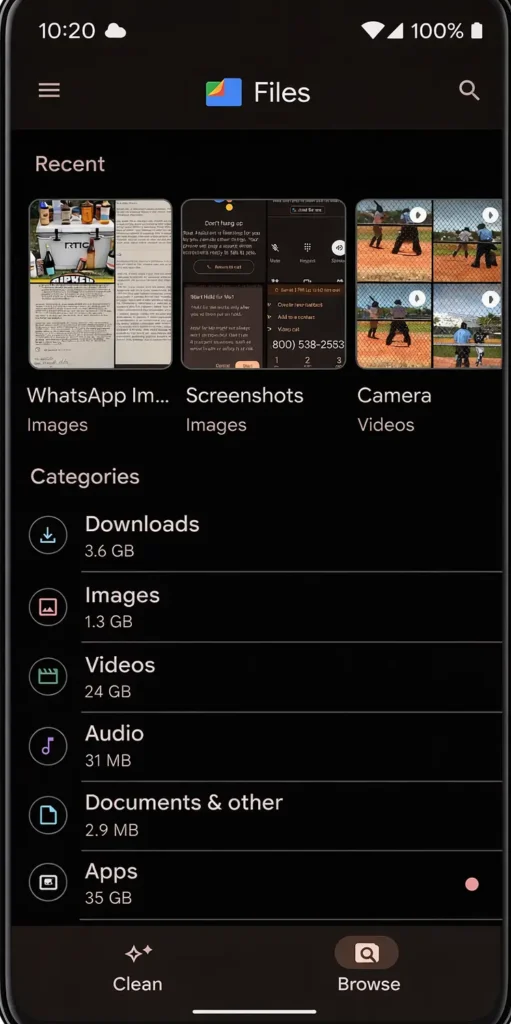
If you are wondering how to speed up your android phone in 10 seconds, this is one of the easiest places to start.
Key Features
- Deletes junk and temporary files
- Finds duplicate photos and old downloads
- Suggests large files to remove
- Frees up storage quickly
- Works well on low-end and mid-range phones
Pros
- Free and easy to use
- Clean interface
- Safe for beginners
- Made by Google
- Helps improve storage health without risky “boosting” tricks
Cons
- Does not control background apps deeply
- Cleanup suggestions may need manual review
- Limited advanced tuning options
Best For
- Beginners
- Phones with low storage
- Users who want a fast, safe cleanup tool
Why It Helps Performance
Android phones slow down when storage is nearly full. Keeping at least 10% to 20% of storage free can help the system breathe. Files by Google is a practical first step if your device is lagging during everyday use.
2. SD Maid SE
Overview
SD Maid SE is a more advanced cleanup app for users who want deeper control over leftover files, logs, and app remnants. It can help identify hidden clutter that basic cleaning apps often miss.
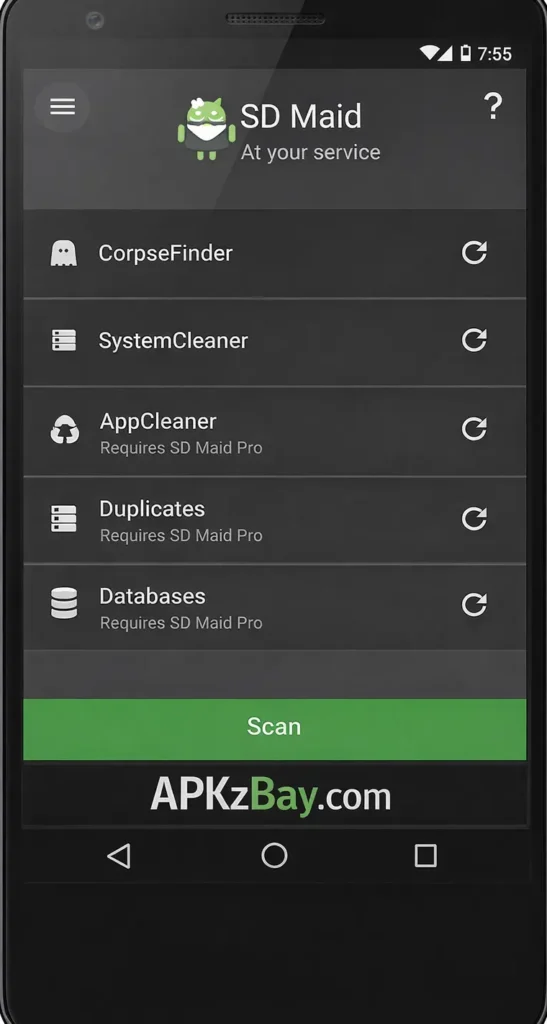
For users asking how to make your phone run faster android app, this is one of the better options when used carefully.
Key Features
- Removes leftover files from uninstalled apps
- Finds large hidden files
- Database optimization tools
- Detailed storage analysis
- Scheduled cleanup support
Pros
- More advanced than most cleaner apps
- Excellent for long-term maintenance
- Helps reclaim space from buried clutter
- Useful for power users
Cons
- Less beginner-friendly
- Some features may require a learning curve
- Not necessary for every user
Best For
- Advanced users
- People with older Android phones
- Users who install and uninstall many apps
Why It Helps Performance
When old app leftovers pile up, they create unnecessary storage pressure and confusion in the file system. Cleaning them out can make the phone feel lighter and more responsive.
3. Samsung Device Care
Overview
If you use a Samsung phone, Device Care is one of the best built-in tools available. It checks battery, storage, memory, and device protection in one place. For Samsung users searching how to make your phone run faster android samsung, this is the first tool to open.
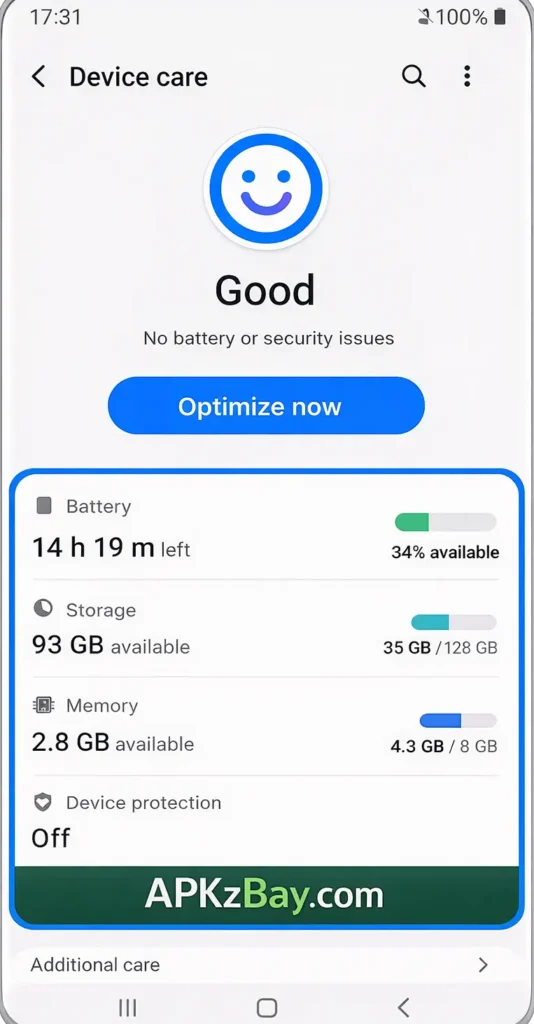
Key Features
- One-tap optimization
- Memory and storage cleanup
- Battery usage insights
- Background app management
- Device protection scan
Pros
- Already built into Samsung phones
- Safe and simple
- No extra download needed
- Works well for casual users
Cons
- Limited to Samsung devices
- Not as detailed as advanced third-party tools
- Results depend on your app habits
Best For
- Samsung users
- People who want simple maintenance
- Users who prefer built-in tools
Why It Helps Performance
Samsung phones often come with extra features and services that can consume memory. Device Care helps control those processes and free up resources.
4. Greenify
Overview
Greenify became popular for helping manage apps that keep waking up in the background. While modern Android has improved app management, Greenify can still be useful on some older devices.
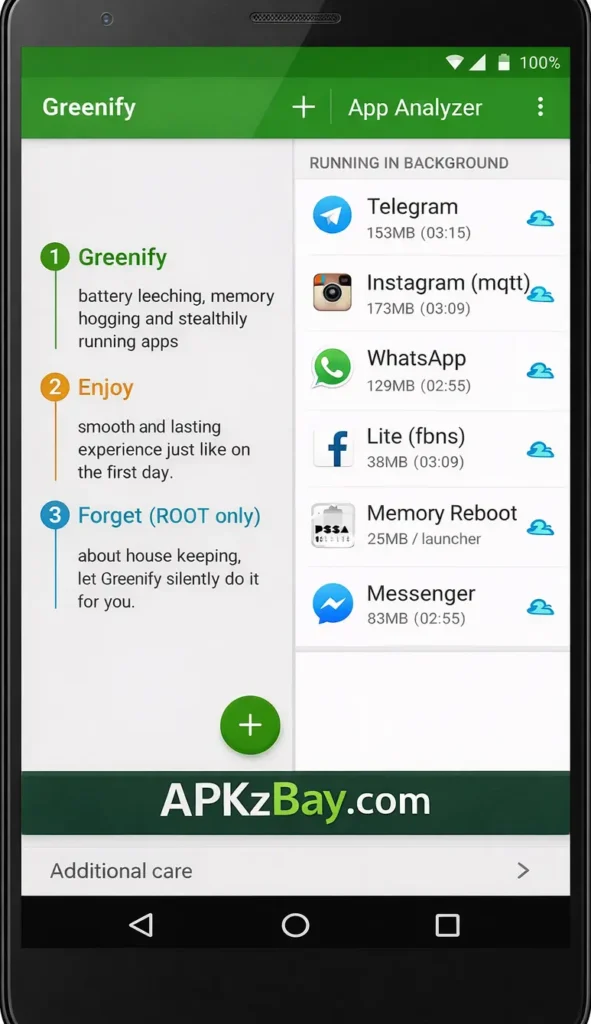
It can help if your phone feels sluggish because too many apps keep running after you stop using them.
Key Features
- Hibernates selected background apps
- Reduces wake-ups and background activity
- Can improve battery and smoothness
- Helps reduce random lag
Pros
- Useful for older Android phones
- Can reduce unwanted background activity
- Good for phones with too many social apps installed
Cons
- Less essential on newer Android versions
- Requires careful setup
- Hibernating the wrong app may delay notifications
Best For
- Older devices
- Users with many social, shopping, or utility apps
- People dealing with background drain and lag
Why It Helps Performance
Background apps constantly use RAM, network access, and system resources. Cutting down that activity can improve speed, especially on budget phones.
5. Malwarebytes Mobile Security
Overview
If your phone suddenly became slow after installing an unknown app, there is a chance the issue is not just clutter. It could be adware, malware, or a badly coded app. Malwarebytes helps detect suspicious apps that may be hurting performance.
Key Features
- Malware and adware scanning
- Privacy audit for apps
- Detects suspicious behavior
- Lightweight interface
Pros
- Good for checking shady apps
- Helps explain random slowdowns
- Trusted name in security tools
Cons
- Not a speed booster by itself
- Full usefulness depends on what is installed
- Background protection may vary by version
Best For
- Users who install APKs or apps outside Play Store
- Phones that became slow suddenly
- Security-conscious users
Why It Helps Performance
Malicious or poorly made apps can overload the CPU, show pop-up ads, and drain battery in the background. Removing them can instantly improve speed and stability.
6. Developer Options Animation Tweaks
Overview
This is not an app, but it is one of the fastest ways to make your phone feel faster. If you want to know how to make your phone run faster android developer options, reducing animation scales is one of the classic tricks.
It does not increase real processing power. Instead, it cuts visual delay so the device feels snappier.
Key Features
- Reduces window animation scale
- Reduces transition animation scale
- Reduces animator duration scale
- Makes the interface feel faster
Pros
- Works in seconds
- No app required
- Very effective for perceived speed
- Great on both old and new phones
Cons
- Mostly improves visual responsiveness
- Hidden in settings
- Advanced users may over-tweak other options
Best For
- Anyone who wants quick results
- Older phones
- Users comfortable entering settings
How to Do It
- Open Settings
- Go to About Phone
- Tap Build Number seven times
- Return to System or Additional Settings
- Open Developer Options
- Set these three items from 1x to 0.5x:
- Window animation scale
- Transition animation scale
- Animator duration scale
This is one of the best answers to how to speed up your android phone in 10 seconds samsung and other Android devices.
7. Lite Apps and Web Apps
Overview
Sometimes the fastest Android phone is the one that runs fewer heavy apps. Replacing bloated apps with lighter versions can improve both speed and battery life. Facebook Lite, Messenger Lite alternatives, browser-based apps, and lightweight launchers can all help.
Key Features
- Lower RAM usage
- Smaller storage footprint
- Reduced background activity
- Often faster on budget devices
Pros
- Big improvement on low-end hardware
- Saves data and battery
- Easier on old processors
Cons
- Missing some features
- May look simpler
- Not every app has a Lite version
Best For
- Budget phone users
- Older Samsung and Xiaomi devices
- People who mainly use messaging and browsing
Why It Helps Performance
Heavy apps can eat RAM, storage, and battery. Swapping just two or three of them can noticeably improve smoothness.
17 Proven Ways to Make Your Android Phone Run Faster
Now let’s go beyond tools and cover the most effective built-in fixes.
1. Restart Your Phone
This sounds basic, but it works. A restart clears temporary memory, stops stuck background processes, and refreshes the system.
If you have been looking for how to speed up your android phone in 10 seconds, restarting is the simplest method.
Best when: your phone feels warm, sluggish, or glitchy.
2. Free Up Storage Space
Low storage is one of the biggest reasons a phone becomes slow. When internal storage is nearly full, apps struggle to write data, update properly, and create cache files.
What to remove first
- Old videos
- Duplicate photos
- Downloaded APKs
- Unused games
- Offline playlists you no longer need
- Large WhatsApp or Telegram media folders
Try to keep at least 5GB free if possible, or at least 10% of total storage.
3. Clear App Cache, Not App Data
App cache helps apps load faster, but it can also grow too large and become messy over time.
Go to:
Settings > Apps > Select App > Storage > Clear Cache
Focus on:
- Chrome
- TikTok
- YouTube
- Maps
Do not clear app data unless needed, because that may sign you out or reset settings.
4. Uninstall Apps You Never Use
The more apps installed, the more services run in the background. Remove anything you have not used in the last 30 to 60 days.
Pay special attention to:
- Cleaner apps with aggressive ads
- Battery saver apps
- RAM booster apps
- Clone apps
- Wallpaper apps
- Unknown APK tools
Ironically, many “speed booster” apps slow phones down even more.
5. Update Android and All Apps
Outdated software can create lag, crashes, and battery problems. App developers regularly fix performance bugs.
Check:
- Google Play Store > Manage apps
- Settings > Software Update
If your android phone running slow and freezing, software updates may solve hidden bugs you cannot see.
6. Reduce or Disable Widgets
Widgets are useful, but too many of them constantly refresh data in the background. Weather, stocks, notes, calendars, and social feeds can all consume resources.
Keep only the widgets you actually use every day.
7. Turn Off Live Wallpapers
Live wallpapers look nice, but they use GPU and battery. A static wallpaper is lighter and often smoother, especially on older phones.
This small change can help if animations already feel choppy.
8. Use Device Care or Battery Settings to Restrict Background Apps
Modern Android lets you restrict battery usage or background activity for specific apps.
Look for options like:
- Restricted
- Optimized
- Deep sleeping apps
- Background limits
This is especially useful for apps that do not need to run constantly.
9. Lower Animation Scales in Developer Options
As mentioned above, this is one of the best quick wins.
For many people searching how to make your phone run faster android developer options, this is the answer that gives the fastest visible improvement.
Set the three animation options to 0.5x. If you want an even snappier feel, you can disable animations completely, but that can make the phone feel abrupt.
10. Switch to a Lighter Launcher
Some manufacturer launchers are heavy. A lighter launcher can make home screen navigation faster and smoother.
Good lightweight choices usually offer:
- Fewer animations
- Less RAM use
- Cleaner home screen management
- Better performance on older devices
This is especially useful on entry-level phones.
11. Disable Unused System Apps
Many Android phones come with preinstalled apps that you never open. While not all can be uninstalled, some can be disabled.
Go to:
Settings > Apps > Select App > Disable
Do this for apps you genuinely never use. Avoid disabling core Android services unless you know exactly what they do.
12. Check Battery Health and Charging Behavior
A degraded battery can make performance worse. Some phones throttle speed when battery health drops or when the device gets too hot.
Warning signs include:
- Phone gets warm fast
- Sudden frame drops while charging
- Lag during gaming or camera use
- Battery drops quickly even when idle
If your battery is failing, software tweaks help less.
13. Scan for Malware and Suspicious Apps
If the slowdown started after downloading an APK from an unknown source, scan your device. Untrusted apps can flood the phone with background processes and ads.
Also, if you often install APKs manually, these internal resources may help:
- fix parsing errors on Android APKs
- solve “app not installed because package is corrupted” issues
- learn how to install XAPK files on Android phone
These guides are useful when app installation problems are tied to broken packages or incompatible files.
14. Use the Lite Version of Heavy Apps
If your phone stutters while switching between apps, replace the biggest offenders first.
Apps that often slow budget phones:
- Social media apps
- Video editing apps
- Shopping apps
- Food delivery apps
- Antivirus suites with constant scanning
Using lighter alternatives is one of the smartest answers to how to make your phone run faster android app without spending money.
15. Clean Your Download Folder and Media Trash
The Downloads folder often becomes a junk drawer for PDFs, APKs, memes, screenshots, and duplicate photos. Cleaning it can free gigabytes.
Also empty:
- Gallery trash
- Google Photos trash
- File manager recycle bin
- Messaging app media folders
16. Turn Off Auto-Sync for Apps You Do Not Need
Not every app needs real-time syncing. Some apps check for updates and new content far too often.
Review sync-heavy apps such as:
- Email clients
- Cloud backups
- Social platforms
- Shopping apps
- Weather apps
Keep sync active only where it matters.
17. Avoid Fake RAM Boosters
Most RAM booster apps do not speed up Android in a meaningful way. Android already manages memory intelligently. Force-closing apps too often can actually make the phone slower because it has to reload them again and again.
Stick with safe tools, built-in settings, and trusted cleanup methods instead.
Samsung-Specific Tips to Speed Up a Slow Galaxy Phone
Samsung users often search for how to make your phone run faster android samsung because One UI adds many features that can feel heavy on older devices.
Here are the best Samsung-specific fixes:
Use Device Care
Open Settings > Battery and device care and run optimization.
Put Unused Apps to Sleep
Samsung lets you place apps into:
- Sleeping apps
- Deep sleeping apps
- Never sleeping apps
This can reduce background drain and improve speed.
Reduce Motion and Animations
Go to:
Settings > Accessibility > Visibility enhancements
or use Developer Options to reduce animation scales.
Disable RAM Plus if It Hurts Performance
On some devices, virtual RAM features may not improve real-world speed. If your phone feels worse after enabling RAM Plus, test it with a lower setting or turn it off if supported.
Remove Unneeded Samsung Add-Ons
Samsung phones may come with apps and services you do not use. Disable what you safely can.
These steps are especially helpful if you need how to speed up your android phone in 10 seconds samsung style improvements without resetting the phone.
Comparison Table
| Method/App | Main Benefit | Difficulty | Best For | Real Speed Gain |
|---|---|---|---|---|
| Files by Google | Frees storage quickly | Easy | Beginners | High |
| SD Maid SE | Deep cleanup | Medium | Advanced users | Medium to High |
| Samsung Device Care | Built-in optimization | Easy | Samsung users | Medium |
| Greenify | Controls background apps | Medium | Older phones | Medium |
| Malwarebytes | Finds suspicious slowdowns | Easy | APK users | Medium |
| Developer Options | Faster visual response | Easy | All users | Medium |
| Lite Apps | Reduces RAM usage | Easy | Budget phones | High |
| Restarting phone | Clears temporary issues | Very easy | Everyone | Low to Medium |
| Clearing cache | Removes bloated temporary files | Easy | Heavy app users | Medium |
| Disabling widgets/live wallpapers | Reduces background load | Easy | Older devices | Medium |
Tips for Choosing the Right Fix
Not every fix is equally useful for every phone. Choose based on the problem.
If storage is almost full
Use:
- Files by Google
- SD Maid SE
- Manual media cleanup
If apps keep freezing
Use:
- App updates
- Cache clearing
- Background app restrictions
- Malware scan
If the phone feels slow but storage is okay
Use:
- Developer Options animation tweaks
- Lighter launcher
- Fewer widgets
- Disable bloated apps
If you use a Samsung phone
Use:
- Device Care
- Sleeping apps
- One UI animation reduction
- Disable extras you do not use
If you install APK files often
Use:
- Malware scanning
- Package verification
- Trusted install guides
- Fewer unofficial sources
Beginner Tips to Keep an Android Phone Fast
If you are new to Android maintenance, start here.
Do these once a week
- Restart your phone
- Delete junk from Downloads
- Remove blurry or duplicate photos
- Update apps
- Check storage space
Do these once a month
- Review unused apps
- Clear cache from the heaviest apps
- Scan for suspicious apps
- Check battery and background usage
Avoid these habits
- Installing random cleaner apps
- Using animated themes everywhere
- Letting storage hit 95% full
- Keeping 100 browser tabs open
- Downloading APKs from unknown websites
A little maintenance goes a long way. You do not need advanced tricks to solve most lag problems.
Helpful Resources and Community Links
If you want more Android tips, app guides, and installation help, these resources may be useful:
- APKzBay YouTube channel for Android tutorials and walkthroughs
- APKzBay on Instagram for quick tips and updates
- APKzBay on Pinterest for app and Android content
- APKzBay on Facebook for community updates
- APKzBay on Telegram for direct alerts and shared content
- APKzBay on X for news and Android-related posts
- APKzBay WhatsApp Channel for easy mobile updates
FAQs
1. How can I speed up my Android phone without factory reset?
You can improve speed by freeing storage, clearing app cache, uninstalling unused apps, reducing animations, updating software, and limiting background activity. These are the most reliable ways to handle how to speed up android phone without factory reset.
2. How do I speed up your Android phone in 10 seconds?
The fastest fixes are restarting the phone, clearing recent apps, and reducing animation scales in Developer Options. On Samsung, opening Device Care and running optimization is also very quick.
3. Why is my Android phone running slow and freezing?
Usually because of low storage, too many background apps, old software, bloated cache, malware, or weak battery health. Sometimes one bad app is enough to make the entire phone lag.
4. Does clearing cache make Android faster?
Yes, especially for apps that build up large temporary files. It does not permanently fix every problem, but it often improves app responsiveness and reduces glitches.
5. How to make your phone run faster Android developer options?
Enable Developer Options, then reduce Window animation scale, Transition animation scale, and Animator duration scale from 1x to 0.5x. This makes the phone feel faster during navigation.
6. How to make your phone run faster Android Samsung?
Use Samsung Device Care, put unused apps into sleep mode, reduce animations, remove widgets, clean storage, and disable apps you do not use. Samsung phones respond well to built-in maintenance tools.
7. Are cleaner apps safe for Android?
Some are safe, but many are unnecessary or full of ads. Stick to trusted tools like Files by Google and avoid “one-tap speed booster” apps that promise unrealistic gains.
Conclusion
If your phone has become laggy, you do not have to jump straight to a full reset. In most cases, the best answer to how to speed up android phone without factory reset is a combination of simple maintenance and smart system tweaks.
Start with the basics: free up storage, delete junk, clear cache, update apps, and restart the phone. Then move to more targeted fixes like limiting background apps, using lite apps, and reducing animation scales in Developer Options. Samsung users should also take full advantage of Device Care and app sleep settings.
The biggest takeaway is this: Android phones rarely slow down for just one reason. The best results come from stacking a few small improvements together. Do that, and even an older phone can feel smoother, faster, and more reliable without losing your data.
Recent Posts
- How to Access Android Data Folder with Shizuku: Complete No-Root Guide

- How to Install APK on Amazon Fire Tablet Safely and Easily
- Install Unknown Apps Not Showing for Browser Fix Android: A Complete Beginner-Friendly Guide
- Why XAPK Files Need Extra Installer Android: A Complete Beginner-to-Pro Guide
- Trusted APK Sites for Android Safety Guide: How to Download APKs Without Putting Your Phone at Risk
- Fake App Clone Warning Signs on Android: How to Spot Unsafe Apps Before You Install Them
- How to Install Split APK on Android Without PC
- How to Disable Battery Optimization in Android Setting: A Complete Beginner-to-Pro Guide
- App Not Installed Package Conflicts With Existing Package: Meaning, Causes, and Proven Fixes
- How to Speed Up Android Phone Without Factory Reset: 17 Smart Fixes That Actually Work
- SPG4X FF Panel APK Latest Version – Features, Download Guide, Update Info, and Honest Review
- There Is a Problem Parsing the Package Android APK: Complete Fix Guide for Samsung, Huawei, Android 12, and Android 14