How to Speed Up Slow Android Phone 2026: 17 Easy Fixes That Work
14-03-2026
Description
If your device feels laggy, apps take forever to open, or scrolling stutters for no clear reason, you are not alone. Learning How to speed up slow Android phone 2026 is one of the most useful things any Android user can do, whether you have a Samsung Galaxy, a budget phone, or an older flagship that still has life left in it.
Modern Android phones are more powerful than ever, but they also do more in the background. Over time, storage fills up, apps keep syncing, widgets consume memory, and software features that once felt helpful can start slowing everything down. The good news is that you usually do not need to buy a new phone right away. In many cases, a few smart adjustments can make your device feel smoother, faster, and easier to use.
This guide explains exactly how to speed up slow Android phone 2026 with practical steps, app recommendations, developer options tweaks, and simple maintenance habits. You will also learn how to make your phone run faster android, how to speed up your android phone in 10 seconds, and when it makes sense to reset or replace your device. The advice is beginner-friendly, but detailed enough for power users too.
Why Android Phones Slow Down Over Time
Before fixing the problem, it helps to know what causes it.
A slow Android phone is usually not the result of one single issue. It is often a mix of small problems that build up over time.
Common reasons your Android phone feels slow
- Low available storage
- Too many apps running in the background
- Old or bloated apps
- Heavy widgets and live wallpapers
- Too many startup processes
- Cached junk files
- Battery saver limitations
- Aging hardware
- Outdated software
- Too many animations and visual effects
If you own a Samsung device, you may also be searching for how to speed up slow android phone 2026 samsung or how to speed up a slow android phone samsung. Samsung phones usually have excellent built-in tools, but they can also become sluggish if RAM, storage, and background services are overloaded.
Quick Answer: How to Speed Up Your Android Phone in 10 Seconds
If you need a fast fix right now, try these first.
10-second speed boost checklist
- Restart your phone
- Close power-hungry apps
- Turn off battery saver if performance is limited
- Free up at least 10% to 20% storage
- Disable unused widgets on the home screen
These steps will not solve every performance problem, but they can quickly improve responsiveness. If you specifically searched how to speed up your android phone in 10 seconds, this is the fastest place to start.
Detailed List of the Best Ways to Speed Up a Slow Android Phone
Below is a detailed guide covering both system tweaks and useful apps. For each topic or app, you will find an overview, key features, pros, cons, and who it is best for.
1. Restart Your Phone Regularly
Overview
A simple restart clears temporary memory issues, closes stuck processes, and gives Android a clean start. Many people leave their phone running for weeks, which can lead to slowdowns over time.
Key Features
- Clears temporary RAM usage
- Stops frozen background services
- Refreshes system performance
- Can fix lag without changing settings
Pros
- Fast and free
- Safe for every user
- Often fixes random lag
- Helps after app crashes or software updates
Cons
- Temporary fix if deeper issues remain
- Does not clear storage or uninstall apps
Best For
- Beginners
- Anyone noticing sudden lag
- Users who want an instant performance reset
How to do it
Hold the power button and tap Restart. On some phones, press the power and volume up buttons together.
2. Free Up Storage Space
Overview
One of the most effective answers to how to make your phone run faster android is freeing storage. Android phones slow down when internal storage is almost full because the system needs breathing room for temporary files, app updates, and background operations.
Key Features
- Improves app launch speed
- Helps system updates install properly
- Reduces lag in file operations
- Makes camera and gallery work better
Pros
- Big impact on overall speed
- Easy to do
- Helps battery and stability too
Cons
- May require deleting files you no longer need
- Can take time if your storage is very full
Best For
- Users with “storage almost full” warnings
- People who save lots of videos, photos, and downloads
- Older phones with 64GB or less storage
What to delete first
- Duplicate photos
- Old videos
- Large downloads
- Offline maps you no longer use
- Unused apps
- Cached media from messaging apps
If you often run into Android app issues while cleaning storage, you may also find this guide useful: fix Android download pending problems step by step.
3. Uninstall Apps You No Longer Use
Overview
Unused apps do more than waste storage. Many continue syncing data, showing notifications, checking your location, or launching in the background.
Key Features
- Frees storage
- Reduces background activity
- Cuts notification clutter
- Improves battery life
Pros
- One of the easiest ways to speed up a slow phone
- Helps both performance and privacy
- Removes bloat from your device
Cons
- Some preinstalled apps cannot be fully removed
- You may need to sign in again if you reinstall later
Best For
- Users with too many installed apps
- Budget phone owners
- People with older Samsung devices
Pro tip
Go to Settings > Apps and sort by last used. If you have not opened an app in months, consider removing it.
4. Clear App Cache the Smart Way
Overview
Cache helps apps load faster, but too much corrupted or oversized cache can create the opposite effect. Clearing it selectively can improve performance without deleting important data.
Key Features
- Removes temporary junk files
- Helps fix laggy apps
- Can solve app crashes and freezing
- Frees a small amount of storage
Pros
- Safe when done correctly
- Useful for apps like Chrome, Instagram, TikTok, and Facebook
- Fast troubleshooting step
Cons
- Not a magic fix for every slowdown
- Apps may load slightly slower the first time after clearing cache
Best For
- Users with specific slow apps
- Phones that lag in browsers or social media apps
- Anyone with bloated app storage
How to do it
Go to Settings > Apps > choose app > Storage > Clear Cache.
Do not confuse Clear Cache with Clear Data. Clearing data can sign you out and reset the app.
5. Use Built-In Device Optimization Tools
Overview
Most Android brands now include optimization features. Samsung’s Device Care is especially useful if you are searching how to speed up slow android phone 2026 samsung.
Key Features
- Memory cleanup
- Battery monitoring
- Storage optimization
- Background app management
- Device health reports
Pros
- Built in, no download required
- Safe and beginner-friendly
- Designed specifically for your phone brand
Cons
- Some optimization suggestions are basic
- May not remove deep junk files
Best For
- Samsung Galaxy users
- Anyone who prefers one-tap maintenance
- Users who want low-risk optimization
Samsung users: where to find it
Go to Settings > Battery and device care.
Tap Optimize now to clean memory, background apps, and storage issues. This is one of the easiest ways to speed up slow phone android on Samsung devices.
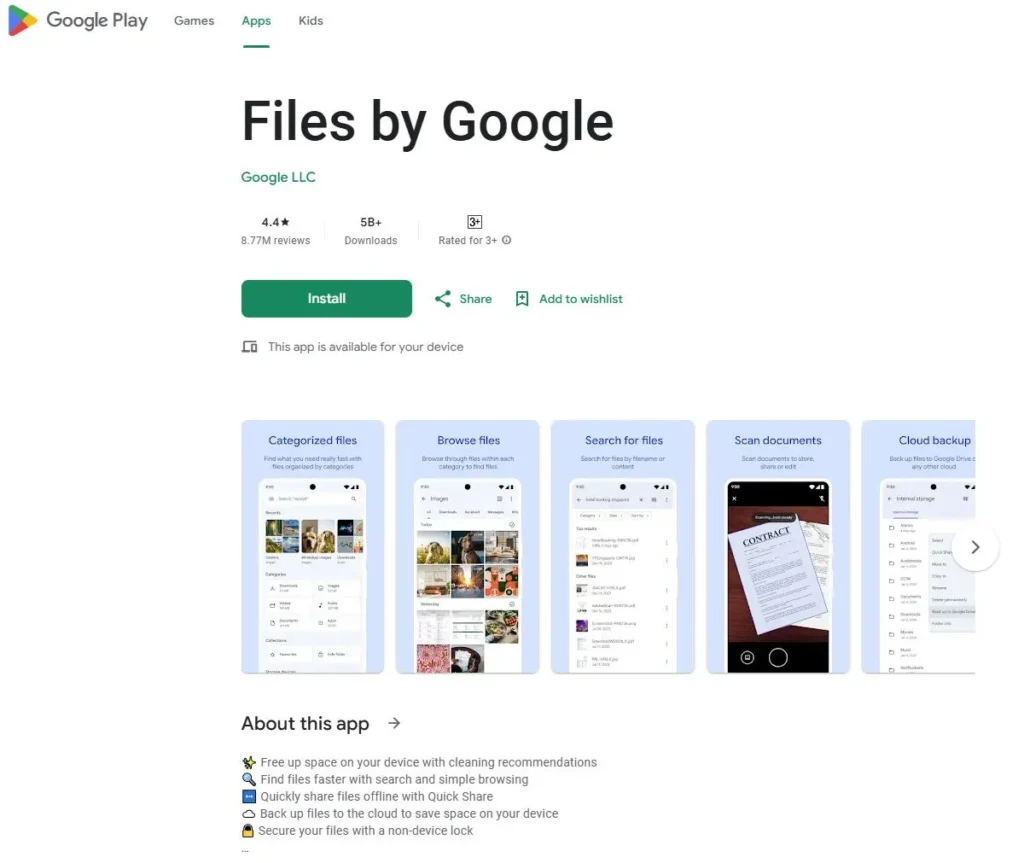
6. Files by Google
Overview
Files by Google is one of the best cleanup tools for Android. It helps remove junk, old screenshots, duplicate files, and large media files safely.
Key Features
- Junk file cleanup
- Duplicate file detection
- Large file suggestions
- Offline file management
- Easy sharing features
Pros
- Lightweight and trusted
- Very simple interface
- Great for beginners
- Helps free space without much effort
Cons
- Focuses mostly on storage cleanup
- Does not deeply tune performance settings
Best For
- Everyday Android users
- People with full storage
- Beginners who want safe cleanup
7. SD Maid SE
Overview
SD Maid SE is a favorite among advanced Android users who want more control over clutter. It can help find leftovers from deleted apps, hidden junk, and unnecessary files that regular cleaners may miss.
Key Features
- System cleaning
- App residue detection
- Database optimization
- File explorer tools
- Scheduled maintenance
Pros
- More powerful than many basic cleaners
- Useful for long-term Android maintenance
- Great for experienced users
Cons
- Interface is less beginner-friendly
- Some features require careful use
Best For
- Power users
- Users with older phones full of leftover files
- People who want deeper cleanup
8. CCleaner for Android
Overview
CCleaner remains a popular name in phone cleanup. On Android, it offers storage scanning, app management, and memory suggestions.
Key Features
- Junk cleanup
- App analysis
- Storage overview
- RAM suggestions
- Simple dashboard
Pros
- Easy to use
- Good overview of phone health
- Helpful for casual users
Cons
- Some features may feel promotional
- Not as essential as built-in tools on newer phones
Best For
- Users who want a familiar cleaning app
- Casual users
- People needing basic phone maintenance
9. Disable or Limit Background Apps
Overview
Background apps are one of the biggest hidden reasons phones become slow. Social apps, shopping apps, cloud storage apps, and streaming platforms often stay active even when you are not using them.
Key Features
- Reduces RAM use
- Cuts battery drain
- Speeds up app switching
- Improves system responsiveness
Pros
- Major performance gains on low-end devices
- Easy to control
- Helps battery life too
Cons
- May delay notifications for some apps
- Some apps need background access to work properly
Best For
- Phones with 4GB RAM or less
- Users who multitask heavily
- Anyone with battery and lag issues
How to do it
Go to Settings > Apps > choose app > Battery > restrict background use if appropriate.
On Samsung, you can also place rarely used apps into sleeping mode.
10. Reduce Widgets, Live Wallpapers, and Visual Clutter
Overview
A beautiful home screen can be fun, but too many active widgets and motion effects can slow lower-end or older phones.
Key Features
- Lighter home screen
- Less memory use
- Better scrolling performance
- Faster launcher response
Pros
- Easy improvement
- No app installation needed
- Helps older devices immediately
Cons
- Less visual flair
- Some users enjoy widgets and animations
Best For
- Older Android phones
- Budget devices
- Users with laggy home screens
Remove these first
- Weather widgets that constantly refresh
- News feed widgets
- Live wallpapers
- Battery monitor widgets
- Animated launchers
11. Update Android and Your Apps
Overview
Software updates often include bug fixes, performance improvements, and better memory management. Keeping apps updated can also prevent slowdowns caused by old code.
Key Features
- Better optimization
- Security improvements
- Improved app compatibility
- Bug fixes
Pros
- Official and safe
- Can fix lag after known software issues
- Important for security too
Cons
- Rarely, a new update may feel heavier on very old hardware
- Large updates require time and storage
Best For
- Every Android user
- Phones with outdated apps
- Users facing recent bugs or crashes
Important note
If apps fail to install while you update them, check this helpful guide on how to fix APK not installing on Android.
12. Switch to Lite Apps or Web Versions
Overview
Heavy apps like Facebook, Messenger, and some shopping or editing apps can consume a lot of RAM and battery. Switching to lighter versions or browser access can make a noticeable difference.
Key Features
- Lower RAM usage
- Less storage consumption
- Faster launch times
- Better performance on low-end phones
Pros
- Great for older phones
- Improves battery life
- Reduces background load
Cons
- Some features may be missing
- May not look as polished as full apps
Best For
- Budget phone users
- Users with low storage
- People who mainly need core app features
13. Use a Lightweight Launcher
Overview
The launcher controls your home screen and app drawer. Some manufacturer launchers are feature-rich but heavy. A lighter launcher can speed up navigation and reduce lag.
Key Features
- Faster home screen response
- Simple app drawer
- Reduced animation load
- Better customization
Pros
- Can make old phones feel smoother
- Easy to change
- Good for users who want a clean interface
Cons
- Learning curve for some users
- Not every launcher works equally well on all phones
Best For
- Older devices
- Users who dislike heavy default launchers
- People who want speed over extra features
Popular options
- Niagara Launcher
- Lawnchair
- Smart Launcher
- Nova Launcher
14. Disable Unused Preinstalled Apps
Overview
Some apps cannot be uninstalled, but they can often be disabled. This prevents them from running updates, using resources, or cluttering your app drawer.
Key Features
- Stops background activity
- Hides unwanted apps
- Reduces resource use
- Helps clean the interface
Pros
- Great for reducing bloat
- Safe when done carefully
- Useful on Samsung and carrier-branded phones
Cons
- Some system apps should not be disabled
- Availability varies by device
Best For
- Samsung users
- Carrier phone owners
- Users with lots of preinstalled apps
How to do it
Go to Settings > Apps > select app > Disable.
Only disable apps you recognize and do not use.
15. Developer Options Tweaks
Overview
If you are searching how to make your phone run faster android developer options or how to make phone faster developer options, this section is for you. Developer Options lets you reduce animation scales and limit visual overhead.
This does not boost processor power, but it can make the phone feel much faster.
Key Features
- Faster transitions
- Reduced animation lag
- More responsive feel
- Hidden advanced settings
Pros
- Quick visible improvement
- No root required
- Works on most Android phones
Cons
- Can confuse beginners
- Some settings should not be changed carelessly
Best For
- Users comfortable with advanced settings
- Older phones with sluggish animations
- Anyone wanting a snappier feel
How to enable Developer Options
- Open Settings
- Go to About phone
- Tap Build number 7 times
- Enter your PIN if asked
- Open Developer Options
Change these settings
Set the following to 0.5x or Off:
- Window animation scale
- Transition animation scale
- Animator duration scale
This is one of the best tricks for users searching how to make your phone run faster android developer options.
Extra caution
Do not randomly change background process limits, USB settings, or rendering options unless you understand what they do.
16. Turn Off RAM-Hungry Features You Do Not Need
Overview
Modern Android phones include features like Always On Display, edge panels, smart suggestions, auto-sync, and heavy AI assistants. These can be useful, but not all users need them.
Key Features
- Frees memory and battery
- Lowers background activity
- Simplifies the phone experience
Pros
- Helps performance over time
- Lets you keep only what matters
- Especially helpful on mid-range devices
Cons
- You may lose convenience features
- Requires a little experimentation
Best For
- Users who want smoother performance
- People who do not need every smart feature enabled
17. Factory Reset as a Last Resort
Overview
If your phone is still slow after trying everything else, a factory reset can remove years of clutter, broken app data, and software conflicts.
Key Features
- Full software cleanup
- Removes hidden junk
- Restores default settings
- Fresh start for the device
Pros
- Often the most powerful fix
- Makes older phones feel new again
- Eliminates deep software issues
Cons
- Erases your data
- Takes time to set up again
- Must be done carefully with backup
Best For
- Very slow phones
- Users with years of accumulated clutter
- People considering replacement but wanting one last attempt
Before you reset
- Back up photos and contacts
- Save login credentials
- Sync important files to cloud or computer
Comparison Table: Best Ways to Speed Up a Slow Android Phone
| Method/App | Main Benefit | Difficulty | Best For | Works Best On |
|---|---|---|---|---|
| Restart phone | Quick temporary speed boost | Easy | Everyone | All Android phones |
| Free storage | Major overall performance gain | Easy | Full storage users | All phones |
| Uninstall unused apps | Less background load | Easy | Casual users | Older and mid-range phones |
| Clear app cache | Fix slow apps | Easy | App-specific lag | All phones |
| Samsung Device Care | One-tap optimization | Easy | Samsung users | Samsung Galaxy phones |
| Files by Google | Safe junk cleanup | Easy | Beginners | All Android phones |
| SD Maid SE | Deep cleanup | Medium | Power users | Older cluttered phones |
| CCleaner | Basic maintenance | Easy | Casual users | Entry-level to mid-range phones |
| Lite apps | Lower RAM use | Easy | Budget users | Low-RAM devices |
| Lightweight launcher | Faster navigation | Medium | Customization fans | Older phones |
| Disable bloatware | Less background activity | Medium | Samsung and carrier users | Heavily customized phones |
| Developer Options animations | Faster feel | Medium | Advanced users | Most Android phones |
| Factory reset | Full refresh | Hard | Severe slowdown cases | Older devices |
Tips for Choosing the Right Speed-Up Method
Not every fix is right for every user. The best choice depends on the age of your phone, your comfort level, and what kind of slowdown you notice.
Choose storage cleanup if:
- Your phone says storage is nearly full
- Camera and gallery apps lag
- App installs and updates fail
Choose background app control if:
- Battery drains quickly
- Phone heats up often
- Multitasking feels slow
Choose Developer Options tweaks if:
- Animations feel sluggish
- Opening and closing apps seems slow
- You want a fast visual improvement
Choose Samsung optimization tools if:
- You use a Galaxy phone
- You want a safe one-tap fix
- You do not want third-party tools
Choose a factory reset if:
- Nothing else works
- Your phone has years of clutter
- System lag affects everything
Beginner Tips to Keep Your Android Phone Fast in 2026
If you are new to Android optimization, start simple. You do not need advanced tools to get better performance.
Easy habits that help
- Restart your phone once a week
- Keep at least 15% storage free
- Uninstall apps you do not use
- Avoid too many widgets
- Update your apps regularly
- Do not install random cleaner apps from unknown sources
- Use trusted apps only
- Keep fewer tabs open in your browser
What beginners should avoid
- Force stopping every app constantly
- Installing multiple “RAM booster” apps
- Changing too many Developer Options settings
- Deleting unknown system files
- Believing every speed-up promise in ads
A lot of so-called booster apps create more problems than they solve. Stick with trusted tools and basic maintenance.
Common Mistakes People Make When Trying to Speed Up Android
Many users accidentally make things worse while trying to improve performance.
Mistake 1: Installing too many cleaner apps
One cleaner app might be enough. Three or four of them can slow the phone down even more.
Mistake 2: Ignoring storage warnings
Low storage affects almost everything. This is one of the biggest causes of slow performance.
Mistake 3: Keeping too many apps syncing
Email, cloud photos, notes, shopping apps, and social media can all sync in the background at once.
Mistake 4: Expecting old hardware to perform like a new flagship
Optimization helps, but it cannot fully replace faster hardware.
Mistake 5: Turning on battery saver all the time
Battery saver often limits performance. If your phone feels slow, check whether it is enabled.
Samsung-Specific Advice for a Faster Phone
Because many users search how to speed up slow android phone 2026 samsung, it is worth covering Samsung separately.
Samsung phones offer strong built-in tools, but they also include many features that can pile up over time.
Best Samsung-specific fixes
- Use Device Care regularly
- Disable unused Samsung apps
- Turn off RAM Plus if it causes issues on some models
- Reduce Edge Panel use if you never use it
- Remove heavy widgets from One UI home screen
- Keep Gallery, Samsung Internet, and system apps updated
- Use sleeping apps settings for rarely used apps
Samsung path to optimization
Settings > Battery and device care > Optimize now
This is usually the first thing Galaxy users should try when looking for how to speed up a slow android phone samsung.
When You Should Upgrade Instead of Keep Tweaking
Sometimes optimization is not enough.
If your phone has very old hardware, limited RAM, or no longer receives updates, it may never feel truly smooth again no matter how much cleanup you do.
Signs it may be time to upgrade
- Apps crash often even after reset
- Storage is too small for modern apps
- Battery health is very poor
- Android version is outdated and unsupported
- Basic tasks still lag after full optimization
If your device is several years old, use this guide to extend its life first. But if core performance remains poor, upgrading may be more practical.
FAQs
1. What is the fastest way to speed up a slow Android phone?
The fastest fixes are restarting the phone, deleting unused apps, clearing some storage, and reducing animations. These steps often improve performance right away.
2. How to speed up slow Android phone 2026 without installing apps?
Use built-in tools first. Free storage, restart the device, disable unused apps, reduce widgets, and adjust animation scales in Developer Options.
3. Does clearing cache make Android faster?
Yes, especially for apps that are acting slow or buggy. It will not transform the whole phone, but it can fix app-specific lag and free a little space.
4. How to make your phone run faster android developer options?
Enable Developer Options and set Window animation scale, Transition animation scale, and Animator duration scale to 0.5x or Off. This makes the phone feel faster during navigation.
5. How to speed up slow android phone 2026 samsung models?
Use Samsung Device Care, remove unnecessary widgets, disable unused Samsung apps, manage sleeping apps, free storage, and update One UI and apps.
6. Are RAM booster apps safe?
Some are safe, but many are unnecessary. Android already manages RAM well. Too many booster apps can actually slow down your device more.
7. Will a factory reset make my phone faster?
In many cases, yes. A factory reset can remove deep software clutter and restore smooth performance, especially on older phones. Just back up your data first.
Conclusion
Knowing How to speed up slow Android phone 2026 is less about finding one magic app and more about using the right combination of simple fixes. Start with the basics: restart your phone, free storage, uninstall unused apps, and reduce background activity. If you want more noticeable results, use built-in optimization tools, switch to lighter apps, and adjust Developer Options animation scales.
For Samsung users, Device Care and background app management can make a big difference. For advanced users, tools like SD Maid SE may help clean leftover junk more deeply. And if your phone still feels painfully slow after all that, a factory reset can be the final step before considering an upgrade.
The best part is that most of these methods are free, beginner-friendly, and safe when done carefully. With a little maintenance, even an aging Android phone can feel much faster, smoother, and more reliable in 2026.
Recent Posts
- How to Install APK from CX File Explorer on Android

- How to Install APK from My Files App on Android: A Complete Beginner-Friendly Guide
- How to Install APK Without Errors Android Guide
- How to Install APK After Downloading ZIP File
- This App Is Not Compatible With This Device Problem Solution
- How to Prevent Installing Harmful Apps
- How to Access Android Data Folder with Shizuku: Complete No-Root Guide
- How to Install APK on Amazon Fire Tablet Safely and Easily
- Install Unknown Apps Not Showing for Browser Fix Android: A Complete Beginner-Friendly Guide
- Why XAPK Files Need Extra Installer Android: A Complete Beginner-to-Pro Guide
- Trusted APK Sites for Android Safety Guide: How to Download APKs Without Putting Your Phone at Risk
- Fake App Clone Warning Signs on Android: How to Spot Unsafe Apps Before You Install Them