Install Unknown Apps Not Showing for Browser Fix Android: A Complete Beginner-Friendly Guide
03-04-2026
Description
If you are trying to sideload an app and the Install unknown apps option is missing, greyed out, or not showing for your browser, you are not alone. This is one of the most common Android frustrations, especially on newer phones where Google changed how sideload permissions work. Many users search for install unknown apps not showing for browser fix android because they expect to find one master switch, but modern Android no longer handles it that way.
On Android 8.0 and later, app installs from outside Google Play are controlled per source app, not with one old-style global “Unknown sources” button. That means Chrome, Files by Google, Samsung My Files, Firefox, Telegram, or another app may each need their own permission. (Android Developers)
There is another twist. Sometimes the setting is not missing at all. It is hidden because the browser is not the app actually launching the installer, or the phone is under Family Link, a work profile, or an admin policy that blocks sideloading. Google also warns that Play Protect scans apps from outside Play and can block installs that appear risky, especially if they request sensitive permissions. (Google Help)
In this guide, I’ll show you exactly how to fix install unknown apps chrome android, what to do on Android 14, how to deal with install unknown apps blocked, and how to tell whether the problem is the browser, your file manager, Family Link, or device admin restrictions.
What “Install Unknown Apps” Really Means on Android
Older Android phones used a single global setting called Unknown sources. That changed with Android 8.0 Oreo. Since then, Android treats app installation from outside Google Play as a per-app permission. In simple terms, you do not allow the whole phone to install anything from anywhere. Instead, you allow a specific source app to install packages. That source app might be Chrome, Files by Google, Samsung My Files, Firefox, Telegram, or another app that opens the APK.
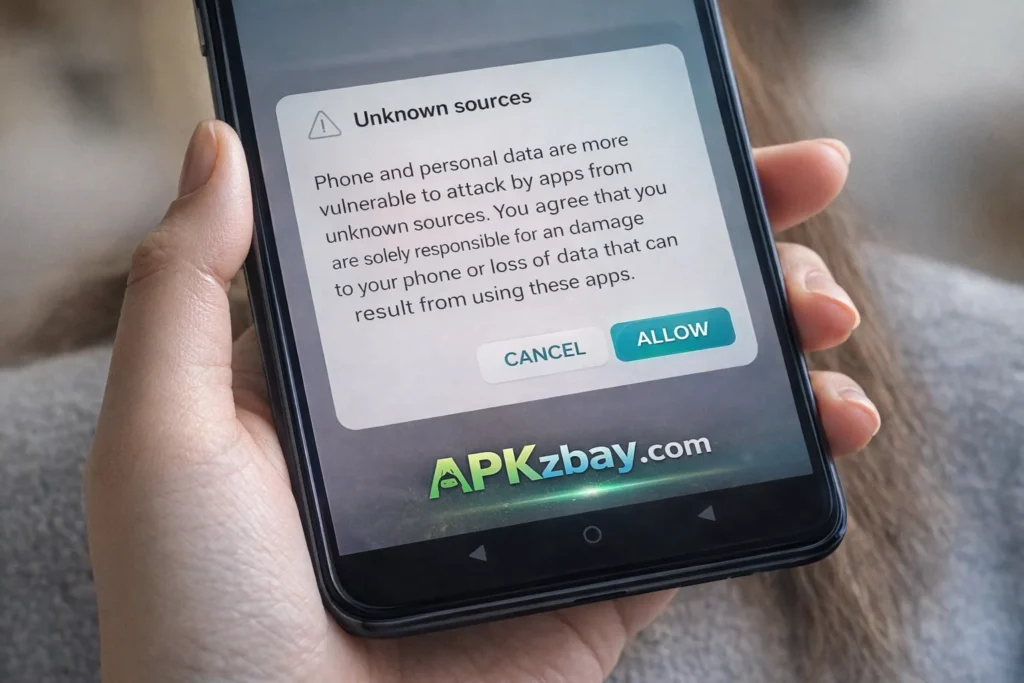
That small change explains why so many users get confused. They search for how to allow unknown sources on android, open Settings, and expect a universal toggle. On modern Android, the correct path is usually under Apps or Special app access. The exact menu name varies by brand, but the underlying model is the same: you grant unknown app install permission to the app that starts the installation.
Google also recommends installing from Google Play when possible, while acknowledging that Android can install apps from other sources. At the same time, Google Play Protect checks apps and devices for harmful behavior, scans apps from outside Play, and may warn you, disable an app, remove it, or block installation if the app is considered unsafe.
Detailed List: Why “Install Unknown Apps” Is Not Showing for Your Browser on Android
1. You are looking for the old global “Unknown sources” switch
This is the biggest reason. If you are on Android 8.0 or newer, you will not usually see the old one-tap global option. Android moved sideloading control to individual source apps. That is why install unknown apps android 14 looks different from older Android phones.
2. Your browser is not the actual installer
This catches a lot of people. You download the APK in Chrome, but when you tap it, the file opens in Files by Google, Downloads, or your brand’s file manager. In that case, the permission must be enabled for the app that launches the package installer, not only the browser. This is the most common explanation when install unknown apps not showing for browser fix android seems confusing: the browser may not be the app that needs permission. That is an inference from Android’s per-source design, where installs are allowed for a particular source app rather than the entire device.
3. The option exists, but it is under “Special app access”
On many phones, the setting is not inside the browser’s regular permissions page. It sits under Special app access or a similar advanced menu. Some brands tuck it away inside Apps > Special app access > Install unknown apps, while others bury it inside Security menus. The wording changes, but the feature is the same.
4. You are on a supervised device with Family Link
If the device belongs to a child account or is managed through Family Link, parents can control app permissions and can also decide whether only parents may grant permissions. That can make sideloading settings unavailable, hidden, or greyed out. So when people ask how to enable install unknown apps family link, the real answer is often that the child cannot do it alone from the phone. A parent may need to change permission controls in Family Link first.
5. A work profile or device admin is blocking sideloading
If you see install unknown apps disabled by admin or the toggle stays off no matter what you do, your device may be managed by a company, school, or enterprise policy. Android Enterprise documentation explicitly supports restrictions that block unknown-source installs for work profiles and even device-wide on managed devices. The Android API also includes user restrictions for DISALLOW_INSTALL_UNKNOWN_SOURCES and a global version of the same restriction.
6. Google Play Protect is blocking the installation
Sometimes the permission is fine, but the app still will not install. That can happen because Play Protect scans apps from outside Google Play and may warn you, remove harmful apps, or block installation of certain unverified apps that request sensitive permissions. If you are seeing install unknown apps blocked, the source of the block may be Play Protect, not the install permission screen itself.
7. The file is not a normal APK
Many people assume every Android app package is a simple APK. That is no longer true. Some apps are distributed as split APKs, APKM, or XAPK files. These formats often need a compatible installer or a different process. If your file will not open, it may not be a permission issue at all. This is also exactly why the topic why xapk files need extra installer android matters to users who think Android is broken when it is really the package format that changed.
8. Your file manager, not Chrome, needs permission
This is especially common on Samsung, Xiaomi, OnePlus, and other brands. You download the file in Chrome, then open it later in My Files or another manager. The permission belongs to the app that initiates the install. So if Chrome is allowed but My Files is not, the install still fails.
9. Your device uses a different menu path
Manufacturers rename and reorganize Android settings. On one phone it may be:
- Apps
- Special app access
- Install unknown apps
On another, it may be:
- Security
- Privacy
- Advanced settings
- Install unknown apps
The permission has not disappeared. It may simply be hidden under a different label.
10. The problem is compatibility, storage, or a bad file
If the APK is corrupted, incomplete, built for another architecture, or requires a newer Android version, the install may fail even when permission is enabled. In those cases, the setting becomes a false lead.
How to Fix “Install Unknown Apps” Not Showing for Browser on Android
Step 1: Find the correct settings page
Try this standard route first:
Settings > Apps > Special app access > Install unknown apps
If your phone does not show that exact path, use Settings search and type Install unknown apps. On Android 8.0 and higher, that is the correct feature category even if the menu layout looks different.
Step 2: Select the app that actually opens the APK
This is the part many guides skip. Pick the app that is doing the install, such as:
- Chrome
- Files by Google
- Samsung My Files
- Firefox
- Telegram
- Google Drive
- Dropbox
If the APK opens from a file manager, that file manager needs the permission.
Step 3: Turn on “Allow from this source”
Once you open the correct source app inside Install unknown apps, switch on Allow from this source. On current Android versions, including Android 14 devices, this is the normal per-app sideload flow rather than the legacy global toggle.
Step 4: Try the installation again
Return to the APK and tap it again. If it still fails, continue with the checks below.
Step 5: Check Play Protect
Open the Play Store and review Play Protect settings if the app keeps getting blocked. Google says Play Protect is on by default, scans apps during installation, checks apps from other sources, and can block higher-risk apps that ask for sensitive permissions.
Step 6: Check for Family Link or admin restrictions
If the setting is greyed out or you see an admin message, the phone may be supervised or managed. Family Link can limit app permissions and let parents keep control over them, while enterprise admins can enforce unknown-source restrictions on managed devices.
Popular Apps That Commonly Need “Allow from This Source”
These are the most common apps people need to check when the browser option is not showing or when sideloading fails:
Chrome
Use this when you download the APK directly in the browser and install immediately from the download prompt. This is the classic install unknown apps chrome android scenario.
Files by Google
A very common installer source because many users tap the APK later from Downloads.
Samsung My Files
On Samsung phones, My Files often becomes the real source app during installation.
Firefox
If you download apps outside Chrome, Firefox may need the permission instead.
Telegram
APK beta channels and direct developer shares often arrive through Telegram.
Some users receive APK files in chat and try to install from there.
Google Drive
If the APK was shared as a Drive file, Drive may be the app opening it.
Dropbox
Same idea as Drive. The source app matters.
Beginner Tips Before You Enable Unknown App Installs
If you are new to sideloading, keep these tips in mind:
- Use Google Play first whenever possible. Google explicitly recommends it, even though Android supports other sources.
- Only enable the source app you actually need. That keeps the phone safer than broad, careless sideloading.
- Double-check the file type. If it is XAPK or split APK, a normal tap may not work.
- Avoid random mirror sites. Many fake or modified app pages look convincing.
- Scan your device with Play Protect. Google says it checks apps from both Play and other sources.
- Turn the permission off again when you are done if you do not regularly sideload apps.
- Do not fight admin restrictions on a work or school phone. If the device is managed, the block may be intentional.
Before downloading anything outside Google Play, it helps to read this guide on trusted APK sites for Android safety guide and this article about fake app clone warning signs on Android.
Comparison Table: Common “Install Unknown Apps” Problems and Fixes
This table summarizes the most common sideloading problems using current Android guidance on per-app install permissions, Play Protect, Family Link controls, and admin restrictions. (Android Developers)
| Problem | What You See | Most Likely Cause | Best Fix |
|---|---|---|---|
| Browser not showing in unknown apps list | Chrome seems missing | APK is being opened by another app | Check Files, Downloads, or file manager |
| Install unknown apps option missing | No old “Unknown sources” toggle | You are looking for the legacy setting | Go to Apps > Special app access |
| Install unknown apps blocked | Warning appears during install | Play Protect flagged the app | Review source, file type, and Play Protect |
| Install unknown apps disabled by admin | Toggle is greyed out | Work profile or managed device restriction | Contact admin or use personal device |
| Family Link sideloading issue | Child cannot change setting | Parent-only app permission control | Update permissions in Family Link |
| APK still will not install | Permission looks correct | Corrupt file, unsupported app, wrong architecture, or split package | Re-download or use the correct installer method |
| Chrome permission enabled but install fails | Download works, install does not | File manager is the true source app | Allow the file manager instead |
| Android 14 confusion | Old tutorials do not match your phone | Android uses per-source install permissions | Follow per-app source permission steps |
How to Allow Unknown Sources on Android 14
The keyword install unknown apps android 14 is popular because older tutorials are outdated. On Android 14, the process still follows the modern model: allow installation from a specific source app. There is usually no universal system-wide “Unknown sources” switch in the classic sense. Android’s official developer guidance for Android 8.0+ still describes the install flow as a per-source permission on the Install unknown apps screen, and that remains the right mental model for current Android devices.
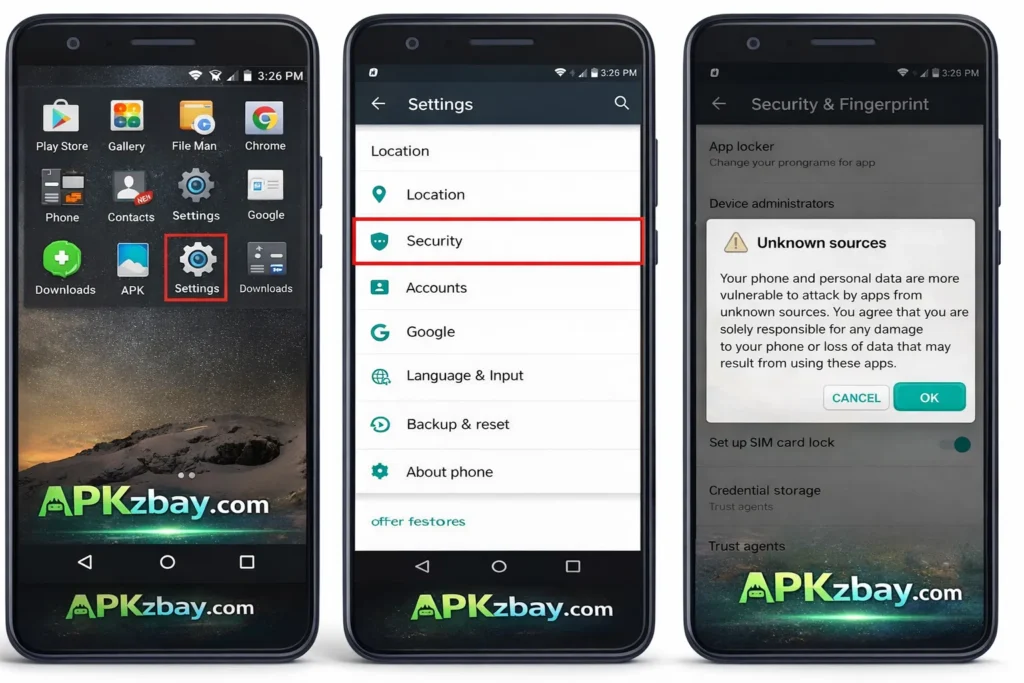
A practical Android 14 checklist looks like this:
- Open Settings
- Tap Apps
- Open Special app access
- Tap Install unknown apps
- Select the source app
- Turn on Allow from this source
- Reopen the APK
If that does not work, do not assume Android 14 removed sideloading. First check whether the install is being launched by a different app, whether Play Protect is blocking it, or whether the device is supervised or managed.
Tips for Choosing the Safest Way to Install Apps Outside Google Play
Choosing the right install method matters as much as choosing the right app. Here are the smart rules:
Choose a trusted source
Do not download APKs from the first search result you see. Look for known publishers, verified signatures, and sites with a clean reputation.
Match the installer to the package type
A plain APK usually installs directly. Split APKs and bundles often do not. If your download is an app bundle or split package, read how to install split APK on Android without PC.
Understand XAPK before you blame Android
Many users think the phone is broken when the real issue is the file format. If you have ever wondered why xapk files need extra installer android, this guide explains it clearly: why xapk files need extra installer android.
Prefer the least risky source app
If you only need to sideload once, use the simplest source app possible and disable the permission later.
Avoid clones and modified packages
Fake clones, repacks, and “modded” builds are a major source of malware and broken installs. This warning guide can save you a lot of trouble: fake app clone warning signs on Android.
Keep Play Protect in the picture
Play Protect can be annoying when it blocks something you wanted, but Google says it checks apps from other sources too and can warn you about harmful or high-risk installs. That safety net is worth keeping in mind. (Google Help)
Pros and Cons of Enabling “Install Unknown Apps”
Pros
- Lets you install apps not available in Google Play
- Useful for beta builds, regional releases, older app versions, and developer distributions
- Helpful when you need a direct APK from a trusted publisher
- Gives advanced users more flexibility
Cons
- Increases exposure to malware, clones, and tampered apps
- Can confuse beginners because the source app matters
- May be blocked on managed or child-supervised devices
- Some packages still need special installers or bundle support
- Can trigger Play Protect warnings or install blocks for risky apps
FAQs
1. Why is “Install unknown apps” not showing for Chrome on Android?
Most of the time, Chrome is not the app actually launching the installer. You may be opening the file from Files, Downloads, or a file manager later. On modern Android, installation permission is granted per source app, so you need to enable Allow from this source for the app that truly starts the install.
2. How do I allow unknown sources on Android?
On current Android versions, go to Settings > Apps > Special app access > Install unknown apps, choose the source app, and enable Allow from this source. Android moved away from the old single global switch starting with Android 8.0 and later.
3. How do I turn off Install Unknown Apps on Android?
Go back to the same Install unknown apps page, select the source app you enabled earlier, and switch Allow from this source off. That is a good security habit after one-time sideloading.
4. What does “Install unknown apps disabled by admin” mean?
It usually means the phone is managed by a work profile, school policy, or enterprise device admin. Android Enterprise supports restrictions that can block unknown-source installs for a profile or the whole device.
5. How do I enable install unknown apps with Family Link?
If the device is supervised, parents can manage app permissions in Family Link and can set whether only parents may grant them. If the child cannot change the setting on the phone, the parent may need to adjust permission controls in the Family Link app.
6. Why is Install Unknown Apps blocked even after I enabled it?
Because the problem may not be the permission itself. Play Protect can still scan and block harmful or high-risk apps from outside Google Play, and the APK itself may also be damaged, unsupported, or packaged as a split/XAPK file rather than a normal APK.
7. Is sideloading apps on Android safe?
It can be safe if you use trusted sources, verify the package, avoid clones, and understand the file type. But Google warns that apps from outside Play may be more risky, and Play Protect exists for a reason. (Google Help)
Helpful Community and Official Resources
If you want more Android app safety tips, installation guides, and updates, you can follow APKZBay here:
Conclusion
When users search for install unknown apps not showing for browser fix android, the real solution is usually simpler than it first appears. Android did not remove sideloading. It changed where the permission lives and how it works. On modern Android, including Android 14, you need to allow installs from the specific source app, not from a universal old-style switch. If the setting still does not work, the next suspects are usually the wrong source app, Play Protect, Family Link supervision, or device admin restrictions.
So before you panic, check three things in order: which app is actually opening the APK, whether the device is supervised or managed, and whether the file is a normal APK or something like XAPK or split APK. Once you understand that flow, sideloading becomes much easier, safer, and far less frustrating. If you want, I can also turn this into a publish-ready WordPress format with meta title, meta description, slug, and FAQ schema.
Recent Posts
- How to Install APK from CX File Explorer on Android

- How to Install APK from My Files App on Android: A Complete Beginner-Friendly Guide
- How to Install APK Without Errors Android Guide
- How to Install APK After Downloading ZIP File
- This App Is Not Compatible With This Device Problem Solution
- How to Prevent Installing Harmful Apps
- How to Access Android Data Folder with Shizuku: Complete No-Root Guide
- How to Install APK on Amazon Fire Tablet Safely and Easily
- Install Unknown Apps Not Showing for Browser Fix Android: A Complete Beginner-Friendly Guide
- Why XAPK Files Need Extra Installer Android: A Complete Beginner-to-Pro Guide
- Trusted APK Sites for Android Safety Guide: How to Download APKs Without Putting Your Phone at Risk
- Fake App Clone Warning Signs on Android: How to Spot Unsafe Apps Before You Install Them