Allow Unknown Apps for Mac Transfer Android: Complete Beginner-Friendly Guide
07-04-2026
Description
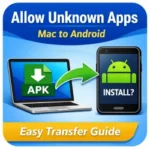
Transferring an APK from a Mac to an Android phone sounds simple, but this is where many people get stuck. The file moves over just fine, yet the install button fails, the toggle is greyed out, or Samsung blocks the app completely. The biggest reason is confusion about where the permission actually lives. The Mac only helps you transfer the APK.
The setting that allows installation from outside the Play Store is controlled on the Android device itself, and on modern Android it is granted to a specific source app, not as one big universal switch. On Samsung phones, there is also an extra layer called Auto Blocker on One UI 6 that can stop unknown-source installs even when the APK is already on your device. (Android Open Source Project)
This guide explains exactly how to handle allow unknown apps for mac transfer android the right way in 2026. You will learn how to move an APK from Mac to Android, how to enable the correct installer permission, how to fix common Samsung issues, and which transfer method makes the most sense for beginners and power users. I will also show you safer habits so you can sideload without turning your phone into a security risk. (Google Help)
What “Allow Unknown Apps for Mac Transfer Android” Really Means
If you search for allow unknown apps for mac transfer android, the phrase can sound like a Mac setting. It is not. The Mac only sends the APK file. The actual permission is on Android, and Android’s compatibility rules require devices to expose a way to manage installs from unknown sources. They also require user consent for the app that requests the installation. In plain English, you approve the installer app on the phone, not the Mac.
That matters because the source app can change. Sometimes the installer is My Files, sometimes Files, sometimes Chrome, and sometimes a file manager you use after the transfer. If you approve the wrong app, the APK still will not install. On Samsung phones, the path is currently Settings > Security and privacy > More security settings > Install unknown apps, and then you enable the exact source you plan to use.
On newer Galaxy devices, there is another wrinkle. Samsung says Auto Blocker on One UI 6 can block apps from unauthorized sources and even disable the “Install unknown apps” flow until you turn Auto Blocker off. That is why many users think the transfer failed when the real problem is Samsung’s extra security layer.
How to Transfer an APK from Mac to Android
USB cable method
For most people, USB is still the cleanest and fastest way to move an APK from a Mac to Android. The key is using a cable that supports data, not just charging. Google specifically notes that not all USB cables can transfer files. After you connect the phone, unlock it, tap the USB notification, and switch the connection to File Transfer or MTP.
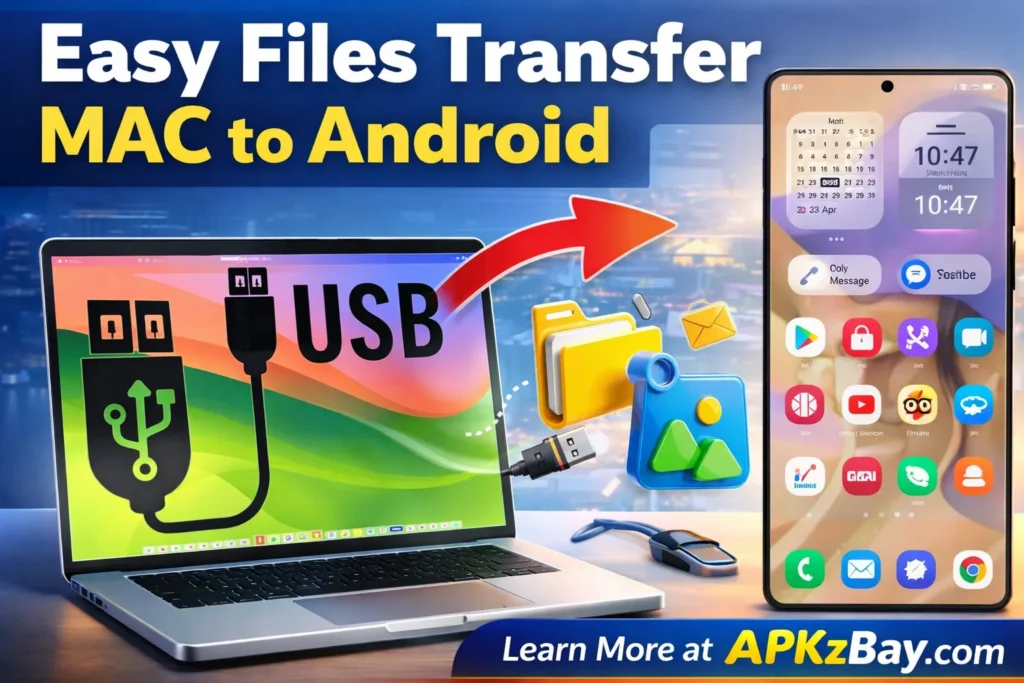
On Samsung Galaxy phones, Samsung’s current Mac instructions are straightforward. Connect the phone with a compatible USB-C cable, tap Allow on the phone if prompted, set USB to Transferring files or MTP, then open Finder on the Mac. Samsung says your Galaxy can appear in the Finder sidebar under Devices, where you can drag and drop files between the Mac and the phone.
A simple beginner workflow looks like this:
- Download the APK on your Mac.
- Connect your Android phone with a data-capable USB cable.
- Unlock the phone.
- Tap the USB notification.
- Choose File Transfer or MTP.
- Open Finder on Mac if your device supports it, or use the device’s supported transfer utility.
- Copy the APK into the Download folder on the phone.
- Disconnect safely.
- Open the APK on the phone and approve the correct source app if asked.
Samsung Smart Switch method
If you are using a Galaxy phone, Samsung Smart Switch is excellent for moving contacts, photos, messages, and other device content. Samsung supports Smart Switch on both PC and Mac, and it can restore data from a Mac backup to a Galaxy device.
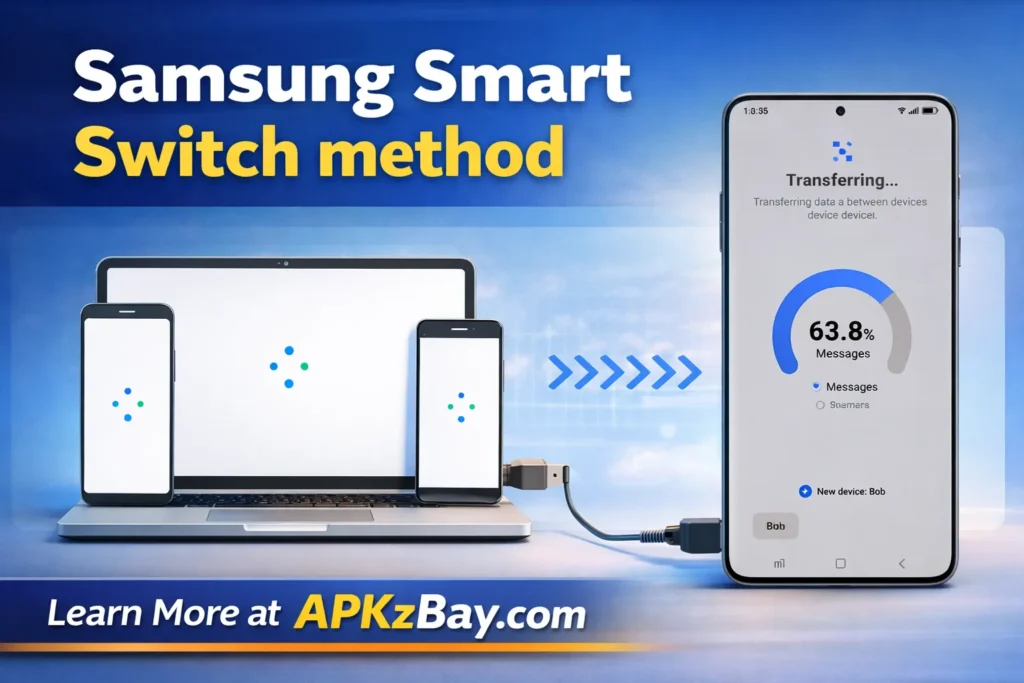
However, Smart Switch is not the same thing as a clean APK sideload workflow. Samsung’s newer support for Galaxy S26 notes that some apps may not transfer or install correctly through Smart Switch, and users may need to reinstall them manually from the Galaxy Store, the Play Store, or the app’s official website. That makes Smart Switch better for migration than for testing one specific APK you copied from a Mac.
Cloud or wireless method
If you do not want to use a cable, you can move the APK with cloud storage, email, messaging, or another wireless transfer method. This is convenient, especially if your Mac port setup is limited. The downside is that the installer source may become your browser, email app, or file manager instead of the phone’s local files app, so you must grant permission to the right source. That is where many “not working” reports come from. The transfer succeeded, but the wrong app has install permission. This is also where Google Play Protect may inspect the app more aggressively because it came from outside Google Play.
ADB method for advanced users
If you are comfortable with developer tools, Android’s official documentation confirms that adb can install an APK directly to a connected device. Android Developers also show the basic command as adb install path/to/your_app.apk, and note that USB debugging must be enabled first. This method is great for developers and testers, but it is overkill for most casual users who only want to install one APK from a Mac.
How to Enable Install Permission After the APK Is on Your Phone
Generic Android approach
On current Android, there is no one-size-fits-all “Unknown Sources” switch like the old days. The system is designed around the app that requests the install. That means the permission is tied to the source app. Search your Settings for Install unknown apps, then open the result and allow the app you are using to launch the APK. On some phones that may be Files, My Files, Chrome, or your browser.
Samsung approach
On Samsung, Samsung’s current official path is:
- Open Settings
- Tap Security and privacy
- Tap More security settings
- Tap Install unknown apps
- Select the source app
- Turn on permission for that source
If your APK was copied into Downloads and you are opening it with My Files, approve My Files. If you downloaded the APK from the web using Chrome, approve Chrome instead. Approving the wrong source is one of the most common reasons allow unknown apps for mac transfer android samsung appears not to work.
When Samsung Auto Blocker is the real problem
If your Samsung device refuses to install the APK even after you enabled the source app, check Auto Blocker. Samsung says Auto Blocker can prevent installation from unauthorized sources and can disable the normal unknown-app flow. Samsung’s current guidance for blocked installs is to go to Settings > Security and privacy > Auto Blocker and turn it off if you intentionally want to sideload.
After the install, turn Auto Blocker back on if you do not regularly sideload apps. That gives you a safer long-term setup without permanently loosening device protection. That is also a smart AdSense-friendly recommendation because it encourages responsible behavior rather than reckless installing.
Beginner Tips
If you are new to APK installs, these habits will save you time and reduce mistakes:
- Use the simplest path first. Transfer the APK by USB and open it from the phone’s default file manager.
- Check the source app before blaming the APK. If the file opens in My Files, grant My Files permission. If it opens in Chrome, grant Chrome permission.
- Keep Google Play Protect on. Google says Play Protect checks apps from other sources and may warn, scan, disable, or remove harmful apps.
- Use a real data cable. Google warns that some USB cables only charge and do not transfer files.
- Transfer to the Download folder. It is easier to find and easier to troubleshoot.
- Do not leave every source app enabled forever. Approve only the app you need, then turn it off later if you want tighter security. This matches Android’s per-app model.
- Restart if the install UI hangs. Temporary installer glitches do happen.
- Use official or trusted sources only. Sideloading carries more risk than installing from Play Store. Google and Samsung both warn about security exposure from unknown sources.
If you often work with file managers, these guides may help:
- why Install Unknown Apps gets stuck on processing on Android
- how to install an APK from CX File Explorer on Android
- APK downloaded in CX File Explorer not installing fix
Comparison Table
The table below summarizes the most practical current options based on Samsung’s Mac transfer support, Smart Switch documentation, Google’s USB transfer guidance, and Android’s official adb tools. (Google Help)
| Method | Best For | Cost | Ease of Use | Good for APK Installs? | Main Catch |
|---|---|---|---|---|---|
| USB cable + Finder/MTP | Most beginners | Free | Easy | Yes | Needs a data cable and correct USB mode |
| Samsung Smart Switch | Full Galaxy migration | Free | Easy | Sometimes | Better for data migration than one-off APK testing |
| Cloud storage or email | No-cable convenience | Usually free | Easy | Yes | Must allow the correct source app |
| ADB install | Developers and testers | Free | Advanced | Yes | Requires USB debugging and command line use |
| Phone file manager after transfer | Everyday sideloading | Free | Easy | Yes | Wrong source permission can block install |
Tips for Choosing the Best Method
Choose USB if you want the least drama
USB is still the best option when you want to sideload one APK from a Mac and move on. It is fast, offline, and easy to verify. You know exactly where the file went, and you usually avoid extra download corruption or cloud sync confusion. For a Samsung phone, current support documents make this especially convenient because Samsung says you can use Finder on Mac after setting the device to file transfer.
Choose Smart Switch if you are moving into Samsung
Smart Switch is ideal when the real goal is migration, not one APK. If you are setting up a new Galaxy and want to bring over major data categories from an old device or a Mac backup, it is a strong choice. Just do not assume every app install will transfer perfectly. Samsung’s own recent support pages still tell users to manually reinstall some apps when needed.
Choose cloud if you want flexibility
Cloud and wireless workflows are flexible, especially for remote work or travel. But they are slightly more confusing because the install source might be your browser, mail app, or a third-party file manager. If your keyword target includes allow unknown apps for mac transfer android free, this can be a good free route, but it demands a little more attention to permissions. Play Protect may also scan or inspect the app when it comes from outside Google Play.
Choose ADB if you do repeated installs
ADB is the best route if you test APKs often, build apps yourself, or manage multiple devices. It removes some of the file-browsing friction and is officially supported by Android Developers. For ordinary readers, though, it adds setup steps that are not necessary for occasional sideloading.
Pros and Cons
Pros
- Lets you install apps that are not in the Play Store.
- Useful when you already have the APK on your Mac.
- Faster than searching again on the phone.
- Handy for beta testing, older builds, or regional app access.
- Works well offline after the file is transferred.
- Gives power users more control over app versions and manual installs.
Cons
- More security risk than official store installs.
- Easy to enable the wrong source app.
- Samsung Auto Blocker can silently break the flow.
- Some apps transferred through migration tools still need manual reinstall.
- A charging-only cable can make the whole process look broken.
- Beginners may confuse file transfer success with install permission success.
Troubleshooting: Allow Unknown Apps for Mac Transfer Android Not Working
If allow unknown apps for mac transfer android not working is the exact problem you are trying to solve, work through this checklist in order.
1. Confirm the APK actually transferred
Open your phone’s file manager and verify the APK is in Download or the folder you chose. If it is not there, the install permission is not the issue yet. Reconnect the phone, switch USB to File Transfer/MTP, and try a different data cable if needed. Google explicitly says some cables do not support file transfer.
2. Enable the permission for the right source
This is the biggest fix. If you tapped the APK from My Files, allow My Files. If you launched it from Chrome, allow Chrome. Samsung’s official steps are clear that you choose the source app inside Install unknown apps.
3. Check Samsung Auto Blocker
If the permission screen is greyed out or the install still fails immediately on a Galaxy device, check Auto Blocker. Samsung says it can disable unknown app installs until you turn it off.
4. Let Play Protect do its job
Google says Play Protect checks apps from other sources, may ask to inspect them, and can block harmful or unverified high-risk apps. If Play Protect flags the APK, do not force it unless you fully trust the source and understand the risk.
5. If Smart Switch moved the app data but not the install
Samsung’s recent S26 guidance says some apps simply need manual reinstall from the Galaxy Store, the Play Store, or the app’s official website. So if you used Smart Switch and an app refuses to appear properly, reinstalling may be the correct fix rather than repeating the transfer.
FAQs
1. Is the “allow unknown apps” setting on Mac or Android?
It is on Android. The Mac transfers the file, but Android controls whether the source app is allowed to request installation.
2. Why is allow unknown apps greyed out on my Samsung phone?
The most common reason is Auto Blocker. Samsung says Auto Blocker on One UI 6 can block installs from unauthorized sources and disable the normal install flow until it is turned off.
3. Can I use Smart Switch to install APK files from Mac to Android?
You can use Smart Switch to move and restore content, but it is not the best method for one-off APK sideloading. Samsung also notes that some apps may still need manual reinstall.
4. Is there a free way to handle allow unknown apps for mac transfer android?
Yes. USB transfer, cloud transfer, and ADB are all free options. USB is usually the easiest free method for beginners, while ADB is the most advanced. (Google Help)
5. Why does the APK copy over but still not install?
Usually one of four things is wrong: the wrong source app was approved, Samsung Auto Blocker is enabled, Play Protect blocked the app, or the APK itself is incompatible or damaged. Samsung and Google both document the first three causes directly.
6. Should I keep unknown-app permission enabled all the time?
That is not the safest habit. Android’s per-app design exists so you can approve a specific source only when needed. After installation, it is smart to revoke the permission again if you do not sideload often.
7. Do I need adb to install an APK from Mac?
No. Most people do not. ADB is useful for developers, testers, and repeated installs. For everyday use, USB transfer plus the correct install permission is usually enough.
Conclusion
The simplest way to understand allow unknown apps for mac transfer android is this: your Mac moves the APK, but your Android phone decides whether that APK can be installed. Once you stop treating it like a Mac problem and start treating it like an Android source-permission problem, the whole process becomes much easier. For most readers, the best setup is a good USB data cable, transfer the APK into Downloads, open it with the phone’s file manager, allow the exact source app, and on Samsung devices check Auto Blocker if the install refuses to start. (Google Help)
If you want more Android install guides and troubleshooting tips, follow APKzBay on YouTube, Instagram, Pinterest, Facebook, Telegram, X, and the WhatsApp Channel.
Recent Posts
- Allow Unknown Apps for Documents App Android: Safe Ways to Install APKs on Modern Phones

- Allow Unknown Apps for Mac Transfer Android: Complete Beginner-Friendly Guide
- APK Downloaded in CX File Explorer Not Installing FIx? Here’s the Fix for Android, Huawei, Quest 2, and Quest 3
- Why Is Install Unknown Apps Stuck on Processing on Android?
- How to Install APK from CX File Explorer on Android
- How to Install APK from My Files App on Android: A Complete Beginner-Friendly Guide
- How to Install APK Without Errors Android Guide
- How to Install APK After Downloading ZIP File
- This App Is Not Compatible With This Device Problem Solution
- How to Prevent Installing Harmful Apps
- How to Access Android Data Folder with Shizuku: Complete No-Root Guide
- How to Install APK on Amazon Fire Tablet Safely and Easily