This App Is Not Compatible With This Device Problem Solution
05-04-2026
Description
Introduction
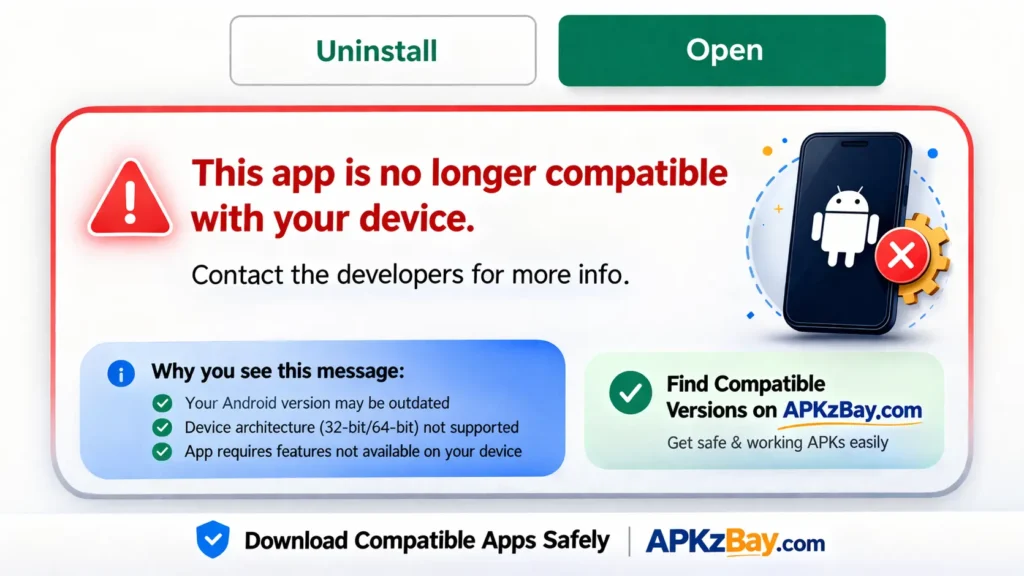
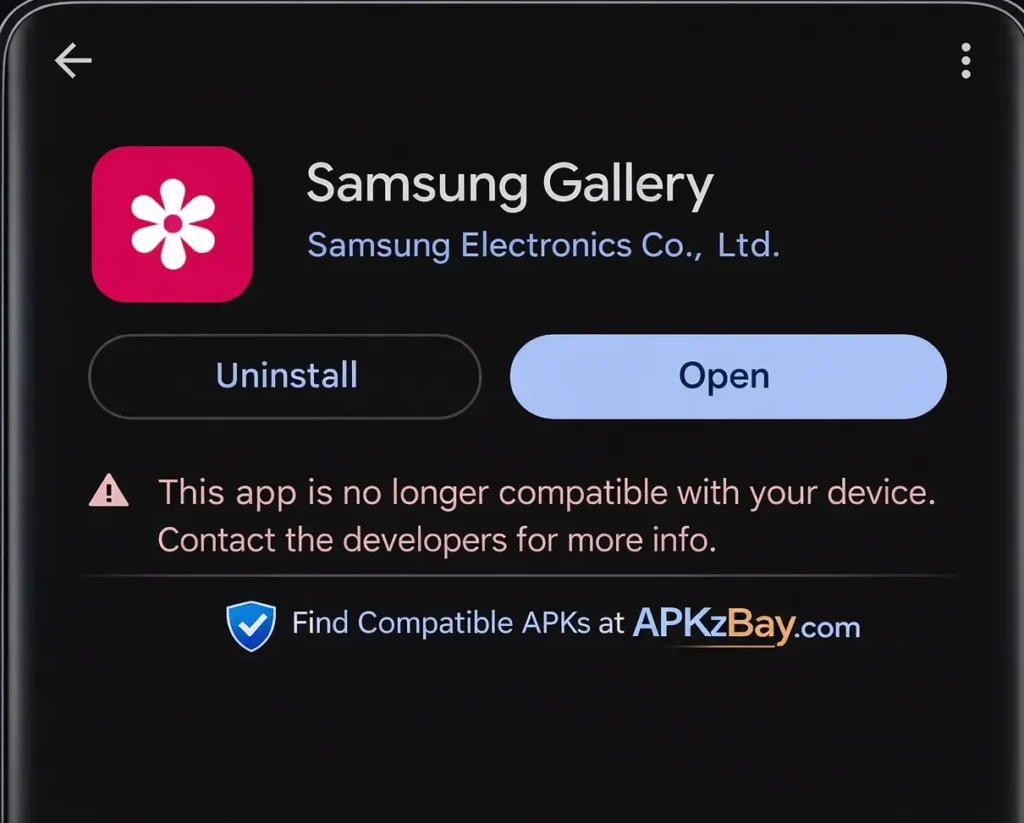
Seeing the message “this app is not compatible with this device” can be seriously annoying, especially when the app looks perfect for what you need. You open the Play Store, tap install, and suddenly Android throws a wall in front of you. In some cases, the message becomes even more frustrating because it reads “this app is not compatible with your device contact the developers for more info.” That sounds final, but it often is not. A compatibility block can happen for several reasons, and many of them have practical fixes.
This guide breaks down the real this app is not compatible with this device problem solution in a simple, useful way. You will learn why Android or the Play Store marks some apps as unavailable, how to fix compatibility issues on standard Android phones, how to deal with APK files safely, and what to check on Samsung devices in particular. The goal is not just to force an install. The goal is to understand the cause, fix the right thing, and avoid making your phone unstable or unsafe in the process.
If you have ever wondered why is my device not compatible with some apps, this article is built for you. It is written for beginners, but it goes deep enough to help more experienced Android users too.
Why This Compatibility Error Happens
The compatibility message usually shows up because the app and your device do not match on one or more technical requirements. That mismatch may involve Android version, processor type, screen support, regional availability, security certification, or a developer-side block. At first glance, the message feels vague. That is the problem. It gives you the symptom, not the reason. So before trying random fixes, it helps to understand what is actually going on under the hood.
In many cases, the Play Store is not saying your phone is broken. It is simply following rules set by the app developer and Android ecosystem. Some apps only support newer Android versions. Others require specific chipsets, higher RAM, better graphics support, or a certified device profile. A few are blocked by country, carrier, or even tablet-versus-phone design. That means the correct fix depends on the reason for the block. Clearing cache can help in one case, while updating Android is the only real answer in another.
This is also why users often search for slightly different phrases like this app is not compatible with this device problem solution android, how to fix this app is no longer compatible with your device play store, or how to fix app not compatible with this device apk. They are all trying to solve the same headache from different angles. Once you understand the cause categories below, the solution becomes much easier to choose.
Android Version Mismatch
One of the most common reasons for this error is a simple Android version mismatch. Every app is built with a minimum supported Android version. If your phone runs below that requirement, the Play Store may hide the app completely or display it with the compatibility warning. This happens a lot with older phones that still work fine for daily tasks but no longer receive major system updates. The phone itself is usable, but the app has moved on.
This is often the answer behind searches like how to fix this app is no longer compatible with your device play store. An app that installed perfectly a year ago may stop updating because the developer raised its minimum Android requirement. That is not always a bug. It can happen because the developer added security features, newer APIs, or design changes that require a more recent Android base. In plain terms, the app upgraded its standards and left older software behind.
You can usually confirm this by checking the app page on the Play Store or a trusted app information source. If the minimum Android version is higher than what your device runs, no amount of cache clearing will fully solve it. At that point, your best options are updating your phone, finding a lighter official version, using the web version of the service, or checking whether the developer offers an older compatible release. That last option requires caution, because installing outdated packages from random sources can create security problems fast.
Hardware, Chipset, and Screen Requirements
Compatibility is not only about Android version. Hardware matters too. Some apps are designed for specific processors, graphics chips, RAM levels, or screen formats. A modern game may require Vulkan support or stronger GPU performance. A camera app may depend on certain sensor APIs. A tablet app may not support smaller phone displays properly, while a phone-first app may ignore tablets or foldables. That is where users get confused, because the device seems “new enough,” yet the app still refuses to install.
APK architecture is a big part of this. Android apps may be built for different CPU types such as arm64-v8a, armeabi-v7a, or x86. If you try to install the wrong APK variant manually, you may run into install failures or strange behavior even if the app is otherwise supported. The Play Store normally handles this for you by serving the correct build, but sideloading removes that safety net. That is why how to fix app not compatible with this device apk is a different conversation from fixing the issue inside the Play Store.
Screen density and feature flags also matter more than people think. Some apps require telephony features, NFC, GPS, camera hardware, SafetyNet/Play Integrity compatibility, or device certification. If your phone or tablet lacks one of those, the app may be marked unsupported. This is common on budget devices, custom ROM phones, and niche tablets. It does not always mean the app will never run, but it does mean you should stop guessing and identify which hardware or system requirement is missing before trying risky workarounds.
Region Locks, Device Lists, and Developer Restrictions
Another reason the error appears is that the app is restricted by geography, business rules, or a developer-maintained device list. Some apps launch in specific countries first. Others support only selected carriers, brands, or certified devices. Banking apps, streaming apps, government apps, and some beta releases often work this way. From the user side, it feels unfair. From the developer side, it is usually about licensing, testing, compliance, or support limits.
This is the hidden reason behind many cases where users see “this app is not compatible with your device contact the developers for more info.” The app may technically run, but the developer has chosen not to allow installation on your specific model, region, or firmware version. Maybe the app is not optimized for your brand yet. Maybe local laws affect distribution. Maybe the developer has blocked rooted devices or uncertified software. The Play Store only shows the end result.
In these cases, forcing an install is not always smart. Sometimes the app will open but fail during login, playback, payment verification, or account setup. Sometimes it will crash because the restriction was there for a real technical reason. That is why the best move is often to verify whether the limitation is regional, device-specific, or temporary. If it is a known rollout issue, patience may solve it. If it is a strict developer block, you may need an official alternative rather than a workaround.
This App Is Not Compatible With This Device Problem Solution Android
When the error appears on a regular Android phone or tablet, the best approach is to work from the safest fix to the most advanced one. Do not jump straight to random APK downloads. Start with the basics that correct Play Store misreads, account sync glitches, outdated components, and certification issues. You would be surprised how often the error disappears after a proper cleanup and update cycle.
The reason this matters is simple: the Play Store does not only read your phone model. It also reads software version, Google Play Services status, account region, device certification, app availability rules, and system health. If any of those pieces get out of sync, a supported app can appear unsupported. That is why the real this app is not compatible with this device problem solution android is often a layered troubleshooting process rather than one magic button.
The next three sections cover the fixes that make the biggest difference on standard Android devices. Start with updates, then reset store components, then check deeper settings. That order keeps the process clean and reduces the risk of creating new problems while chasing the old one.
Update Android, Play Store, and Google Play Services
Start by checking whether your phone is fully updated. Go into Settings > System > Software Update or the equivalent menu on your device and install any available Android or security updates. Then open the Play Store and make sure your apps are updated too. Finally, confirm that Google Play Services is current, because many app compatibility checks rely on it even when users never think about it directly.
This matters because outdated system components can confuse app availability. An app may require a newer API level, a current Play Services version, or updated security components before the Play Store will allow installation. The same applies when you see how to fix this app is no longer compatible with your device play store discussions online. Sometimes the app is not truly gone for your device. Your device profile is just lagging behind where it needs to be.
Restart the phone after updating. It sounds basic, but it refreshes system services and often clears stuck compatibility states. Then search for the app again rather than returning to an old Play Store page in your history. If you use a custom launcher, battery optimizer, or aggressive background manager, make sure core Google services are not being limited. Those tools can sometimes interfere with app discovery and store communication in surprisingly messy ways.
Clear Cache, Reset Store Components, and Check Certification
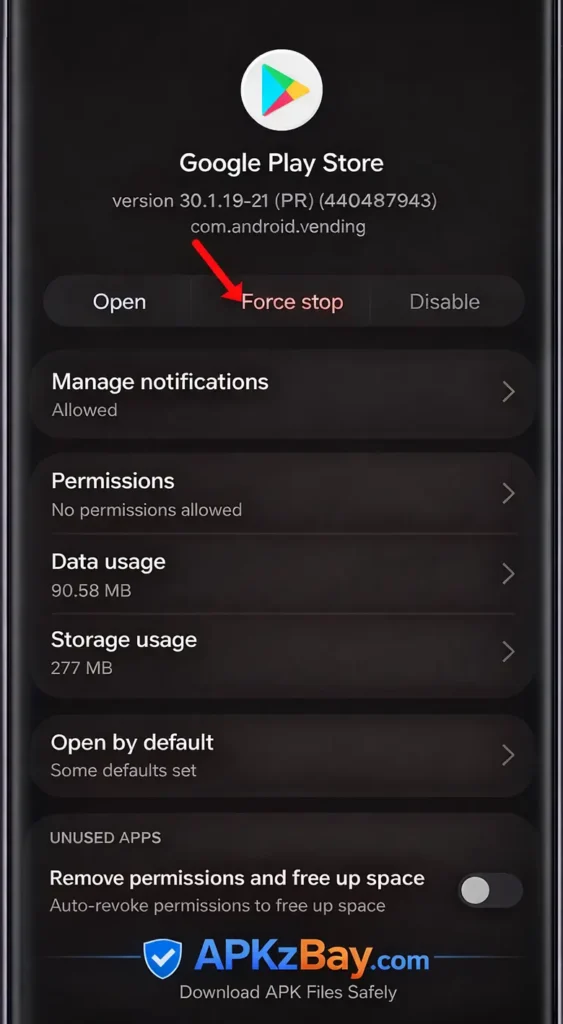
If updates do not solve the issue, the next step is to reset the Play Store environment. Go to Settings > Apps > Google Play Store and clear cache. If the problem continues, clear data too. Do the same for Google Play Services and Google Services Framework if your device allows it. After that, restart your phone and open the Play Store again. This process often fixes corrupted store data, stale compatibility flags, and broken sync behavior.
You should also check whether your device is Play Protect certified. In the Play Store, tap your profile, open Settings, then About, and look for certification status. If the device says not certified, that can directly affect app availability. This happens more often on imported phones, custom ROM setups, modified firmware, or uncertified tablets. In those cases, the Play Store may block apps even when the hardware seems capable enough to run them.
If you use advanced Android tools or want deeper troubleshooting for app files and storage paths, this guide on how to access the Android data folder with Shizuku can be helpful. It is especially useful when you are trying to understand leftover app data, storage restrictions, or why a previous install attempt may still be affecting current behavior. Just remember that deeper access is for diagnosis, not for bypassing security without understanding the consequences.
Fix Storage, Account, and Device Settings That Block Installs
Sometimes the compatibility message is not about compatibility alone. It appears because the device is low on storage, the Google account region is mismatched, parental controls are active, or app installation settings are blocking normal behavior. That is why the last part of this app is not compatible with this device problem solution android is checking the environment around the Play Store, not just the store itself.
First, confirm you have enough free space. Some apps need room not only for download size but also for extraction, installation, and first-run setup. A nearly full phone can behave unpredictably during app installs. Next, look at the Google account being used in the Play Store. If the app is region-limited and your account profile points elsewhere, you may see compatibility restrictions that seem tied to the phone when they are actually tied to the account.
Also review device settings like parental controls, work profile rules, or managed device policies. School phones, company phones, and family-managed devices often restrict app categories or age ratings. That can make a perfectly normal app appear blocked. If you have recently changed region, language, or device backup settings, sign out of the Play Store account, restart, and sign back in. It is not glamorous, but it often fixes the sort of invisible mismatch that makes the Play Store behave like it has forgotten what your device really supports.
How to Fix App Not Compatible With This Device APK
When the Play Store says no, many users turn to APK files. That can work, but only when you are careful. The phrase how to fix app not compatible with this device apk sounds simple, but it covers several different problems at once. Maybe the Play Store listing is region-blocked even though the app can run. Maybe the store page is glitching. Maybe you found the wrong APK type. Maybe the app uses split APKs or bundles that need a special installer. So the goal is not “install any APK and hope.” The goal is matching the right package to the right device.
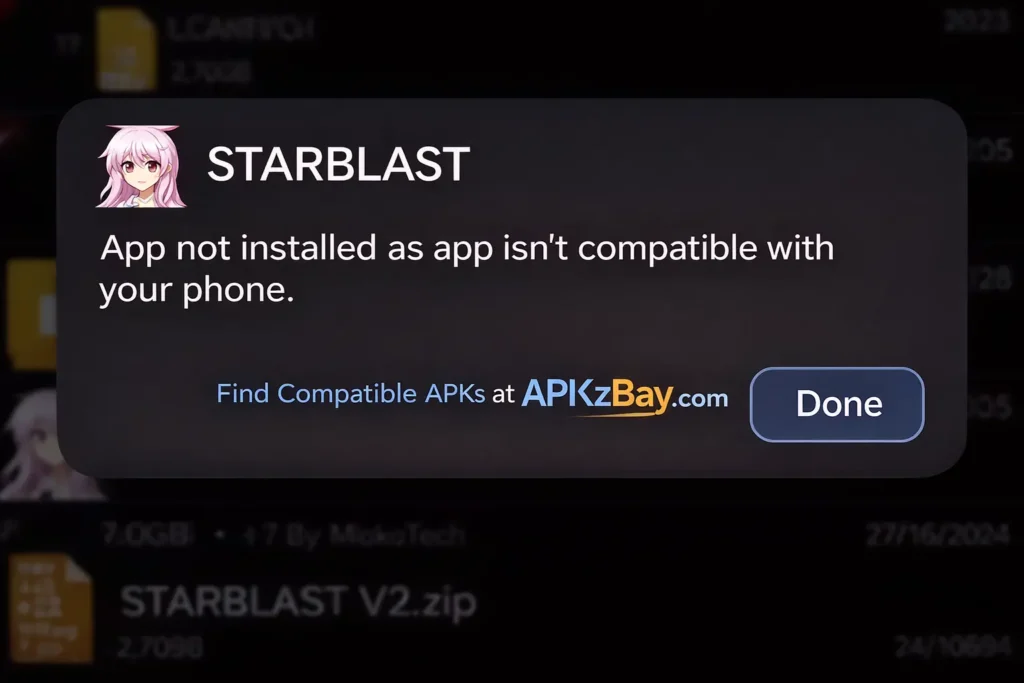
This is where a lot of people make the mistake that turns a compatibility issue into a security issue. They start downloading random files from sketchy sites, install the wrong build, and then wonder why the phone throws another error or starts behaving strangely. Before sideloading anything, it is worth reading how to prevent installing harmful apps. A blocked Play Store app is frustrating, but a compromised phone is worse.
If you are using a Fire OS device rather than regular Android, compatibility gets even trickier. In that case, this guide on how to install APK on Amazon Fire Tablet can help you handle the basics properly. Fire tablets often need extra care because they do not behave exactly like standard Google-certified Android phones.
Choose the Right APK Variant for Your Phone
The most important part of APK troubleshooting is choosing the correct variant. Android apps are not always one universal file anymore. Some come in builds for different CPU architectures, screen densities, languages, or Android versions. Others are delivered as split APKs or app bundles. If you install the wrong one, Android may fail during installation or the app may install and crash immediately. That is why “not compatible” sometimes really means “wrong package for this device.”
Start by checking your device architecture and Android version. Many users do not know whether their phone is arm64, armeabi-v7a, or something else, but that detail matters with manual installs. The same goes for the minimum Android version supported by the APK. A package built for Android 13 is not magically going to run on Android 10 just because it came from outside the Play Store. Sideloading changes the delivery method, not the laws of compatibility.
You also need to watch for split packages such as XAPK, APKS, or bundle-style distributions. These are not always installable with a normal file tap. Some require a compatible installer and the correct package set. That is where users often think the device is unsupported when the real problem is the package format. Keep the safety rule simple: verify the app source, match the version to your device, avoid unofficial mods, and do not treat sideloading as a shortcut around genuine hardware or system limits.
This App Is Not Compatible With This Device Problem Solution Samsung
Samsung phones deserve a separate section because they are popular, heavily customized, and sometimes affected by Samsung-specific software behavior. The good news is that most compatibility issues on Galaxy devices are still fixable with standard Android steps. The extra layer comes from things like Galaxy Store, One UI version differences, device maintenance settings, regional firmware, and app optimization tools that can sometimes interfere with installation or app visibility.
If you are looking for this app is not compatible with this device problem solution samsung, start by identifying where the app is supposed to come from. Some apps appear in Google Play, some in Galaxy Store, and some in both. A few are optimized for Samsung devices and updated through Samsung’s own store. So if the Play Store blocks it, check whether the official Samsung channel offers the app instead. That sounds obvious, but it solves more cases than most users expect.
Samsung devices also vary a lot by region and chipset. One Galaxy phone may use an Exynos chip in one market and Snapdragon in another. That can affect compatibility, especially for games, graphics tools, camera apps, and niche utilities. The app name may be the same, but the supported device list can change under the surface. That is why Samsung-specific troubleshooting should focus on store source, region, One UI version, and device model rather than assuming every Galaxy phone behaves the same.
Samsung-Specific Checks That Often Solve It Fast
On a Samsung phone, first update One UI, Google Play Store, Galaxy Store, and all system apps. Samsung pushes a lot of device behavior through its own update channels, so a stale Galaxy Store or outdated system component can affect app availability in ways that do not happen on stock Android. After updating, restart the device and try both stores again.
Next, open Settings > Apps and check whether the Play Store or Galaxy Store has restricted permissions, battery limits, or disabled background activity. Samsung’s battery tools can be aggressive, which is great for standby time but sometimes messy for store syncing. You should also clear cache and data for the Play Store and Galaxy Store separately if the app is supposed to be available on both. That gives each store a clean shot at rechecking compatibility.
Finally, verify region and model details. Imported Samsung devices sometimes run firmware meant for another market, and that can lead to store mismatches. If the app is Samsung-specific, search using the exact device model number rather than a general series name. For example, a Galaxy A-series app limitation can vary between regional builds. In other words, this app is not compatible with this device problem solution samsung often comes down to One UI updates, store cleanup, and confirming that your specific Galaxy model is in the app’s supported list.
Beginner Tips
If you are not very technical, do not worry. You do not need to understand every Android code name or APK format to solve most compatibility problems. What you need is a clean order of operations. Start simple, avoid risky shortcuts, and pay attention to what type of error you are actually seeing. A lot of frustration comes from mixing up Play Store problems, APK mismatch problems, and genuine device limitations as if they were all the same thing.
Here are beginner-friendly tips that work well:
- Update your phone first before trying anything else.
- Restart after updates so system changes actually settle in.
- Clear Play Store cache if the listing looks wrong.
- Check free storage because low space can block installs.
- Use the official app source whenever possible.
- Do not download random modded APKs just because the Play Store says no.
- Check whether the app requires a newer Android version.
- Look for the same app in Galaxy Store if you use Samsung.
Another smart move is to search for the app on the Play Store website through a browser while signed into the same Google account. Sometimes the browser page gives a clearer clue about supported devices than the phone app does. If your device still looks blocked there, the issue is usually more real than temporary. That is a helpful way to separate store glitches from actual compatibility rules.
For ongoing Android tips, install guides, and troubleshooting help, you can follow APKZBay on YouTube, Instagram, Pinterest, Facebook, Telegram, X, and the WhatsApp Channel. The more familiar you get with safe install habits, the less intimidating compatibility issues become.
Comparison Table
Not every fix is right for every situation. Some are fast and safe. Others work only when the app is technically supported but blocked by a store glitch. The table below makes it easier to choose the right path without wasting time on the wrong one.
| Fix Method | Best For | Difficulty | Risk Level | When It Works Best |
|---|---|---|---|---|
| Update Android and security patch | Old system version | Easy | Low | App needs newer Android support |
| Update Play Store and Google Play Services | Store-side mismatch | Easy | Low | Play Store page looks outdated or broken |
| Clear Play Store cache and data | Corrupted store behavior | Easy | Low | App should be supported but is blocked suddenly |
| Check Play Protect certification | Uncertified or modified devices | Medium | Low | Imported phones, custom ROMs, strange Play Store issues |
| Free storage and restart device | Install failures with low space | Easy | Low | App download starts but fails or disappears |
| Check account region and parental controls | Region or account limits | Medium | Low | App is available in some countries only |
| Install the correct APK variant | Region block or manual install need | Medium | Medium | You know the app supports your hardware |
| Use unofficial modified APK | Desperation downloads | Easy | High | Almost never a good idea |
| Contact the developer or use web version | True device restrictions | Easy | Low | The app is officially unsupported |
The big takeaway is that the safest fixes usually come first. If a low-risk method solves the problem, stop there. There is no prize for taking the risky route when the clean route already works.
Tips for Choosing the Right Fix
The smartest way to solve a compatibility problem is to match the fix to the cause. That sounds obvious, but most people do the opposite. They try five random steps in a row, then forget what changed. A cleaner approach is to ask one question first: Is this a device limitation, a Play Store issue, or a package issue? Once you answer that, the correct fix becomes much clearer.
Choose the update route when the phone is old, the app recently changed, or the message started after months of normal use. Choose the store reset route when the device should support the app, but the Play Store behaves inconsistently. Choose the APK route only when you understand why you are using it and you can verify the correct app variant. Choose the developer contact or alternative app route when the restriction looks intentional, regional, or tied to a supported device list.
It also helps to think about long-term reliability. Forcing an app onto a phone that barely supports it may solve the install problem but create a usability problem later. The app might crash, drain battery, overheat the device, or fail at important features like login, camera access, or notifications. A stable alternative is often better than a forced install that works only halfway. In tech, the best solution is not always the most dramatic one. It is usually the one that keeps your phone stable, safe, and easy to manage next week too.
Pros and Cons of Common Solutions
Every compatibility fix comes with trade-offs. Some are clean and reversible. Others may work today but create confusion later. That is why it helps to look at the benefits and downsides before you decide how far to push the device.
Pros
- System updates improve security, performance, and app support at the same time.
- Clearing Play Store data is quick and often fixes temporary compatibility glitches.
- Checking certification and account settings solves hidden problems that are easy to miss.
- Installing the right APK variant can help when store distribution is the problem, not the app itself.
- Using official alternatives or web versions keeps the phone safer and more stable.
Cons
- Older phones may not receive new Android versions, so some apps will remain unsupported.
- APK sideloading adds risk if you do not verify the file and source carefully.
- Unofficial workarounds can break later after app updates, account checks, or server-side changes.
- Samsung and region-specific fixes may vary by device model, making one user’s solution useless for another.
- Developer-side blocks cannot always be bypassed safely, even if you manage to install the app.
So yes, there is often a real this app is not compatible with this device problem solution, but the right answer depends on what kind of incompatibility you are dealing with. A clean, safe fix is always better than a clever-looking shortcut that turns into a bigger problem two days later.
Conclusion
The message “this app is not compatible with this device” is frustrating, but it is not always a dead end. In many cases, the problem comes from outdated Android software, a broken Play Store cache, certification issues, wrong account or region settings, or using the wrong APK package for your phone. Once you stop treating every compatibility error as the same problem, the solution becomes much easier to find.
The best this app is not compatible with this device problem solution starts with the basics. Update Android, update Play Store components, clear store cache, check certification, confirm free storage, and verify account settings. If you need to sideload, do it carefully and only after confirming that the app actually supports your device architecture and Android version. For Samsung users, add One UI, Galaxy Store, and regional model checks to the list.
At the end of the day, the goal is not just getting past the install screen. The goal is getting an app that runs properly, safely, and consistently on your device. That is the difference between a quick workaround and a real fix.
FAQs
1. Why is my device not compatible with some apps?
Usually because of Android version limits, hardware requirements, region locks, device certification issues, or developer restrictions. The phone may still work fine overall, but the app has stricter rules than your device meets.
2. How to fix this app is no longer compatible with your device Play Store?
Start by updating Android, the Play Store, and Google Play Services. Then clear Play Store cache and data, restart the phone, and check whether the app now shows as available.
3. How to fix app not compatible with this device APK?
Make sure you are using the correct APK variant for your CPU architecture, Android version, and package type. Installing a random APK rarely works and can create security risks.
4. What does “this app is not compatible with your device contact the developers for more info” mean?
It usually means the app developer has blocked your device, firmware, or region from installing the app. That may be due to testing limits, licensing rules, or unsupported hardware.
5. What is the best this app is not compatible with this device problem solution Samsung users should try first?
Update One UI, clear cache for Play Store and Galaxy Store, restart the phone, and check whether the app is officially available through Samsung’s own store.
6. Can I force install an incompatible app?
Sometimes, yes, through APK sideloading. But whether you should is a different question. If the incompatibility is real, the app may crash, fail to log in, or behave unpredictably even after installation.
Related apps



Recent Posts
- How to Install APK Without Errors Android Guide

- How to Install APK After Downloading ZIP File
- This App Is Not Compatible With This Device Problem Solution
- How to Prevent Installing Harmful Apps
- How to Access Android Data Folder with Shizuku: Complete No-Root Guide
- How to Install APK on Amazon Fire Tablet Safely and Easily
- Install Unknown Apps Not Showing for Browser Fix Android: A Complete Beginner-Friendly Guide
- Why XAPK Files Need Extra Installer Android: A Complete Beginner-to-Pro Guide
- Trusted APK Sites for Android Safety Guide: How to Download APKs Without Putting Your Phone at Risk
- Fake App Clone Warning Signs on Android: How to Spot Unsafe Apps Before You Install Them
- How to Install Split APK on Android Without PC
- How to Disable Battery Optimization in Android Setting: A Complete Beginner-to-Pro Guide