Why Is Install Unknown Apps Stuck on Processing on Android?
07-04-2026
Description
Introduction
If you keep asking why is install unknown apps stuck on processing on android, the problem usually is not one single bug. It is more like a security checkpoint traffic jam. Modern Android treats app installs from Chrome, Files, Telegram, CX File Explorer, and other apps as separate sources, so one app may be allowed to install APKs while another is still blocked.
Android Developers is very clear about the idea behind this system: Android “blocks such installs until the user opts into allowing” them from other sources, and on Android 8.0 and newer that approval is granted per source app, not with one old-school universal switch. That alone explains why the install screen can hang, loop, or appear stuck on Processing even though you already think permission is enabled. (Android Developers)
The second reason this topic is still so common in 2026 is simple: Android is still spread across many versions and vendor skins. Statcounter’s March 2026 data shows Android 15 at 20.16% worldwide, Android 14 at 13.8%, and Android 11 at 8.16%, which means millions of users are still dealing with different installer screens, different permission menus, and different security features.
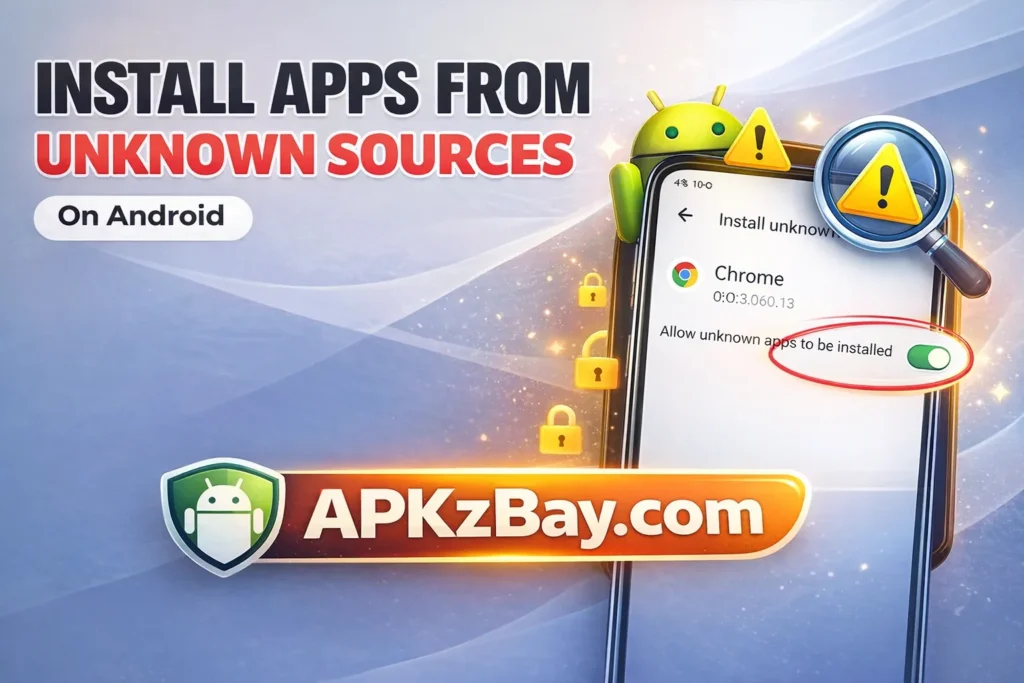
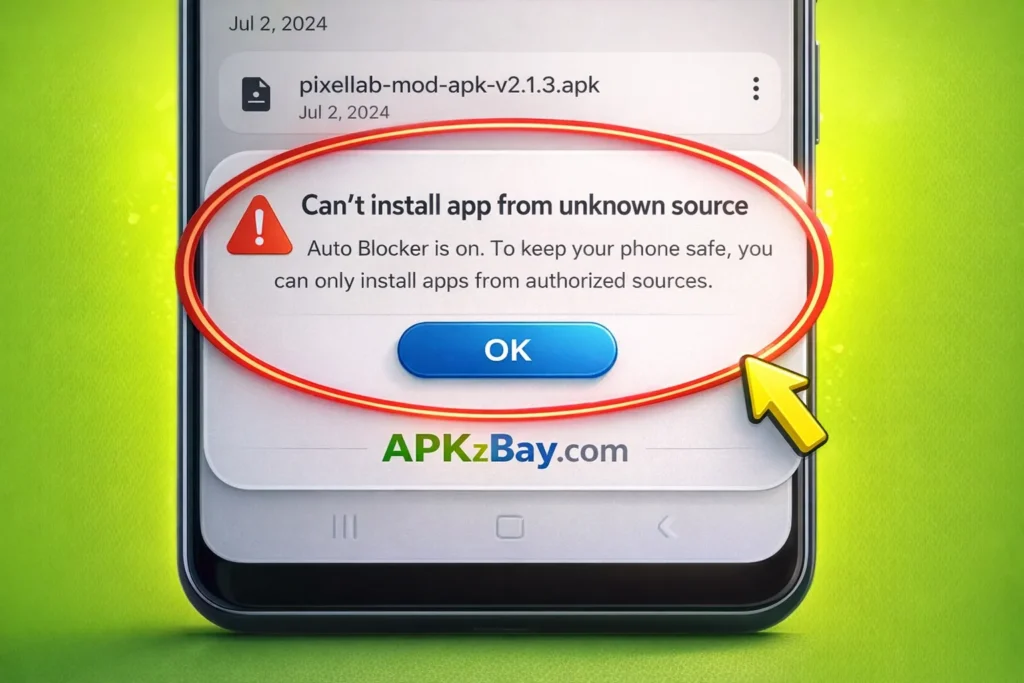
On Samsung phones, for example, Auto Blocker on One UI 6 can stop sideloading completely. On managed phones, a work profile or admin policy may block unknown app installs at the device or profile level. Add low storage, a corrupted download, a non-installable AAB file, or a mismatched app signature, and you get the perfect recipe for an installer that just sits there spinning. (StatCounter Global Stats)
What “Install Unknown Apps” Really Means on Modern Android
A lot of confusion comes from the phrase itself. People search for how to allow unknown sources on android, but on current Android versions the system is more precise than that. Since Android 8.0, the old global Unknown sources setting is no longer the main model. Instead, Android expects you to approve the specific app that is trying to launch the installation.
So if you downloaded an APK in Chrome, you need to allow Chrome. If you opened it from Samsung My Files, you need to allow My Files. If you are using a third-party file manager, that file manager needs its own permission. That is why users often say, “I already enabled it,” while the installer still refuses to move. They enabled the wrong app, not the actual source of the install request.
This also explains why install unknown apps permission can feel inconsistent from one device to another. Samsung tells users to search for Install unknown apps in Settings and then choose the source app, such as Chrome. Android Developers describes the same per-source behavior at the platform level. In plain English, the permission is attached to the doorway, not the package itself. You are not telling Android, “Let me install anything.” You are telling Android, “Trust this particular app enough to present app installs.” Once you understand that, the troubleshooting path gets much easier because you stop flipping random switches and start checking the actual app that downloaded or opened the APK. (Samsung au)
Why the Installer Gets Stuck on Processing
When the installer is stuck, Android is usually waiting on one of several checks. The source app might not have permission. Google Play Protect might be scanning the app or warning that it may be unsafe. A Samsung device may have Auto Blocker enabled, which prevents apps from unauthorized sources from being installed. A company work profile or mobile-device-management rule may be enforcing DISALLOW_INSTALL_UNKNOWN_SOURCES.
The phone may also be low on internal storage, and Google says low space can stop apps from downloading and installing. Then there is the file itself: some users try to install an AAB bundle directly even though Android Developers says app bundles are for publishing and cannot be installed directly on devices; others download the wrong APK build for their Android version, CPU architecture, or package signature. Each of these causes can look identical on the surface: the spinner appears, the install panel opens, and then nothing useful happens. (Google Help)
The security layer is especially important. Google Play Protect checks apps when you install them and can warn, disable, block, or even remove a harmful app. Samsung’s support pages add another twist: when you try to sideload on Galaxy devices, the phone may offer Google’s app inspection for security, and Samsung notes that this option can still prevent the install until you retry. Think of it like airport security: permission gets you into the terminal, but screening still happens before boarding.
So when people search install unknown apps blocked or complain about an unknown error app, they are often dealing with a security review rather than a broken permission menu. That is why the right fix is not always “turn it on again.” Sometimes the system is deliberately pausing or rejecting the install because the file, source, or device state looks risky.
File issues are just as common as permission issues. Google Play Help says that less than 1 GB available can stop downloads and installs. Samsung also advises checking internal storage when apps will not install. Android Developers adds two more clues: every APK must be cryptographically signed to be installable, and app updates must match the same signing key holder.
On top of that, app bundles are not directly installable, and devices can fail on wrong variants if the APK does not match the phone’s supported features or ABI. So if you are wondering why is my downloaded apk not installing or when i install an apk why does it say that the app is not installed, the answer may be a damaged file, the wrong package variant, an unsigned or improperly signed build, or an update conflict with an already installed version.
Beginner Tips Before You Change Any Settings
Before you start hammering toggles in every settings menu, slow down and check the basics. A stuck installer can make people act like they are fixing a flat tire by kicking the whole car. Start by identifying which app opened the APK. Was it Chrome, Telegram, Downloads, My Files, Files by Google, or a file manager? That app is the one that needs the Install unknown apps permission.
After that, check storage, because Google explicitly says low space can stop installs, and restart the phone because Android Help still recommends restart-and-update as a first-line fix for many app problems. On modified devices, also verify Play Protect certification status, because Google says non-certified, rooted, modded, or bootloader-unlocked devices may have app and feature issues.
A simple beginner checklist helps more than most people expect:
- Confirm the source app that downloaded or opened the APK.
- Search Settings for “Install unknown apps” and enable only that source.
- Check internal storage and free space if you are low.
- Restart the phone before retrying.
- Update Android if a system update is pending.
- Check whether the file is really an APK, not an AAB or broken archive.
- Look for Samsung Auto Blocker or a work profile restriction.
- Avoid random installer utilities if the default package installer is available.
That checklist works because it follows the path Android itself uses: source permission, security check, storage check, package validation, and device policy. For beginners, that is the fastest route from panic to diagnosis. For professionals, it is the same route, just with fewer guesses and more certainty.
Comparison Table: Symptom, Likely Cause, and Best Fix
The table below condenses the most common sideloading failures into a beginner-friendly map. It is based on current guidance from Android Developers, Google Play Help, Android Help, Android Enterprise documentation, and Samsung Support.
| Symptom | Most Likely Cause | What to Check First | Best Fix |
|---|---|---|---|
| Install unknown apps stuck on Processing | Source app not approved | Which app opened the APK | Enable permission for that exact source app |
| Install unknown apps blocked on Samsung | Auto Blocker enabled | Settings > Security and privacy | Turn off Auto Blocker, then retry |
| APK opens but shows App not installed | Wrong APK variant or signature conflict | Existing app version, Android version, ABI | Download the correct APK or uninstall conflicting version |
| Setting is enabled but install still pauses | Play Protect scanning or warning | Play Protect prompt or security popup | Review the warning and retry only if the source is trusted |
| Install unknown apps Android 11 greyed out | Work profile or admin restriction | Work account, MDM, company phone status | Remove/disable restriction or use an unmanaged device |
| Downloaded file will not install at all | Corrupted file, low storage, or wrong file type | Storage, file size, extension | Re-download, free space, and make sure it is an actual APK |
| Device behaves strangely during install | Non-certified, rooted, or modified device | Play Protect certification | Restore certified state or update system software |
One nice thing about this table is that it keeps you from treating every failure the same way. A permission issue and a bad APK can look almost identical, but they require totally different fixes. That is why random trial and error wastes so much time. A cleaner method is to match the symptom to the checkpoint where Android is likely getting stuck. Once you know the checkpoint, the answer usually stops being mysterious and starts being mechanical.
Step-by-Step Fixes That Usually Work
Here is the fix sequence that works most often because it follows official Android and Samsung guidance instead of internet folklore. First, reopen the APK from the same app you originally used. Second, search your settings for Install unknown apps and grant access to that source app only. Third, if you are on a Samsung phone, check Auto Blocker and turn it off temporarily if you trust the file.
Fourth, watch for a Play Protect prompt because the system may still scan or pause the install. Fifth, confirm you have enough internal storage. Sixth, restart the device. Seventh, update Android if an update is available. Eighth, re-download the APK if the file may be incomplete. Ninth, confirm the file is really an .apk, not an .aab, split package, or broken archive. Tenth, if the app was already installed before, check whether a conflicting version or signature mismatch is causing the application apk error unable to install problem.
A practical sequence looks like this:
- Identify the source app.
- Allow that source under Install unknown apps.
- Disable Samsung Auto Blocker if applicable.
- Review Play Protect warnings carefully.
- Free storage space and retry.
- Restart the phone.
- Download the file again from a trusted source.
- Check the file format and variant.
- Remove conflicting older versions only if you understand the impact.
- Try the default file app or package installer instead of a random installer utility.
For readers who regularly sideload, these guides may help keep the process cleaner and safer: installing an APK from CX File Explorer on Android, installing an APK from the My Files app on Android, and installing APKs without errors on Android. They fit well into this troubleshooting flow because the real trick is not brute force. It is using the right source app, the right permission, and the right file. (Samsung au)
Fixes for Samsung Phones
If you are specifically searching why is install unknown apps stuck on processing on android samsung, Samsung’s own support pages point to the biggest clue: Auto Blocker. On Galaxy devices running One UI 6.0, Auto Blocker can prevent installation from unauthorized sources altogether. Samsung also says the Install unknown apps permission must be enabled for the source app, such as Chrome, and notes that Google’s security inspection can still interfere until you retry. That makes Samsung devices a little more layered than some stock Android phones. You are not just dealing with the base Android sideloading model; you are also dealing with Samsung’s extra security wrapper.
The best Samsung workflow is straightforward. Search Settings for Install unknown apps, open it, choose the source app, and enable it. Then go to Settings > Security and privacy > Auto Blocker and check whether it is on. If it is, disable it only long enough to install from a source you actually trust, then turn it back on afterward. This is the practical middle ground between convenience and security. It respects Samsung’s caution without trapping you in a permanent “Processing” loop. If you skip the Auto Blocker check, you can waste a lot of time thinking the file manager is broken when the real answer is sitting quietly in Samsung’s security menu.
Fixes for Pixel, Stock Android, and Other Brands
On Pixel and many stock-like Android phones, the problem usually comes down to one of three things: the wrong source app was approved, Play Protect is reviewing the app, or the device is under some kind of restriction. Android’s official guidance still centers on per-source installs on Android 8.0 and later, so the first move is always to identify the app that launched the installation. If the permission menu is greyed out or refuses to stay enabled, start thinking about admin policies, work profiles, or device integrity issues instead of ordinary user settings. Android Enterprise documentation is explicit that admins can block apps from unknown sources, and work-profile admins can even enforce broader restrictions.
That is why install unknown apps android 11 greyed out often has nothing to do with Android 11 being broken. It is usually policy, not a bug. A work account, family control profile, enterprise management tool, or non-certified device state can lock the setting down. Google also says that non-certified devices may not work correctly and that rooted, modded, or bootloader-unlocked phones are common causes of certification failures. So if the switch looks dead, do not keep tapping it like a broken elevator button. Check whether the phone is managed, whether the work profile still exists, whether the device is Play Protect certified, and whether the system has been modified. Those checks save hours of frustration.
Tips for Choosing a Safe APK Source
Choosing the right APK source matters just as much as fixing the permission menu. Android and Samsung both frame sideloading as a security-sensitive action, and Google Play Protect actively scans apps during installation. That does not mean every APK is dangerous, but it does mean every APK should be treated like a file that needs identity papers. You want the correct package name, the correct version, the correct Android requirement, and the correct build type. You also want to avoid files that are really AAB bundles, because Android Developers says AAB files are publishing formats and cannot be installed directly on devices. A surprising number of “stuck on processing” complaints begin with the wrong file type from the start.
Here is the safest way to choose:
- Pick a source that clearly labels APK vs AAB.
- Check whether the file matches your Android version.
- Check whether the file matches your architecture or device variant when relevant.
- Avoid “mystery installer” apps unless there is a real need.
- Prefer files that are clearly versioned and consistently packaged.
- Be extra careful if the app is an update to something already installed, because Android requires updates to match the existing signing key.
- Turn the install permission back off later if you do not regularly sideload from that app.
That approach reduces both security risk and technical failure. It also helps you avoid the classic trap behind unknown app installer apk tools: they often add one more variable when the default installer was already good enough. For visual walkthroughs and updates from APKzBay, readers can also keep an eye on YouTube, Instagram, Pinterest, Facebook, Telegram, X, and the WhatsApp Channel. (Android Developers)
Pros and Cons of Installing APKs Outside the Play Store
Sideloading has real advantages, and pretending otherwise would make this article less useful. It can help you install apps that are not available in your region, test updates earlier, restore older versions, or use files shared by a developer outside Google Play. It also gives advanced users more flexibility, which is part of Android’s long-standing appeal. That flexibility is the open road. You are not limited to one gate. For developers, testers, and power users, that matters a lot. Android itself supports alternative distribution, but it pairs that freedom with user opt-in and security checks for a reason.
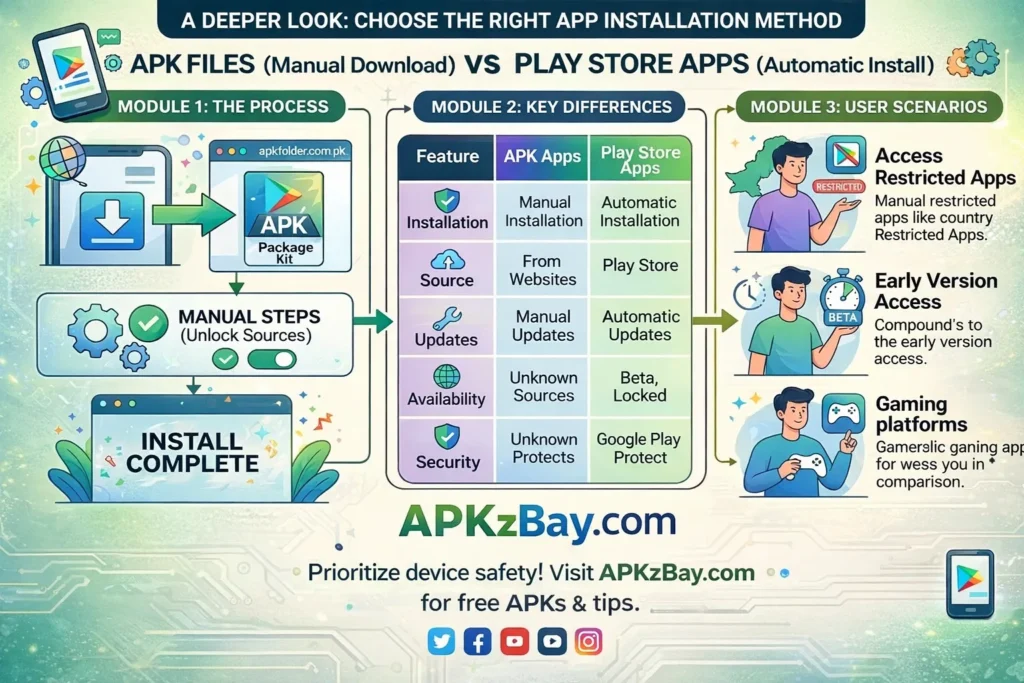
The downsides are just as real. Unknown-source installs increase risk, Play Protect may flag them, Samsung Auto Blocker may stop them, enterprise policies may forbid them, and bad packages can simply fail to install. Even when the APK is harmless, the technical details still matter: storage, signatures, architecture, package ownership, certification, and version compatibility can all break the process. So the honest answer is that sideloading is powerful but not casual. It is a useful tool, not a toy. Use it the way you would use a sharp kitchen knife: confidently, carefully, and only when you know what you are cutting.
Conclusion
The reason install unknown apps gets stuck on Processing is usually a checkpoint problem, not a mystery problem. Modern Android checks the source app permission, then the security layer, then the device policy, and finally the package itself. Samsung adds Auto Blocker, enterprise devices add admin restrictions, Google Play Protect adds security review, and low storage or bad package files add one more layer of failure. Once you understand that chain, the issue becomes much easier to solve because you stop looking for one magic switch and start following the actual install path.
So the practical fix is simple: identify the source app, allow that source, check Auto Blocker if you are on Samsung, review any Play Protect warning, confirm storage, restart, and make sure the file is a valid APK that matches your device. That process answers nearly every version of this question, whether the search is why is install unknown apps stuck on processing on android, why is my downloaded apk not installing, or when i install an apk why does it say that the app is not installed. Once you treat the installer like a series of locked doors instead of a single broken button, the solution usually appears very quickly.
FAQs
1. Why is install unknown apps stuck on processing on Android Samsung?
On Samsung phones, the most common extra cause is Auto Blocker. Samsung says Auto Blocker can stop installs from unauthorized sources, and Galaxy phones also require the Install unknown apps permission for the exact source app, such as Chrome or My Files. Samsung additionally notes that Google’s app inspection can still pause the process even after permission is enabled. That is why Galaxy devices sometimes feel like they are ignoring your settings when they are actually following multiple security layers at once.
2. How do I turn off install unknown apps on Android after I finish installing?
On modern Android, this is usually done per source app rather than with one global switch. Search your Settings app for Install unknown apps, open the menu, tap the source app you previously allowed, and turn the permission off. Samsung’s support flow follows this same source-based method. Turning it off when you are done is a smart cleanup step because it reduces the chance that a browser, file manager, or messaging app can unexpectedly launch future sideload installs. (Samsung au)
3. Why is my downloaded APK not installing even when permission is enabled?
Because permission is only one piece of the puzzle. Google says low storage can stop installs, Android requires APKs to be properly signed, app updates need to match the same signing key, and Android App Bundles cannot be installed directly like APKs. So the file may be corrupted, incomplete, incompatible with your Android version or CPU variant, or packaged in the wrong format. A permission toggle can open the door, but it cannot repair a damaged or wrong file. (Google Help)
4. Why is install unknown apps Android 11 greyed out?
A greyed-out setting usually points to policy or device state, not a normal user mistake. Android Enterprise documentation says admins can block unknown-source installs, including on work profiles and managed devices. Google also says non-certified, rooted, modded, or bootloader-unlocked devices can run into integrity and compatibility issues. So if the option is disabled, check for a work profile, family or enterprise management, or a device-certification problem before assuming Android 11 itself is at fault.
5. When I install an APK, why does it say the app is not installed?
That message usually means the package failed validation even though the installer opened. Common causes include a signature mismatch with an already installed version, the wrong APK variant for your device, a corrupted download, low storage, or trying to install a format that is not directly installable. Android’s signing rules matter a lot here, especially for updates. So when you see application apk error unable to install, think file integrity, package identity, and device compatibility before thinking permission alone.
Related apps


Recent Posts
- Allow Unknown Apps for Documents App Android: Safe Ways to Install APKs on Modern Phones

- Allow Unknown Apps for Mac Transfer Android: Complete Beginner-Friendly Guide
- APK Downloaded in CX File Explorer Not Installing FIx? Here’s the Fix for Android, Huawei, Quest 2, and Quest 3
- Why Is Install Unknown Apps Stuck on Processing on Android?
- How to Install APK from CX File Explorer on Android
- How to Install APK from My Files App on Android: A Complete Beginner-Friendly Guide
- How to Install APK Without Errors Android Guide
- How to Install APK After Downloading ZIP File
- This App Is Not Compatible With This Device Problem Solution
- How to Prevent Installing Harmful Apps
- How to Access Android Data Folder with Shizuku: Complete No-Root Guide
- How to Install APK on Amazon Fire Tablet Safely and Easily