
Getting an APK through Signal is convenient, especially when a developer, friend, colleague, or tester sends you a file directly in chat. But convenience does not remove Android’s security checks. If you want to learn how to install apk from signal attachment on android, the process is straightforward once you understand two things: where Signal stores the file, and which app Android treats as the “source” for installation.
Android blocks installs from non-Play sources until you explicitly allow them, and Google also warns that apps from outside trusted stores can put your data and device at risk. Signal, on the other hand, gives you built-in ways to view attachments and save files outside the app, which makes the process easier when a direct tap does not work. Samsung phones add one more layer with Galaxy security settings and Auto Blocker, which can stop installation from unauthorized sources altogether.
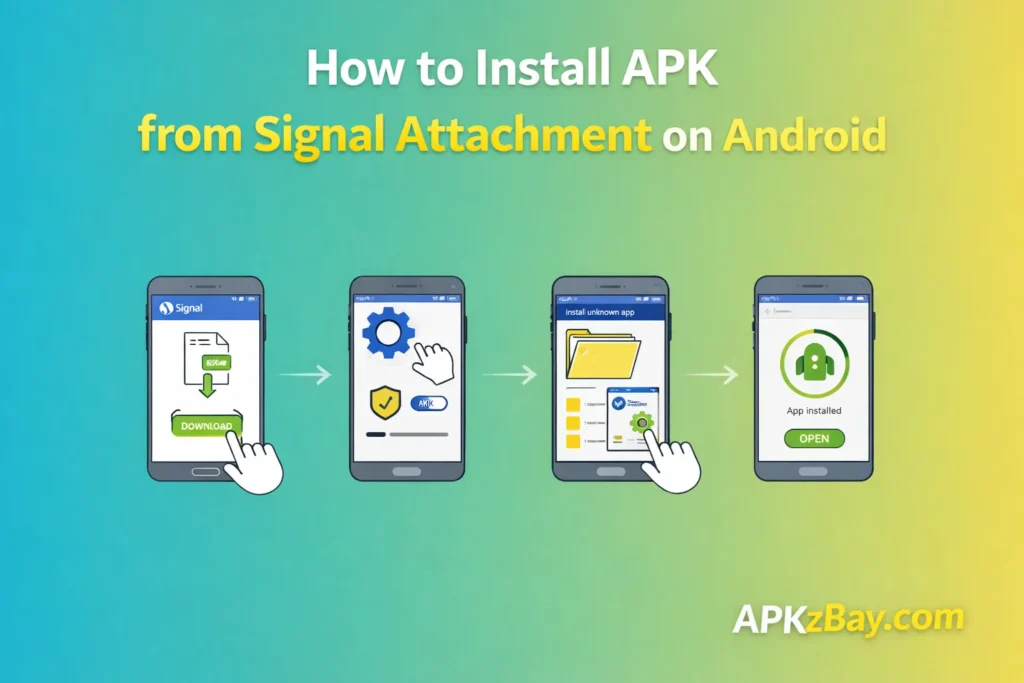
This guide explains the safest and easiest method from start to finish. You will learn when to install directly from Signal, when to save the file first and use Files or My Files, what to do on Samsung devices, and how to avoid common mistakes. I will also compare this method with other sideloading options so you can choose the one that fits your workflow best. If you regularly test apps or receive private builds from trusted contacts, this walkthrough will help you do it cleanly without confusion or unnecessary risk.
What This Guide Covers
This article is specifically about a standard APK attachment sent through Signal on Android. It assumes:
- You are using an Android phone or tablet
- The file sent to you is a normal
.apkfile - You want a beginner-friendly but detailed method
- You want a safe process that works on regular Android phones and Samsung Galaxy devices
It does not assume the file is automatically safe just because it came through Signal. Android still treats it as an app from outside Google Play, so the same security rules apply.
Why People Install APKs from Signal
There are several real-world reasons this method is common:
- A developer sends you a beta build
- A friend shares a private utility app
- A team member sends a test version in a chat thread
- You want a fast one-to-one transfer without email clutter
- You need to install a file that is not published on Google Play
Signal is useful here because it lets you view files in a chat and also save them outside the app when needed. That flexibility matters because some phones install more smoothly from a file manager than from a messaging app.
Beginner Tips Before You Start
Before you tap Install, take a minute to avoid the mistakes that cause most problems.
1. Only use trusted senders
A secure messaging app does not automatically make the APK itself safe. The sender could still share a modified, broken, outdated, or malicious file. If you were not expecting the app, verify the file with the sender first.
2. Confirm it is really an APK
Check the filename extension. A true APK should end in .apk. If it is something else, such as a document, archive, or app bundle format, this guide may not apply.
3. Keep Play Protect on
Google says Play Protect is on by default and recommends keeping it enabled. It can scan apps during install and may warn, block, disable, or remove potentially harmful apps.
4. Expect a permission prompt
Android blocks installs from unknown sources until you opt in for the relevant source app. That is normal behavior, not an error.
5. Save the file first if direct install fails
Signal officially lets you save files outside the app. In many cases, saving first and opening the APK from Files or My Files is the cleanest method.
6. Samsung users should check Auto Blocker
On Galaxy devices, Samsung says Auto Blocker can prevent installations from unauthorized sources and may disable the “Install unknown apps” menu until it is turned off.
Comparison Table
| Method | Best For | Difficulty | Security Friction | Reliability | Notes |
|---|---|---|---|---|---|
| Install directly from Signal | Quick one-off installs | Easy | Medium | Medium | Fast, but some phones prefer installing from a file manager |
| Save from Signal, then install from Files/My Files | Most users | Easy | Medium | High | Usually the best balance of control and simplicity |
| Install from USB transfer | Users moving files from PC to phone | Medium | Medium | High | Great when the APK is already on your computer |
| Install from network shared folder | Advanced users or home/work networks | Medium to High | Medium | Medium to High | Convenient for repeat access on the same network |
The table reflects Android’s per-source install model, Signal’s file-saving workflow, and the fact that Samsung Galaxy devices may add an extra blocker for unknown app sources.
If you want to compare this method with other sideloading options, read how to install APK from USB cable transfer on Android and how to install APK from a network shared folder on Android.
How to Install APK from Signal Attachment on Android
Method 1: Install Directly from Signal
This is the fastest approach and may work on many phones.
Step 1: Open the Signal chat
Open the conversation where the APK was sent. Find the file attachment and tap it to download it fully if needed.
Step 2: Tap the APK
Once the file is available, tap it. Android may open an installer prompt or show a warning that installation from this source is not currently allowed.
Step 3: Allow the source app if prompted
Android’s current install model works per source. That means the phone may ask you to allow installation from the app you are using at that moment. Android’s official developer guidance says users grant permission for a particular source to install unknown apps.
If you see a prompt, follow it and allow the installation source for this session or source app.
Step 4: Review the installer screen
Before pressing Install, check that:
- The app name looks correct
- The icon matches what you expect
- The sender told you the same version name or build
- Nothing looks suspicious or mismatched
Step 5: Tap Install
If the phone accepts the source and the APK is valid, installation should begin.
When this direct method works best
Use direct installation from Signal when:
- The APK came from a trusted sender
- You only need a quick one-time install
- The phone shows the installer without errors
- You do not need to manually organize the file first
When to skip direct install
Move to the next method if:
- Nothing happens when you tap the file
- Android says the source is blocked
- The file opens but installation fails
- You want more control over where the file is stored
Method 2: Save the Signal Attachment First, Then Install It from Files
For most users, this is the best method.
Signal officially supports saving files outside the app. You can open a chat, go into the chat settings, view shared files, and tap Save. Signal also lets you review attachments across all chats from Profile > Data and Storage > Manage storage > Review storage, then select files and save them outside Signal.
Step 1: Save the APK outside Signal
You can use either of these Signal-supported paths on Android:
From a specific chat
- Open the chat
- Tap the contact name
- Open shared media
- Switch to Files if needed
- Select the APK
- Tap Save
From Signal storage management
- Open Signal
- Tap your profile
- Go to Data and Storage
- Tap Manage storage
- Tap Review storage
- Select Files or All
- Tap and hold the APK
- Tap Save and confirm Yes to save it outside Signal (Signal Support)
Step 2: Open your file manager
After saving, go to your Android file manager. Depending on your phone, this may be:
- Files
- My Files
- File Manager
- Downloads
Step 3: Find the saved APK
Look in likely folders such as:
- Downloads
- Documents
- A Signal-related folder
- The folder you selected during save
Step 4: Tap the APK from the file manager
This is where many installs become easier. Instead of Signal acting as the source, the file manager becomes the source app that launches the installer.
Step 5: Allow “Install unknown apps” for that source
Android blocks installs from unknown apps until you opt in. The setting is tied to the source app. So if you launch the APK from Files or My Files, that source may need permission instead of Signal. Android’s official guidance confirms that the opt-in is source-specific.
Step 6: Install the app
Tap Install after reviewing the package.
Why this method is usually better
Saving first gives you:
- Better control over the file location
- A clearer installation flow
- Easier troubleshooting
- Less confusion about which app needs permission
- A reusable copy of the APK for later
It is also the better method if you are documenting the process for family members, readers, or clients.
How to Install APK from Signal Attachment on Android Samsung
Samsung devices often need one extra check.
Samsung’s official support says Galaxy phones are configured by default to prevent installation from sources other than the Play Store and Galaxy Store. The path Samsung lists is:
Settings > Security and Privacy > More security settings > Install unknown apps
Then choose the source app and enable permission.
Samsung step-by-step
1. Save the APK from Signal if needed
Use the Signal save method described above.
2. Open Settings
Go to Security and privacy.
3. Open More security settings
Tap Install unknown apps. Samsung lists this exact menu path in its help documentation.
4. Choose the correct source
Pick the app you are using to launch the APK, such as:
- My Files
- Files
- Signal, if installing directly from Signal
- A browser, if you downloaded it elsewhere
5. Enable permission
Turn on the switch for that source. Samsung notes that allowing unknown app installation can increase security threats, so use this only for trusted files.
6. Check Auto Blocker if the menu is disabled
Samsung also says Auto Blocker can prevent installation from unauthorized sources and, on some devices, disable the unknown-app menu until Auto Blocker is turned off.
The usual path is:
Settings > Security and privacy > Auto Blocker
If Auto Blocker is stopping the install, temporarily disable the feature, install the trusted APK, and then consider turning it back on afterward. Samsung says Auto Blocker is available on Galaxy devices running One UI 6.0 and protects against unauthorized app sources and related risks.
For a deeper explanation of Android’s permission side of sideloading, read allow unknown apps for Documents app on Android. It pairs well with this guide because the logic is very similar when you install from a saved attachment.
Security Checklist Before You Tap Install
This part matters more than the actual tapping.
Google’s Android Help warns that downloading apps from unknown sources can put your device and personal information at risk. Google Play Protect can also scan apps during install and may warn you or block harmful software.
Use this checklist every time:
- Confirm the sender is trusted
- Ask what the APK is and why it was sent
- Check the file name carefully
- Avoid APKs from random group chats
- Keep Play Protect enabled
- Save the file first if the install flow feels unclear
- Do not disable security settings longer than necessary
- Remove the APK after installing if you no longer need it
These habits keep sideloading practical without turning it reckless.
Common Problems and Fixes
1. “Install unknown apps” is blocked or grayed out
This usually means one of three things:
- You are changing permission for the wrong source app
- A device policy is controlling installation
- On Samsung, Auto Blocker is active
Samsung’s own support specifically notes that Auto Blocker can disable the install-unknown-apps menu until the feature is turned off.
Fix:
Check which app is opening the APK, then allow that source. On Samsung, review Auto Blocker settings first.
2. The APK downloads in Signal but does not install
This often happens when the file is only being previewed, not launched in a clean installer flow.
Fix:
Save the attachment outside Signal, open Files or My Files, then install from there. Signal officially supports saving files outside the app through chat media and storage review tools.
3. Play Protect warns you
Google says Play Protect checks apps when you install them and can warn, disable, or remove harmful apps.
Fix:
Pause and verify the APK with the sender. Do not rush past the warning unless you are certain the file is legitimate.
4. “App not installed”
Possible reasons include:
- The APK is corrupted
- The file is not compatible with your Android version
- The package conflicts with an existing app
- You received the wrong variant for your device
Fix:
Ask the sender for a fresh copy, confirm device compatibility, and remove older conflicting versions only if you understand the consequences.
5. You cannot find the saved APK
Fix:
Search inside your file manager for the filename. If necessary, go back into Signal and save it again using the storage management path supported by Signal.
Signal Attachment Install vs Other Methods
When people search for how to install apk from signal attachment on android, they are usually looking for the most convenient private-sharing workflow. That does not always mean it is the best method for every situation.
Signal attachment is best when:
- A trusted person sends the file directly
- You need a fast install
- You want private chat-based delivery
- You are testing a build quickly
USB transfer is best when:
- The APK is already on your computer
- You want an offline transfer
- You need to move multiple files
See how to install APK from USB cable transfer on Android for that workflow.
Network shared folder is best when:
- You manage files from a home or office network
- You want repeated access from multiple devices
- You prefer browsing shared storage
See how to install APK from a network shared folder on Android if that setup fits you better. You can also revisit this network shared folder guide later if you decide chat attachments are too limiting.
Pros and Cons
Pros
- Fast and convenient for one-to-one sharing
- Easy for private testing and internal app distribution
- No need to upload the APK to email or cloud storage
- Signal lets you save files outside the app if needed
- Works well when paired with Files or My Files for cleaner installs
Cons
- The sender being trusted does not guarantee the APK is safe
- Android blocks unknown installs by default, so there are extra prompts
- Samsung devices may require extra steps because of Auto Blocker
- Direct installation from a messaging app can be less reliable than using a file manager
- Play Protect may warn or block the file if it looks risky
Best Practice Workflow
If you want the simplest answer to how to install apk from signal attachment on android samsung or any other Android phone, use this routine:
- Receive the APK in Signal
- Verify the sender
- Save the APK outside Signal
- Open Files or My Files
- Tap the APK
- Allow the correct source in Install unknown apps
- Install
- Keep Play Protect on
- Re-enable stricter security settings if you temporarily changed them
That flow is cleaner than forcing everything to happen inside the chat window.
FAQs
1. Can I install an APK directly from Signal on Android?
Yes, sometimes. If Android allows the source app and the file is valid, you may be able to install directly. If that is messy or blocked, save the file outside Signal and open it from Files or My Files instead. Signal officially supports saving files outside the app.
2. Why does Android block APKs from Signal attachments?
Because Android treats them as apps from outside Google Play. Android’s official guidance says users must opt in to allow a particular source to install unknown apps.
3. Is installing an APK from Signal safe?
It can be safe only when the sender and file are trustworthy. Google warns that apps from unknown sources can risk your device and personal information, and Play Protect may scan or warn about them.
4. What should Samsung users do differently?
Samsung users should check both Install unknown apps and Auto Blocker. Samsung says Galaxy phones block outside installs by default, and Auto Blocker can prevent unauthorized-source installs altogether.
5. Which app should I allow under “Install unknown apps”?
Allow the app that is actually launching the APK. That might be Signal if you install directly from chat, or Files/My Files if you saved the APK first. Android’s install permission is source-specific.
6. Should I leave unknown-app installation enabled all the time?
No. For better security, enable it only for the trusted install flow you need and avoid leaving broad sideload permissions open longer than necessary. That advice follows Android’s and Samsung’s security-first approach.
7. What if Play Protect flags the file?
Stop and verify the APK with the sender. Google says Play Protect checks apps during installation and may warn, disable, or remove harmful apps.
Conclusion
Learning how to install apk from signal attachment on android is not difficult once you understand the path Android expects. The short version is simple: receive the APK in Signal, verify the sender, save the file outside Signal when needed, open it from Files or My Files, allow the correct source under Install unknown apps, and install only when the package looks legitimate. On Samsung phones, you may also need to review Auto Blocker before the option becomes available. That combination gives you the best balance of convenience, control, and safety.
For more Android guides and APK tips, you can follow APKzBay on YouTube, Instagram, Pinterest, Facebook, Telegram, X, and the WhatsApp Channel.