
Moving an APK from your computer to your phone with a USB cable is still one of the easiest and most reliable ways to sideload an app on Android. It is fast, works offline, and gives you more control than hunting for the same file again on your phone browser. If you have been searching for how to install apk from usb cable transfer on android, this guide walks you through the full process in a beginner-friendly way.
The basic idea is simple: copy the APK from your PC to your Android device, open it with a file manager, allow installation from that source, and finish the setup. On modern Android, installs from outside Google Play are handled with a per-app permission called Install unknown apps, rather than the old global “Unknown sources” switch. Google also recommends leaving Play Protect on, because it can scan apps and warn you about harmful files, even when they come from outside Play. (Android Developers)
This method is useful when your phone has slow internet, when you already downloaded the APK on your PC, when you want to keep a backup installer, or when you are helping someone install an app without sending links around. It also works well for some Android TV and TV box setups, though the exact menus can vary by brand and model. TCL’s support pages, for example, show standard app installation through Google Play on TCL Android TV and Google TV, while TCL also notes that APK files can be installed after being transferred to the device and opened from a file manager. (TCL Support)
What “How to Install APK from USB Cable Transfer on Android” Really Means
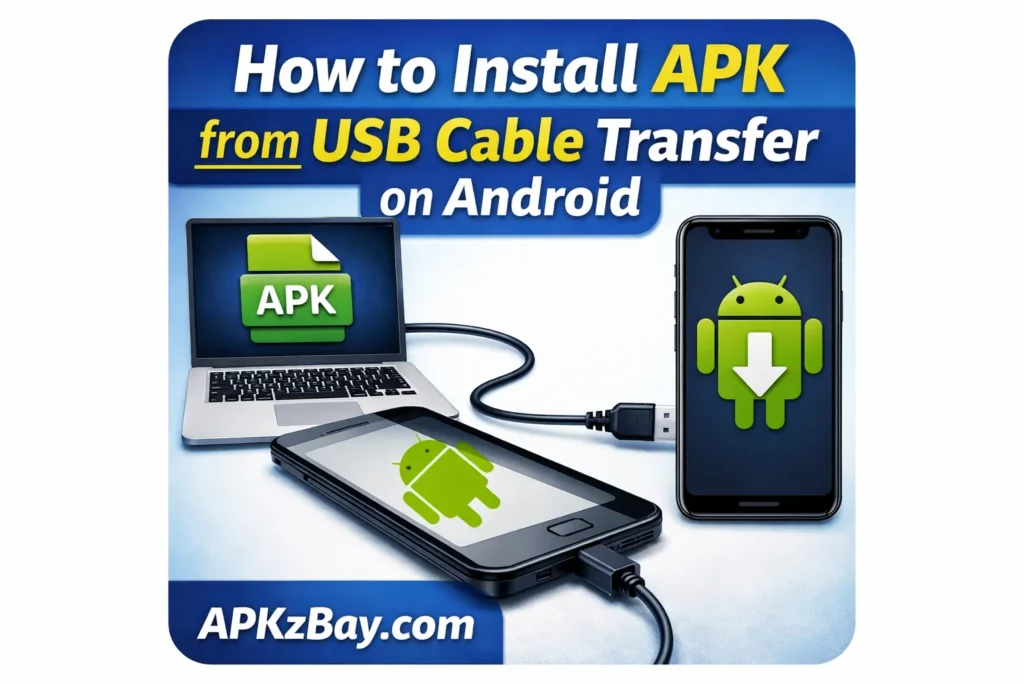
When people use this phrase, they usually mean one of three things:
- They want to know how to install APK from PC to Android
- They want to copy an APK by cable and then install it manually
- They want a safer alternative to downloading the file directly on the phone
In practice, the process looks like this:
- Download the APK on your computer
- Connect the Android phone with a USB data cable
- Change the USB mode to File Transfer
- Copy the APK into a folder like Download
- Open the file on the phone
- Grant permission to install from that source
- Tap Install
Google’s official Android help says that when you connect your phone to a computer by USB, you should unlock the phone, tap the USB notification, choose File Transfer, and then drag files from the computer into the device storage. Google also notes that not all USB cables can transfer files, which explains why some people get stuck at the very first step. (Google Help)
Why This Method Is So Popular?
There are good reasons this method keeps showing up in Android help forums and tech blogs.
First, it is dependable. A direct cable transfer avoids many browser download problems, interrupted Wi-Fi issues, and storage permission pop-ups. Second, it is simple. You can keep the APK on your desktop, copy it in seconds, and install it when needed. Third, it is flexible. The same APK can be archived, moved to another folder, or shared with another Android device later.
It is also useful when you are trying to help parents, kids, or less technical users. Instead of telling them to visit a site, find the file, and deal with browser permissions, you can prepare the file on a PC and just transfer it over. That is one reason searches like how to install app from usb and how to install using apk installer remain common.
The catch is security. Google recommends getting apps from Google Play when possible, and Play Protect can scan apps from outside Play and warn or block when something looks harmful. That means sideloading should be done carefully, with trusted files only.
Step-by-Step: How to Install APK from PC to Android
1) Download the APK on Your Computer
Start by downloading the APK on your PC or laptop. Before you do anything else, make sure the file is from a source you trust. Do not sideload random APKs just because a forum or comment section recommended them.
A good rule is this:
- Only install apps you recognize
- Avoid modified paid apps and suspicious “premium unlocked” files
- Check the version name and file name
- Keep the original file if you may need to reinstall later
If you often move installers from a computer, you may also want to read APKzBay’s guide on allowing unknown apps for Mac transfer on Android, especially if you switch between Windows and Mac workflows.
2) Connect the Phone with a Real Data Cable
Plug your Android phone into your PC using a USB cable. This sounds obvious, but many charging cables only provide power and not data. If your phone charges but never appears in File Explorer or Finder, the cable is the first thing to check.
Google’s official instructions say to unlock the device, connect it, tap the Charging this device via USB notification, and switch the connection to File Transfer. Google also explicitly warns that not every USB cable supports file transfer.
What to do if the phone does not show up
Try these fixes:
- Unlock the phone screen
- Use a different USB cable
- Try another USB port on the PC
- Reconnect and watch for the USB options notification
- Restart the phone and computer if needed
If the device appears only as a charging device, the USB mode is usually the issue.
3) Change USB Mode to File Transfer
On Android, the connection often defaults to charging. You usually need to tap the USB notification and choose File Transfer or MTP.
Once that is enabled, your PC should open a file transfer window or show the device in File Explorer. According to Google’s Android help, that is the point where you can drag files across.
This one setting is the most common reason people fail when trying how to install apk from usb cable transfer on android.
4) Copy the APK to an Easy-to-Find Folder
Now copy the APK into a simple folder on the phone, such as:
- Download
- Documents
- APK
- Installers
For beginners, Download is best because most file managers can find it quickly.
Do not bury the file inside five nested folders unless you enjoy hunting for it later.
5) Open a File Manager on Your Phone
After the transfer finishes, disconnect the phone safely if needed, then open your file manager. That can be:
- Files by Google
- My Files
- File Manager
- The manufacturer’s built-in file app
If you are using a USB flash drive instead of a cable, Google’s Files by Google help says Android devices on Android 7.0 and above can browse and manage files from USB storage devices, and the app will show a USB available notification when the storage is detected.
That is why the overall process for how to install app from usb is very similar whether the APK came from a cable transfer, OTG drive, or external USB disk.
6) Allow Installation from That Source
Here is the part that confuses many users.
On Android 8.0 and later, the old global Unknown sources setting was replaced. Android now asks you to allow installations from a specific source, such as your file manager, browser, or another app. Android Developers says users on Android 8.0+ must go to the Install unknown apps settings screen and enable the Allow app installs option for the source they are using. Older Android versions used the broader Unknown sources setting.
So if you open the APK in Files by Google, Android may prompt you to allow that app to install unknown apps. Turn it on, go back, and continue.
If you need a dedicated walkthrough for this permission screen, check APKzBay’s article on allowing unknown apps for the Documents app on Android.
7) Tap Install
Once the permission is enabled, tap the APK and then tap Install. Android’s package installer will handle the rest.
Depending on the app, the installation might take a few seconds or a little longer. When it finishes, you can choose Open or Done.
That is the whole answer to how to install apk from pc to android in its simplest form.
8) Turn the Permission Back Off if You Want Extra Safety
You do not have to leave the install permission on forever. In fact, many users prefer to turn it back off after sideloading. Android’s per-source permission model makes this easy because you can allow installs only when needed and disable them afterward.
That small step helps reduce accidental installs from the wrong app later.
Advanced Method: Install with ADB Over USB
If you are a power user, developer, or someone who wants a cleaner PC-to-phone workflow, you can install the APK over USB with ADB.
Android Developers describes ADB as a command-line tool that lets your computer communicate with an Android device and perform actions such as installing apps. Android’s command-line guide also shows the install commands adb install path/to/your_app.apk and adb -d install path/to/your_app.apk for a connected physical device.
Basic ADB flow
- Enable Developer options
- Turn on USB debugging
- Connect the phone to the PC
- Authorize the computer on the phone
- Run the install command from your PC
Example command
adb -d install myapp.apk
When ADB is a better choice
- You install test builds often
- You do not want to copy files manually
- The APK is part of a development workflow
- You are troubleshooting a file manager issue
For everyday users, normal file transfer is easier. For advanced users, ADB is faster once set up.
How to Install APK File from USB Disk on TCL Android TV
A lot of readers searching this topic are actually trying to install apps on a TV, not a phone. That is why keywords like how to install apk file from usb disk on tcl android tv, how to connect usb to android tv box, and even the awkward phrase how to install android tv in usb keep appearing.
Here is the important distinction:
- Official app install on TCL Android TV or TCL Google TV is usually through the Google Play Store
- Sideloaded APK install is a more manual process and may vary by model
TCL’s support pages explain the standard Play Store route for Android TV and Google TV devices. TCL also notes in another support article that APK files can be installed after being transferred to the device and opened from a file manager.
General TV sideloading flow
- Copy the APK to a USB drive
- Insert the USB drive into the TV or Android TV box
- Open the TV’s file manager
- Find the APK on the USB storage
- Allow installs from the file manager if prompted
- Run the installer
Tips for Android TV and TV boxes
- Use a file manager that can see external storage
- Keep the APK in the root folder or a clearly named folder
- Use the correct APK build for TV if available
- Expect menu names to vary between Android TV, Google TV, and different TV box brands
Not every phone APK works well on a TV. Some install but are hard to control with a remote, and some depend on Google Mobile Services or touch-only layouts. TCL specifically notes that software dependent on GMS can have partial functionality issues on unsupported devices.
Beginner Tips
If this is your first time sideloading, these tips will save you frustration.
Keep the file name simple
Rename long APK names to something easy like appname.apk. That makes it easier to find on the phone or TV.
Use the Download folder
If you copy the APK into Download, most users can find it quickly without exploring the whole storage tree.
Install one file at a time
Do not move ten similar APK files and then forget which one is correct.
Leave Play Protect enabled
Google says Play Protect is on by default and recommends keeping it on. It checks apps during install and may warn you about potentially harmful apps.
Use the right source permission
If the installer prompt is not appearing, the problem is often the permission for the exact app you are using to open the APK. On Android 8.0+, that permission is source-specific.
Prefer trusted, legal APKs
This is not just a security issue. It also helps keep your site and content AdSense-friendly, because you are clearly guiding users toward legitimate app installation habits rather than pirated software.
For users who prefer not to use a cable at all, APKzBay also has a guide on how to install APK from a network shared folder on Android.
Comparison Table
Here is a practical comparison of the main ways to install APK files outside Google Play.
| Method | Best For | Difficulty | Internet Needed | Needs PC | Speed | Main Limitation |
|---|---|---|---|---|---|---|
| USB cable transfer + file manager | Most phone users | Easy | No | Yes | Fast | Must switch to File Transfer |
| USB flash drive / OTG | Phones and TVs with USB support | Easy | No | Optional | Fast | Requires compatible USB storage |
| ADB over USB | Developers and advanced users | Medium | No | Yes | Very fast | Requires USB debugging setup |
| Download directly on phone | Quick one-off installs | Easy | Yes | No | Medium | Browser permissions and interruptions |
| Network shared folder | Home/office setups | Medium | Yes | Optional | Medium | More steps to connect |
The most beginner-friendly option is still the standard cable transfer. The most efficient advanced option is ADB. The best TV-friendly option is usually USB storage with a file manager.
Tips for Choosing the Right Method
Choosing the best method depends on your device and your goal.
Choose USB cable transfer if:
- The APK is already on your PC
- You want a clean offline install
- You are helping a beginner
- You want the simplest answer to how to install apk from pc to android
Choose a USB disk or OTG drive if:
- Your phone or TV supports external USB storage
- You want to install on Android TV or a TV box
- You do not want to connect directly to a computer
Google’s Files by Google help confirms that Android 7.0+ devices can access USB storage through the app, which makes this route practical on many phones and tablets.
Choose ADB if:
- You install test APKs regularly
- You already use developer tools
- You want to avoid manual file browsing
Android’s developer docs specifically describe ADB as a tool for communicating with a device and installing apps.
Choose network transfer if:
- You move files often across multiple devices
- Your PC and phone are on the same network
- You want to avoid cables completely
For many normal users, though, USB is still the least confusing method.
Pros and Cons
Pros
Fast and offline
Once the APK is on your computer, you do not need to redownload it on the phone.
Good for backups
You can keep older installer versions on your PC.
Easier for beginners than ADB
Most people are more comfortable copying a file than typing commands.
Works on many device types
Phones, tablets, some TV boxes, and many Android TV setups can all use a variation of this method.
Cons
Not every cable supports data
Google explicitly says some USB cables cannot transfer files.
Permission prompts confuse users
Modern Android uses a per-source install setting, which is safer but less obvious for first-time users.
Sideloaded apps can be risky
Play Protect helps, but the safest option is still using official sources whenever possible.
TV compatibility is not guaranteed
A phone APK may install on a TV but still work badly with a remote or a TV layout.
FAQs
1) How do I install APK from PC to Android without internet?
Download the APK on your PC, connect the phone by USB, switch the connection to File Transfer, copy the APK into the phone’s storage, open it with a file manager, allow installs from that source, and tap Install. Google’s Android help confirms the File Transfer workflow, and Android Developers explains the per-source install permission used on Android 8.0 and above.
2) Why is “Install unknown apps” not showing on my phone?
On newer Android versions, the setting is usually tied to the app you are using to open the APK, such as Files, My Files, or your browser. Android Developers says Android 8.0+ uses Install unknown apps per source, while older Android versions used the broader Unknown sources option.
3) Can I install an APK directly from a USB flash drive?
Yes, on many Android devices you can. Google’s Files by Google help says Android 7.0 and above can browse and manage files on USB storage devices. That means you can often open the APK directly from the drive or copy it into internal storage first.
4) How do I install APK file from USB disk on TCL Android TV?
The common method is to copy the APK to a USB drive, insert it into the TV, open a file manager, locate the file, allow installs from that source if prompted, and run the installer. TCL’s support pages document standard app installation on TCL Android TV and TCL Google TV through the Play Store, and TCL also states that APKs can be installed after transferring them to the device and opening them from a file manager.
5) What is the easiest way to install using APK installer tools?
For most people, the easiest “APK installer” is the built-in Android package installer triggered when you tap the APK from a file manager. You do not usually need a separate installer app. The key step is giving your file manager or browser permission to install unknown apps on Android 8.0 and later.
6) Can I transfer APK from PC to iPhone?
You can copy a file to many places, but you generally cannot install an Android APK on an iPhone because iPhone app distribution works differently. Apple says alternative app distribution on iPhone and iPad is available only in certain regions, specifically the EU or Japan, and it uses Apple’s iOS distribution system rather than Android APK packages. That means an APK is not the right installer format for iPhone. This is an inference from Apple’s documented iPhone app distribution rules.
7) Why does my phone say “App not installed”?
Common reasons include:
- The APK is corrupted
- The file is for the wrong Android version or CPU architecture
- You already have a conflicting version installed
- Storage is too low
- The install permission is not enabled for the source
- The app is blocked or flagged for security reasons
Google notes that Play Protect can scan apps during install and may warn, disable, or remove harmful apps. Android also requires the correct per-source install permission on modern versions.
Conclusion
If you wanted a clear answer to how to install apk from usb cable transfer on android, the short version is this: connect your phone with a data-capable USB cable, switch the connection to File Transfer, copy the APK into a folder like Download, open it with a file manager, allow installation from that source, and install the app.
For most users, this is the sweet spot between convenience and control. It is easier than ADB, cleaner than downloading directly on the phone, and often more reliable than trying random wireless methods. Just remember the golden rules: use trusted APKs, keep Play Protect enabled, and turn off the install permission afterward if you do not need it anymore.
For more visual walkthroughs, updates, and Android tips, you can follow APKzBay on YouTube, Instagram, Pinterest, Facebook, Telegram, X, and the WhatsApp Channel.